Running an Event
Prepare the game’s playlist of 27 three-lap Grands Prix using the Event Guide. The collector handles up to four independent rigs; it does not create or advance the game playlist.
Before a driver starts
- Confirm the correct rig shows Listener · On and there are no storage/configuration errors.
- Enter the attendee’s name under Next driver.
- Select Ready. The card becomes papaya and shows Current driver.
- Ask the driver to press A in the game to start.
The collector begins saving and forwarding the attendee’s car at STLG 1, the first starting light. Game payloads before that point, after completion, or without a ready driver are ignored. Health counters may still count incoming traffic.
During a session
The card becomes green while collecting and shows lap, lap time, speed, gear and fastest valid lap. Recording raw .tlm files is optional and separate from normal delivery to Splunk.
If the first light was missed, use Abort / reset, assign the driver again, and restart the race. Do not start an already-running race by entering a name late.
Completing a session
- SEND (Session Ended) changes the card to cyan Awaiting result. Leave the game running through the results screen.
- FinalClassificationData (packet 8) is the final capture boundary. It ends the raw recording and begins saving the result.
- The collector commits the completion locally and queues the Final Classification event and
SessionCompletedsummary. - The card opens for the next driver after local saving succeeds, even if a destination is temporarily offline. The last result stays in the footer row.
A DNF keeps the fastest known valid completed lap before retirement. With no valid completed lap, there is no fastest time. A DNF still waits for Final Classification.
If Final Classification never arrives
There is no 60-second automatic completion fallback in v6. SEND or loss of UDP alone cannot complete a race. Check Logs and the game first. For an abandoned race, use Abort / reset and confirm Abort attempt. This saves an incomplete local outcome and does not emit a completed-race summary.
If the card is saving a received final result, resolve the storage problem and let it finish; abort is blocked while completion is being saved. After a restart, follow the displayed recovery state rather than starting the same heat again blindly.
Recording telemetry
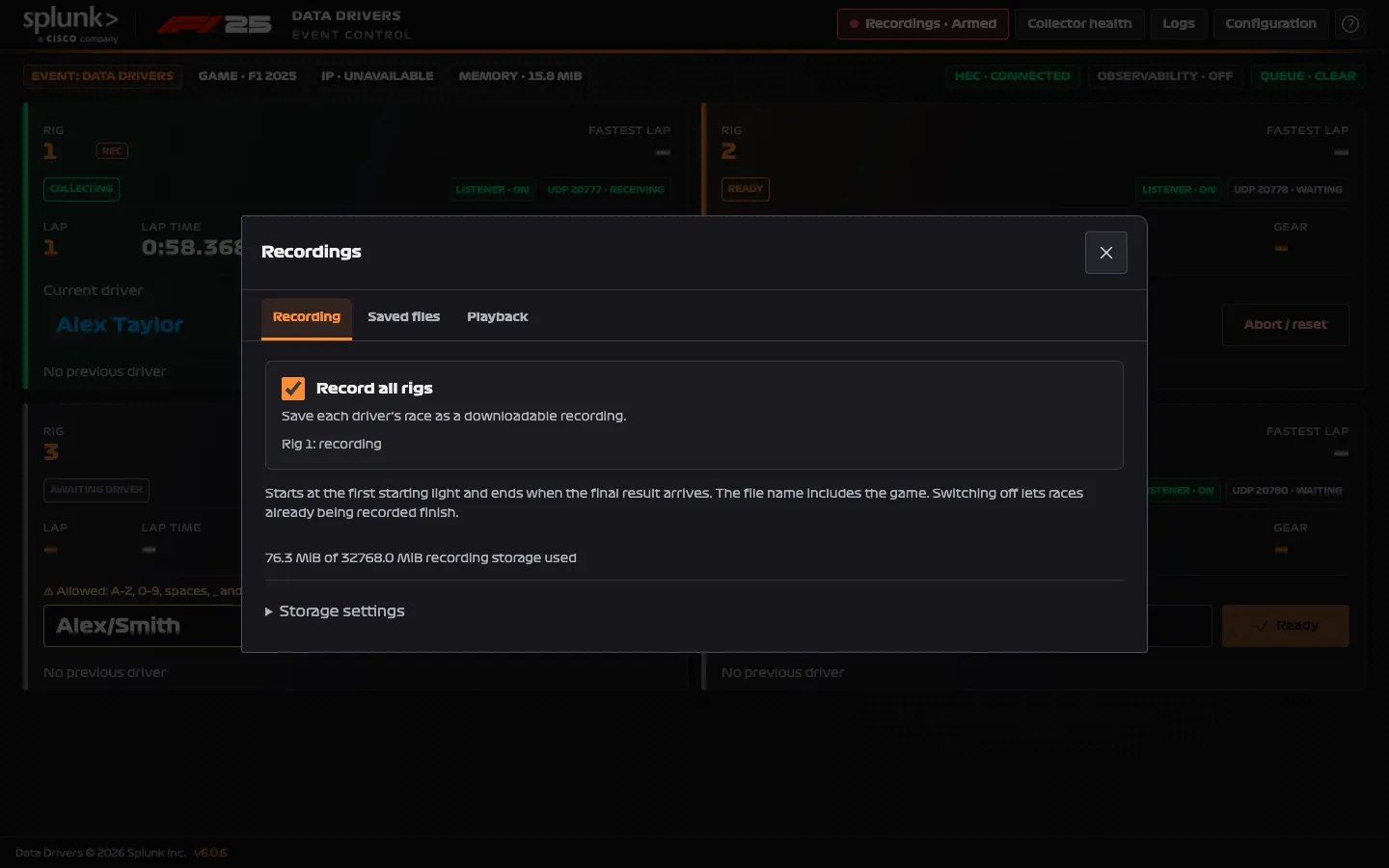
- Open Recordings → Recording and turn on Record all rigs before the next race.
- Assign each driver normally. Every rig writes its own file from accepted STLG 1 through matching Final Classification, including both packets.
- Leave the switch on across driver changes. The prominent armed indicator means the collector is ready to record future races; it does not mean a file is currently being written.
- Turning the switch off lets active recordings finish. Turning it on mid-race applies to the next race.
Abort, shutdown or a recording failure can leave an incomplete diagnostic file. Optional recording failure does not stop normal Splunk delivery. A restart does not resume an open recording.
Saved files, import and export
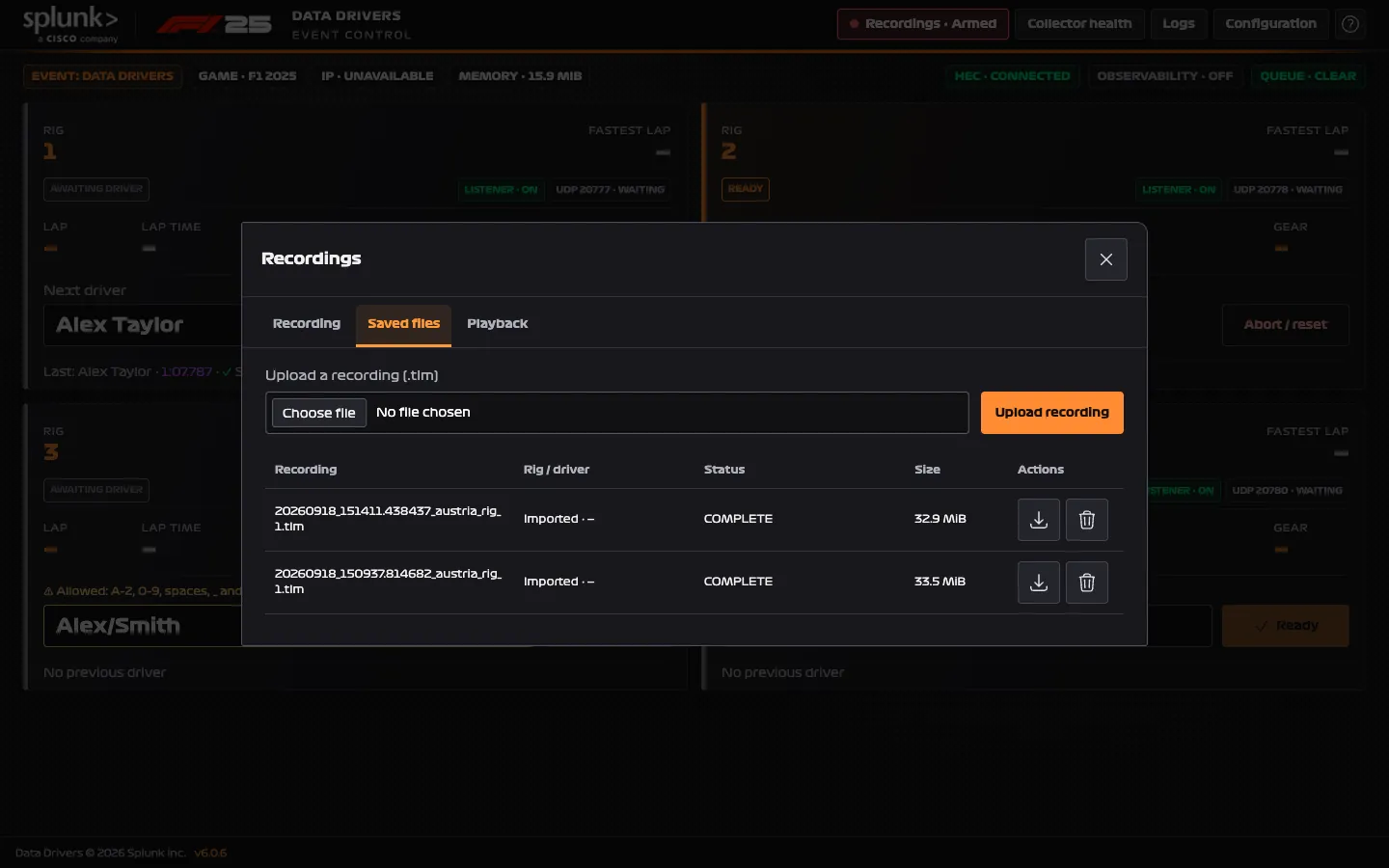
In Recordings → Saved files, use the download icon to export a .tlm, or choose a file and select Upload recording to import recordings. Only complete first-light-to-final-classification races are playable. Incomplete files remain downloadable for investigation. The trash icon deletes a finished file after confirmation; active files are protected.
New race recordings include the assigned driver in their download filename, for example 20260924_143025_Rig_1_Alex_Taylor.tlm. Spaces become underscores in the filename only; the displayed/Splunk name remains Alex Taylor. Existing recordings and imported filenames are unchanged. The name in the filename does not embed driver metadata into the raw packet contents.
Files remain under /data/recordings until deleted. Storage settings default to a 32 GiB library, 500 MiB maximum upload and 1 GiB free-space reserve. Export recordings you need before deleting the Docker volume or terminating a disposable instance. Raw recordings contain original packet arrays, potentially including other cars and in-game names; the separate driver/event metadata is not embedded in the exported file.
Playback
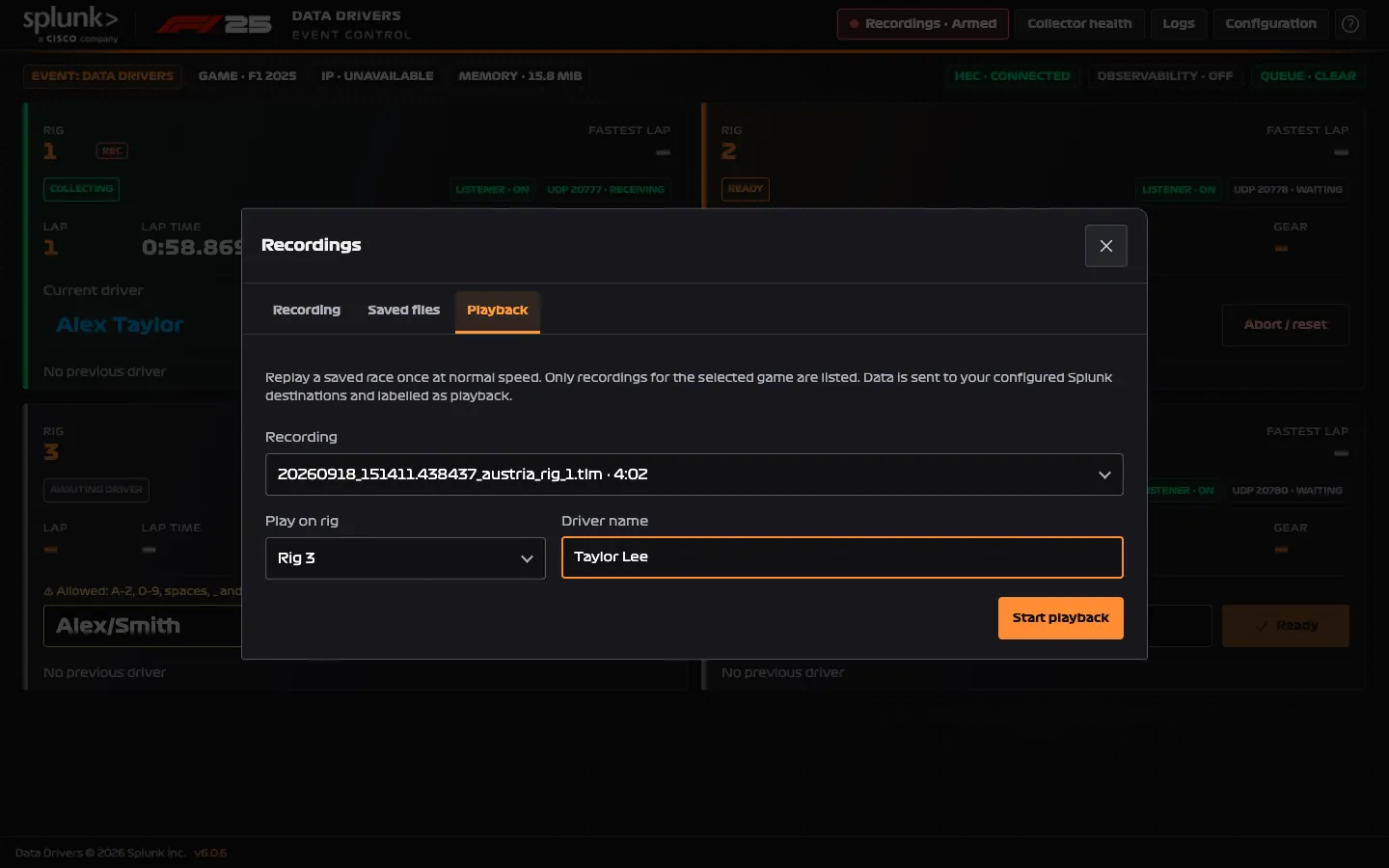
Open Recordings → Playback, choose a saved race, an idle rig and a driver name, then select Start playback. The playback driver name uses the same validation rules as live assignment; Start playback remains disabled for an empty or invalid name. It plays once at 1×, through the configured destinations. Other rigs remain independent. The chosen rig excludes live UDP during playback; playback never creates another recording.
The card shows Source · Playback and elapsed/total time in minutes and seconds. Stop playback aborts an unfinished replay. If Final Classification has already arrived, stopping preserves the completed result while it saves.
Playback uses fresh session identities and labels output data_mode=playback. Existing dashboards include playback unless filtered. Use a test event/destination or exclude playback from conference leaderboards. There is no loop, pause or seek control.
Adding rigs
Before assigning drivers, open Configuration → Rigs, add up to four rigs and save. Match each game’s UDP port to its rig; publish the ports in Docker and allow them through the firewall. Standard assignments are 20777–20780.