F1 2025 Telemetry Configuration
Configure every racing rig to send F1 25 UDPThe network protocol F1 25 uses to send telemetry packets to the collector. Each rig sends to the collector's IP address and its assigned UDP port. telemetry to the collector.
Find the collector address
The collector’s public IP address is shown in the status bar of the Collector page, in the IP pill.
- Splunk Show or cloud deployment: use the public address shown in the status bar.
- Local Docker: use the Docker host’s LAN address, not
localhost, because the game runs on another computer. - Same computer:
127.0.0.1can be used only when F1 25 and the collector run on the same machine.
Configure F1 25
On the racing rig:
- Launch F1 25.
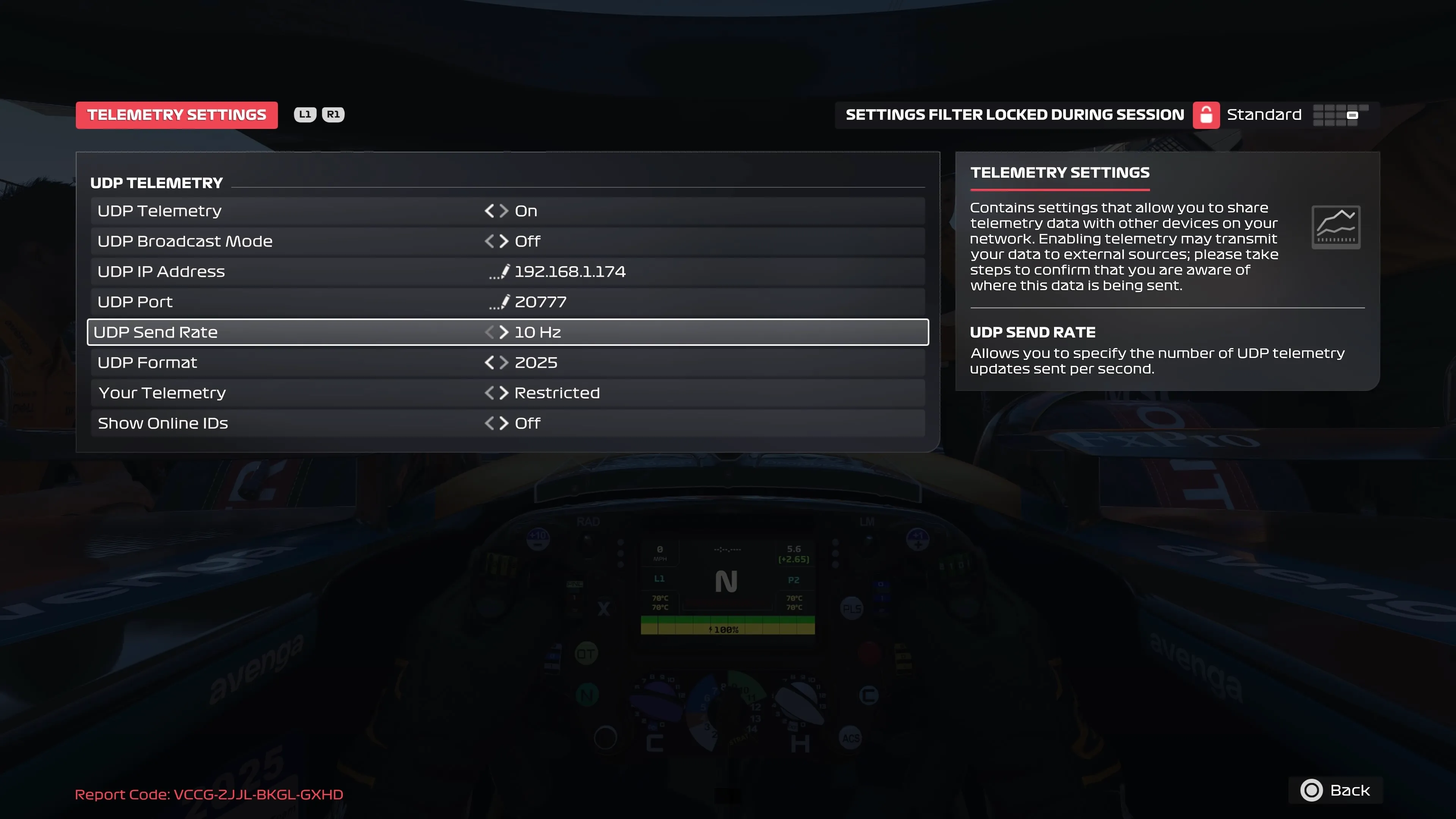
- Open Game Options → Settings → Telemetry Settings.
- Configure:
| Setting | Value |
|---|---|
| UDP Telemetry | On |
| UDP Broadcast Mode | Off |
| UDP IP Address | The collector address |
| UDP Port | 20777 for RIG 1 |
| UDP Send Rate | 10Hz |
| UDP Format | 2025 |
| Your Telemetry | Restricted |
| Show Online IDs | Off |
Multiple rigs
All rigs use the same collector address but a unique UDP port:
| Rig | UDP port |
|---|---|
| RIG 1 | 20777 |
| RIG 2 | 20778 |
| RIG 3 | 20779 |
| RIG 4 | 20780 |
Add the required rigs under Configuration → Rigs before testing, then save. For self-hosted Docker, publish the same UDP ports on the container.
Test the connection
- Confirm Listener · On on the rig card.
- Enter a driver name and select Ready before the first starting light.
- Start a three-lap Grand Prix in the game.
- Confirm Collecting and changing lap, lap time, speed and gear.
- Open Collector health → Rigs and confirm packet counts increase.
- Let the race reach Final Classification, then check the result and your destination dashboards.
A practice session or UDP arriving before Ready can prove network reception, but does not prove race capture. v6 requires the first starting light and a ready driver.
Use the displayed address
Cloud public addresses can change when an instance is replaced. Read the address from the status bar during event setup rather than copying it from an old runbook.
If data does not appear
- Recheck the IP address and assigned port.
- Confirm the collector host firewall allows inbound UDP.
- Confirm the Docker or cloud port mapping exists.
- Make sure UDP Broadcast Mode is Off.
- Confirm the rig is configured and its listener is on.
- Use Monitoring and Troubleshooting to separate UDP and destination problems.