Creating Basic Alerts
Setting Up Basic Alerts in Splunk Enterprise, AppDynamics, and Splunk Observability Cloud
This section covers the creation of basic alerts in Splunk Enterprise, AppDynamics, and Splunk Observability Cloud. These examples focus on simplicity and demonstrating the core concepts. Remember that real-world alerting scenarios often require more complex configurations and thresholds.
1. Splunk Enterprise Alerts
Splunk alerts are triggered by search results that match specific criteria. We’ll create a real-time alert that notifies us when a certain condition is met.
Scenario: Alert when the number of “Invalid user” events in the “main” index exceeds 100 in the last 5 minutes.
Steps:
Create a Search: Start by creating a Splunk search that identifies the events you want to alert on. For example:
Use the time picker to select “Last 15 minutes”".
Configure the Alert:
- Click “Save As” and select “Alert.”
- Give your alert a descriptive name (e.g., “Numerous Invalid User Logins Attempted”).
- Alert type:
- Scheduled: Choose “Scheduled” to evaluate the search on a set schedule. Below scheduled will be the button to select the frequency, select “Run on Cron Schedule”.
- Cron Expression: */15 * * * *
- Triggered when: Select “Number of results” “is greater than” “100.”
- Time Range: Set to “15 minutes.”
- Trigger Actions:
- For this basic example, choose “Add to Triggered Alerts.” In a real-world scenario, you’d configure email notifications, Slack integrations, or other actions.
- Save: Save the alert.
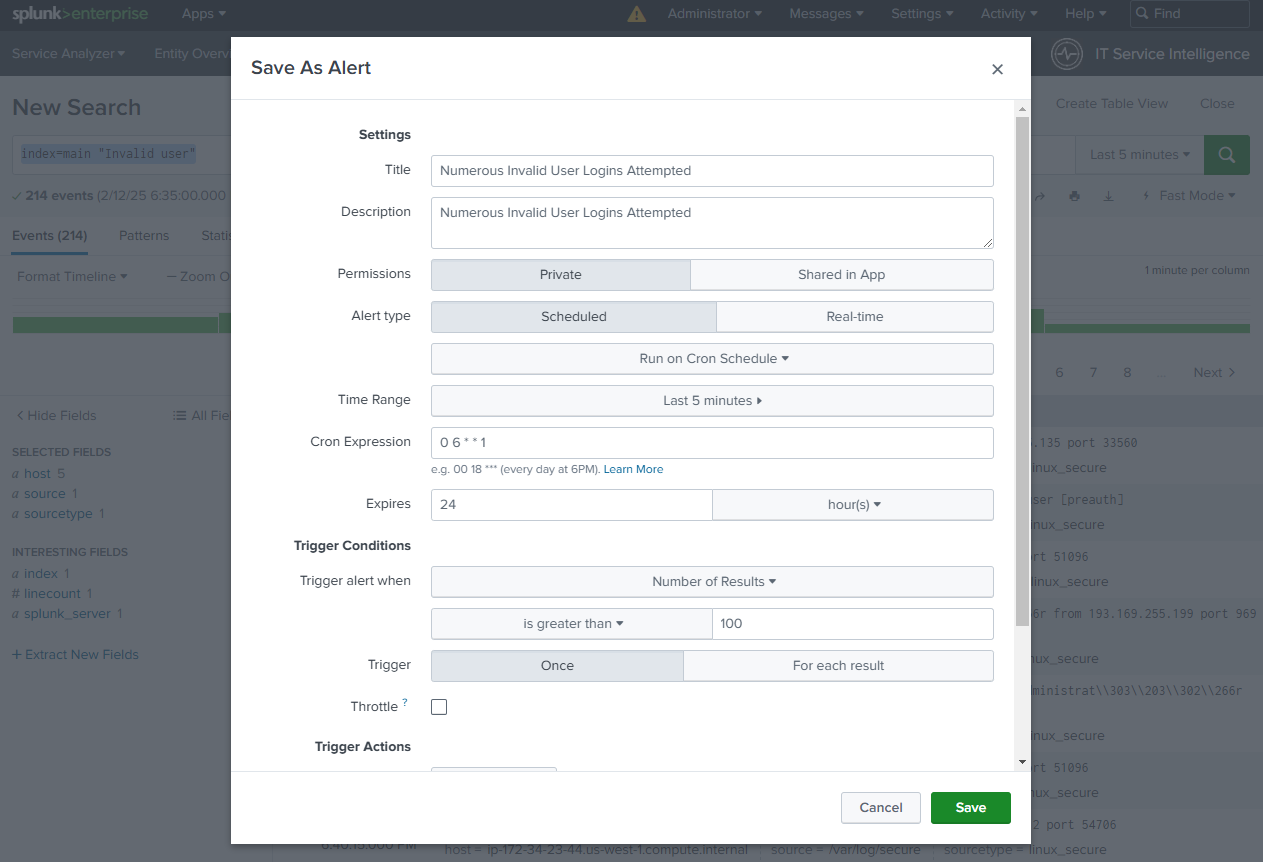
Explanation: This alert runs the search every 15 minutes and triggers if the search returns more than 100 results. The “Add to Triggered Alerts” action simply adds a Alert to the Splunk Triggered Alerts list.
Time Ranges and Frequency: Since everything in Splunk core is a search, you need to consider the search timespan and frequency so that you are not a) searching the same data multiple times with an overlap timespan, b) missing events because of a gap between timespan and frequency, c) running too frequently and adding overhead or d) running too infrequently and experiencing delays in alerting.
2. Splunk Observability Cloud Alerts (Detectors)
Create a Detector:
- Click “Detectors & SLOs” in the lefthand menu
- Click “Create Detector -> Custom Detector”
- Give the detector a descriptive name (e.g., “High CPU Utilization Alert - INITIALS”).
- Signal:
- Select the metric you want to monitor (“cpu.utilization”).
- Add any necessary filters to specify the host (
service.name:otelshop-loadgenerator). - Click “Proceed to Alert Condition”
- Condition:
- Select Static Threshold
- Set the threshold: “is above” “90”
- Notifications:
- For this example, choose a simple notification method (e.g., a test webhook). In a real-world scenario, you would configure integrations with PagerDuty, Slack, or other notification systems.
- Save: Save the detector.
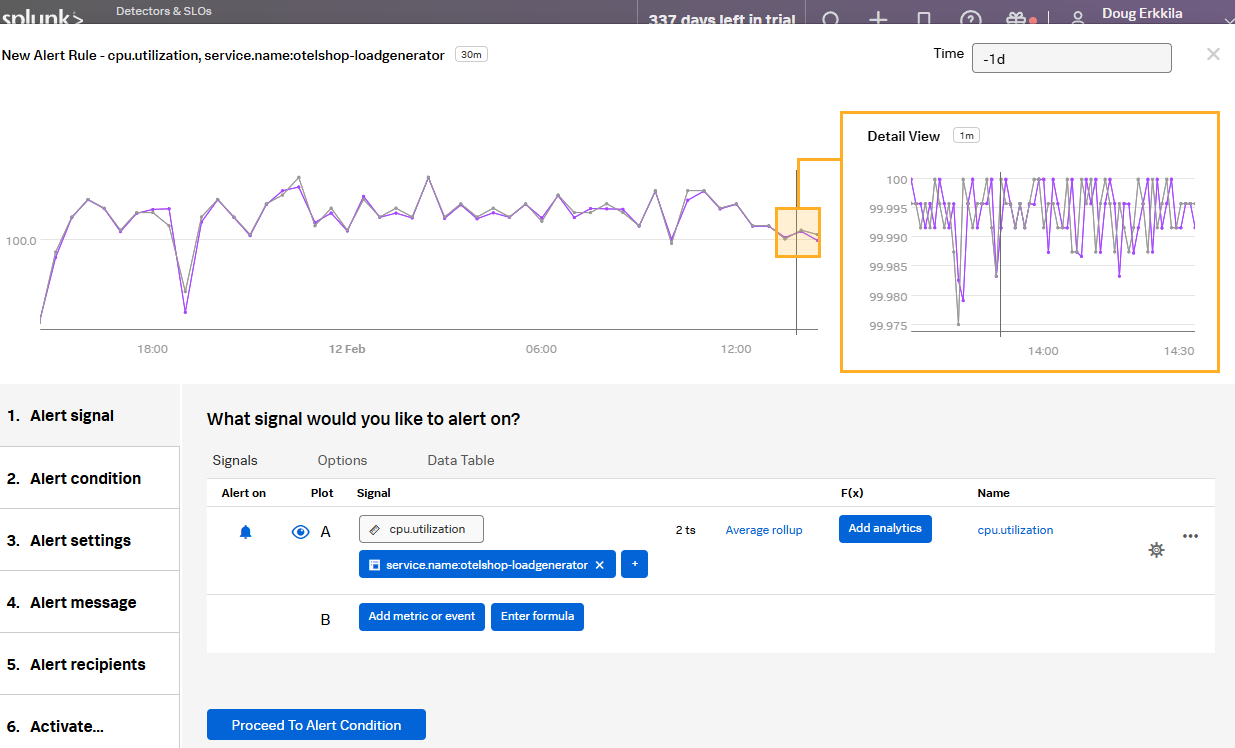
Explanation: This detector monitors the CPU utilization metric for the specified service. If the CPU utilization exceeds 90% for the configured “for” duration, the detector triggers the alert and sends a notification.
Important Considerations for All Platforms:
- Thresholds: Carefully consider the thresholds you set for your alerts. Too sensitive thresholds can lead to alert fatigue, while thresholds that are too high might miss critical issues.
- Notification Channels: Integrate your alerting systems with appropriate notification channels (email, SMS, Slack, PagerDuty) to ensure that alerts are delivered to the right people at the right time.
- Alert Grouping and Correlation: For complex systems, implement alert grouping and correlation to reduce noise and focus on actionable insights. ITSI plays a critical role in this.
- Documentation: Document your alerts clearly, including the conditions that trigger them and the appropriate response procedures.
These examples provide a starting point for creating basic alerts. As you become more familiar with these platforms, you can explore more advanced alerting features and configurations to meet your specific monitoring needs.