Creating Episodes in ITSI
Creating an Aggregation Policy in Splunk ITSI
This section outlines the steps to create an aggregation policy in Splunk ITSI that matches the alerts we just set up. This policy will group related alerts, reducing noise and improving incident management.
Depending on the Alert You Created, the title we use for this alert will change. In the instruction steps below replace AlertName with the Service Name used
- PaymentService2 or
- AD-Ecommerce2
Steps
Navigate to Notable Event Aggregation Policies: In Splunk, go to “Configuration” -> “Notable Event Aggregation Policies”.
Create New Policy: click the green “Create Notable Event Aggregation Policy” button in the upper right corner.
Filtering Criteria: This is the most important part. You’ll define the criteria for alerts to be grouped by this policy. Click “Add Rule (OR)”
- Field: Select “title” from the dropdown menu.
- Operator: Choose “matches”.
- Value: Enter the string “Service Name*”. (make sure to include the *)
Splitting Events: Remove the “hosts” field that is provided by default and update it to use the “service” field. We want this generating new episodes for each Service that is found. In our example, it should only be 1.
Breaking Criteria: Configure how Episodes are broken or ended. We’ll leave it as the default “If an event occurs for which severity = Normal”. Click Preview on the right to confirm it is picking up our Alert
Click Next
Actions (Optional): Define actions to be taken on aggregated alerts. For example, you can automatically create a ticket in ServiceNow or send an email notification. We’re going to skip this part.
Click Next
Policy Title and Description:
- Policy Title: Service Name Alert Grouping
- Description: Grouping Service Name alerts together.
Save Policy: Click the “Next” button to create the aggregation policy.
Verification
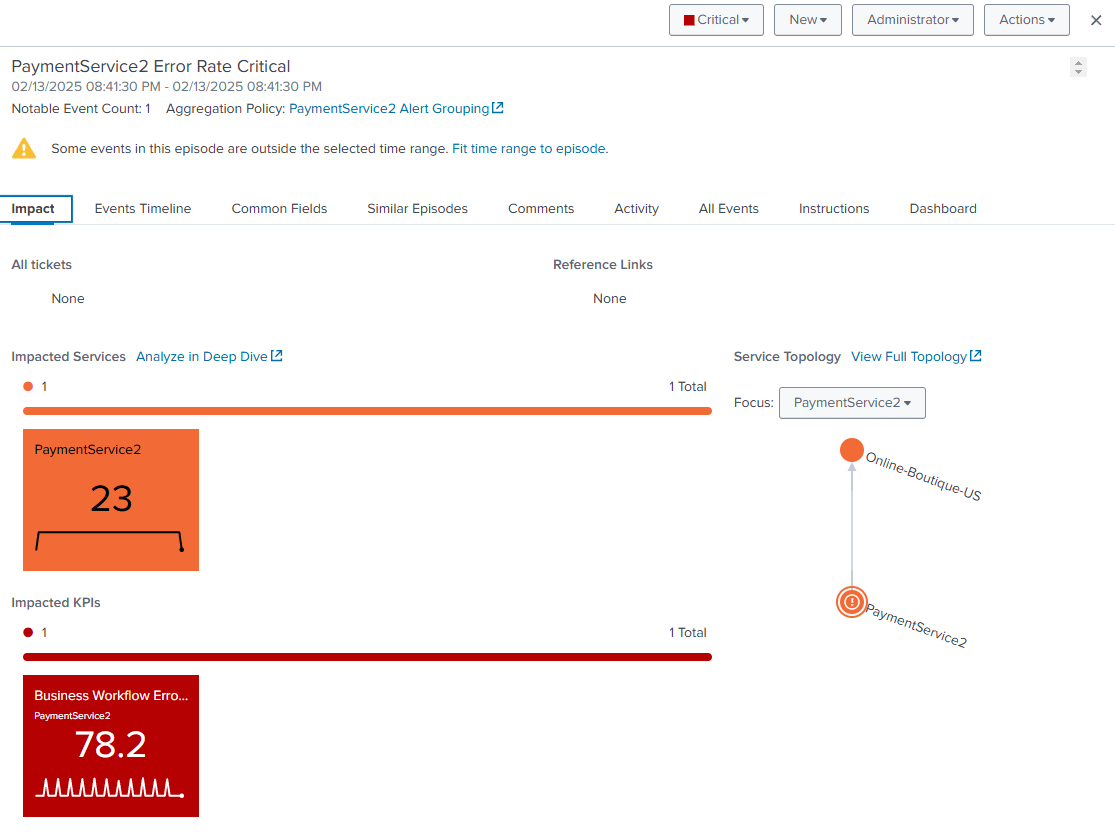
After saving the policy, navigate to the “Go to Episode Review” page and filter alerts for last 15 minutes and add a filter to status=New and search for our Service Name in the search box.
There may already be an episode named after our specific alert already, if so, close it out and wait for a new one to be generated with our new Title.