Deploy the OpenTelemetry Collector

10 minutes  

In this section we’ll deploy the OpenTelemetry Collector in our OpenShift namespace, which gathers metrics, logs, and traces from the infrastructure and applications running in the cluster, and sends the resulting data to Splunk Observability Cloud.

Deploy the OpenTelemetry Collector

Ensure Helm is installed

Run the following command to confirm that Helm is installed:

helm version
version.BuildInfo{Version:"v3.19.4", GitCommit:"7cfb6e486dac026202556836bb910c37d847793e", GitTreeState:"clean", GoVersion:"go1.24.11"}

If it’s not installed, execute the following commands:

sudo apt-get install curl gpg apt-transport-https --yes
curl -fsSL https://packages.buildkite.com/helm-linux/helm-debian/gpgkey | gpg --dearmor | sudo tee /usr/share/keyrings/helm.gpg > /dev/null
echo "deb [signed-by=/usr/share/keyrings/helm.gpg] https://packages.buildkite.com/helm-linux/helm-debian/any/ any main" | sudo tee /etc/apt/sources.list.d/helm-stable-debian.list
sudo apt-get update
sudo apt-get install helm

Add the Splunk OpenTelemetry Collector Helm Chart

Add the Splunk OpenTelemetry Collector for Kubernetes’ Helm chart repository:

helm repo add splunk-otel-collector-chart https://signalfx.github.io/splunk-otel-collector-chart

Ensure the repository is up-to-date:

helm repo update

Configure Environment Variables

Set environment variables to configure the Splunk environment you’d like the collector to send data to:

export USER_NAME=workshop-participant-$PARTICIPANT_NUMBER
export CLUSTER_NAME=ai-pod-$USER_NAME
export ENVIRONMENT_NAME=ai-pod-$USER_NAME
export SPLUNK_INDEX=splunk4rookies-workshop

Confirm that the environment name is set:

echo $ENVIRONMENT_NAME
ai-pod-workshop-participant-1

Deploy the Collector

Navigate to the workshop directory:

cd ~/workshop/cisco-ai-pods

Then install the collector in your namespace using the following command:

{ [ -z "$CLUSTER_NAME" ] || \
  [ -z "$ENVIRONMENT_NAME" ] || \
  [ -z "$USER_NAME" ]; } && \
  echo "Error: Missing variables" || \
  helm upgrade --install splunk-otel-collector \
  --set="clusterName=$CLUSTER_NAME" \
  --set="environment=$ENVIRONMENT_NAME" \
  --set="splunkObservability.accessToken=$ACCESS_TOKEN" \
  --set="splunkObservability.realm=$REALM" \
  --set="splunkPlatform.endpoint=$HEC_URL" \
  --set="splunkPlatform.token=$HEC_TOKEN" \
  --set="splunkPlatform.index=$SPLUNK_INDEX" \
  -f ./otel-collector/otel-collector-values.yaml \
  -n $USER_NAME \
  splunk-otel-collector-chart/splunk-otel-collector

Note: if you get an error that says Missing variables, you’ll need to define your environment variables again. Add your participant number before running the following commands:

export PARTICIPANT_NUMBER=<your participant number>
export USER_NAME=workshop-participant-$PARTICIPANT_NUMBER
export CLUSTER_NAME=ai-pod-$USER_NAME
export ENVIRONMENT_NAME=ai-pod-$USER_NAME
export SPLUNK_INDEX=splunk4rookies-workshop

Run the following command to confirm that the collector pods are running:

watch -n 1 oc get pods

NAME                                                          READY   STATUS    RESTARTS   AGE
splunk-otel-collector-agent-58rwm                             1/1     Running   0          6m40s
splunk-otel-collector-agent-8dndr                             1/1     Running   0          6m40s

Note: in OpenShift environments, the collector takes about three minutes to start and transition to the Running state.

Review Collector Data in Splunk Observability Cloud

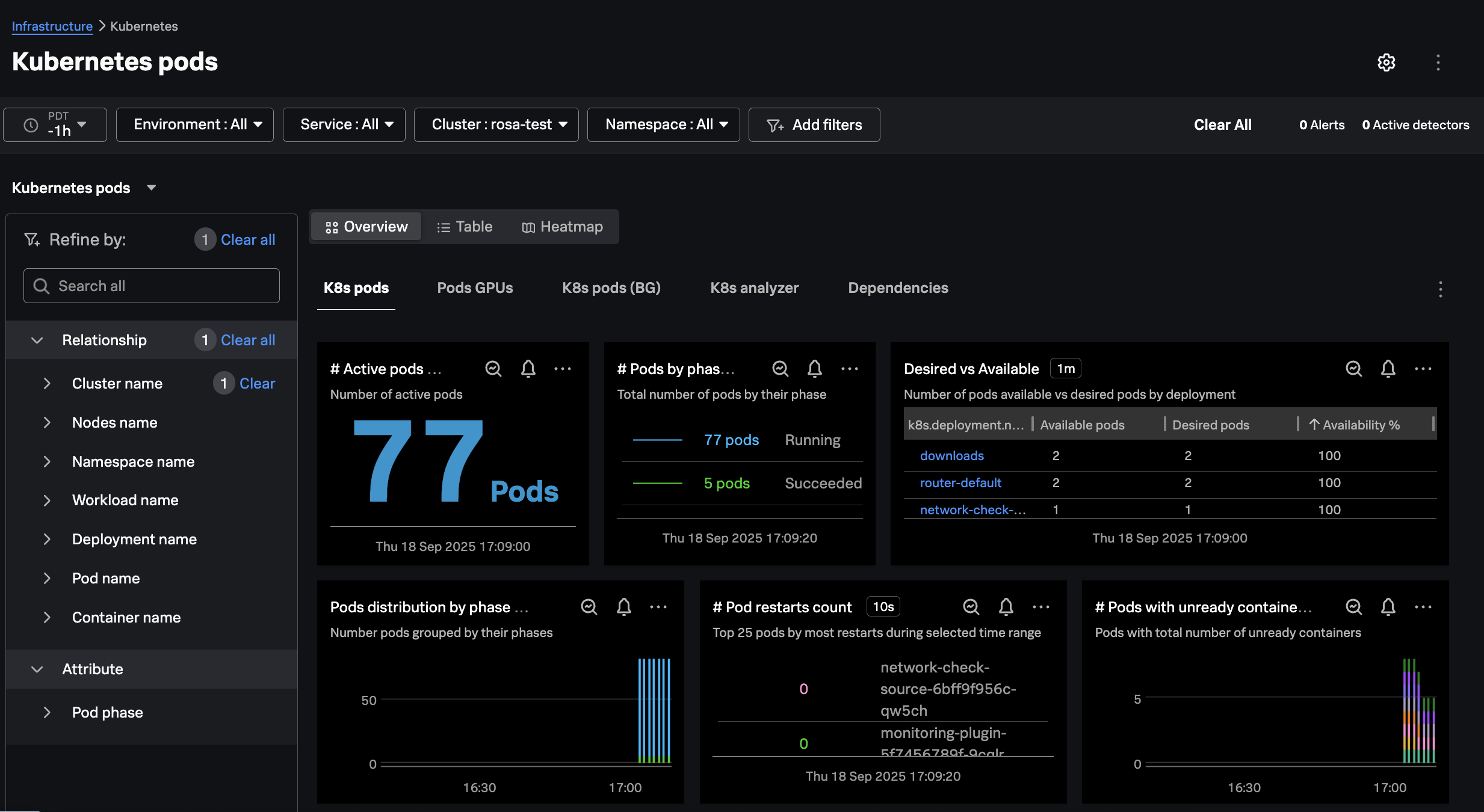
Confirm that you can see your cluster in Splunk Observability Cloud by navigating to Infrastructure Monitoring -> Kubernetes -> Kubernetes Clusters and then adding a filter on k8s.cluster.name with your cluster name (i.e. ai-pod-workshop-participant-1):
Kubernetes Pods Kubernetes Pods