Connect to EC2 Instance
5 minutesConnect to your EC2 Instance
We’ve prepared an Ubuntu Linux instance in AWS/EC2 for each attendee:
- Access the Splunk Show event by clicking on the link for your region
- Click Enroll on the top-right corner
- Then look near the bottom of the page for your EC2 instance details
You should see connection information such as the following:
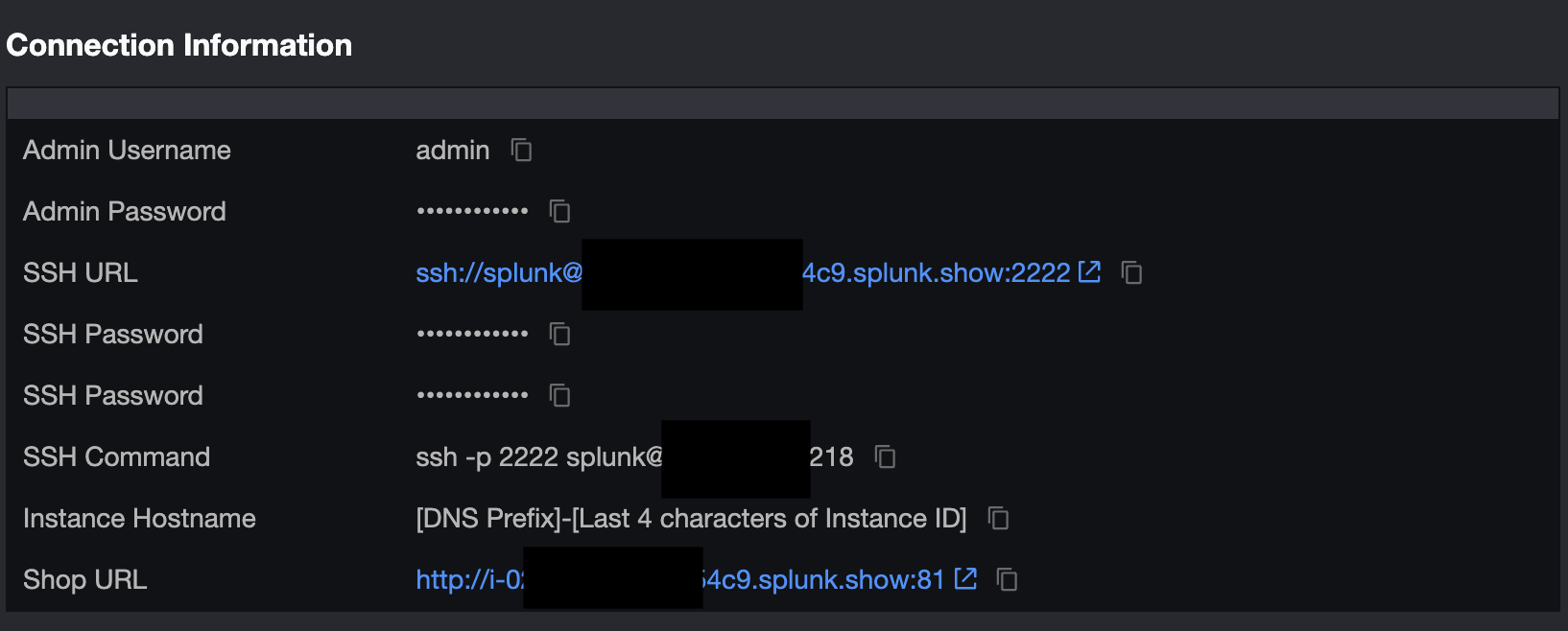
Using the IP address (which is part of the SSH Command) and SSH Password provided as part of the Connection Information, connect to your EC2 instance using one of the methods below:
- Mac OS / Linux
- ssh splunk@IP address
- Windows 10+
- Use the OpenSSH client
- Earlier versions of Windows
- Use Putty
VPN Connection
If you’re working from an office and having trouble connecting, try connecting to your corporate VPN first.
Retrieve your Instance Name
Once you’ve logged into your EC2 instance via ssh, use the following command to get your instance name:
Make a note of this, as your instance name is unique to you and will be used later in the workshop to find your data in Splunk Observability Cloud.
Connect Visual Studio Code (Optional)
We’ll be editing several files throughout the workshop. The workshop instructions
include tip for doing this using a vi editor, and workshop participants can
use the nano editor as well.
If you prefer a full-fledged IDE, you can connect Visual Studio Code running on your laptop to edit remote files on the EC2 instance.
The high-level steps to do this are as follows:
- Download and install VS code on your machine using this link.
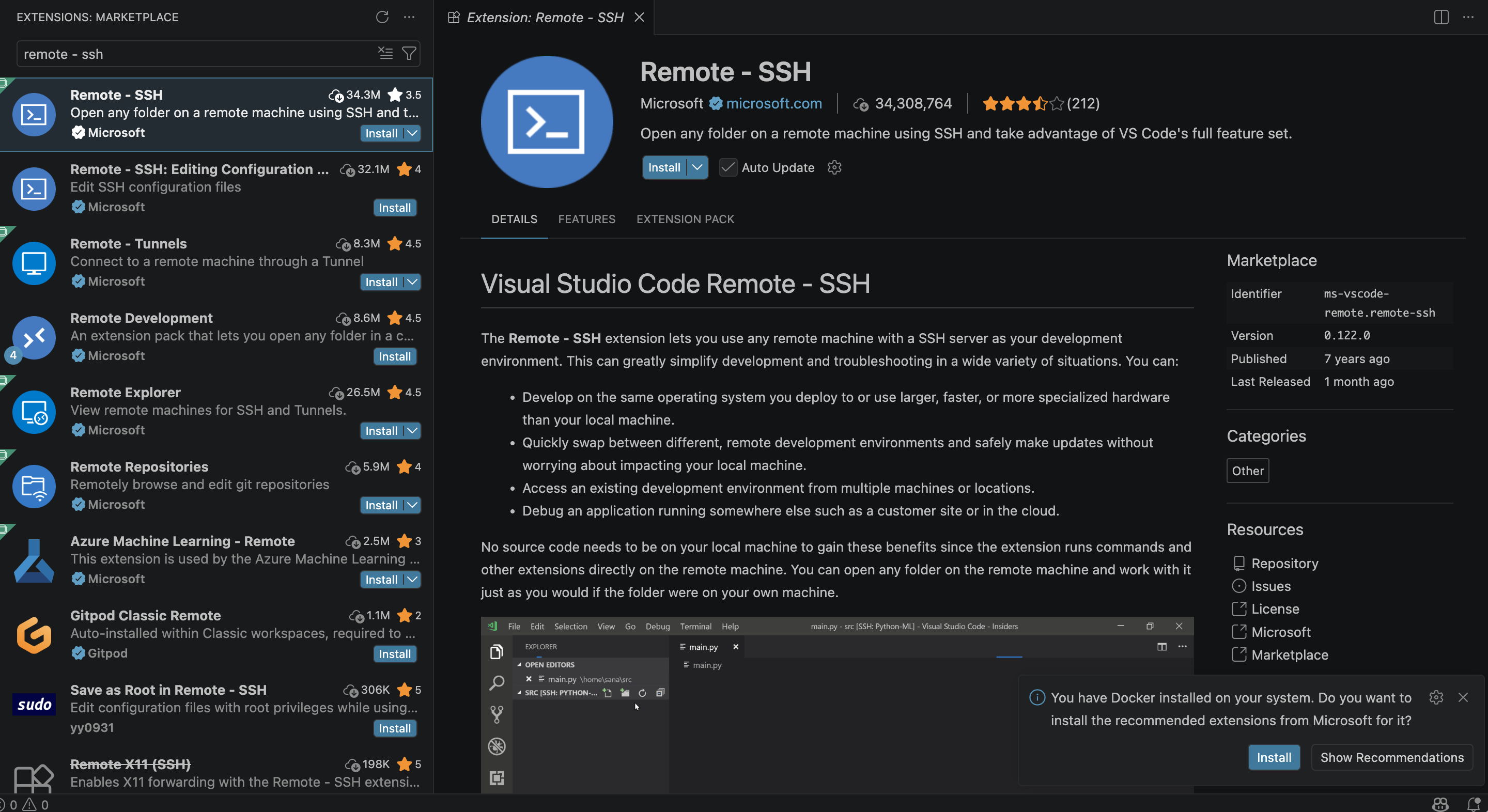
- In VS Code, navigate to Settings and then Extensions.
- Search for the Remote – SSH extension (by Microsoft) and install it.
- Press F1 (or Ctrl+Shift+P on Windows / Cmd+Shift+P on Mac OS).
- Run Remote-SSH: Connect to Host.
- Copy your SSH command from Splunk Show:
ssh -p 2222 splunk@EC2_PUBLIC_IP. - Choose the default SSH config file when prompted.
- Press F1 (or Ctrl+Shift+P on Windows / Cmd+Shift+P on Mac OS) again.
- Run Remote-SSH: Connect to Host.
- Select the host you just added. VS Code will open a new window and start the connection.
- A prompt will appear at the top of VS Code asking for the SSH password. Copy the password from Splunk Show and enter it here.
- Click Open Folder then input
/home/splunk/workshop/agentic-aias the folder name:
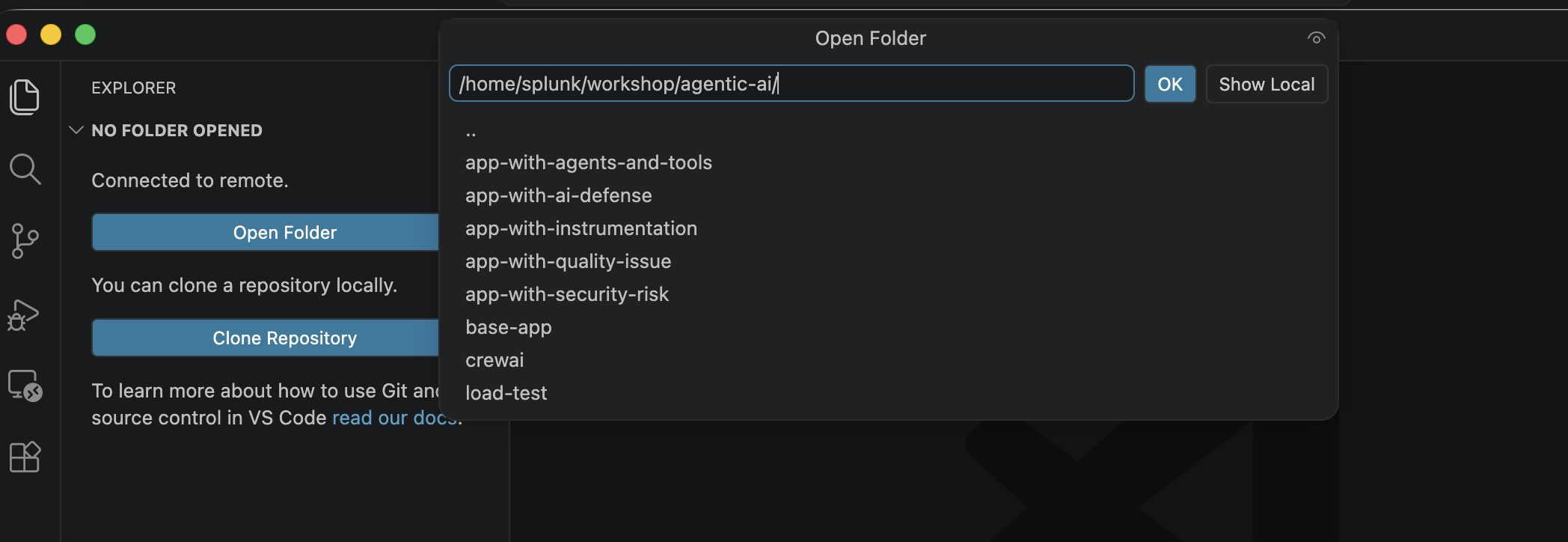
You can now files remotely with VS Code!