

Apply Guardrails at Runtime
Define Controls in the Console
The app now registers its controllable steps, but it’s the Splunk Agent Observability console where you define the rules: which steps are governed, what condition triggers them, and whether a match should block or steer.
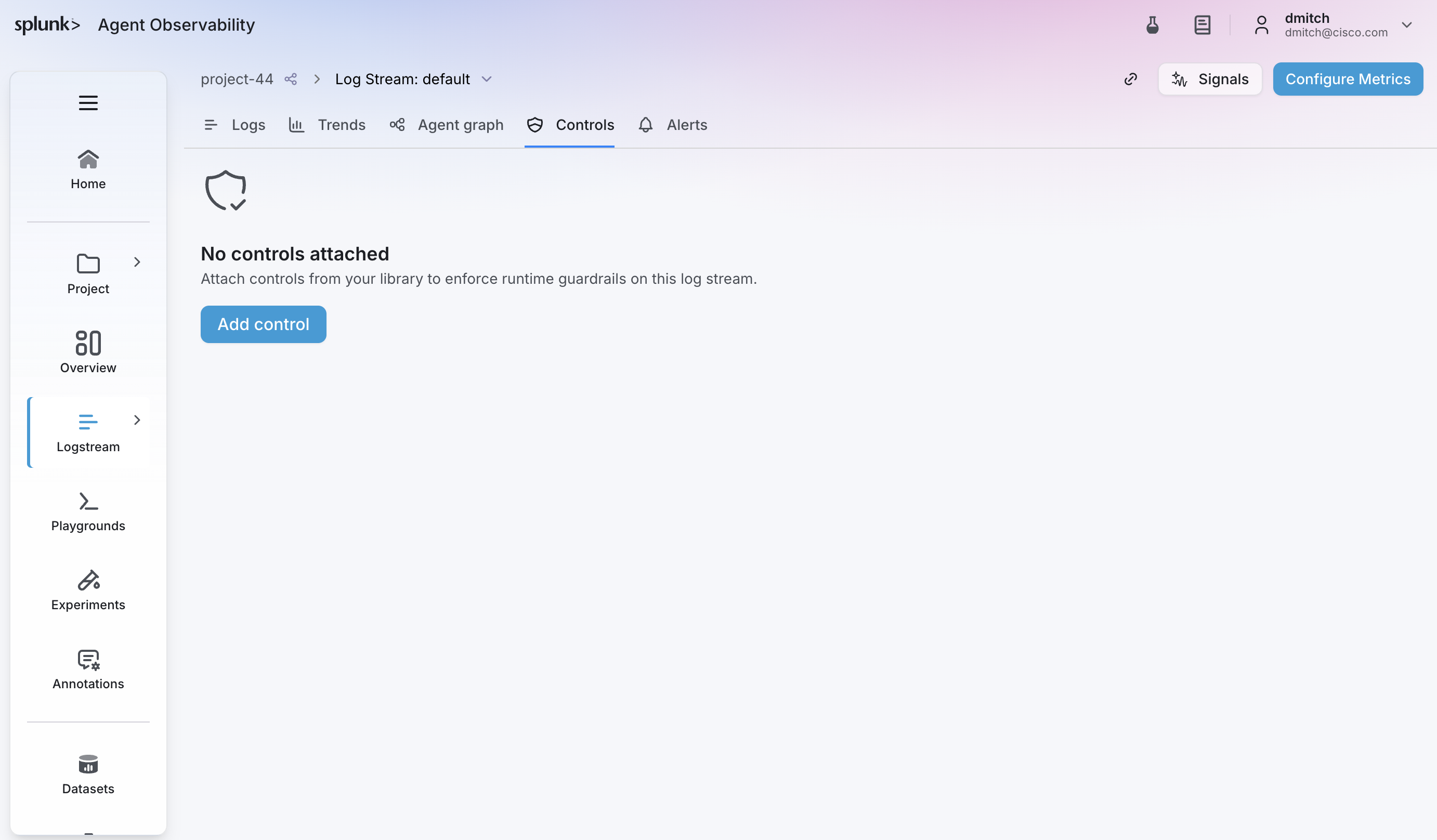
Open the Controls tab
In the Splunk Agent Observability console (https://console.multitenant.galileocloud.io, workshop org),
open your project / default agent stream then click on the Controls tab.
Browse and add controls to your agent
Click the Add control button to add a control to your agent stream.
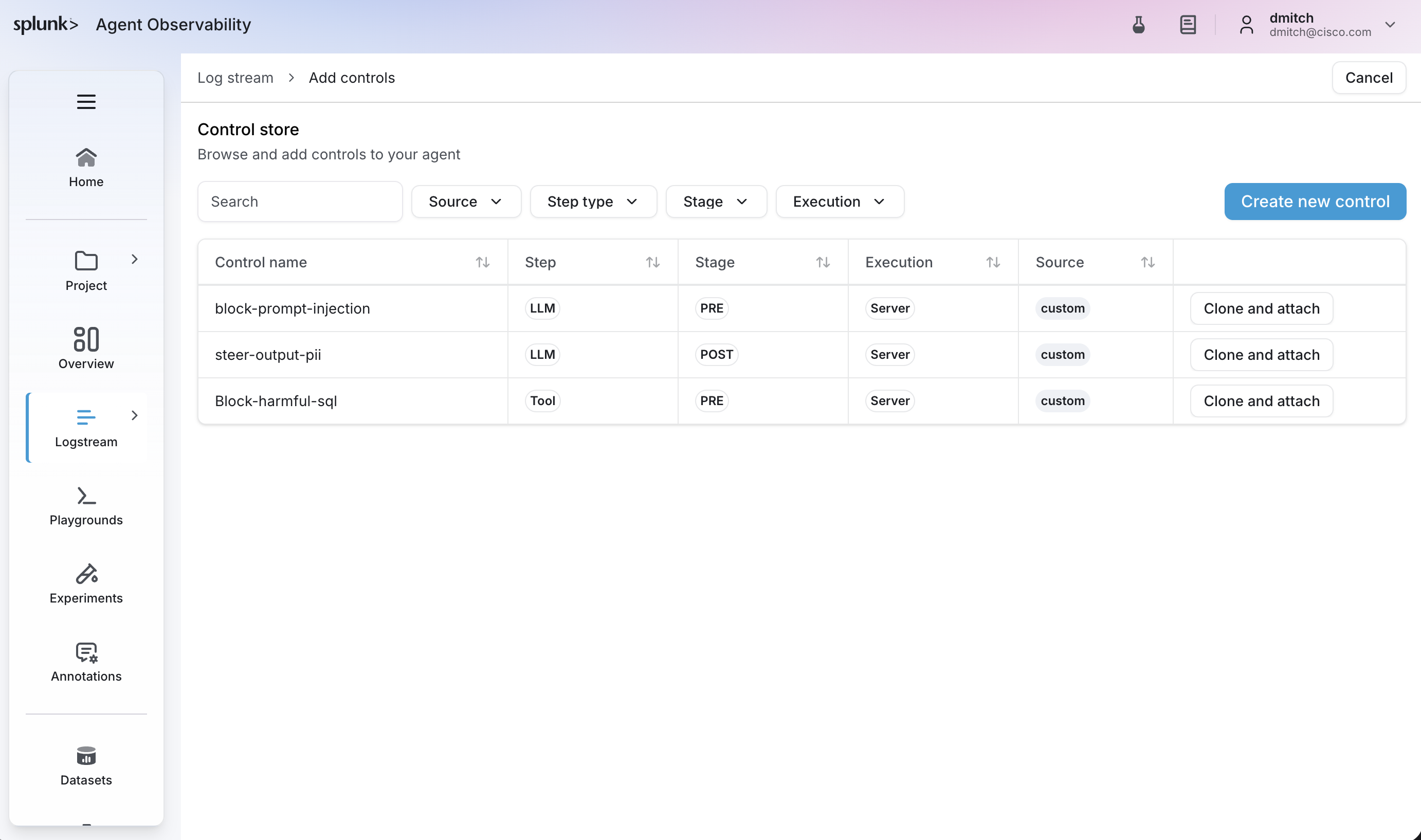
You’ll be presented with a list of controls to clone and attach to your agent stream,
as well as the option to create a new control.
Add the Block Harmful SQL Control
Next, let’s add an existing control called Block-harmful-sql to our agent stream.
To do this, click the Clone and attach button beside the Block-harmful-sql control:
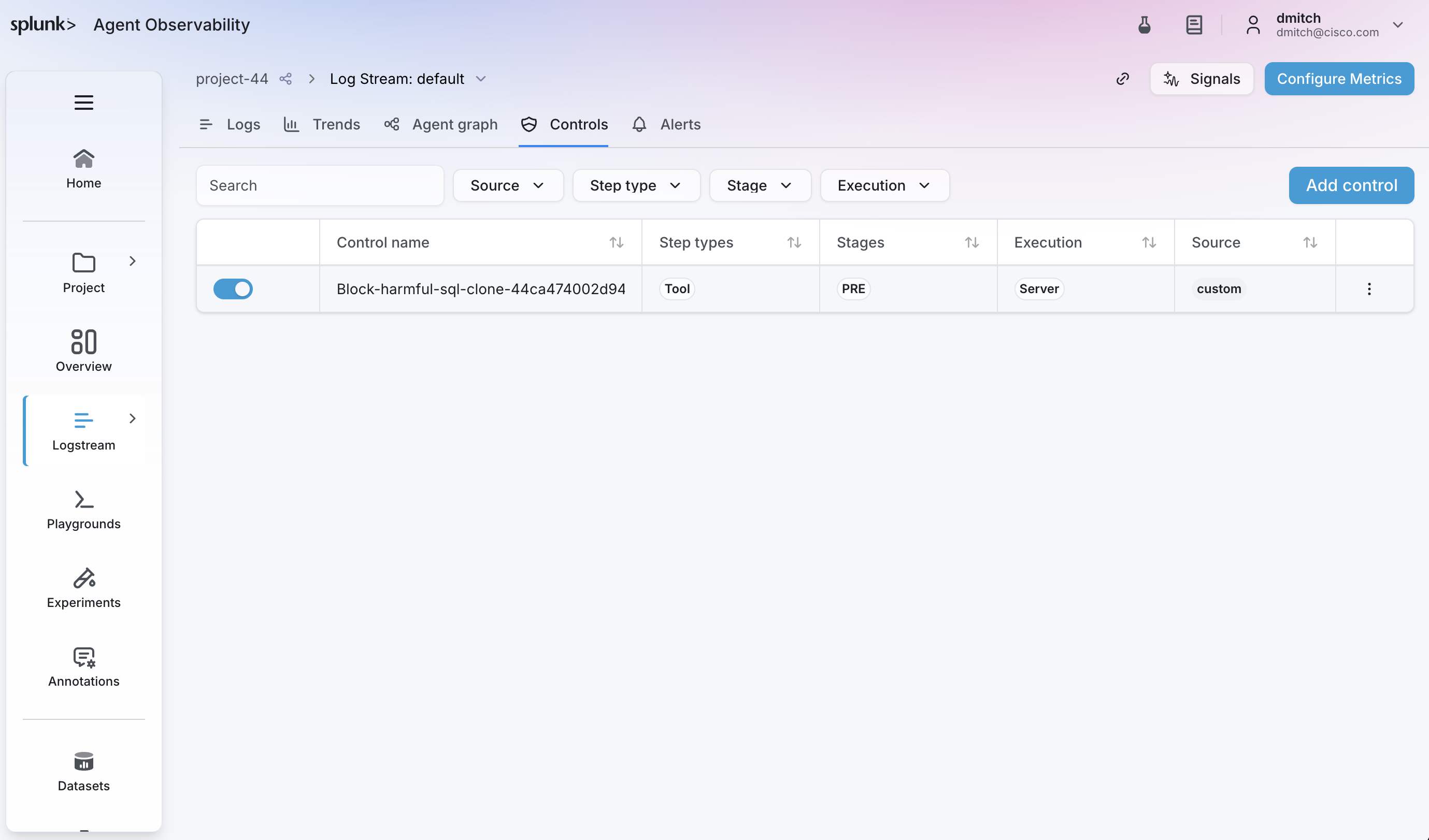
Click on the control name to see the details of the control:
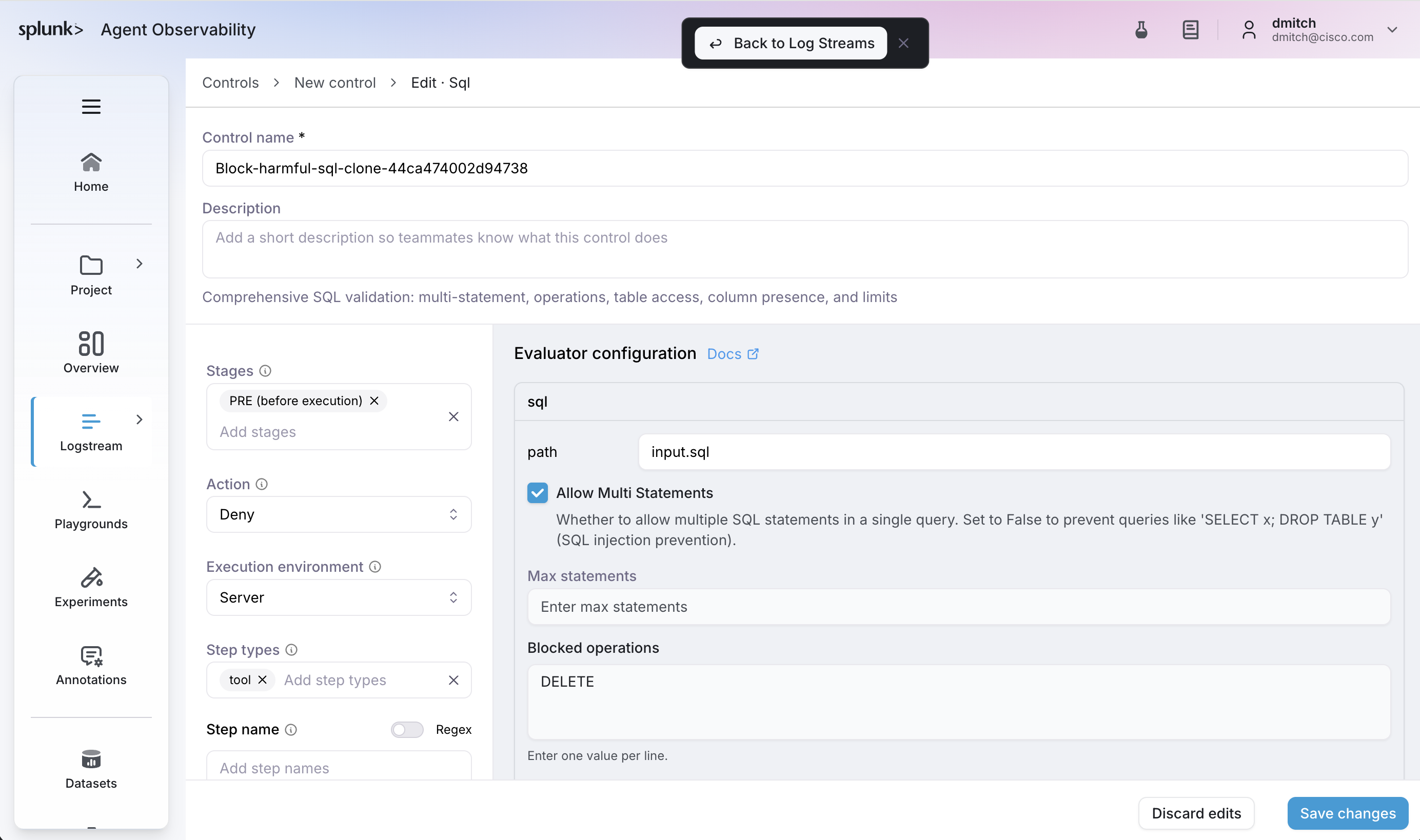
This control is used to detect and block any DELETE SQL operations. It’s executed
before the associated tool call, to prevent the agent from deleting patient
records at run time.
Click Discard Edits to return to the list of controls for your agent stream.
Create a control that steers the LLM
Let’s add a second control targeting the Healthcare Assistant LLM step that steers the response, for example to keep answers within healthcare scope or to enforce a disclaimer.
To do this, click on the Add control button and then click Clone and attach beside the
steer-output-pii control.
This control runs after LLM calls, and when a phone number or address are detected in the LLM response, the agent is “steered” towards removing these fields from the final response.