Create Browser Application
In this exercise you will create and configure your application in the Controller.
In this exercise you will complete the following tasks:
- Access your AppDynamics Controller from your web browser.
- Create the Browser Application in the Controller.
- Configure the Browser Application.
Login to the Controller #
Log into the AppDynamics SE Lab Controller using your Cisco credentials.
Create the Browser Application in the Controller #
Use the following steps to create your new browser application.
Note
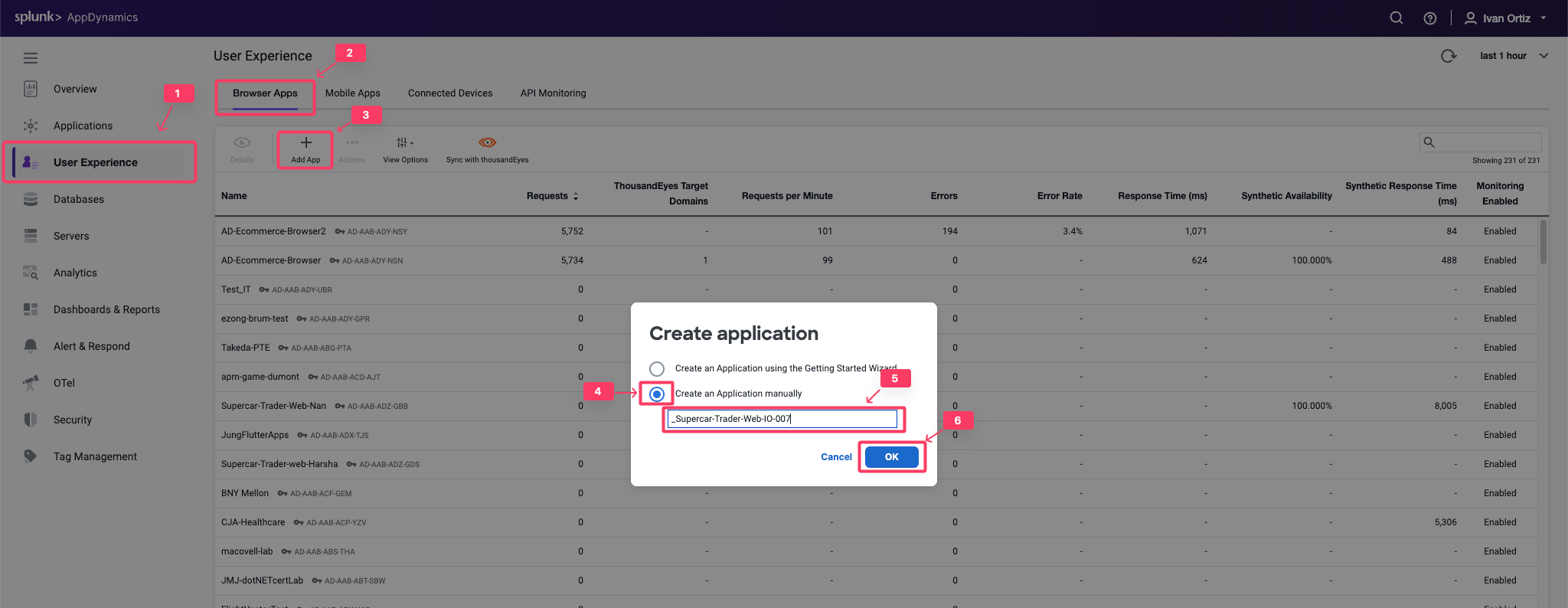
It is very important that you create a unique name for your browser application in Step 5 below.- Click the User Experience tab on the top menu.
- Click the Browser Apps option under User Experience.
- Click Add App.
- Choose the option Create an Application manually.
- Type in a unique name for your browser application in the format Supercar-Trader-Web-<your_initials_or_name>-<four_random_numbers>
- Example 1: Supercar-Trader-Web-JFK-3179
- Example 2: Supercar-Trader-Web-JohnSmith-0953
- Click OK.
You should now see the Browser App Dashboard for the Supercar-Trader-Web-##-#### application.
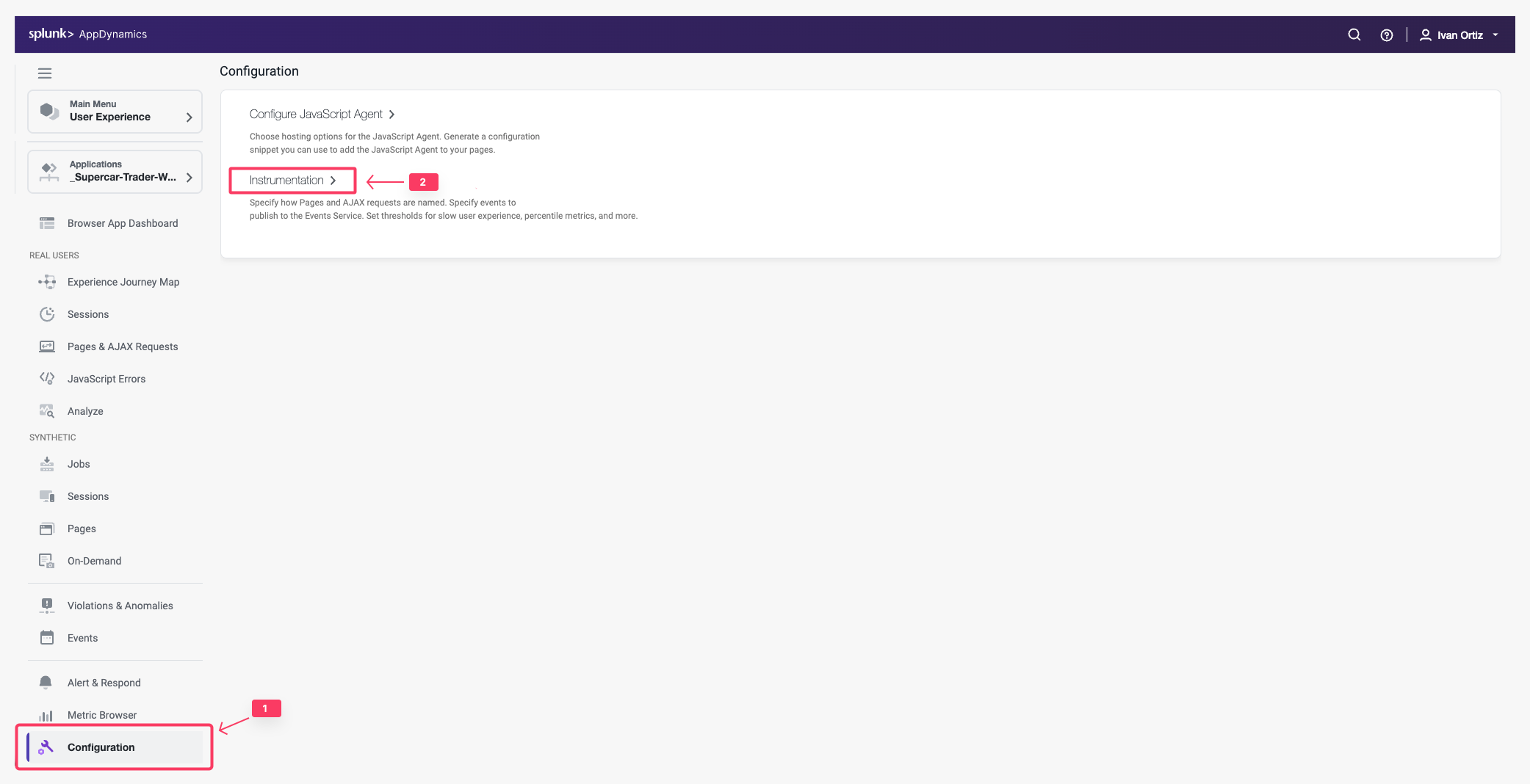
- Click the Configuration tab on the left menu.
- Click the Instrumentation option.
Change the default configuration to have the IP Address stored along with the data captured by the browser monitoring agent by following these steps.
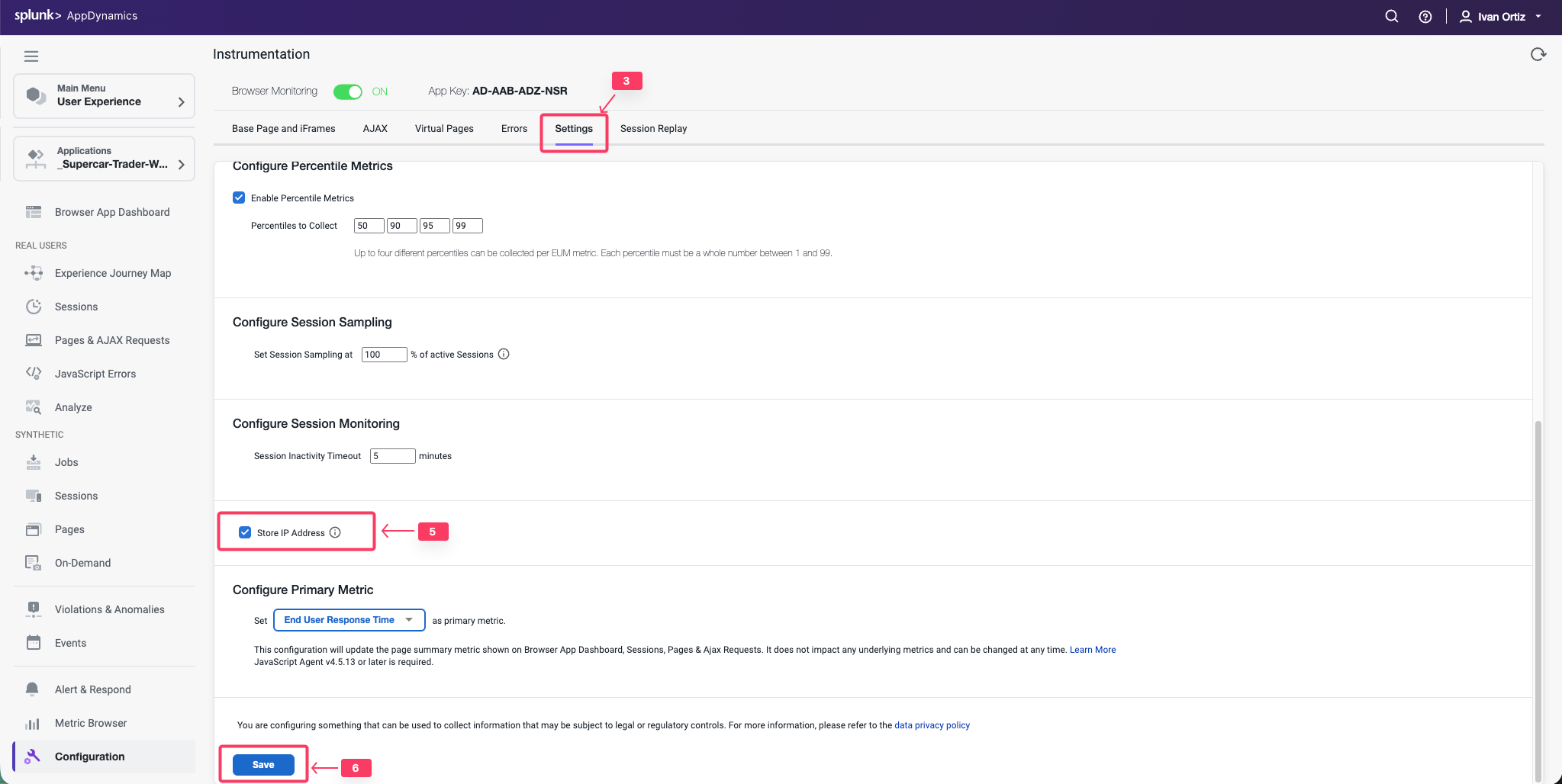
- Click the Settings tab.
- Use the scroll bar on the right to scroll to the bottom of the screen.
- Check the Store IP Address check box.
- Click Save.
You can read more about configuring the Controller UI for Browser RUM here .