

Workshop Setup
Deploy the NVIDIA NIM Operator
The NVIDIA GPU Operator is a Kubernetes Operator that automates the deployment, configuration, and management of all necessary NVIDIA software components to provision GPUs within a Kubernetes cluster.
The NVIDIA NIM Operator is used to deploy LLMs in Kubernetes environments, such as the OpenShift cluster we created earlier in this workshop.
This section of the workshop walks through the steps necessary to deploy both the NVIDIA GPU and NIM operators in our OpenShift cluster.
Create a NVIDIA NGC Account #
An NVIDIA GPU CLOUD (NGC) account is required to download LLMs and deploy them using the NVIDIA NIM operator. You can register here to create an account.
Register with the NVIDIA Developer Program #
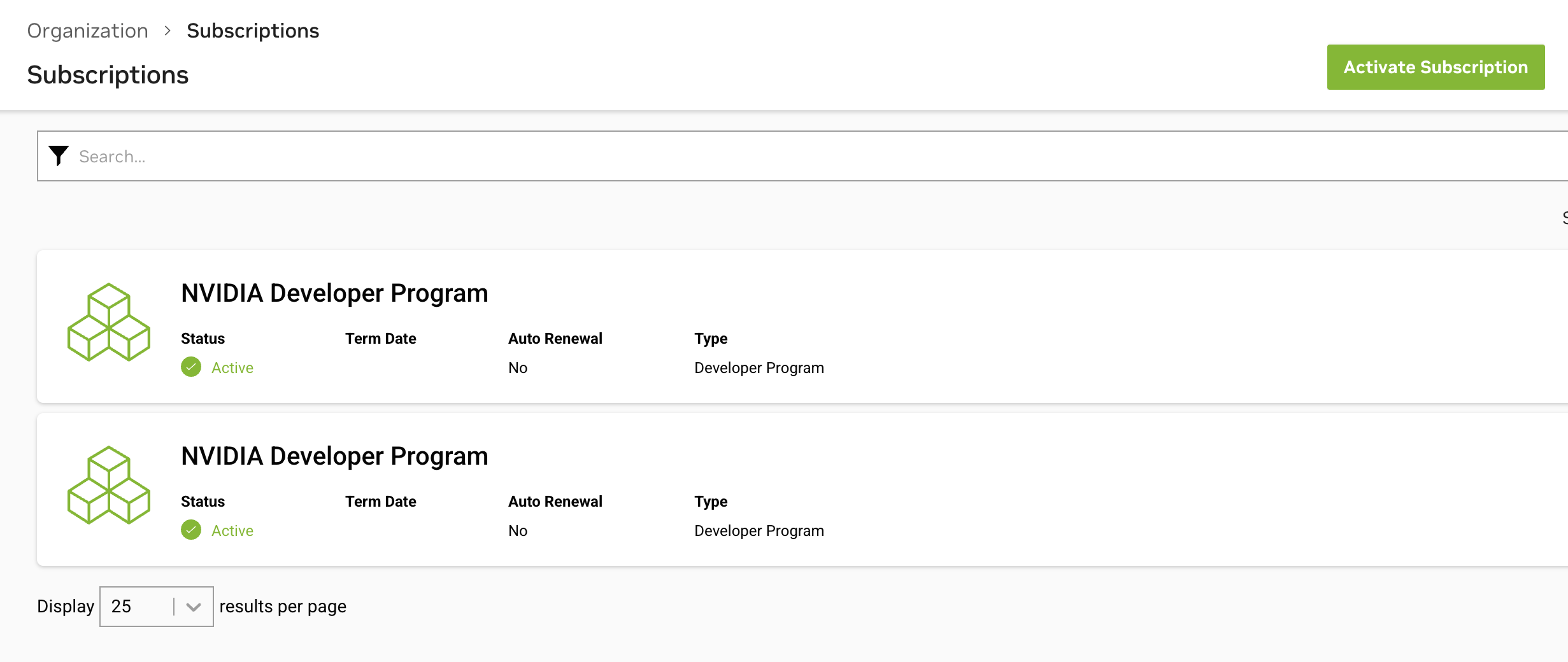
Registering with the NVIDIA Developer Program allows us to get access to NVIDIA NIM, which we’ll use later in the workshop to deploy LLMs.
Ensure that NVIDIA Developer Program appears on your list of NVIDIA subscriptions in NGC:
Generate an NGC API Key #
Once you’re logged in to the NGC website, click on your user account icon on the top-right corner of the screen and select Setup.
Then click Generate API Key and follow the instructions. Ensure the key is associated with the NGC Catalog and Secrets Manager services.
Save the generated key in a safe place as we’ll use it later in the workshop.
Refer to NVIDIA Documentation for further details on generating an NGC API key.
Install the Node Feature Discovery Operator #
The steps in this section are based on Installing the NFD Operator using the CLI .
Run the following script to install the Node Feature Discovery Operator:
cd nvidia
./install-nfd-operator.sh
To verify that the Operator deployment is successful, run:
oc get podsNAME READY STATUS RESTARTS AGE
nfd-controller-manager-7f86ccfb58-vgr4x 2/2 Running 0 10mCreate a NodeFeatureDiscovery CR #
The steps in this section are based on Creating a NodeFeatureDiscovery CR by using the CLI .
Run the following script to create the Node Feature Discovery CR:
./create-nfd-cr.shInstall the NVIDIA GPU Operator #
The steps in this section are based on Installing the NVIDIA GPU Operator on OpenShift .
Run the following script to install the NVIDIA GPU Operator:
./install-nvidia-gpu-operator.shWait until the install plan has been created:
oc get installplan -n nvidia-gpu-operatorNAME CSV APPROVAL APPROVED
install-mmlxq gpu-operator-certified.v25.3.4 Manual falseApprove the install plan with the following commands:
INSTALL_PLAN=$(oc get installplan -n nvidia-gpu-operator -oname)
oc patch $INSTALL_PLAN -n nvidia-gpu-operator --type merge --patch '{"spec":{"approved":true }}'installplan.operators.coreos.com/install-rc9xq patchedCreate the Cluster Policy #
The steps in this section are based on Create the cluster policy using the CLI .
./create-cluster-policy.shVerify the NVIDIA GPU Operator Installation #
Verify the successful installation of the NVIDIA GPU Operator using the following command:
oc get pods,daemonset -n nvidia-gpu-operatorNAME READY STATUS RESTARTS AGE
pod/gpu-feature-discovery-sblkn 1/1 Running 0 5m5s
pod/gpu-feature-discovery-zpt94 1/1 Running 0 4m58s
pod/gpu-operator-6579bc6fdc-cp28l 1/1 Running 0 23m
pod/nvidia-container-toolkit-daemonset-qfcl9 1/1 Running 0 5m5s
pod/nvidia-container-toolkit-daemonset-zbwb6 1/1 Running 0 4m59s
pod/nvidia-cuda-validator-f7tl2 0/1 Completed 0 78s
pod/nvidia-cuda-validator-t7n9g 0/1 Completed 0 71s
pod/nvidia-dcgm-exporter-gk66x 1/1 Running 0 4m59s
pod/nvidia-dcgm-exporter-w8kr8 1/1 Running 2 (52s ago) 5m5s
pod/nvidia-dcgm-lrnzr 1/1 Running 0 4m58s
pod/nvidia-dcgm-tvrdm 1/1 Running 0 5m5s
pod/nvidia-device-plugin-daemonset-d62nk 1/1 Running 0 5m5s
pod/nvidia-device-plugin-daemonset-fnv4j 1/1 Running 0 4m59s
pod/nvidia-driver-daemonset-418.94.202509100653-0-5xbvq 2/2 Running 0 5m48s
pod/nvidia-driver-daemonset-418.94.202509100653-0-hmkdl 2/2 Running 0 5m48s
pod/nvidia-node-status-exporter-2kqwr 1/1 Running 0 5m44s
pod/nvidia-node-status-exporter-n8d9s 1/1 Running 0 5m44s
pod/nvidia-operator-validator-r2nm2 1/1 Running 0 5m5s
pod/nvidia-operator-validator-w2fpn 1/1 Running 0 4m59s
NAME DESIRED CURRENT READY UP-TO-DATE AVAILABLE NODE SELECTOR AGE
daemonset.apps/gpu-feature-discovery 2 2 2 2 2 nvidia.com/gpu.deploy.gpu-feature-discovery=true 5m45s
daemonset.apps/nvidia-container-toolkit-daemonset 2 2 2 2 2 nvidia.com/gpu.deploy.container-toolkit=true 5m48s
daemonset.apps/nvidia-dcgm 2 2 2 2 2 nvidia.com/gpu.deploy.dcgm=true 5m46s
daemonset.apps/nvidia-dcgm-exporter 2 2 2 2 2 nvidia.com/gpu.deploy.dcgm-exporter=true 5m46s
daemonset.apps/nvidia-device-plugin-daemonset 2 2 2 2 2 nvidia.com/gpu.deploy.device-plugin=true 5m47s
daemonset.apps/nvidia-device-plugin-mps-control-daemon 0 0 0 0 0 nvidia.com/gpu.deploy.device-plugin=true,nvidia.com/mps.capable=true 5m47s
daemonset.apps/nvidia-driver-daemonset-418.94.202509100653-0 2 2 2 2 2 feature.node.kubernetes.io/system-os_release.OSTREE_VERSION=418.94.202509100653-0,nvidia.com/gpu.deploy.driver=true 5m48s
daemonset.apps/nvidia-mig-manager 0 0 0 0 0 nvidia.com/gpu.deploy.mig-manager=true 5m45s
daemonset.apps/nvidia-node-status-exporter 2 2 2 2 2 nvidia.com/gpu.deploy.node-status-exporter=true 5m44s
daemonset.apps/nvidia-operator-validator 2 2 2 2 2 nvidia.com/gpu.deploy.operator-validator=true 5m48sInstall the Operator SDK #
The steps in this section are based on Install from GitHub release .
Download the release binary #
Set platform information:
export ARCH=$(case $(uname -m) in x86_64) echo -n amd64 ;; aarch64) echo -n arm64 ;; *) echo -n $(uname -m) ;; esac)
export OS=$(uname | awk '{print tolower($0)}')
Download the binary for your platform:
export OPERATOR_SDK_DL_URL=https://github.com/operator-framework/operator-sdk/releases/download/v1.41.1
curl -LO ${OPERATOR_SDK_DL_URL}/operator-sdk_${OS}_${ARCH}
Verify the downloaded binary #
Import the operator-sdk release GPG key from keyserver.ubuntu.com:
gpg --keyserver keyserver.ubuntu.com --recv-keys 052996E2A20B5C7EDownload the checksums file and its signature, then verify the signature:
curl -LO ${OPERATOR_SDK_DL_URL}/checksums.txt
curl -LO ${OPERATOR_SDK_DL_URL}/checksums.txt.asc
gpg -u "Operator SDK (release) <cncf-operator-sdk@cncf.io>" --verify checksums.txt.asc
You should see something similar to the following:
gpg: assuming signed data in 'checksums.txt'
gpg: Signature made Fri 30 Oct 2020 12:15:15 PM PDT
gpg:                using RSA key ADE83605E945FA5A1BD8639C59E5B47624962185
gpg: Good signature from "Operator SDK (release) <cncf-operator-sdk@cncf.io>" [ultimate]
Make sure the checksums match:
grep operator-sdk_${OS}_${ARCH} checksums.txt | sha256sum -c -You should see something similar to the following:
operator-sdk_linux_amd64: OKInstall the release binary in your PATH #
chmod +x operator-sdk_${OS}_${ARCH} && sudo mv operator-sdk_${OS}_${ARCH} /usr/local/bin/operator-sdkInstall the NGC CLI #
The steps in this section are based on NGC CLI Install .
Click Download CLI to download the zip file that contains the binary, then transfer the zip file to a directory where you have permissions and then unzip and execute the binary. You can also download, unzip, and install from the command line by moving to a directory where you have execute permissions and then running the following command:
wget --content-disposition https://api.ngc.nvidia.com/v2/resources/nvidia/ngc-apps/ngc_cli/versions/4.3.0/files/ngccli_linux.zip -O ngccli_linux.zip && unzip ngccli_linux.zipCheck the binary’s md5 hash to ensure the file wasn’t corrupted during download:
find ngc-cli/ -type f -exec md5sum {} + | LC_ALL=C sort | md5sum -c ngc-cli.md5Check the binary’s SHA256 hash to ensure the file wasn’t corrupted during download. Run the following command
sha256sum ngccli_linux.zipCompare with the following value, which can also be found in the Release Notes of the Resource:
5f01eff85a66c895002f3c87db2933c462f3b86e461e60d515370f647b4ffc21After verifying value, make the NGC CLI binary executable and add your current directory to path:
chmod u+x ngc-cli/ngc
echo "export PATH=\"\$PATH:$(pwd)/ngc-cli\"" >> ~/.bash_profile && source ~/.bash_profile
You must configure NGC CLI for your use so that you can run the commands.
Enter the following command, including your API key when prompted:
ngc config setDefine an environment variable with your NGC API key:
export NGC_API_KEY=<your NGC API key>Install the NVIDIA NIM Operator #
The steps in this section are based on Installing NIM Operator on Red Hat OpenShift Using operator-sdk (for Development-Only) .
Run the following script to install the NIM operator:
./install-nim-operator.shConfirm the controller pod is running:
oc get pods -n nvidia-nim-operatorNAME READY STATUS RESTARTS AGE
ec60a4439c710b89fc2582f5384382b4241f9aee62bb3182b8d128e69dx54dc 0/1 Completed 0 61s
ghcr-io-nvidia-k8s-nim-operator-bundle-latest-main 1/1 Running 0 71s
k8s-nim-operator-86d478b55c-w5cf5 1/1 Running 0 50s