

1. Real Browser Test
1.1 Recording a test
In this step you’ll capture a complete user journey through the demo Online Boutique storefront using the Chrome DevTools Recorder. The recorder watches your interactions and records each click, keystroke, and navigation as a structured step. For every element you interact with it captures multiple selector strategies (CSS, XPath, etc.), so the resulting test is robust against most front-end changes — if one selector breaks the next is tried in turn. You’ll save the recording to a JSON file that you’ll import into Splunk Synthetic Monitoring in the next step.
Open the starting URL #
Open the starting URL for the workshop in Chrome. Click on the appropriate link below to open the site in a new tab.
Note
The starting URL for the workshop is different for EMEA and AMER/APAC. Please use the correct URL for your region.
Open the Chrome DevTools Recorder #
Next, open the Developer Tools (in the new tab that was opened above) by pressing Ctrl + Shift + I on Windows or Cmd + Option + I on a Mac, then select Recorder from the top-level menu or the More tools flyout menu.
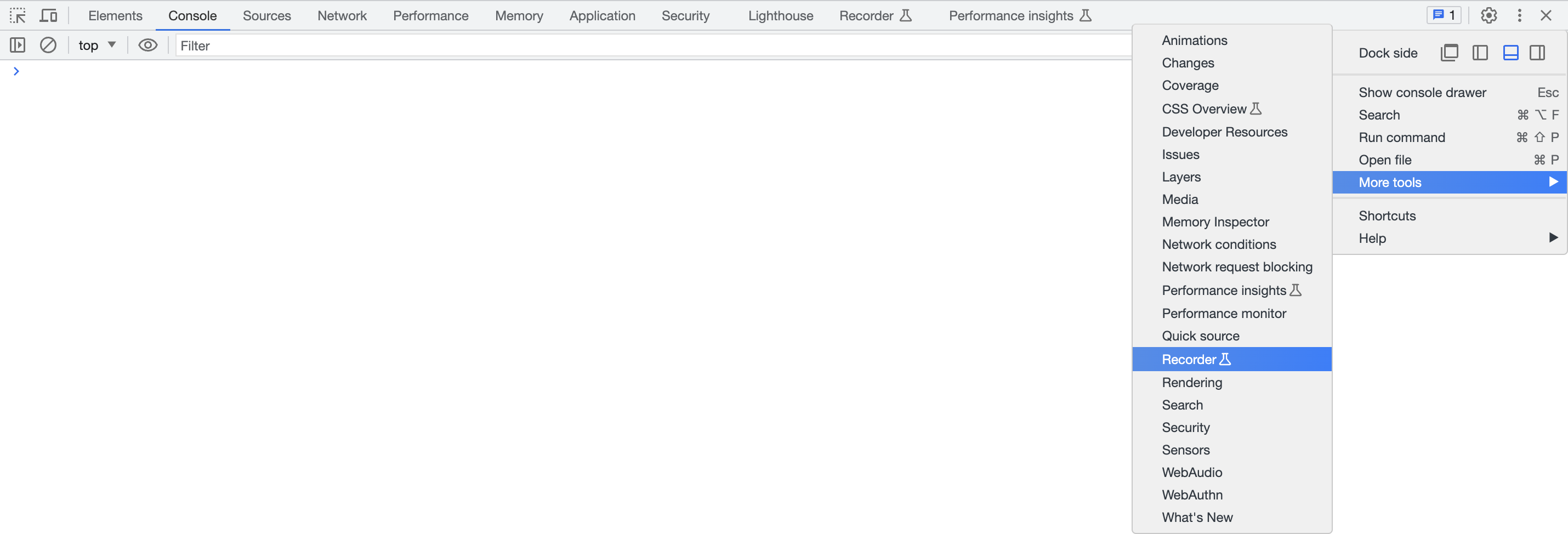
Note
Create a new recording #
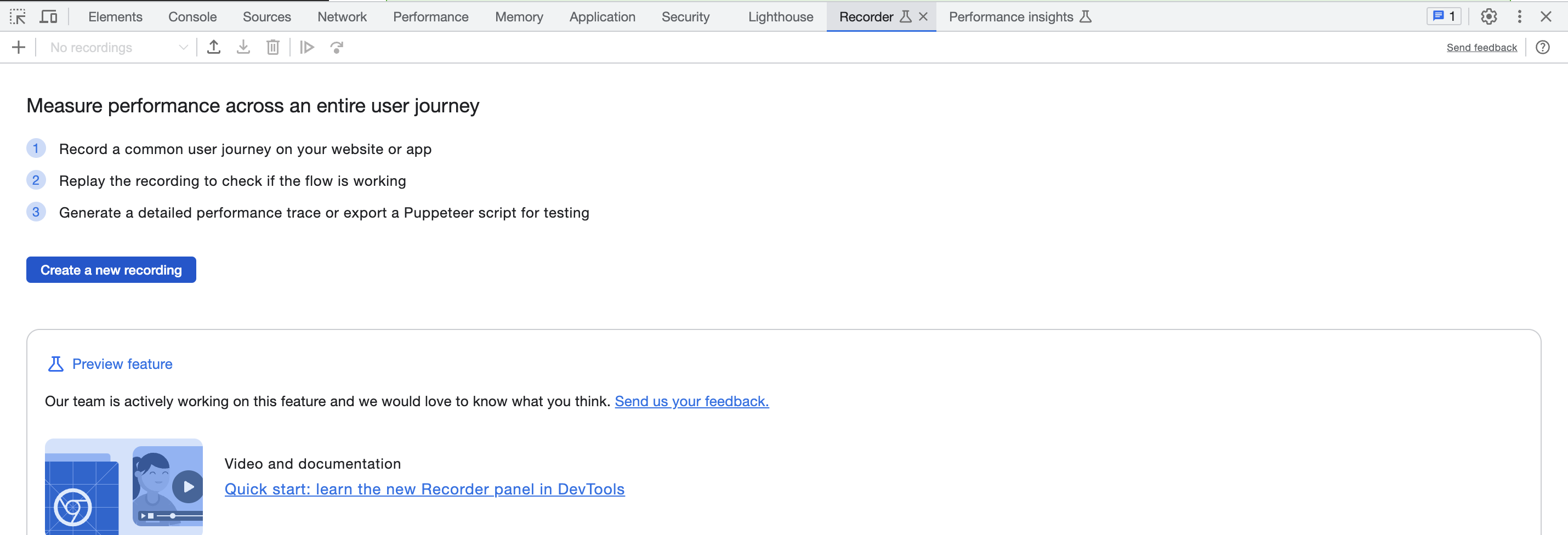
With the Recorder panel open in the DevTools window. Click on the button to start.
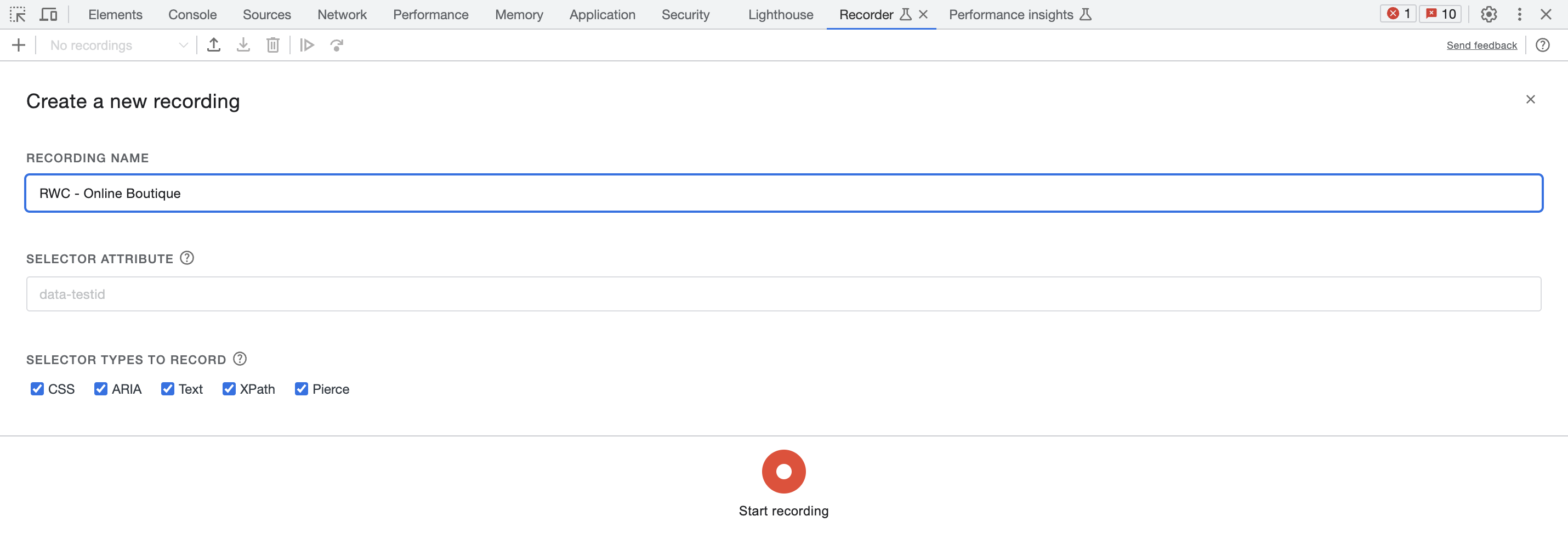
For the Recording Name use your initials to prefix the name of the recording e.g. <your initials> - Online Boutique. Click on Start Recording to start recording your actions.
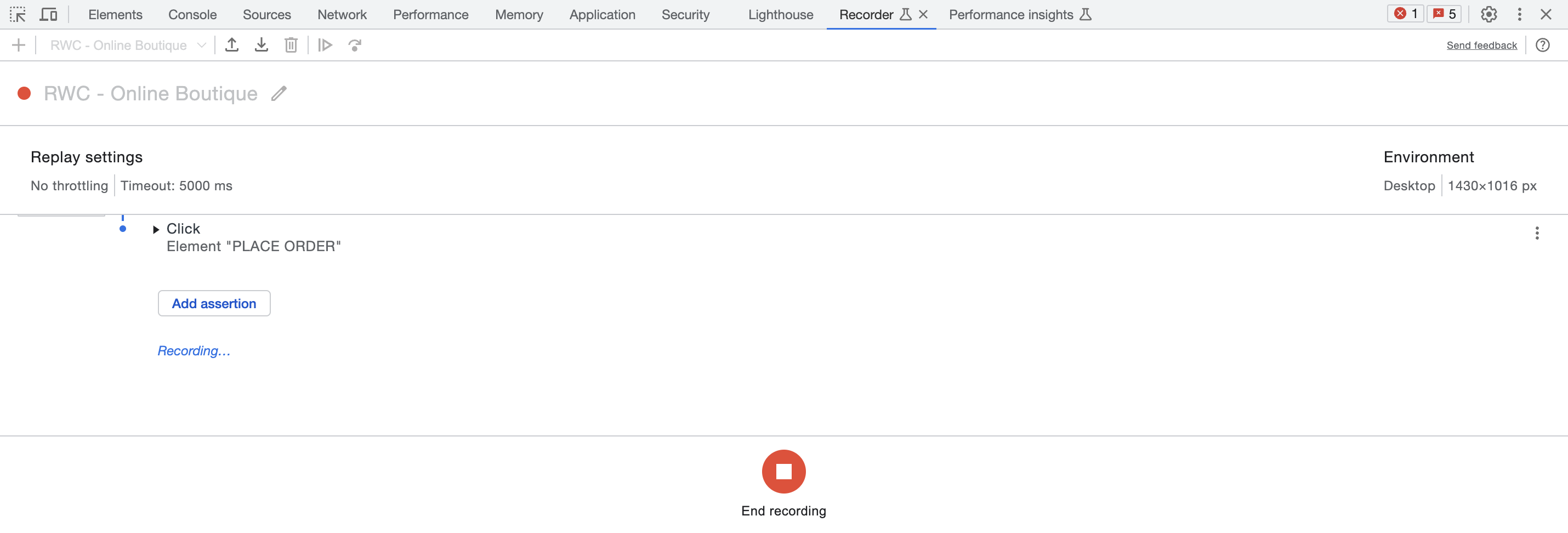
Now that we are recording, complete the following actions on the site:
- Click on Vintage Camera Lens
- Click on Add to Cart
- Click on Place Order
- Click on End recording in the Recorder panel.
Exporting the recording #
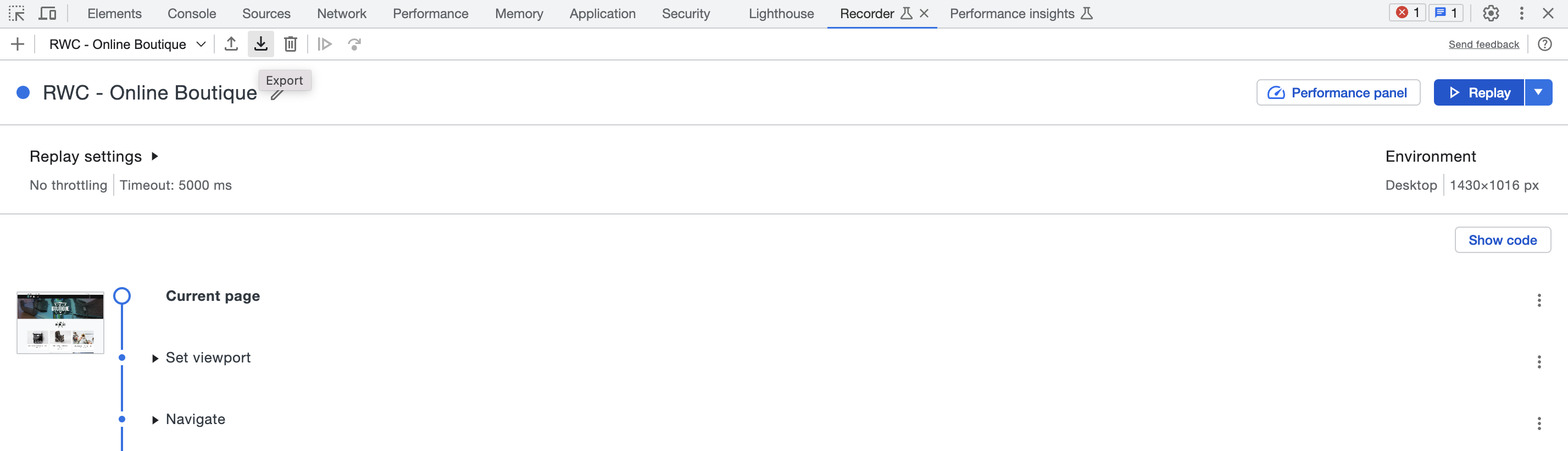
Click on the Export button:
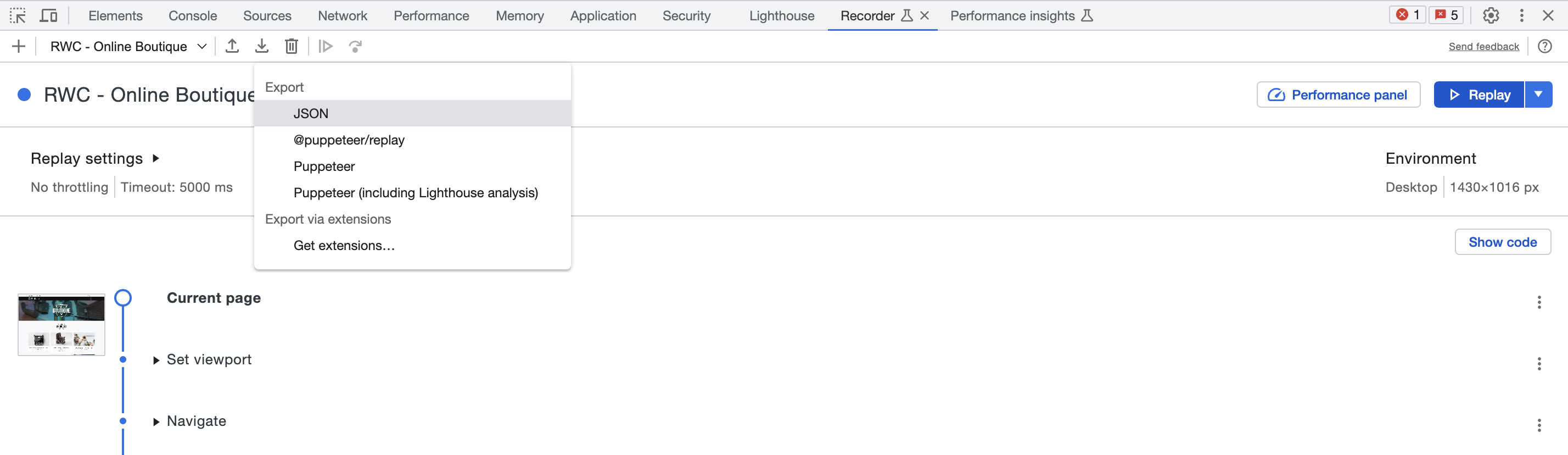
Select JSON as the format, then click on Save
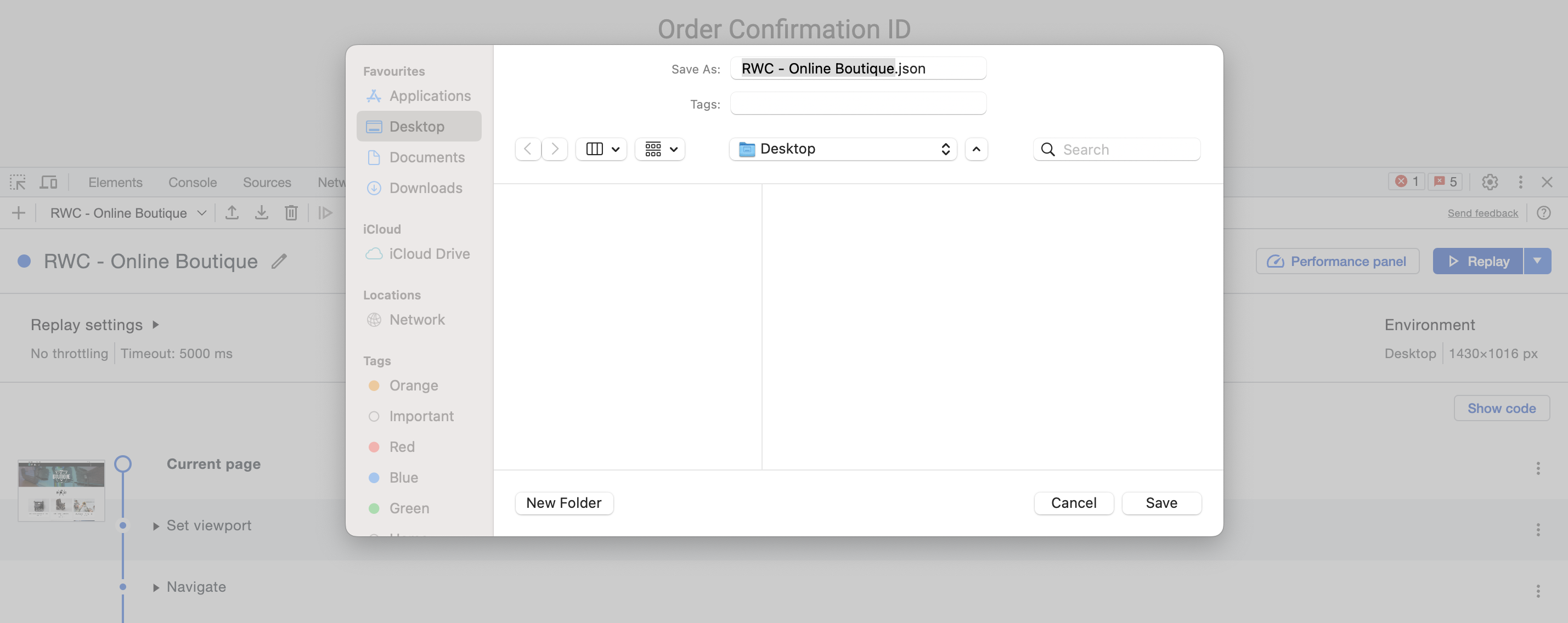
Congratulations! You have successfully created a recording using the Chrome DevTools Recorder. Next, we will use this recording to create a Real Browser Test in Splunk Synthetic Monitoring.
What’s actually in the JSON? #
Open the expandable below if you’d like to inspect the recording. A few things worth noticing:
- Each interaction is an object with a
type(navigate,click, etc.) and a list ofselectors— that’s the multi-strategy fallback we mentioned at the start. The recorder lists them in priority order; the test runner tries each until one matches. - The first step is a
setViewport, which pins the window dimensions so the test always replays at the same size regardless of which location it runs from. - Most click steps include
assertedEventswith anavigationURL and pagetitle. These are the recorder’s way of locking in expected outcomes — if a click should result in a navigation to/cartand it doesn’t, the step fails. You’ll see this surface in run results as a clear assertion failure rather than a vague timeout.