

Distributed Tracing for AWS Lambda Functions
Setup (User)
Observability Workshop Instance #
You will be provided a pre-configured EC2 instance running Ubuntu.
Your workshop instructor will provide you with the credentials to your assigned workshop instance.
Your instance should have the following environment variables already set:
- ACCESS_TOKEN: The token for ingesting data into Observability Cloud
- REALM: The realm we are using for the workshop
You will also be provided an AWS key and secret to use during the workshop.
Let’s check the AWS CLI and Terraform are available.
AWS Command Line Interface (awscli) #
The AWS Command Line Interface, or awscli, is an API used to interact with AWS resources. In this workshop, it is used by certain scripts to interact with the resource you’ll deploy.
Your Splunk-issued workshop instance should already have the awscli installed.
- Check if the aws command is installed on your instance with the following command:
which awsThe expected outcome is:
/usr/local/bin/aws- If the aws command is not installed on your instance, run the following command:
sudo apt install awscliTerraform #
Terraform is an Infrastructure as Code (IaC) platform, used to deploy, manage and destroy resource by defining them in configuration files. Terraform employs HCL to define those resources, and supports multiple providers for various platforms and technologies.
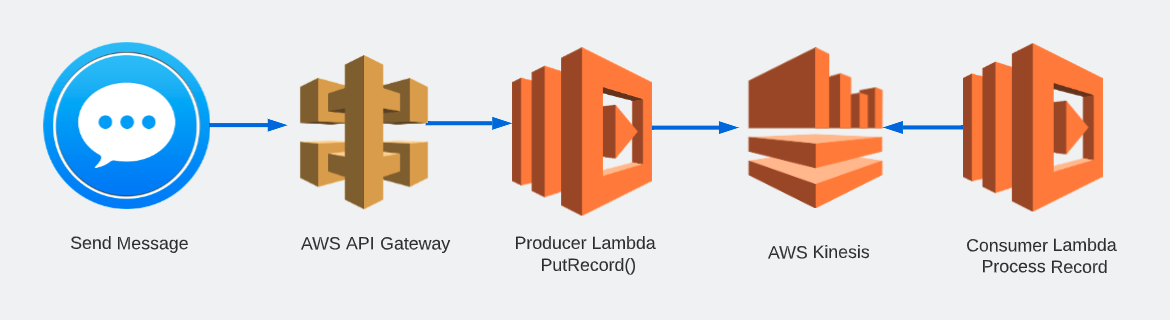
We will be using Terraform at the command line in this workshop to deploy the following resources:
- AWS API Gateway
- Lambda Functions
- Kinesis Stream
- CloudWatch Log Groups
- S3 Bucket
- and other supporting resources
Your Splunk-issued workshop instance should already have terraform installed.
- Check if the terraform command is installed on your instance:
which terraformThe expected outcome is:
terraform () {
        echo "Using API_TOKEN=XXX" >&2
        echo "Using REALM=us1" >&2
        command terraform "$@"
}- If the terraform command is not installed on your instance, follow Terraform’s recommended installation commands listed below:
wget -O- https://apt.releases.hashicorp.com/gpg | sudo gpg --dearmor -o /usr/share/keyrings/hashicorp-archive-keyring.gpg
echo "deb [signed-by=/usr/share/keyrings/hashicorp-archive-keyring.gpg] https://apt.releases.hashicorp.com $(lsb_release -cs) main" | sudo tee /etc/apt/sources.list.d/hashicorp.list
sudo apt update && sudo apt install terraform
Workshop Directory (Lambda) #
The Workshop Directory lambda is a repository that contains all the configuration files and scripts to complete both the auto-instrumentation and manual instrumentation of the example Lambda-based application we will be using today.
- Confirm you have the workshop directory in your home directory:
cd ~/workshop/lambda && lsThe expected output looks something like the following:
auto iam_role manualSetting up AWS & Terraform Variables #
AWS Variables #
The AWS CLI requires that you have credentials to be able to access and manage resources deployed by their services. Both Terraform and the Python scripts in this workshop require these variables to perform their tasks.
- Configure the awscli with the access key ID, secret access key and region for this workshop:
aws configureThis command should provide a prompt similar to the one below. Fill in the key ID and secret key, set the region to us-east-1, and leave the output format as the default:
AWS Access Key ID [None]: XXXXXXXXXXXXXXXX
AWS Secret Access Key [None]: XXXXXXXXXXXXXXXXXXXXXXXXXXXXXXXXXXX
Default region name [None]: us-east-1
Default outoput format [None]:
You can test this is working with the following:
aws lambda list-functionsYou should see some results – either empty or with some functions, but not an error. If successful, hit q to exit.
Terraform Variables #
Terraform supports the passing of variables to ensure sensitive or dynamic data is not hard-coded in your .tf configuration files, as well as to make those values reusable throughout your resource definitions.
In our workshop, Terraform requires variables necessary for deploying the Lambda functions with the right values for the OpenTelemetry Lambda layer; For the ingest values for Splunk Observability Cloud; And to make your environment and resources unique and immediatley recognizable.
Terraform variables are defined in the following manner:
- Define the variables in your main.tf file or a variables.tf
- Set the values for those variables in either of the following ways:
- setting environment variables at the host level, with the same variable names as in their definition, and with TF_VAR_ as a prefix
- setting the values for your variables in a terraform.tfvars file
- passing the values as arguments when running terraform apply
We will be using a combination of variables.tf and terraform.tfvars files to set our variables in this workshop.
- Using either vi or nano, open the terraform.tfvars file in either the auto or manual directory
vi ~/workshop/lambda/auto/terraform.tfvars- Set the variables with their values. Replace the CHANGEME placeholders with those provided by your instructor.
o11y_access_token = "CHANGEME"
o11y_realm        = "CHANGEME"
otel_lambda_layer = ["CHANGEME"]
prefix            = "CHANGEME"
You can get these the following way:
o11y_access_token: If you runexport | grep ACCESS_TOKEN, you can use the value returnedo11y_realm: Your realm (i.e.us1,eu0, etc.)otel_lamba_layer: Use the value forus-east-1provided from hereprefix: Use a short form of your name; all lowercase
Your instructor can help you confirm these values.
Save your file and exit the editor.
Finally, copy the terraform.tfvars file you just edited to the other directory.
cp ~/workshop/lambda/auto/terraform.tfvars ~/workshop/lambda/manualFixing File Permissions (Optional) #
These files should be executable, but just in case let’s set them:
chmod +x ~/workshop/lambda/auto/send_message.py
chmod +x ~/workshop/lambda/manual/send_message.py
Now that we’ve squared off the prerequisites, we can get started with the workshop!