

Zero Touch Event Analytics with ITSI 5.0
Normalize and activate the alerts
Review consistent field mappings, set severity, and connect payment alerts with their entities and services.
Monitoring tools can describe the same condition with different field names and severity labels. Normalization maps those values into ITSI’s standardized event model , giving alerts a common structure that searches and grouping policies can use across sources. A readable title explains the symptom, a consistent severity helps prioritize it, and a reliable source identifies the affected component. Operators spend less time interpreting each tool’s format and can compare alerts more easily.
Useful normalization also preserves the fields that explain how alerts relate. In this exercise, you will retain the payment incident identifier alongside each service and host, review the AI suggestions, and associate the alerts with the prepared service context. These fields help you distinguish repeated symptoms from related alerts across the payment services when you configure grouping later. This follows Splunk Lantern’s guidance to normalize the fields that matter to your investigation .
Continue in the WS50 Payment Alerts editor from the previous exercise.
Review the AI-suggested field mappings #
AI-assisted validation examines the raw records and suggests how their fields fit ITSI’s event model. This reduces the manual work needed to onboard a new alert source. You still review the suggestions so that the normalized alert preserves the source’s meaning.
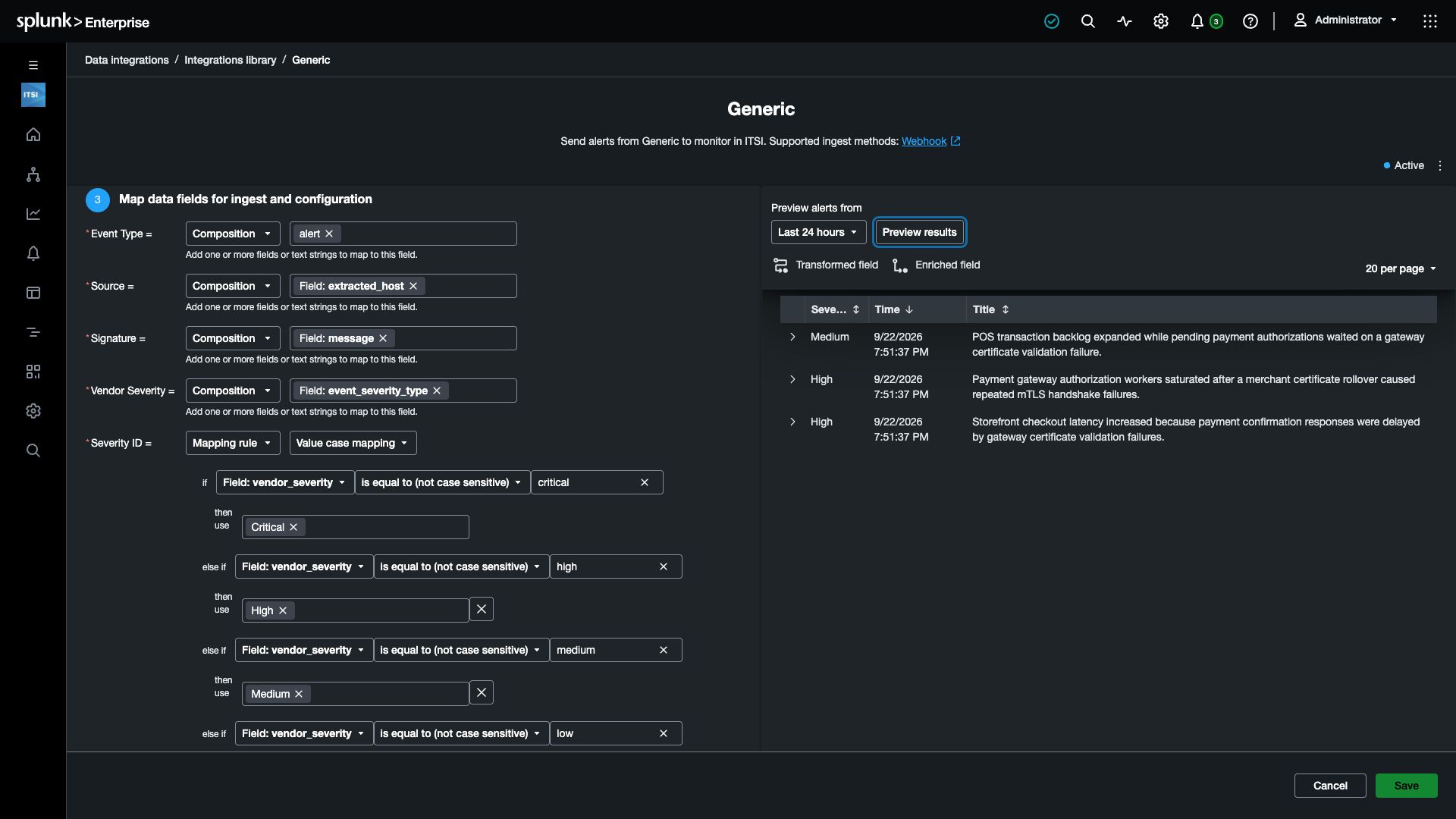
1. Under Map data fields for ingest and configuration, compare the suggested source-field mappings with the table below. Correct any differences. If you used standard Validate, configure these mappings explicitly.
| Target field | Mapping type | Field |
|---|---|---|
| Source | Composition | Field: extracted_host |
| Signature | Composition | Field: message |
| Vendor Severity | Composition | Field: event_severity_type |
| Title | Composition | Field: message |
| Subcomponent | Composition | Field: service |
Select the named Field: tokens rather than typing their names as literal text. This uses each record’s value when ITSI creates the alert.
Set the workflow and identity fields #
These fields express how you want the alert handled and identified. Configure them explicitly, even if AI has supplied a suggestion.
2. Set the following values:
| Target field | Mapping type | Field or value |
|---|---|---|
| Event Type | Composition | Literal alert |
| Owner | Composition | Literal unassigned |
| Status | Composition | Select New |
| Producer App | Composition | Literal Payment Alerts |
| Event Fingerprint | Composition | Field: service, Field: extracted_host, Field: sce, Field: event_severity_type |
For a literal value, type the text and select (New value). For Status, choose the existing New option.
The fingerprint combines the service, host, incident identifier, and source severity. Select the four field tokens in the order shown above; no literal separators are needed. For example, a gateway alert produces Online Payment Gatewayonline_payment_gateway_hostPOS_CUST_0Error.
Including source severity gives a gateway symptom ending in Error a different fingerprint from its clearing event ending in Info. This lets the recovery signal reach ITSI even when repeated symptoms are being throttled.
3. Expand Additional field options and configure:
| Target field | Mapping type | Field or value |
|---|---|---|
| Source ID | Composition | Field: extracted_host |
| Producer Event ID | Composition | Field: sce |
| ITSI Instructions | Composition | Literal Review the episode timeline and supporting logs. |
Producer Event ID is required for the grouping path you will use later. The fingerprint identifies repeated alerts from the same service, host, incident, and source severity. Keep Producer Event ID mapped to sce alone: it preserves the incident identifier shared across the related services and their clearing event. Enabling Producer Event ID in the aggregation policy only helps when this field is populated in the incoming alerts.
For ITSI Instructions, type the instruction text and select (New value). Press Escape to close the selector.
Map severity for this source #
Different monitoring products use different severity labels. One product’s Error might mean the same thing as another product’s High. Normalizing those values gives operators a consistent priority scale while retaining the vendor’s original label for reference.
Your sample may contain only a few source severities, such as Error, Medium, and Info. Keep the template’s broader set of mappings so that a severity absent from this sample can still be handled correctly.
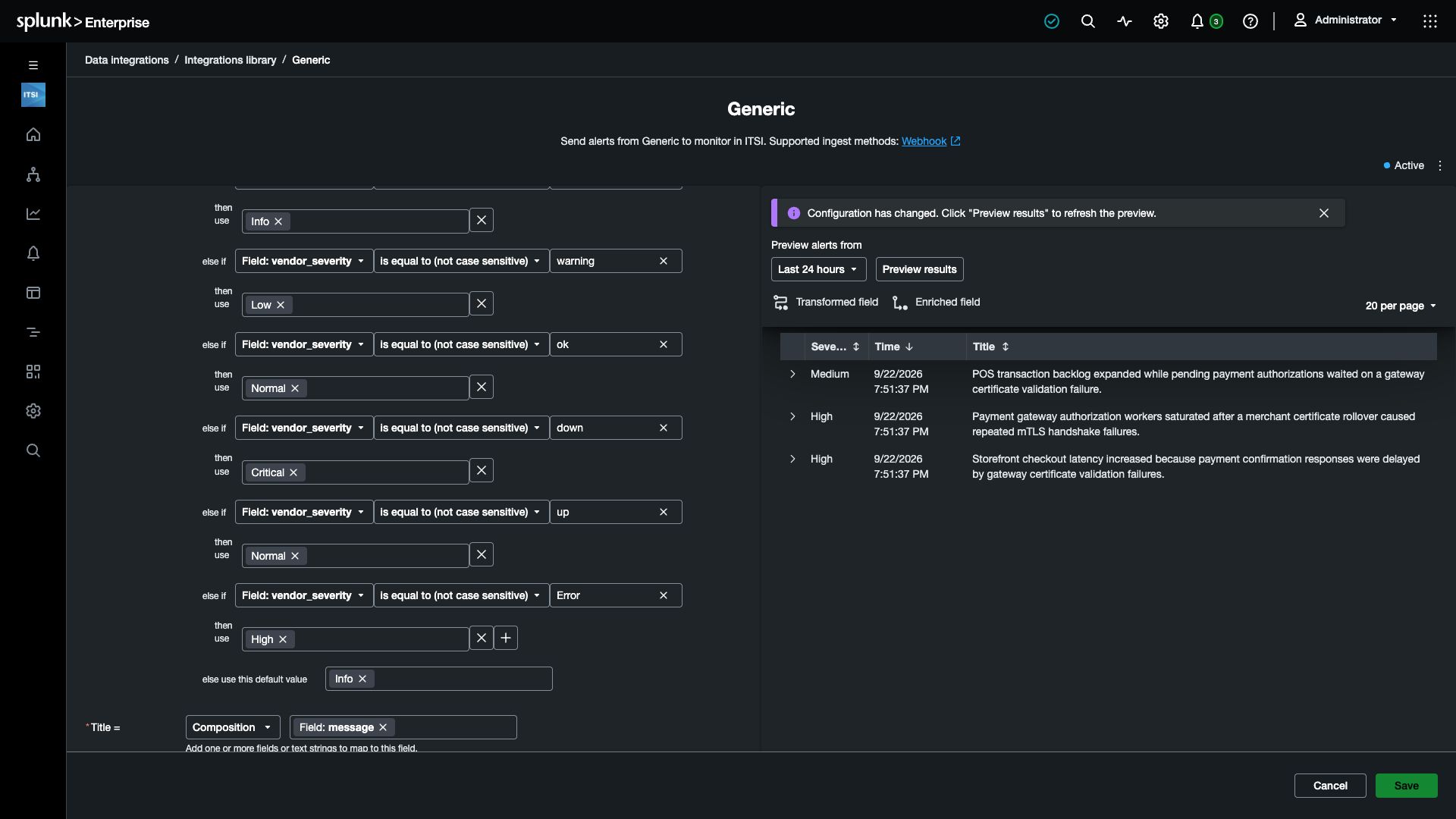
4. Beside Severity ID, click Reset to restore the template’s value case mapping. Keep its existing cases and default value.
5. At the end of the cases, add one more condition before the default:
| Setting | Value |
|---|---|
| Field | Field: vendor_severity |
| Operator | is equal to (not case sensitive) |
| Value | Error |
| Then use | High |
Select the existing High severity option. The rule reads vendor_severity, which receives the original event_severity_type value. Leave the default Info value in place.
Associate and activate the connection #
6. Leave Enrichment for the next exercise. Under Schedule, select Basic schedule and set Run Every to minute. This runs the connection once per minute.
7. After your final search validation, configure Association:
| Setting | Value |
|---|---|
| Service association | Online Payment Gateway, POS System Service, and Web Application |
| Entity Lookup Field | extracted_host |
This connects the alert’s host identity with the supplied entity and service context. If you run validation again, recheck these service selections before saving.
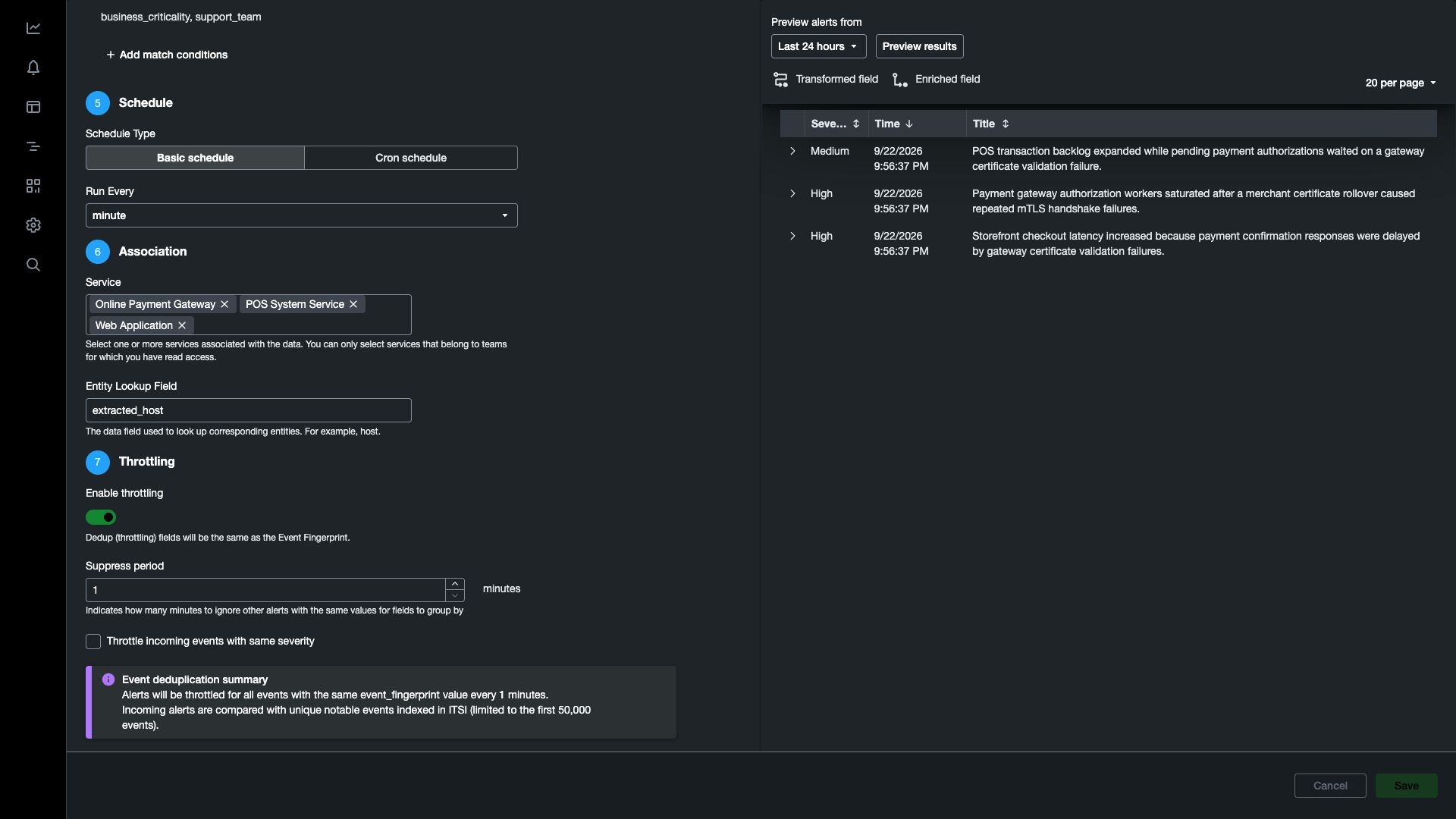
8. Turn Enable throttling on and set Suppress period to 1 minute. Leave Throttle incoming events with same severity unchecked.
Throttling reduces repeated alerts with the same Event Fingerprint, so the episode contains a useful sequence of observations without every repeated source record. A short period preserves more of that sequence than a long suppression window. Your fingerprint already separates symptoms from clearing events by source severity, so leave the additional same-severity option unchecked.
With Suppress period set to 1 minute, ITSI automatically adds earliest=-1m latest=now to the source search. Changing the period updates those time bounds too; you do not need to type them. The Search time range control becomes disabled because the time bounds are now in the SPL. Keep the schedule and suppress period at one minute for this workshop.
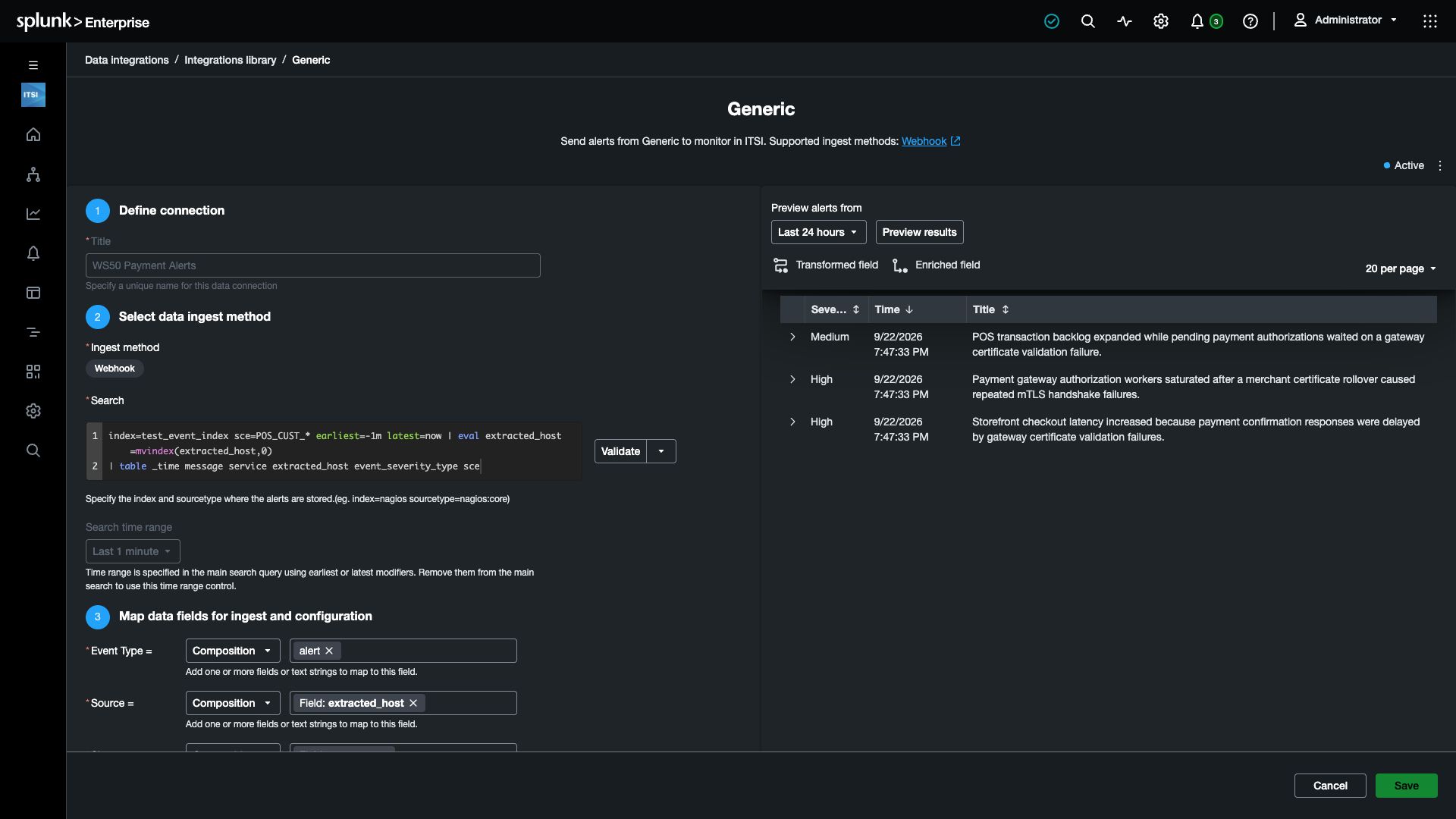
9. Select Preview results and expand an Online Payment Gateway alert. Check these values:
| Field | Expected value |
|---|---|
title | The original event message |
src and src_id | online_payment_gateway_host |
| Severity | High, mapped from source severity Error |
producer_app | Payment Alerts |
producer_event_id | The record’s sce value |
event_fingerprint | Ends in Error |
If the preview includes a clearing event (message=end), its fingerprint should end in Info. Its producer event ID should still match the incident.
Next, inspect the POS System Service and Web Application alerts:
| Service | Expected src and src_id | Source severity → ITSI severity |
|---|---|---|
| POS System Service | pos_system_service_host | Medium → Medium |
| Web Application | web_application_host | Error → High |
Alerts for the same incident should share a Producer Event ID, while each alert retains its own service and host identity.
10. Select Save and activate. Note when you activated the connection, then continue to enrichment while it produces new notable alerts.
If a preview field is incorrect, correct its mapping in this connection and preview again. Recheck the service associations after validation.
Checkpoint