

Zero Touch Event Analytics with ITSI 5.0
Add support context to the alerts
Use a prepared lookup to add support team and business criticality to the payment alerts.
A well-formed alert tells you what happened and where. Enrichment adds context that helps the next operator act: which team supports that component, how important is it to the business, and who should take the next step? Adding that information to the alert reduces time spent searching for an owner or deciding which incident to investigate first.
An enrichment policy defines how to match an alert field, such as its host, to a lookup record and which additional fields to add when a match is found. You can use an existing lookup or import a CSV containing information from an asset inventory, a service ownership directory, or a configuration management database (CMDB). Attaching the policy to a Data Integration connection brings that reference information into incoming alerts, where operators can use it during triage.
Here, you will use the prepared payment lookup to add support_team and business_criticality. A gateway alert will identify payments-operations as its support team and show its high business criticality alongside the payment symptom. These fields help operators choose the right team and assess business impact; they do not automatically change the alert’s Owner or Severity.
Create the enrichment policy #
1. Go to Configuration → Data Integrations → Integrations library and scroll to Enrichment policies. Select the Generic tile labeled General enrichment policy to open the enrichment-policy list, then select Create mapping.
The wizard has three steps: Configure settings, Map data, and Review.
2. In Configure settings, enter these values:
| Setting | Value |
|---|---|
| Policy name | WS50 Payment Context |
| Description | Workshop metadata for the three payment incident services. |
| Data source | Existing |
| Lookup | ws50_payment_context |
3. Continue to Map data. Under Match fields, select src. This is the lookup column containing the host identity used to find the matching record.
4. Under Fields to add to events, select business_criticality and support_team as the source fields. These values will give the operator business and ownership context alongside the alert.
5. Continue to Review and check these rows:
| src | support_team | business_criticality |
|---|---|---|
online_payment_gateway_host | payments-operations | High |
pos_system_service_host | retail-operations | High |
web_application_host | digital-experience | High |
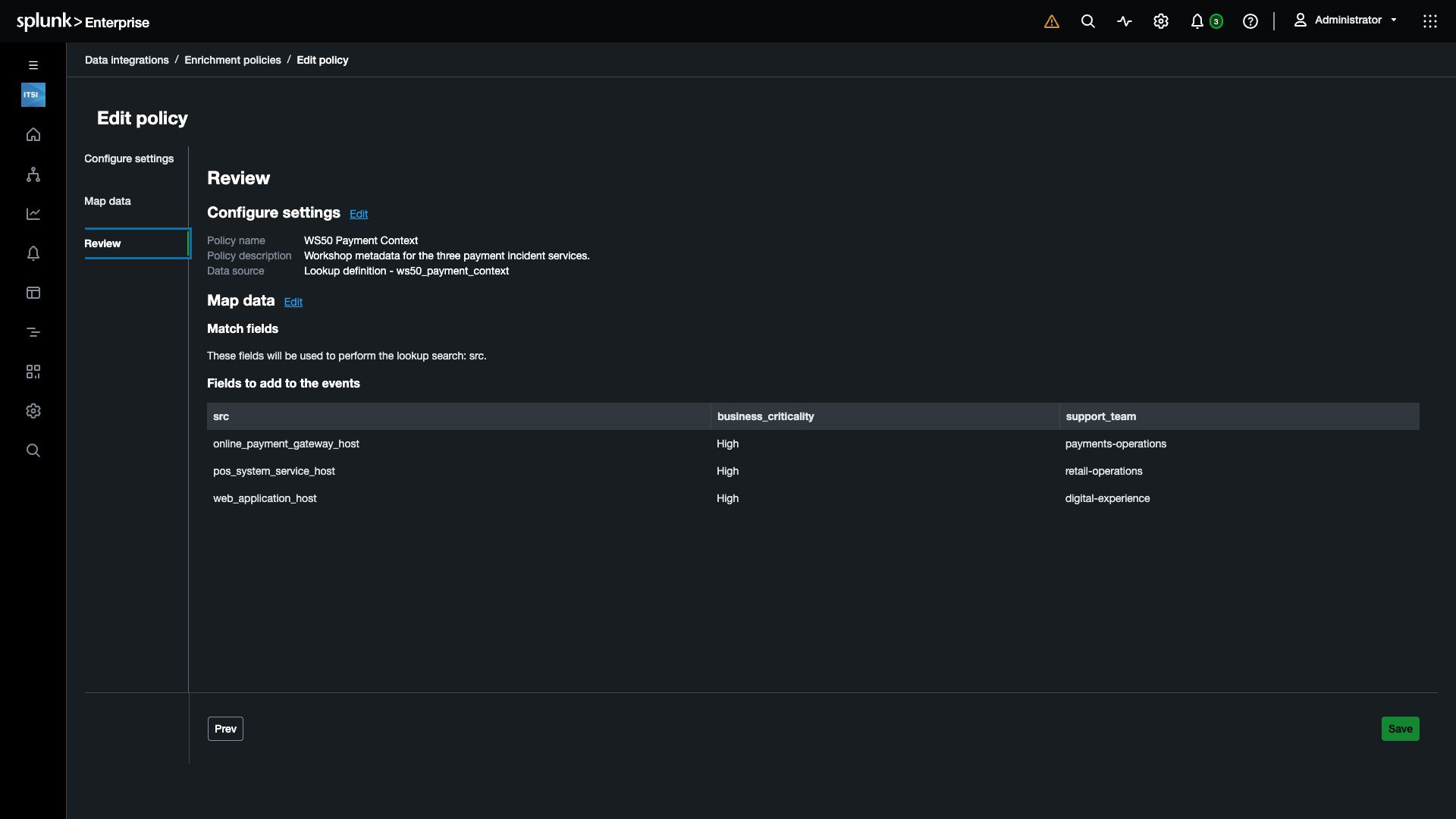
6. Select Save.
Attach the context to your connection #
7. Go to Data Integrations → Deployed integrations → Generic and reopen the WS50 Payment Alerts inbound notification configuration you created earlier.
8. Under Enrichment → Source 1, select WS50 Payment Context.
9. For the lookup’s src match field, choose extracted_host from the connection’s field dropdown.
This dropdown contains fields from the raw input. extracted_host provides the host value that matches the lookup’s src column; normalization also uses this host as the alert source.
10. Preview the connection and inspect a payment-gateway row. Confirm that it now includes:
| Field | Expected value |
|---|---|
support_team | payments-operations |
business_criticality | High |
11. Save the updated connection. In the next exercise, you will open the live alerts together in an episode.
If the context is missing, confirm that
WS50 Payment Contextis attached and that the lookup’ssrcfield receivesextracted_host. Check a newly generated alert; previously produced alerts are not the checkpoint for this change.
Checkpoint