Import Catalyst Center Services in ITSI

2 minutes   Authors Chris Putnam, Sam Scudere-Weiss, & Tim Hard

From Device Health to Location-Based Network Visibility

Traditional network monitoring tools report on individual devices (a router is up or down, a switch is reachable or not). That level of visibility tells you what failed but not where the impact is felt or how bad it is for the business. When a distribution switch at a branch office starts degrading, your operations team shouldn’t have to manually correlate alerts across tools to figure out that an entire site is affected.

This section addresses that gap. By importing Cisco Catalyst Center topology data into ITSI using the Content Pack for Cisco Enterprise Networks, you create a location-aware service model that aggregates device health up to the site level. Instead of watching 50 individual device alerts, you see a single service health score per site, giving your team an immediate answer to the question: which sites are having problems right now?

Why the Content Pack Matters

The Content Pack for Cisco Enterprise Networks (available through the Splunk App for Content Packs) is the key enabler here. Rather than manually building services and KPIs from scratch, the content pack uses topology data already collected by the Cisco Catalyst Add-on for Splunk to automatically discover and import your Catalyst Center sites as ITSI services. Each site becomes a service, and each service gets a set of pre-built KPIs that reflect the health of every network layer within that site.

The import workflow reads your Cisco Catalyst Center site hierarchy and creates one ITSI service per site. ITSI then runs entity discovery searches to associate the right devices (entities) with each service automatically. No manual mapping required!
Import Catalyst Center Services Import Catalyst Center Services

The Catalyst Center Site Service Template

At the heart of this integration is the Catalyst Center Site Service Template. When services are imported, this template is applied to each site and provides six out-of-the-box KPIs, each tracking a different layer of the network stack at that location:

KPIWhat It Measures
Access LayerAverage HealthScore of Access Layer devices
Access PointsAverage HealthScore of Access Point devices
Core LayerAverage HealthScore of Core Layer devices
Distribution LayerAverage HealthScore of Distribution Layer devices
Router HealthAverage HealthScore of Routers
Wireless Controller HealthAverage HealthScore of Wireless Controllers

These KPIs are sourced directly from the Cisco Catalyst Center HealthScore, a 1-10 score that Catalyst Center assigns to each device based on onboarding, connectivity, and radio frequency health. By averaging these scores per network layer, ITSI can pinpoint exactly which part of the stack is dragging down a site’s overall health. The result is that the jump from “Site X is degraded” to “the Access Layer at Site X is the problem” becomes a matter of seconds.

What You’ll Do in This Section

By the end of this section you will have:

  • Installed the Content Pack for Cisco Enterprise Networks and imported Catalyst Center sites as ITSI services
  • Validated that the Catalyst Center Site KPIs are populating correctly with real network health data
Last Modified May 4, 2026

Subsections of 2. Import Catalyst Center Services in ITSI

Install the Cisco Enterprise Networks Content Pack

5 minutes   Authors Chris Putnam, Sam Scudere-Weiss, & Tim Hard
In this section you will install the Cisco Enterprise Networks Content Pack which provides pre-built services, KPIs, and data integrations for Cisco network infrastructure.
Exercise: Install the Cisco Enterprise Networks Content Pack

1. In ITSI Navigate to Configuration -> Data Integrations

2. Select Content Library in the tabs under Data Integrations

Info
Here you can see all of the available Out of the box Integrations that are available in the Splunk App for Content Packs

Data Integrations Data Integrations

3. Select the Content Pack for Cisco Enterprise Networks, and click Proceed

Info
This page gives you an overview of what's available in the content pack

Content Pack for Cisco Enterprise Networks Content Pack for Cisco Enterprise Networks

5. Make sure Add all 14 objects is enabled

6. Enable the Import As Enabled toggle

IMPORTANT: Do not enter a prefix in the Add a prefix to your new objects section

7. Click Install Selected

Info
Make sure Add all 14 objects and Import As Enabled are both toggled on before clicking Install Selected

Install Selected Install Selected

8. Click Install.

Info
In production environments it's a best practice to take a backup before any major changes

Install Install

9. Confirm the installation is complete.

Info
The summary confirms all objects were successfully installed

Installation Complete Installation Complete

Nice Job!
The Cisco Enterprise Networks Content Pack is now installed!

In the next section you see how the content pack can be used to automatically import Catalyst Center Sites as services in ITSI.

Click Configure Services and continue to the next section of the workshop.

Last Modified May 4, 2026

ITSI Service and KPI Validation

5 minutes   Authors Chris Putnam, Sam Scudere-Weiss, & Tim Hard
With ITSI 4.21 manual import processes are replaced by a guided workflow and pre-built data integrations. The content pack includes service import modules that discover and build the service hierarchy for Meraki and Catalyst Center automatically.
Exercise: Import Services and Configure Alerts
Tip

To get back to the Import Services page for Catalyst Center, navigate to Configuration > Data Integrations > Content Library > Cisco Enterprise Networks.

1. Under Service Import Modules, select Cisco Catalyst Center.

Info
Automatic service hierarchy imports are supported for both Catalyst Center and Meraki

Service Import Modules Service Import Modules

2. Select the Catalyst Center Host and all available services. Click Next.

Info
Select the Catalyst Center host and all available sites to import as ITSI services

Select Services Select Services

3. Select Default Service Sandbox. Click Next.

Info
Services are imported into a sandbox for review before being published to production ITSI

Default Service Sandbox Default Service Sandbox

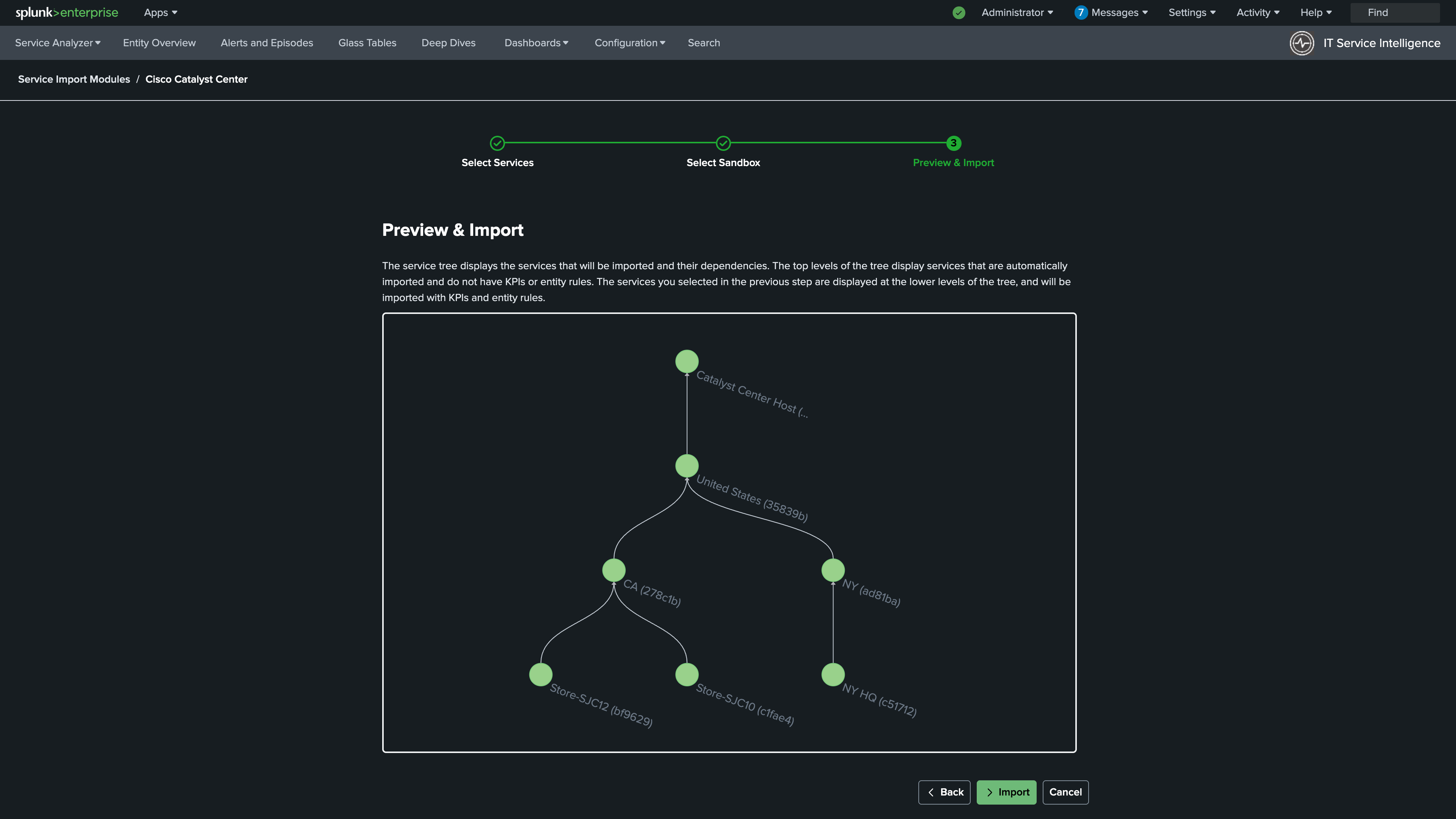
4. Review the Services that will be imported. Click Import.

Info
Review the complete list of Catalyst Center site services that will be created before clicking Import

Review Services Review Services

5. Review the Service Sandbox. Click Publish. After the precheck completes, click Next.

Info
Review the service hierarchy in the sandbox, then publish to make the services active in ITSI

Service Sandbox Service Sandbox

6. Navigate to Configuration > Service Monitoring > Service and KPI Management.

7. Use the Select All check box to select all of your services

8. With all services selected click Bulk Action > Enable.

Info
Use Bulk Action to enable all imported services at once from the Service and KPI Management page

Service and KPI Management Service and KPI Management

9. Click Enable. After a few minutes the KPIs will populate.

Info
Confirm the enable action. KPIs will begin calculating within a few minutes

Enable KPIs Enable KPIs

Nice Job!
You just imported all of the Catalyst Center services without having to create any CSVs, lookups, write any SPL, or manually configure the service dependencies. Pretty neat, huh?

Continue to the next section to validate your configuration is working correctly.

Last Modified May 4, 2026

Validate the Configuration

2 minutes   Authors Chris Putnam, Sam Scudere-Weiss, & Tim Hard
Confirm that the imported services and KPIs are calculating correctly, and that the alert pipeline from Catalyst Center is active before moving on.
Exercise: Validate the Configuration

1. Navigate to the Service Analyzer > Default Service Analyzer.

You should see the services you imported and the KPIs that are part of the Catalyst Center Site Service Template.

It may take a few minutes for your services and KPIs to show a health status.

Info
The Service Analyzer shows the imported Catalyst Center site services and their current health status

ITSI Service Analyzer ITSI Service Analyzer

2. Click Tree to switch to the Service Tree view

3. Click one of the Store services in the service tree to view the KPIs associated with the Catalyst Center Site

Info
Clicking a service reveals its individual KPIs and their current health scores per network layer

Service KPIs Service KPIs

Congrats!
Your Catalyst Center services are live in ITSI!

In the next section you’ll configure the Inbound Notification Service which will automatically create notable events in ITSI when a Catalyst Center Issue occurs indicating degraded network performance.