1. In ITSI, navigate to Configuration > Data Integrations.
Info
The Alerts section of the Data Integrations library contains the pre-built connections for Catalyst Center and Meraki

2. Under the Alerts section of the library, select Cisco Catalyst Center.
3. Click + Add Connection.
Info
Adding a custom connection lets you control the search, field mappings, and throttling behavior independently from the default

4. Enter Catalyst Center Alerts for the name. Use the following search:
index=netops sourcetype="cisco:dnac:issue"
| eval itsi_site = case( isnotnull(SiteNameHierarchy) AND SiteNameHierarchy!="", mvindex(split(SiteNameHierarchy, "/"), 3), isnotnull(DeviceName) AND DeviceName!="", "Store-" . mvindex(split(DeviceName, "-"), 0) )
Use the time picker to select Last 15 minutes
5. Set the Lookback period to 5 minutes. Click Validate
Note: If no events are found in the last 5 minutes, increase the Lookback to 60 minutes. Once your search returns results, be sure to set the Lookback period back to 5 minutes
Info
Validation confirms the search returns events and that the field mappings are correct before saving

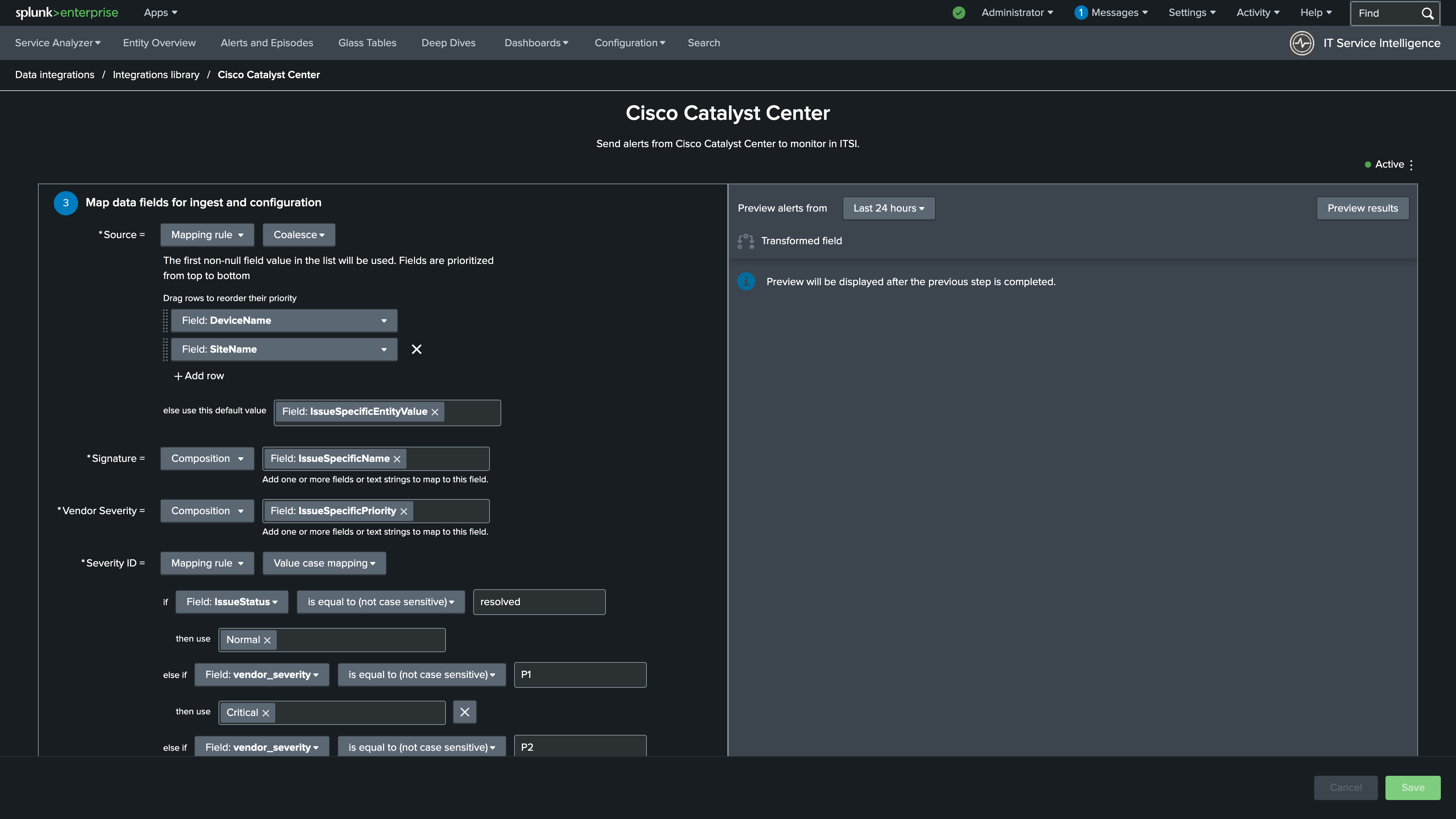
6. Update the Source to a Mapping rule using Coalesce for the type
7. Select DeviceName as the first field and SiteName as the second
8. Enter IssueSpecificEntityValue as the else use the default value field
Info
The Source field is used to identify the origin of the alert within ITSI episodes

9. Update the Severity ID mapping to a Mapping rule using Value case mapping as the type
10. Set IssueStatus is equal to (not case sensitive) to resolved and then use to Normal
11. Map the following values for the remainder of the if statement:
vendor_severity is equal to (not case sensitive) to P1 and then use to Critical
vendor_severity is equal to (not case sensitive) to P2 and then use to High
vendor_severity is equal to (not case sensitive) to P3 and then use to Medium
vendor_severity is equal to (not case sensitive) to P4 and then use to Low
And finally, set else use this default value to Info
Info
Map Catalyst Center severity values to the ITSI severity scale so episodes display the correct priority

12. Update the subcomponent to itsi_site
13. * Change Run every to 1 minute
14. Add NY HQ, Store-SJC10, and Store-SJC12 to the Service Association section
15. Use SiteNameHierarchy for the Entity Lookup Field
16. Turn on the Enable throttling toggle
17. Set the Suppress period to every 5 minutes
18. Click Preview Results in the upper right (Note: You may not get results in the preview. We will review the events during the Create a custom NEAP section)
19. Click Save and Activate
Info
The subcomponent field is what links each alert to its corresponding Catalyst Center site service in ITSI

Nice Job!
Catalyst Center alerts are now flowing into ITSI as normalized notable events linked to their site service.
In the next section you’ll add SolarWinds as a second alert source so ITSI can correlate events from both vendors.