

Configure Solarwinds Notifications
Install the Solarwinds Content Pack
In this section you will install and configure the SolarWinds Content Pack to ingest SolarWinds alerts into ITSI, completing the two-source alert pipeline needed for cross-vendor correlation.
Exercise: Install the Solarwinds Content Pack
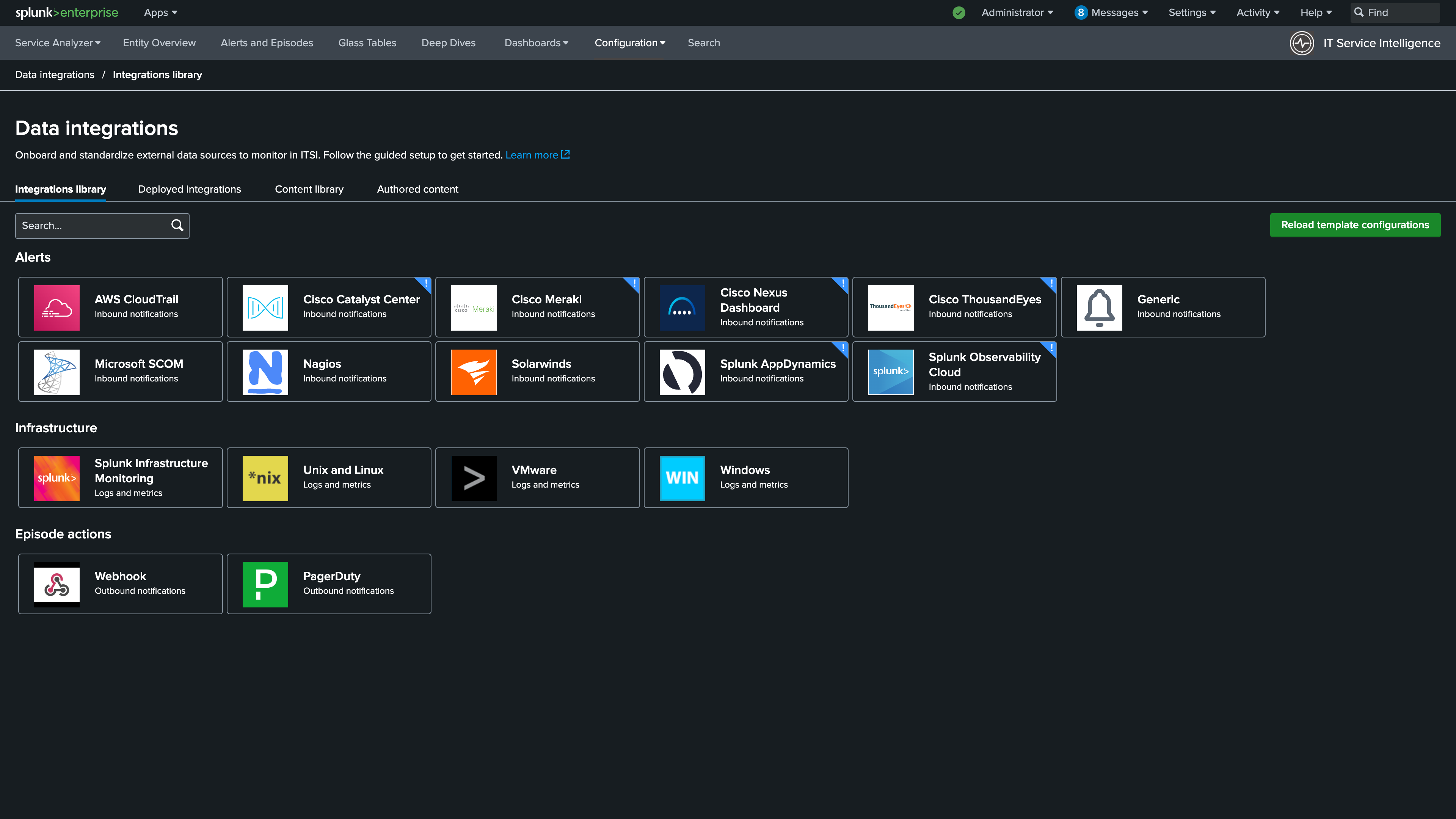
1. In ITSI, navigate to Configuration > Data Integrations.
2. Under the Alerts section of the Integrations library, select Solarwinds.
Info
The SolarWinds Content Pack includes pre-built field mappings and alert templates for ITSI
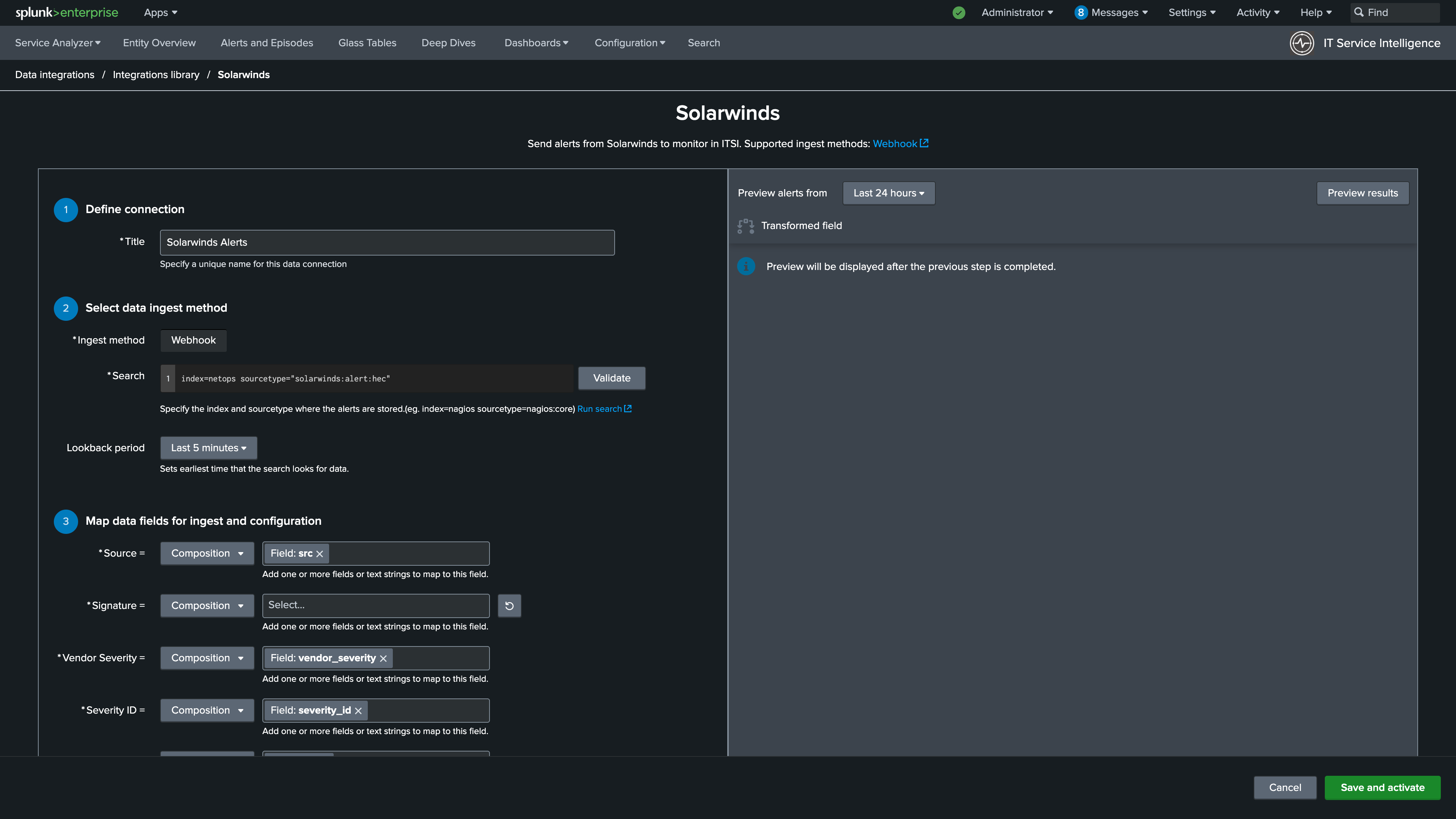
3. Enter Solarwinds Alerts for the connection title.
4. Use the following SPL for the search:
index=netops sourcetype="solarwinds:alert:hec"5. Click Validate.
6. Set the Lookback period to 5 minutes.
Info
Validation confirms the search is returning SolarWinds events before saving the connection
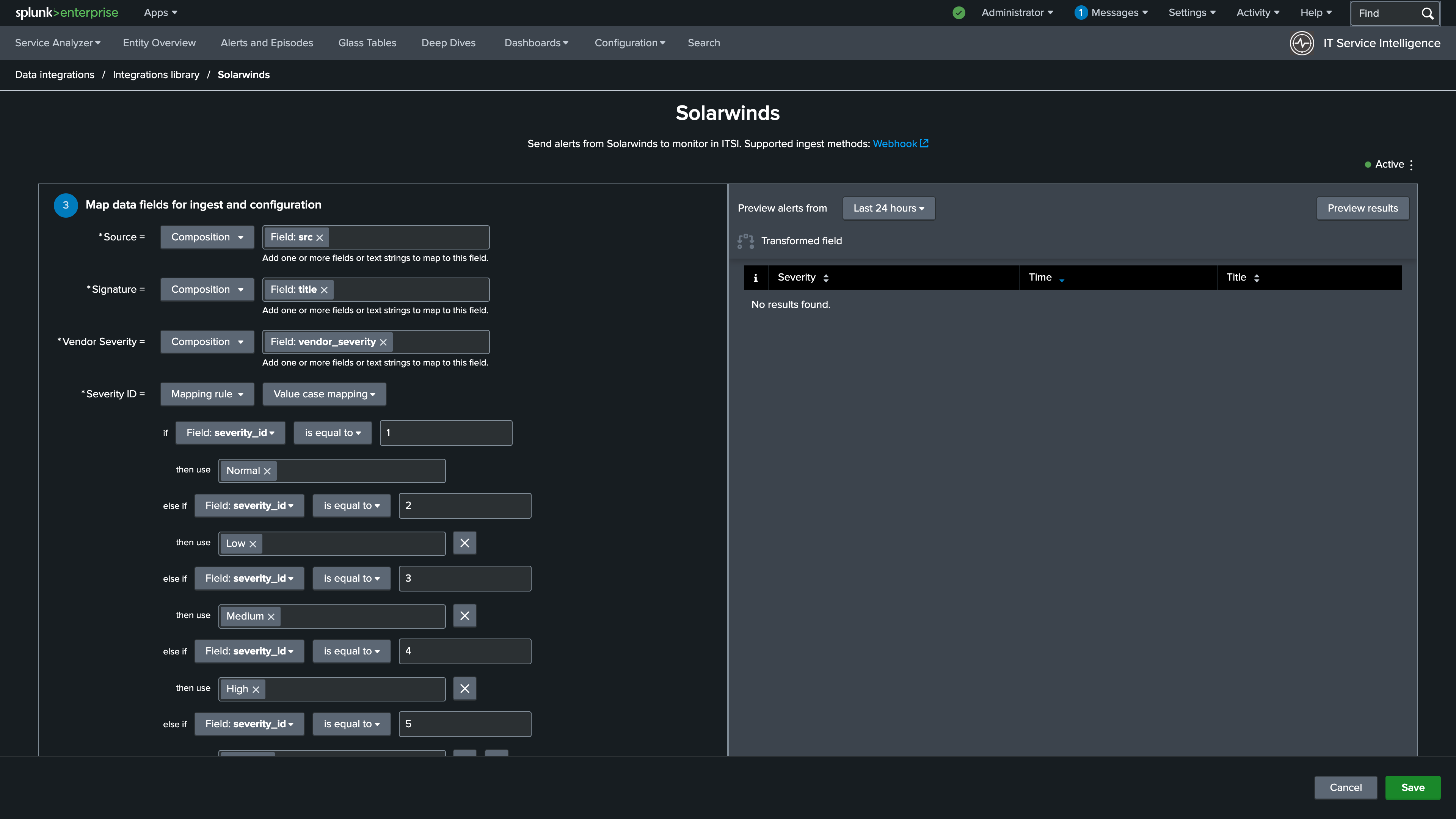
7. Set Signature to title.
Info
The Signature field uniquely identifies each alert type and is used for deduplication within ITSI
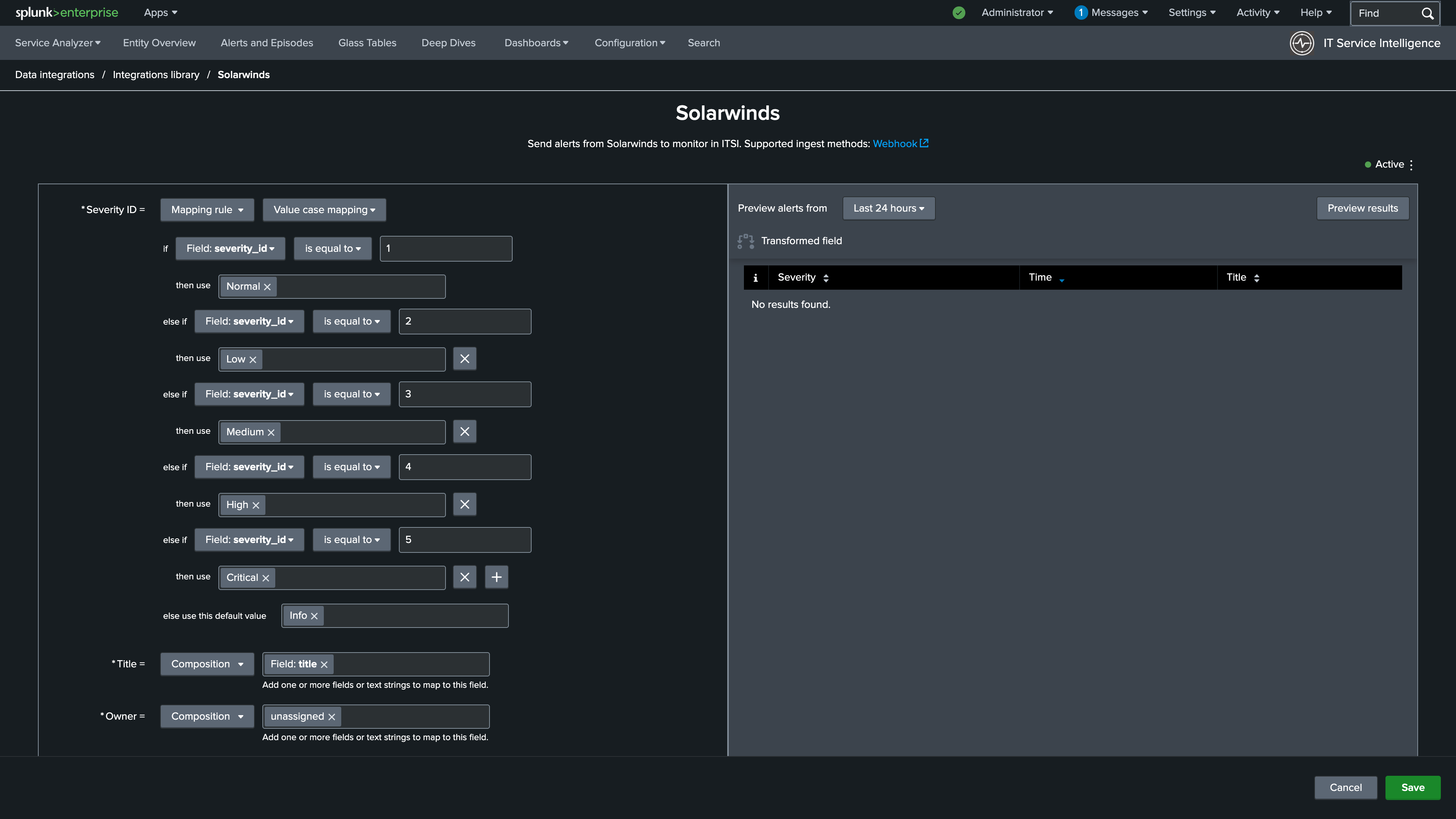
8. Update the Severity ID mapping to a Mapping rule using Value case mapping as the type
9. Set severity_id is equal to (not case sensitive) to 1 and then use to Normal
10. Map the following values for the remainder of the if statement:
severity_id is equal to (not case sensitive) to 2 and then use to Low
severity_id is equal to (not case sensitive) to 3 and then use to Medium
severity_id is equal to (not case sensitive) to 4 and then use to High
severity_id is equal to (not case sensitive) to 5 and then use to Critical
And finally, set else use this default value to Info
Info
Map SolarWinds severity values to the ITSI severity scale so episodes display the correct priority
11. Update the subcomponent to vendor_region.
Info
The subcomponent field links each SolarWinds alert to its corresponding site, enabling cross-vendor correlation
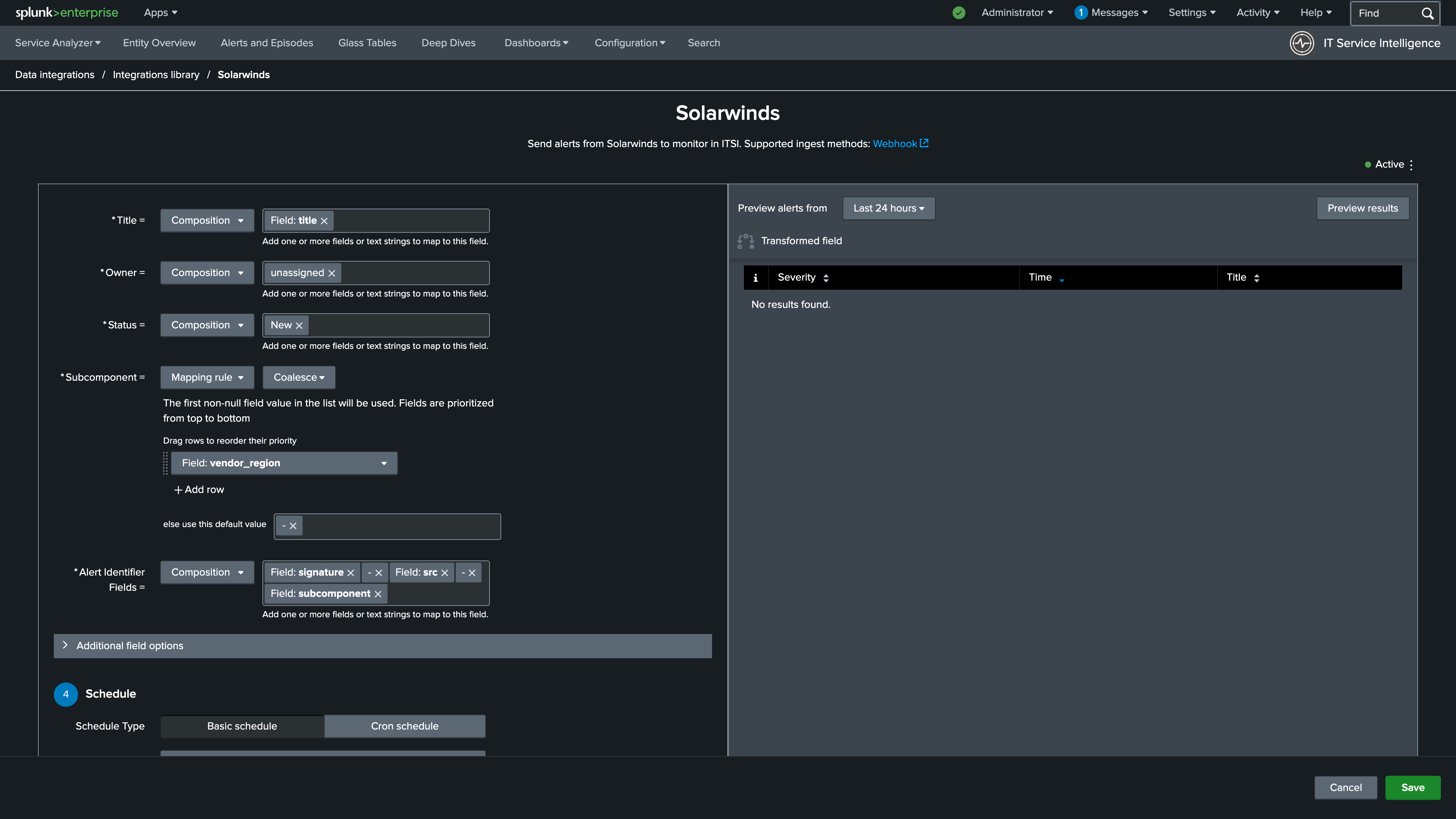
12. Expand additional fields and set the description to signature.
Info
Additional fields provide extra context visible when reviewing episodes in ITSI
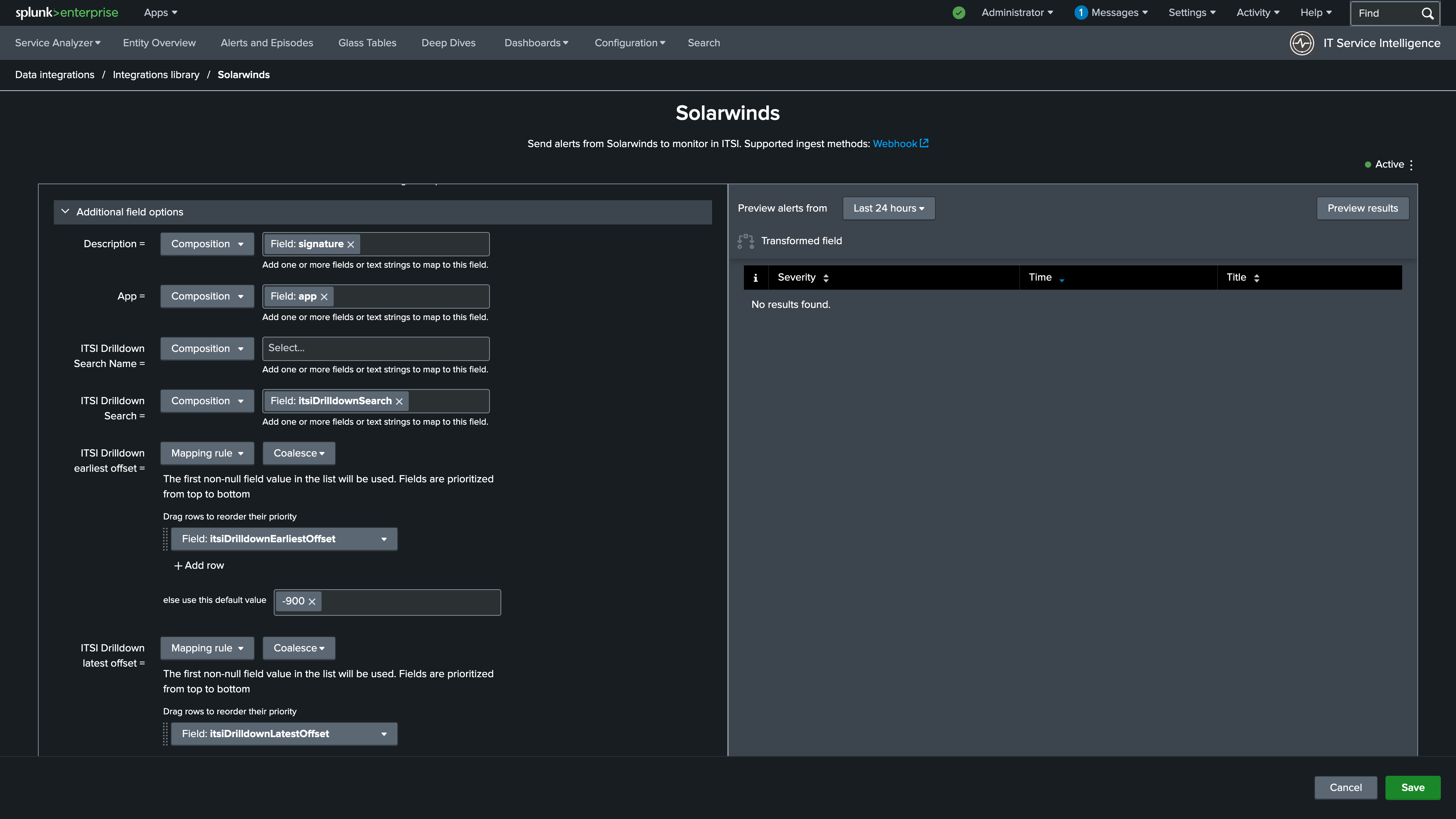
13. Set the Schedule to Run Every Minute.
14. Add NY HQ, Store-SJC10, and Store-SJC12 to the Service Association section
15. Turn on the Enable throttling toggle
16. Set the Suppress period to every 5 minutes
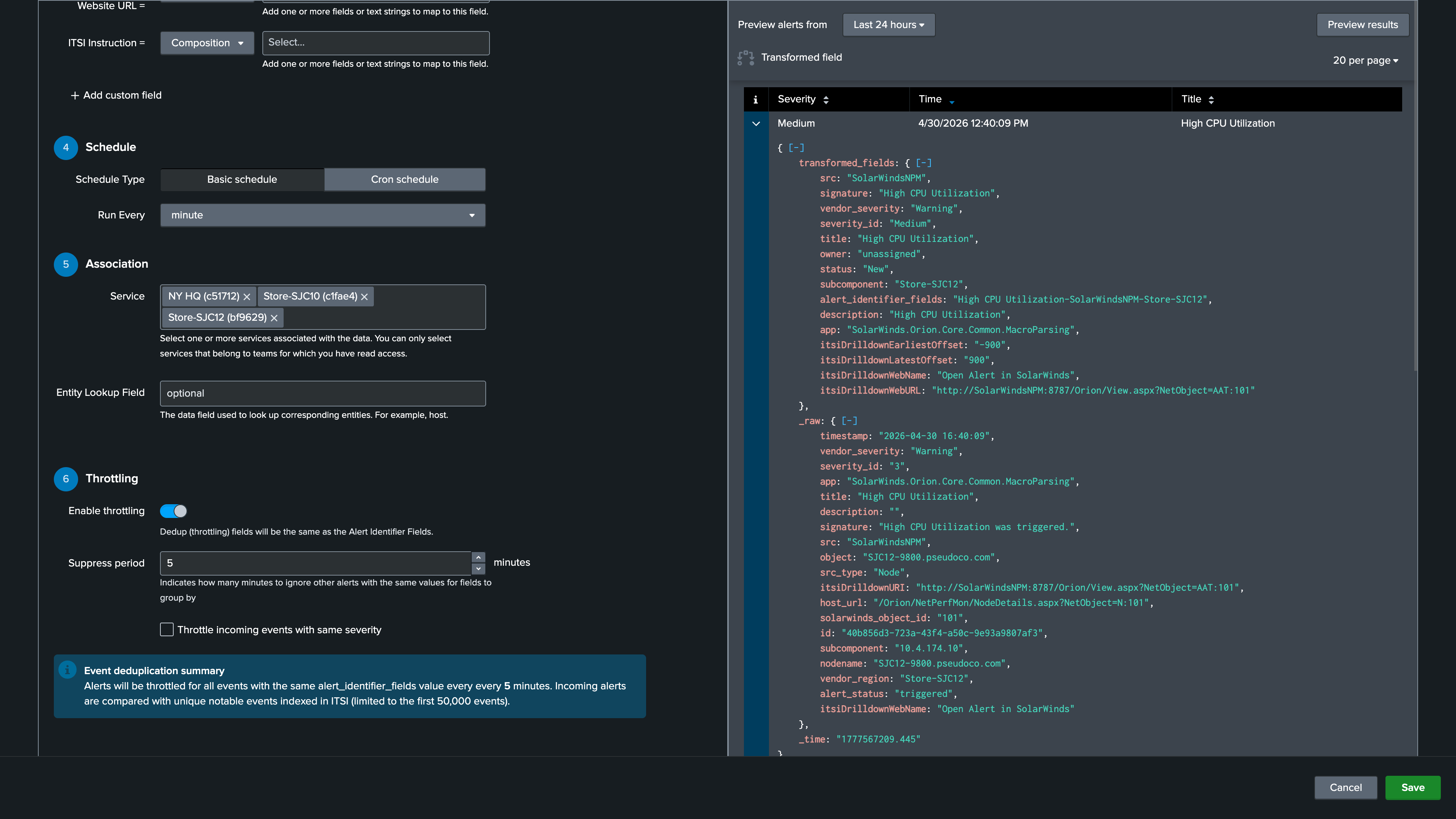
17. Click Preview Results in the upper right (Note: You may not get results in the preview. We will review the events during the Create a custom NEAP section)
18. Click Save and Activate
Info
Review the transformed fields in Preview Results before saving to confirm the mapping is correct
Nice Job!
SolarWinds alerts are now flowing into ITSI alongside Catalyst Center events. Both sources are normalized and ready to be correlated.
In the next section you will build a custom NEAP to group alerts from both vendors into a single episode per site.