

Create a Custom NEAP
ITSI Service and KPI Review
In this section you will review the services and episodes created by the content packs and alert integrations configured in the previous steps, confirming the full end-to-end pipeline is working correctly.
Exercise: Review Services and Episodes
Info
1. Navigate to the ITSI Service Analyzer > Default Service Analyzer. You should see the services you imported
2. Edit the Analyzer name to Network Health by Location
Info
The Tree view shows the full service hierarchy with each Catalyst Center site and its underlying KPI health
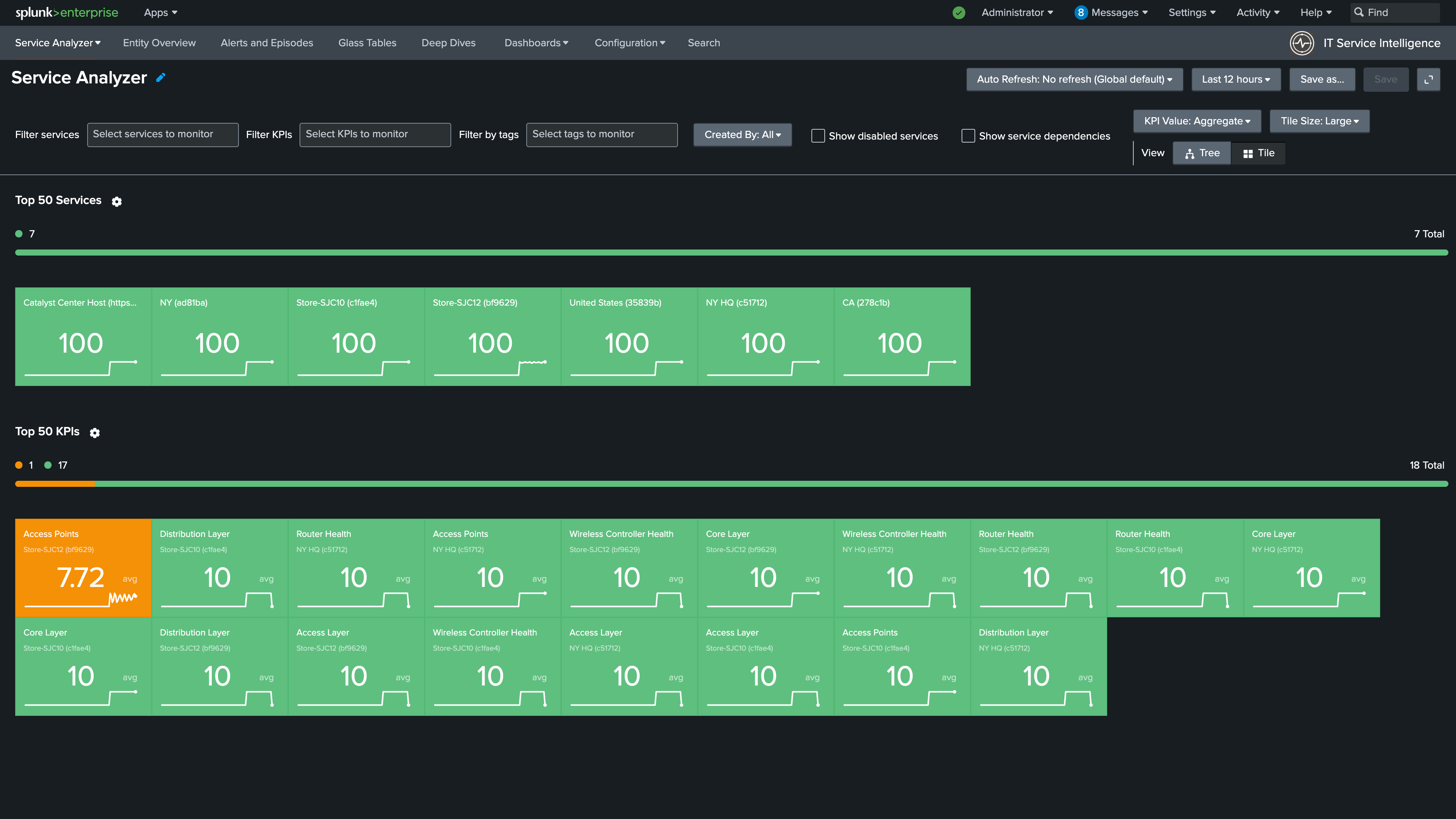
3. Click Tree on the right side
4. Add United States to Filter Services
5. Set the timeframe to Last 1 hour and Auto Refresh to 1 minute
Info
Filtering by United States and setting Auto Refresh gives you a live view of site health across all locations
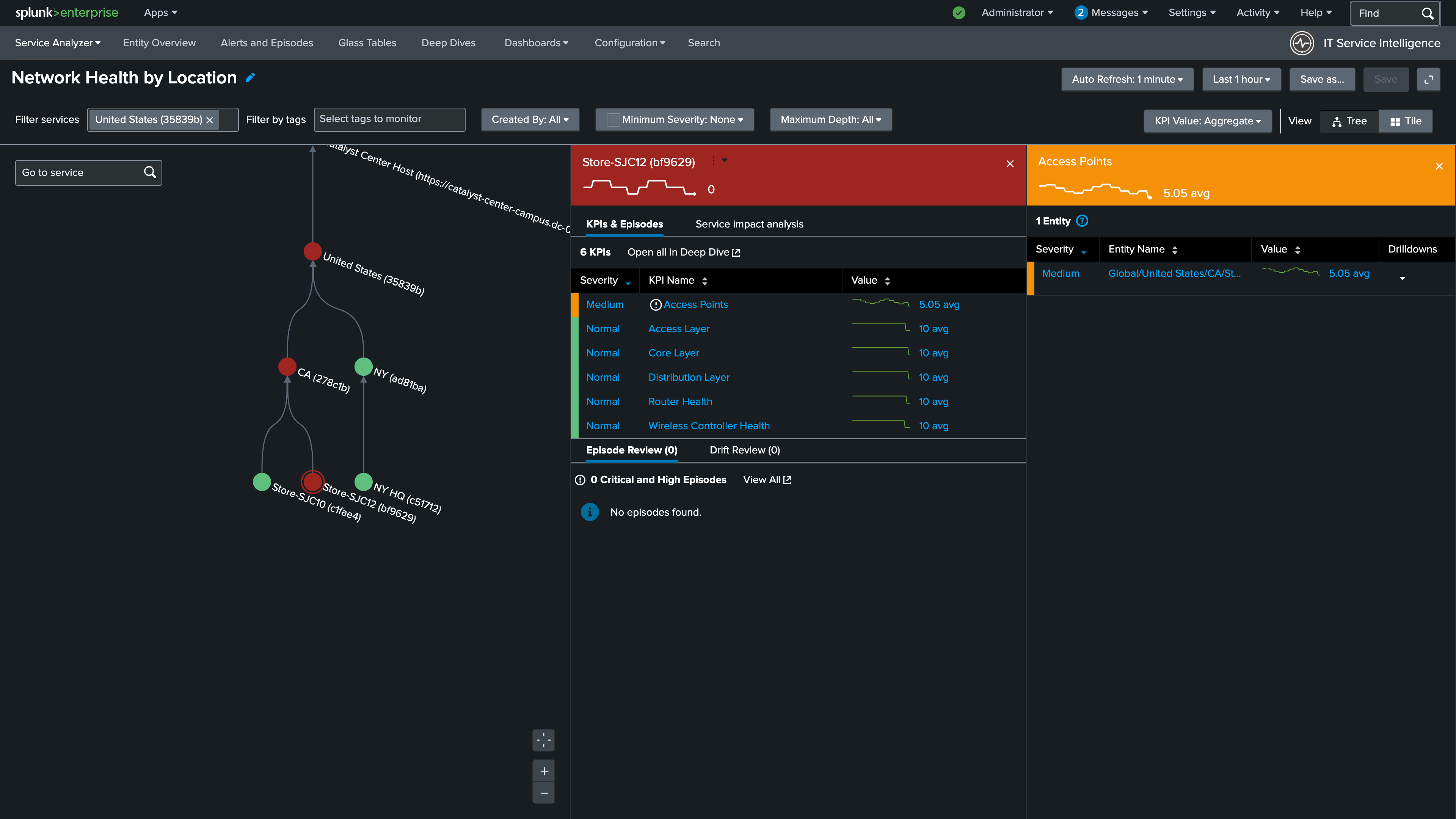
6. Click Save. The view should be identical to the graphic below
7. Click Alerts and Episodes
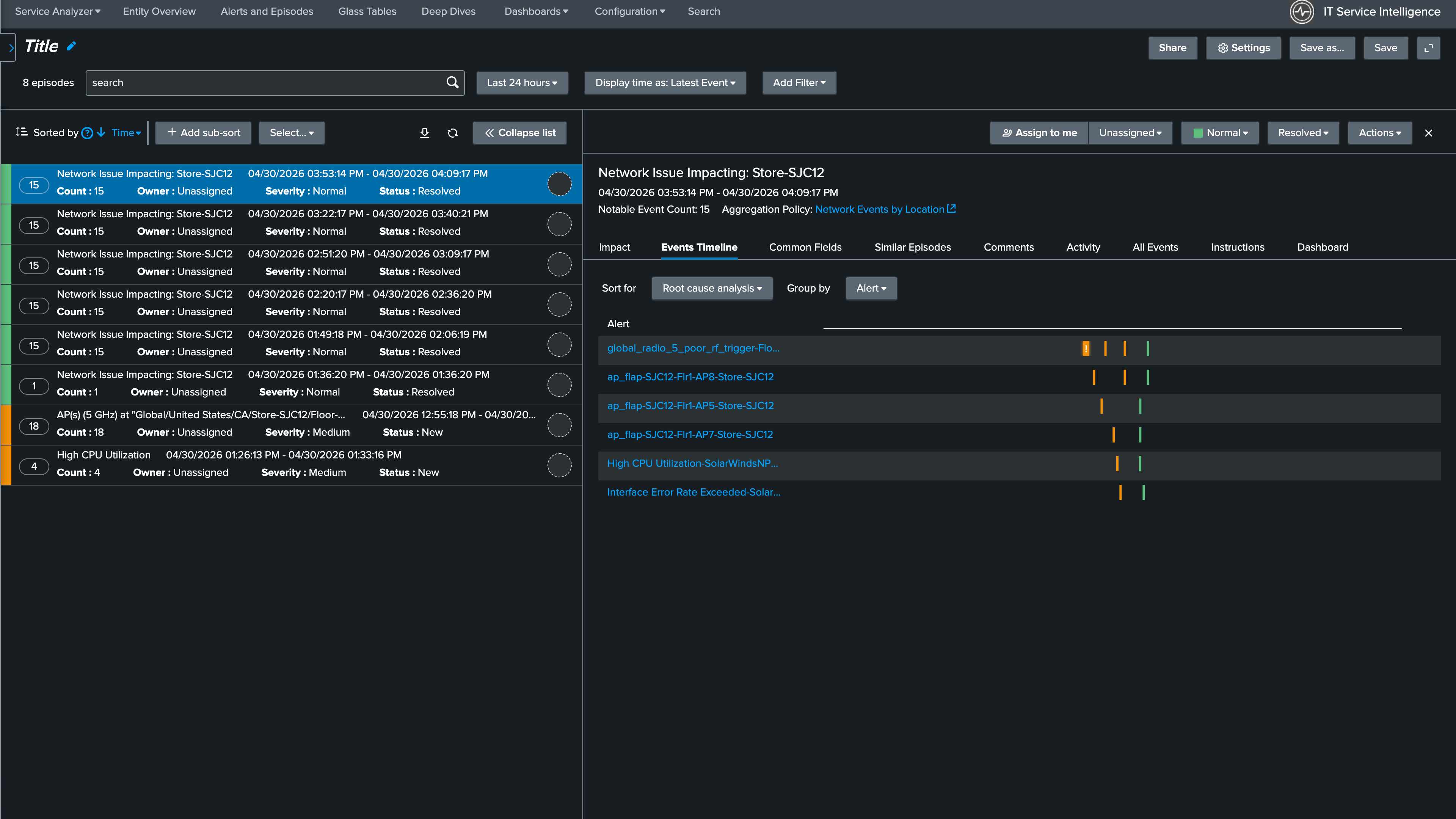
8. Select the most recently created episode
9. In the Episode details confirm that the Aggregation Policy used was the NEAP you created in the previous step
Info
Episodes created by the custom NEAP group Catalyst Center and SolarWinds alerts together under a single site-named episode
Nice Job!
The full pipeline is confirmed. Services and their dependencies are configured, KPIs are calculating, and the custom NEAP is grouping cross-vendor alerts by site.
Continue to the next section to walkthrough this scenario.