Create a Custom NEAP

10 minutes   Authors Chris Putnam, Sam Scudere-Weiss, & Tim Hard

Correlating Alerts Across Vendors

When a network event occurs, operations teams are left manually hunting across disconnected tools to piece together what happened, where it started, and which services or users are affected. Without a common correlation layer, alert noise is high, investigation is slow, and the business impact of network incidents remains invisible until customers start calling.

The real value of ITSI is its ability to correlate related events into a single, actionable episode using a Notable Event Aggregation Policy (NEAP).

A NEAP defines the rules by which ITSI groups notable events. In this case, the goal is to group alerts from both Catalyst Center and SolarWinds that relate to the same network site into a single episode. This gives the operations team one place to investigate, one ticket to action, and one clear view of which site is affected and how many alert sources are corroborating the problem.

ITSI includes a number of pre-configured NEAPs, but for this workshop we are specifically interested in grouping alerts by location. In this section you will build a custom NEAP that correlates Catalyst Center and SolarWinds alerts by site, then validate that the policy is working correctly by reviewing service health and episode state together.

Episode Review Episode Review

What You’ll Do in This Section

By the end of this section you will have:

  • Created a custom Notable Event Aggregation Policy that groups alerts from both Catalyst Center and SolarWinds by network site
  • Configured automatic episode resolution when network health returns to normal
  • Validated that the Service Analyzer and Episode Review reflect real-time site health
Last Modified May 4, 2026

Subsections of 5. Create a Custom NEAP

ITSI Create Custom NEAP

10 minutes   Authors Chris Putnam, Sam Scudere-Weiss, & Tim Hard
Because you configured the inbound notification rules for Catalyst Center and Solarwinds in the previous step, you should soon see episodes being generated for those sources. You may notice ITSI is applying the default aggregation policy, which provides quick aggregation value by grouping alerts by source. However, for this dataset we want episodes grouped by location. This enables correlation between Catalyst Center and SolarWinds alerts, a differentiating feature of ITSI event management.
Exercise: Create a Custom NEAP

1. Navigate to Alerts and Episodes. Review any recently created episodes. Notice that they are using the Default Aggregation Policy to group the alerts. As the break scenario in this environment is on a 30 minute cycle (15 minutes healthy, 15 minutes unhealthy), it may take up to 15 minutes before you see episodes.

Info
The Alerts and Episodes view shows all current notable events and the episodes they have been grouped into

Alerts and Episodes Alerts and Episodes

2. Navigate to Configuration > Event Management > Notable Event Aggregation Policies.

3. Click Create Notable Event Aggregation Policy in the upper right corner.

Info
ITSI includes several built-in policies. You will create a new one specifically for grouping network site alerts from multiple vendors

Create NEAP Create NEAP

4. In the Filtering Criteria and Instructions add orig_sourcetype matches cisco:dnac:issue.

5. Click Add Rule (OR) and enter orig_sourcetype matches solarwinds:alert:hec.

6. In the Group alerts episodes based on… replace host with subcomponent.

7. Replace the default Break Episode stanza with If the flow of events into the episode is paused for and use 600 seconds.

Info

When the breaking criteria are met, the current episode can no longer have any events added to it and a new episode starts with the next notable event. For example: Break episode if the following event occurs: message matches status Normal. This rule breaks an episode once it receives a normal notable event, indicating the problem is resolved.

Info
Filtering criteria define which alert sources this policy applies to, and the grouping field determines how episodes are formed

Filtering Criteria Filtering Criteria

Info

Event iQ in IT Service Intelligence (ITSI) uses machine learning algorithms to compare field values and correlate notable events into episodes. Instead of defining manual attributes to correlate events, you can automatically identify the correct attributes to use in your grouping policies. After you onboard alerts to ITSI, you can set criteria to filter alerts, and use Event iQ to create your event correlation policies based on an analysis of historical event data.

Using Event iQ in your workflow helps you quickly set up automated alert monitoring, reduce alert noise, and execute event actions. Additionally, algorithms can be continuously tuned to fit your environment’s alerting needs.

8. Expand Episode Information.

  • Set Episode Title to Static Value and enter Network Issue Impacting: %subcomponent%
  • Set Episode Severity to Same as the highest Severity
  • Click Next in the upper right
Info
Using %subcomponent% in the episode title automatically populates the affected site name in every episode created by this policy

Episode Information Episode Information

9. Configure the Action Rules.

Info

Set up action rules within an aggregation policy to take automated actions when an episode’s activation criteria are met. Action rules are optional and you can define more than one per aggregation policy.

  • Add rule: If all event severities are choose Normal from the dropdown and enter 60 seconds
  • Then Change severity to choose Normal from the dropdown and select Change status to > Resolved
  • Click Next
Info
Action rules enable automatic episode resolution when all contributing alerts return to normal, reducing manual triage

Action Rules Action Rules

10. Enter Network Events by Location for the Policy Title. Click Enabled for the Status. Click Next.

Info
Enable the policy immediately so it begins grouping incoming alerts as soon as it is saved

Policy Title Policy Title

Nice Job!
Your custom NEAP is now active. Catalyst Center and SolarWinds alerts that share the same site will be grouped into a single episode titled with the affected location.

Continue to the next section to validate the full end-to-end configuration.
Last Modified May 4, 2026

ITSI Service and KPI Review

5 minutes   Authors Chris Putnam, Sam Scudere-Weiss, & Tim Hard
In this section you will review the services and episodes created by the content packs and alert integrations configured in the previous steps, confirming the full end-to-end pipeline is working correctly.
Exercise: Review Services and Episodes
Info

Service Insights in IT Service Intelligence (ITSI) represents the mapping and monitoring of business and technical services within your organization. Within ITSI, a service is a set of interconnected applications and hosts configured to offer a specific service to the organization. ITSI Service Insights helps you map these service dependencies based on a connection between devices and applications, so you can immediately see the impact of a problematic object on the rest of the service operation.

1. Navigate to the ITSI Service Analyzer > Default Service Analyzer. You should see the services you imported

2. Edit the Analyzer name to Network Health by Location

Info
The Tree view shows the full service hierarchy with each Catalyst Center site and its underlying KPI health

Service Analyzer Tree View Service Analyzer Tree View

3. Click Tree on the right side

4. Add United States to Filter Services

5. Set the timeframe to Last 1 hour and Auto Refresh to 1 minute

Info
Filtering by United States and setting Auto Refresh gives you a live view of site health across all locations

Episode Review Episode Review

6. Click Save. The view should be identical to the graphic below

7. Click Alerts and Episodes

8. Select the most recently created episode

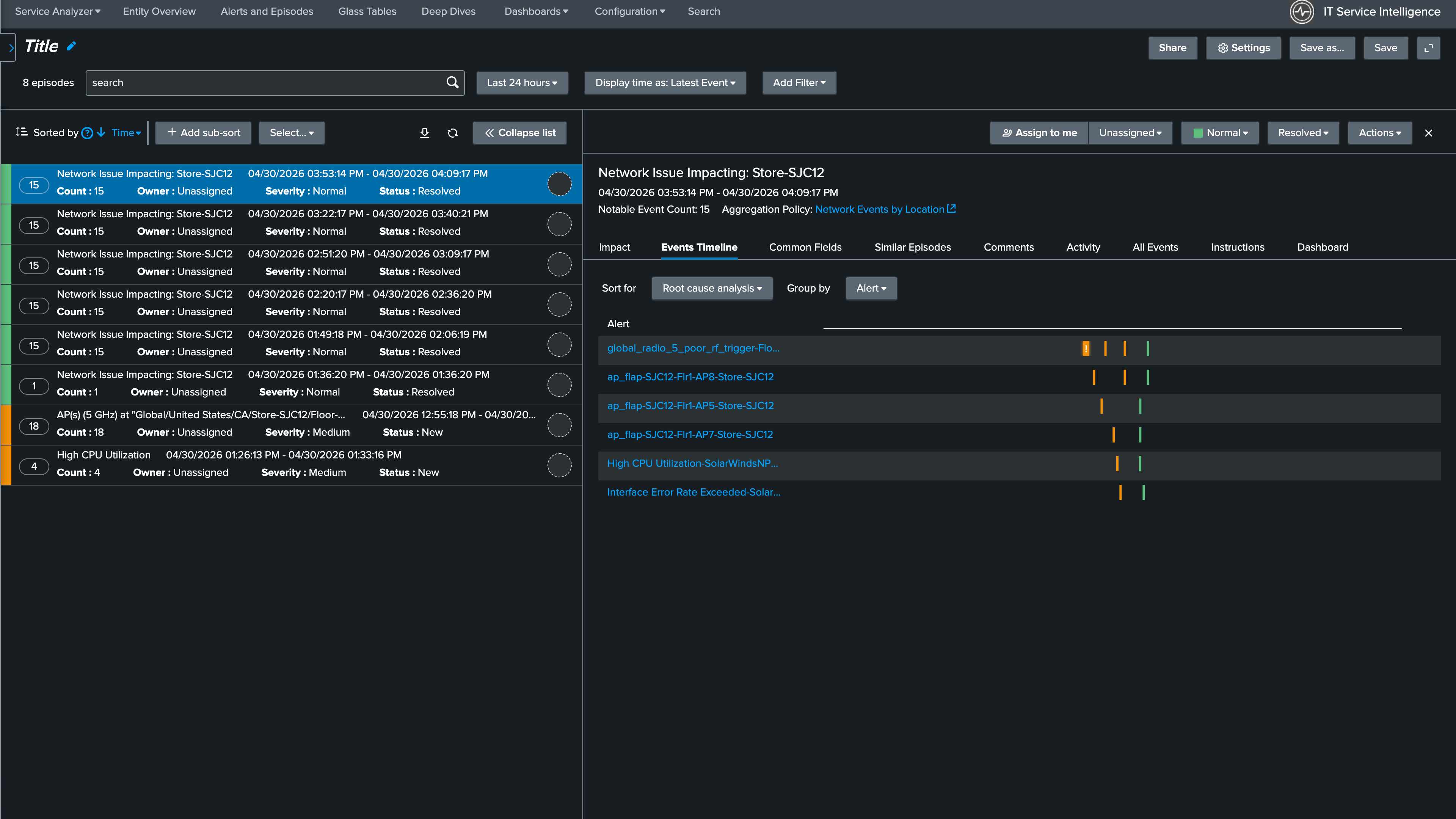
9. In the Episode details confirm that the Aggregation Policy used was the NEAP you created in the previous step

Info
Episodes created by the custom NEAP group Catalyst Center and SolarWinds alerts together under a single site-named episode

Alerts and Episodes Alerts and Episodes

Nice Job!
The full pipeline is confirmed. Services and their dependencies are configured, KPIs are calculating, and the custom NEAP is grouping cross-vendor alerts by site.

Continue to the next section to walkthrough this scenario.