

RUM
RUM instrumentation in a browser app
- Check the HEAD section of the Online-boutique webpage in your browser
- Find the code that instruments RUM
1. Browse to the Online Boutique #
Your workshop instructor will provide you with the Online Boutique URL that has RUM installed so that you can complete the next steps.
2. Inspecting the HTML source #
The changes needed for RUM are placed in the <head> section of the hosts Web page. Right click to view the page source or to inspect the code. Below is an example of the <head> section with RUM:
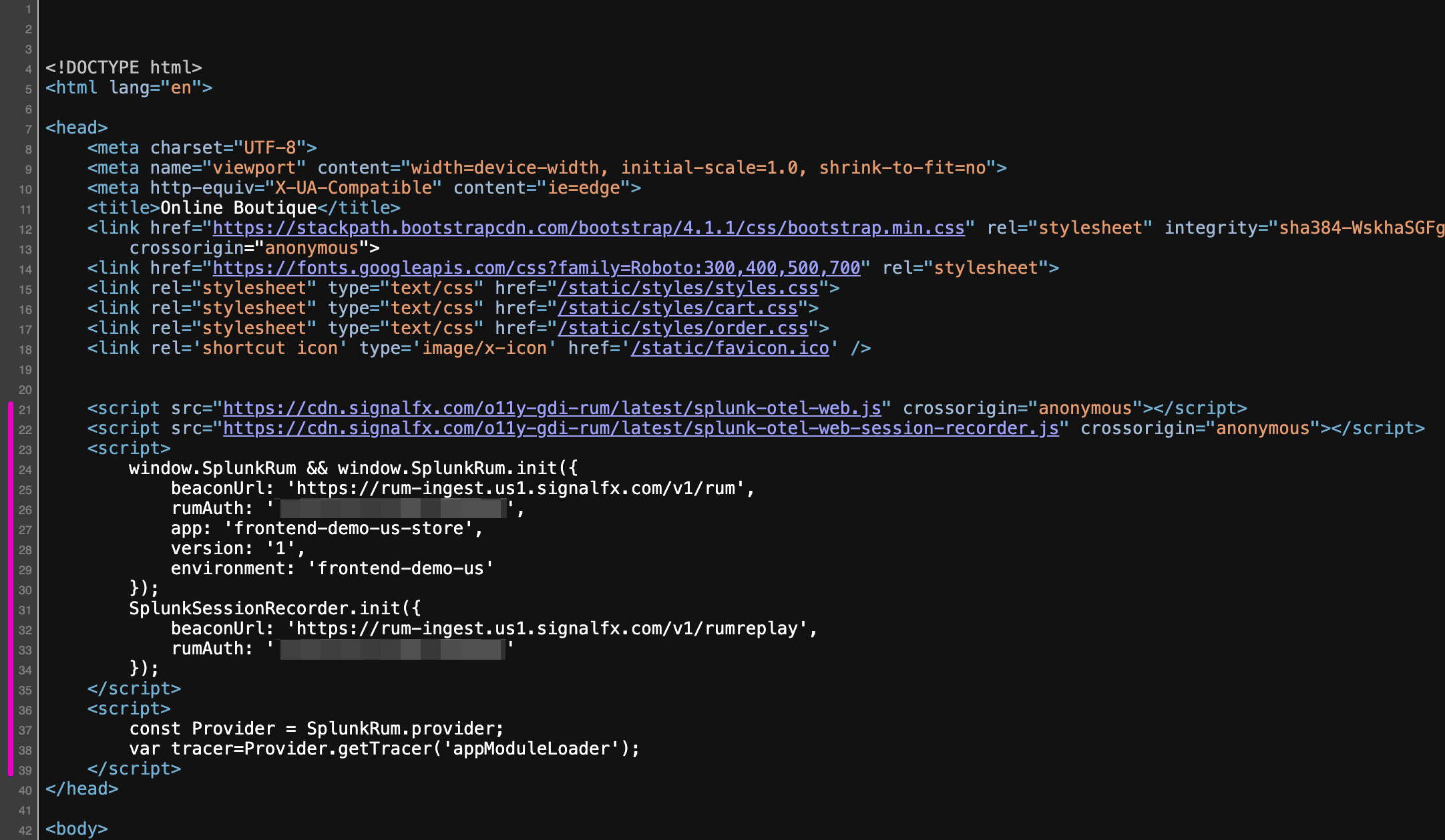
This code enables RUM Tracing, Session Replay , and Custom Events to better understand performance in the context of user workflows:
- The first part is to indicate where to download the Splunk OpenTelemetry Javascript file from:
https://cdn.signalfx.com/o11y-gdi-rum/latest/splunk-otel-web.js(this can also be hosted locally if so required). - The next section defines the location where to send the traces to in the beacon url:
{beaconUrl: "https://rum-ingest.eu0.signalfx.com/v1/rum" - The RUM Access Token:
rumAuth: "<redacted>". - Identification tags
appandenvironmentto identify in the SPLUNK RUM UI e.g.app: "online-boutique-us-store", environment: "online-boutique-us"}(these values will be different in your workshop)
The above lines 21 and 23-30 are all that is required to enable RUM on your website!
Lines 22 and 31-34 are optional if you want Session Replay instrumented.
Line 36-39 var tracer=Provider.getTracer('appModuleLoader'); will add a Custom Event for every page change, allowing you to better track your website conversions and usage. This may or may not be instrumented for this workshop.
Exercise