

Deployment
Application
Deploy the application
In this step we will deploy the sample application (Pet Clinic).
Installation Steps #
Step 1: Deploy the Application #
To deploy the app:
kubectl apply -f ~/workshop/petclinic/deployment.yamldeployment.apps/config-server created
service/config-server created
deployment.apps/discovery-server created
service/discovery-server created
deployment.apps/api-gateway created
service/api-gateway created
service/api-gateway-external created
deployment.apps/customers-service created
service/customers-service created
deployment.apps/vets-service created
service/vets-service created
deployment.apps/visits-service created
service/visits-service created
deployment.apps/admin-server created
service/admin-server created
service/petclinic-db created
deployment.apps/petclinic-db created
configmap/petclinic-db-initdb-config created
ingress.networking.k8s.io/api-gateway-ingress created
deployment.apps/petclinic-loadgen-deployment created
configmap/scriptfile createdYou can check that your app is deployed, along with all the other pods:
kubectl get podsNAME READY STATUS RESTARTS AGE
admin-server-54b4d6f54-sfnsz 1/1 Running 0 4m
api-gateway-c78dc6695-mxg6d 1/1 Running 0 4m
config-server-5cc585ff59-b6dvv 1/1 Running 0 4m
customers-service-7d6575b99c-8sx9l 1/1 Running 0 4m
discovery-server-796f6c4dc-8fkss 1/1 Running 0 4m
petclinic-db-dfb77856f-zcl4s 1/1 Running 0 4m
petclinic-loadgen-deployment-7c8f6bd8f5-ms5xk 1/1 Running 0 4m
splunk-otel-collector-agent-2dn2t 1/1 Running 0 9m
splunk-otel-collector-agent-7vrdr 1/1 Running 0 9m
splunk-otel-collector-agent-hcg9p 1/1 Running 0 9m
splunk-otel-collector-k8s-cluster-receiver-8d89b497-cqn8x 1/1 Running 0 9m
splunk-otel-collector-operator-78b94dddd7-ctpw6 2/2 Running 0 9m
thousandeyes-746b4d894b-rxb55 1/1 Running 0 11m
vets-service-5bfb88c5f8-69zwl 1/1 Running 0 4m
visits-service-5966f7b74f-hrch9 1/1 Running 0 4mStep 2: Very the application is publicly accessible #
To test the application, you need to obtain the public IP address of your instance. You can do this by running the following command:
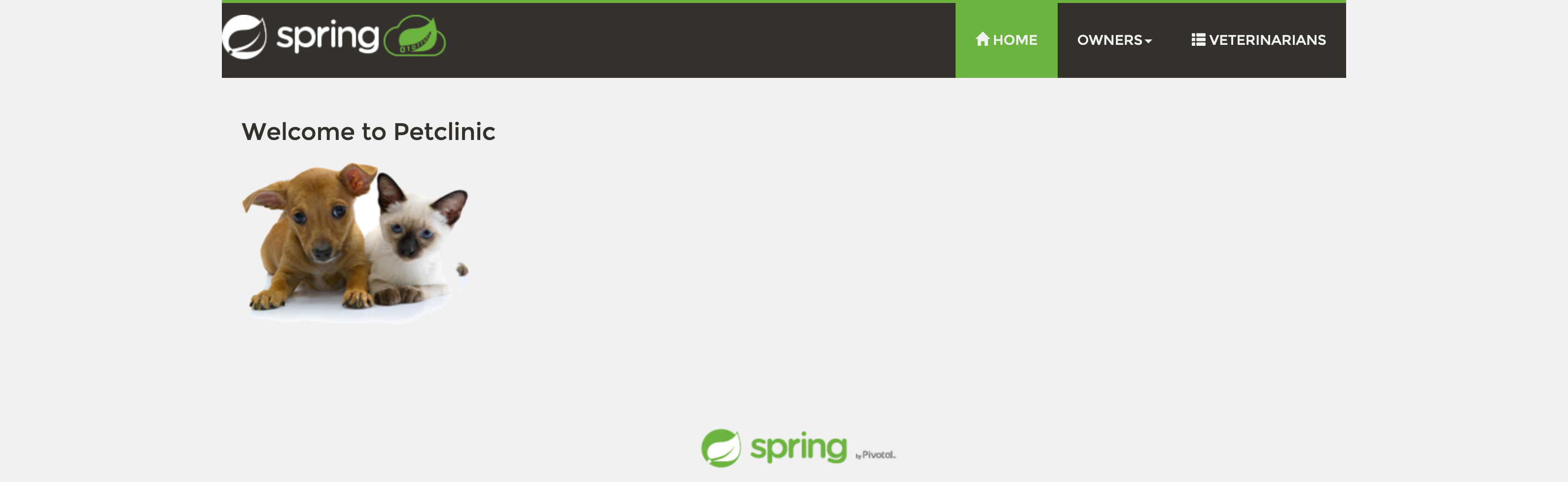
curl http://ifconfig.me32.157.204.101Validate if the application is running by visiting http://<IP_ADDRESS>:81 (replace <IP_ADDRESS> with the IP address you obtained above). You should see the PetClinic application running. The application is also running on ports 80 & 443 if you prefer to use those or port 81 is unreachable.
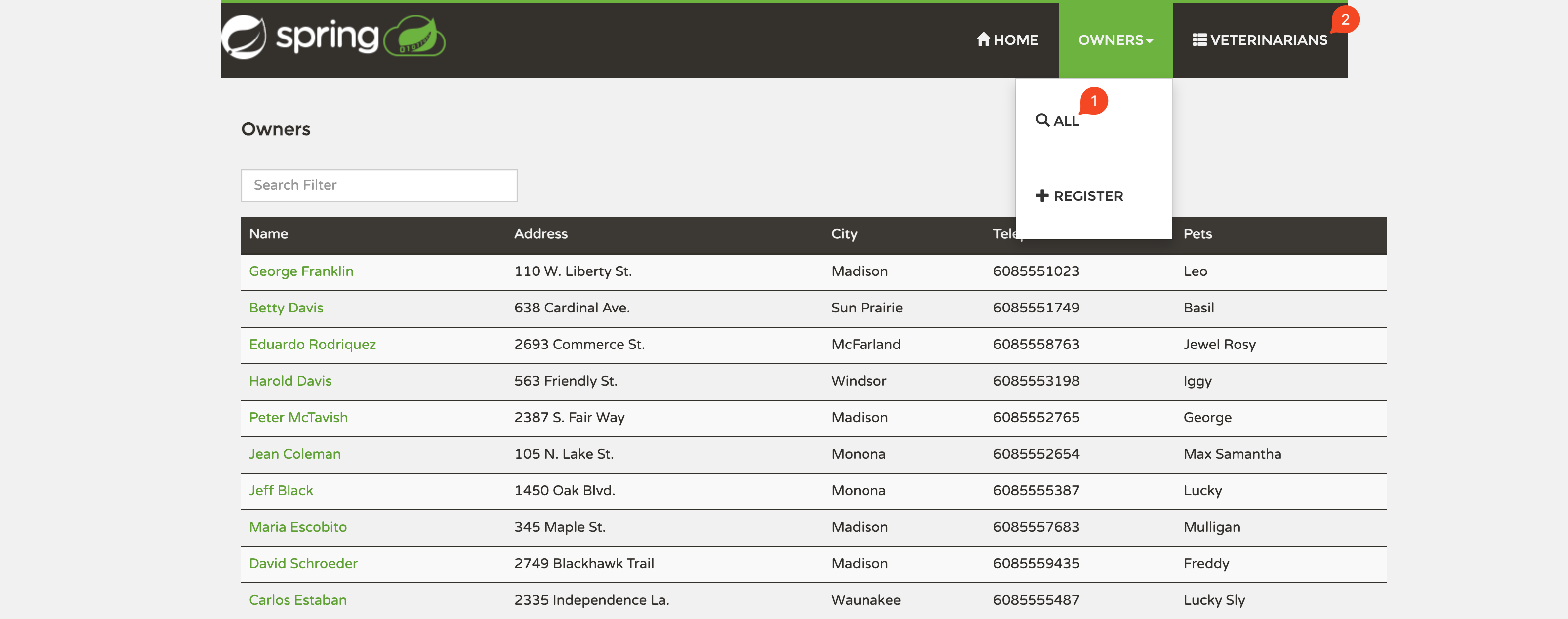
Make sure the application is working correctly by visiting the All Owners (1) and Veterinarians (2) tabs, confirming that you see a list of names on each page.
Success