Digital Experience (RUM)

15 minutes  
Persona

You are a frontend engineer, or an SRE tasked to do the first triage of a performance issue. You have been asked to investigate a potential customer satisfaction issue with the Online Boutique application.

We are going to look at the Real User Monitoring (RUM) data generated by you and your fellow attendees while using the Online Boutique. The goal is to find a browser, mobile or tablet session that performed poorly and begin the troubleshooting process.
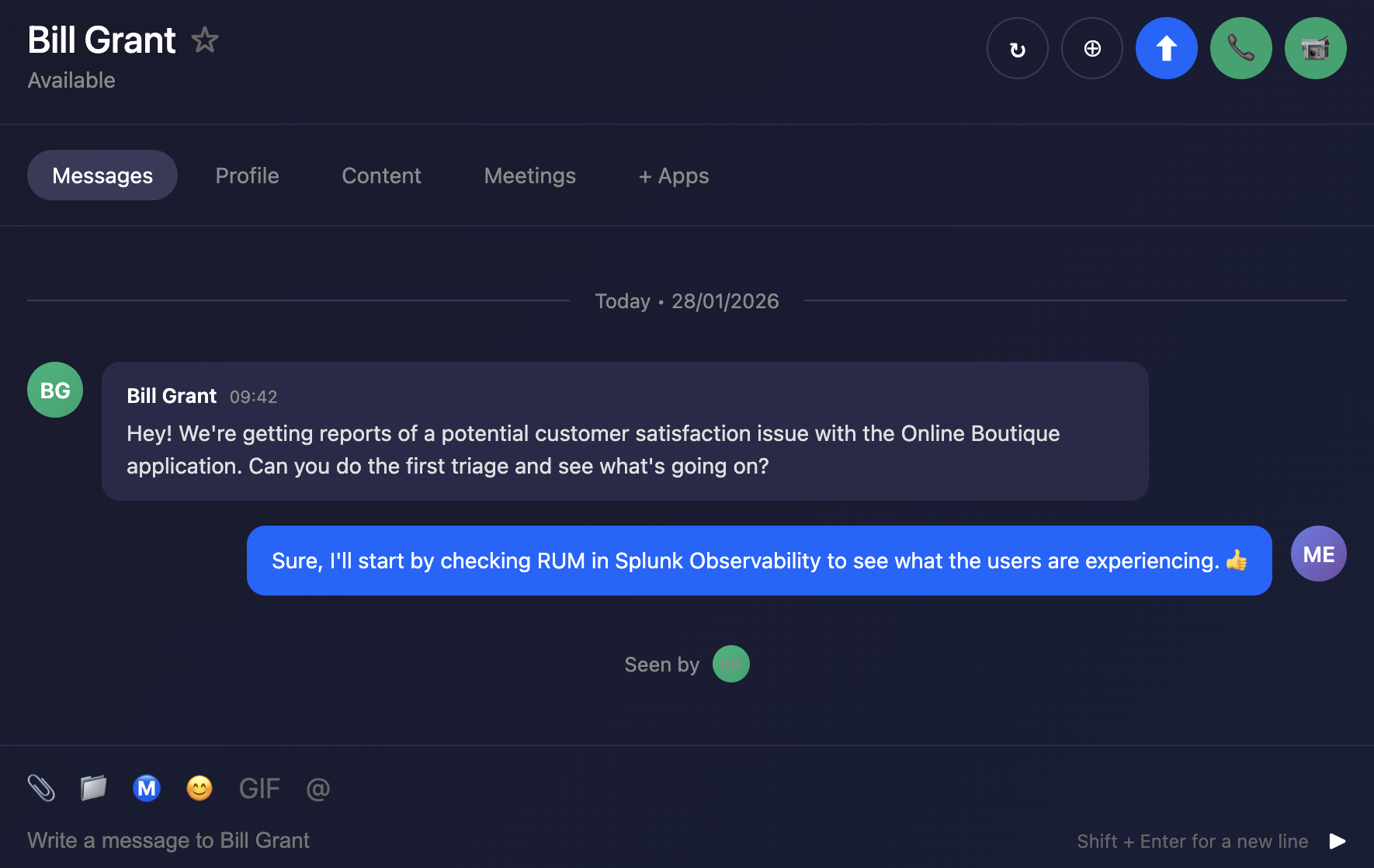
Messages Messages

Last Modified Feb 17, 2026

Subsections of 3. Digital Experience (RUM)

1. RUM Overview

Exercise
  • In Splunk Observability Cloud, from the main menu, hover over Digital Experience, then click on Overview (1) from the Real User Monitoring section as shown below.

RUM RUM

  • This will open up the Application Summary Dashboard. This section shows a quick overview of all the applications being monitored.

  • The Real User Monitoring (RUM) Overview dashboard in Splunk Observability Cloud provides visibility into how real users experience your web applications. It captures browser-side performance metrics, JavaScript errors, and network request failures as they occur in actual user sessions. The dashboard surfaces Core Web Vitals (LCP, INP, CLS) to measure page load performance, displays error trends over time, and shows recent alerts, giving frontend teams the insights needed to identify and resolve issues affecting end-user experience.

  • To ensure we are looking at the right data, please check the following settings (2):

    • The Time frame is set to -15m.
    • The Environment selected is [NAME OF WORKSHOP]-workshop.
    • The App selected is [NAME OF WORKSHOP]-store.
    • The Source is set to Browser.
  • Next, click on the [NAME OF WORKSHOP]-store (3) above the Page Views / JavaScript Errors chart.

main page main page

Last Modified Feb 17, 2026

2. Application View

Exercise
  • You will now see a dashboard view breaking down the metrics by UX Metrics, Front-end Health, Back-end Health, Custom Events, Network Requests, Pages and a Map View comparing them to historic metrics (1 hour by default).

RUM Dashboard RUM Dashboard

  • The tabs available on this page include:

    • UX Metrics Page Views, Page Load and Web Vitals metrics
    • Front-end Health Breakdown of JavaScript Errors and Long Task duration and count
    • Back-end Health Network Errors and Requests and Time to First Byte
    • Custom Events RED metrics (Rate, Error & Duration) for custom events
    • Network Requests Network URL grouping and key metrics
    • Pages URL grouping and key metrics and web vitals
    • Map View Geographical requests by location
  • Click through each of the tabs and examine the data.

  1. If you examine the charts in the Custom Events tab, what chart shows clearly the latency spikes?
  2. In the Map View tab, where is the largest request volume coming from?
  1. Custom Event Latency P75
  2. Ireland
  • Make sure you are on the Custom Events tab.
  • To identify problematic user sessions, we will use the latency spikes in the Custom Event Latency P75 chart.
  • In the Custom Event Latency chart click on the see all (1) link under the chart title.

RUM See All RUM See All

Last Modified Feb 17, 2026

3. Tag Spotlight

Exercise
  • This dashboard displays all tags associated with the RUM data, key-value pairs automatically generated by the RUM instrumentation. Tags are used to filter data and build charts and tables. The Tag Spotlight view lets you drill down into individual user sessions.

RUM Tag Spotlight RUM Tag Spotlight

  • Change the timeframe to Last 1 hour (1).
  • Find the Operation chart, locate PlaceOrder in the list, click on it and select Add to filter (2).

  • Click on the User Sessions tab (3).

  • Click on the Duration heading twice to sort the sessions by duration (longest at the top) (4).

  • We now have a User Session table sorted by longest duration (descending), showing users who have been shopping on the site. We could apply more filters to further narrow down the data, e.g. OS version, browser version, etc.

RUM Tag Spotlight RUM Tag Spotlight

Last Modified Feb 17, 2026

4. User Sessions

A User Session in RUM represents a single user’s complete interaction with your web application from the moment they arrive until they leave or become inactive. Each session captures a timeline of all page views, user interactions (clicks, scrolls, form submissions), network requests, errors, and performance metrics.

Sessions are identified by a unique Session ID and include metadata such as browser type, device, geographic location, and custom tags. This allows you to replay and analyze the exact experience a specific user had, making it invaluable for troubleshooting issues, understanding user behavior, and identifying performance bottlenecks.

Exercise
  • In the User Sessions table, click on the Session ID with the longest Duration (over 15 seconds or longer). This will take you to the RUM Session view.
  • Note the length of the span PlaceOrder, this is the time it took to complete the order. Not good!

RUM Session RUM Session

  • Look for the Fetch (1) which will be either above or below the PlaceOrder span.
    • It will look something like POST https://labob...y.com/cart/checkout.
  • Hover over the blue APM (2), after a few seconds a popup will appear.
  • You will see paymentservice and checkoutservice are in an error state as per the screenshot above.
  • Under Workflow Name click on front-end:/cart/checkout (3), this will bring up the APM Service Map. Here we will investigate the backend services and their dependencies to identify the root cause of the issue.

RUM Session RUM Session

Last Modified Feb 17, 2026

5. RUM to APM

Exercise
  • In the APM Service Map you can clearly see there is an issue with the paymentservice.

RUM to APM RUM to APM

We have now successfully navigated from RUM into APM, providing an end-to-end view of the user experience. This integration allows us to trace performance issues from the front-end all the way through to the back-end services, enabling more effective troubleshooting and optimization.

The RUM metrics initially pointed to the Checkout Service as the source of the problem. Without APM, teams could waste valuable time investigating this service unnecessarily. However, with APM we can quickly identify that the root cause actually lies in the paymentservice, saving valuable time and significantly reducing MTTx.

Let’s ask our friends in back-end development to continue the investigation.