Digital Experience (Synthetics)

15 minutes  
Persona

Putting your SRE hat back on, you have been asked to set up monitoring for the Online Boutique. You need to ensure that the application is available and performing well 24 hours a day, 7 days a week.

Wouldn’t it be great if we could have 24/7 monitoring of our application, and be alerted when there is a problem? This is where Synthetics comes in. We will show you a simple test that runs every 1 minute and checks the performance and availability of a typical user journey through the Online Boutique.
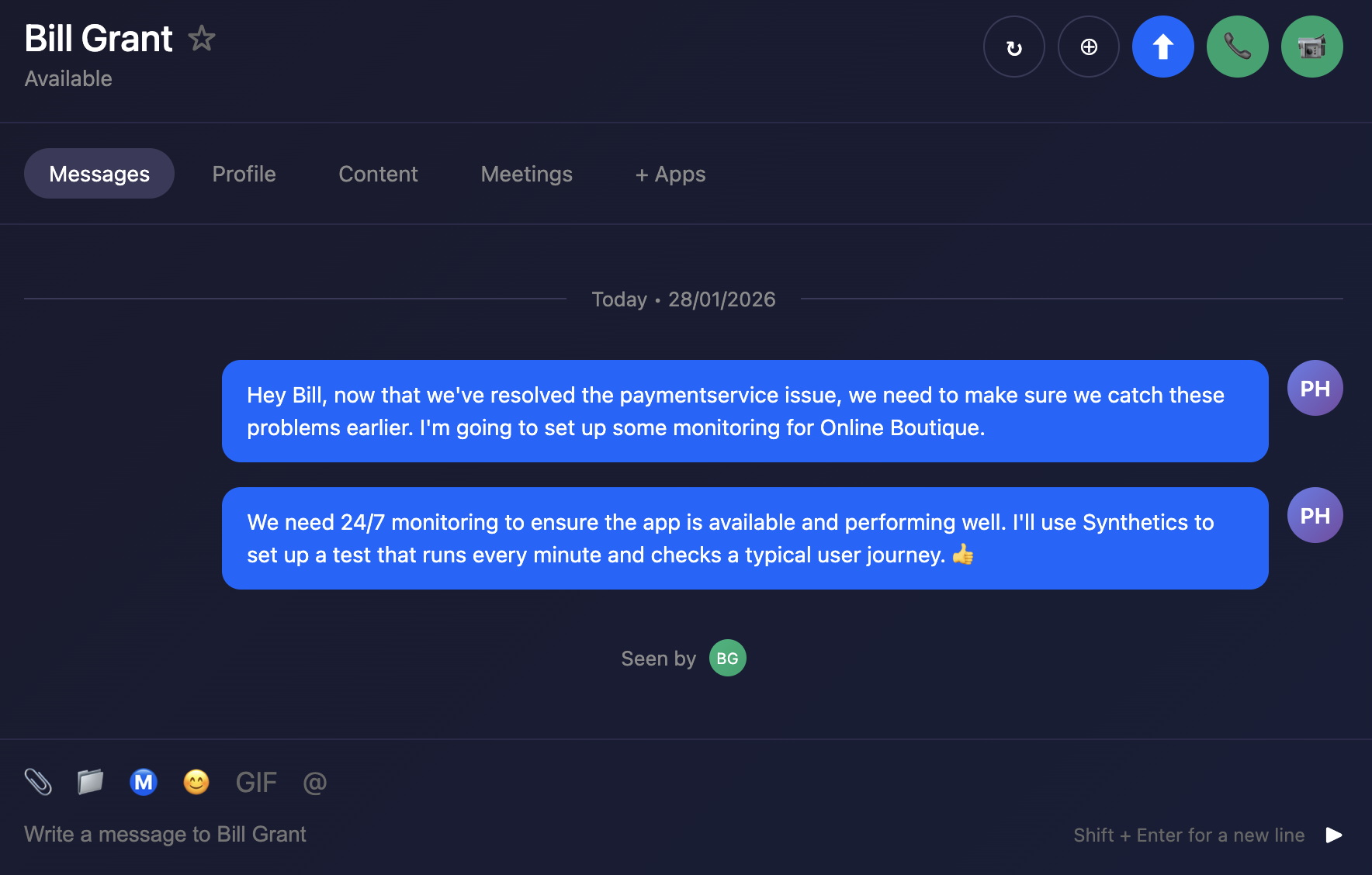
Messages Messages

Last Modified Feb 17, 2026

Subsections of 6. Digital Experience (Synthetics)

1. Synthetics Dashboard

Exercise
  • In Splunk Observability Cloud from the main menu, click on Digital Experience → Synthetics tests. Click on All or Browser tests to see the list of active tests.

  • During our investigation in the RUM section, we found there was an issue with the Place Order Transaction. Let’s see if we can confirm this from the Synthetics test as well.


  • In the Search box, enter [NAME OF WORKSHOP] to filter the tests for this workshop.

  • Select the test.

  • Click on Go to all run results.

  • Change All to Failure (1).

    Transaction Filter Transaction Filter

  • Click on one of the failed results.

Last Modified Feb 17, 2026

2. Synthetics Test Detail

Exercise
  • Now we are looking at the result of a single Synthetic Browser Test.

waterfall waterfall

  • By default, Splunk Synthetics provides screenshots and video capture of the test. This is useful for debugging issues. You can see, for example, the slow loading of large images, the slow rendering of a page, etc.

  • Use your mouse to scroll left and right through the filmstrip to see how the site was being rendered during the test run.

  • In the Video pane, press on the play button (1) to see the test playback.

  • Using the filter above the filmstrip, under the heading Filter by a synthetic transaction, page, or step (2), click on Place Order under Synthetic transactions.

Last Modified Feb 17, 2026

3. Synthetics to APM

Exercise
  • In the waterfall find an entry that starts with POST checkout. If you don’t see that, go back and select another failed run result from the Run results page.

Place Order Place Order

  • Click on the > (1) to open the metadata section. Observe the metadata that is collected, and note the server-timing header under Response Headers. This header is what allows us to correlate the test run to a back-end trace.
  • Click on the blue APM (2) link on the POST checkout line in the waterfall.

APM trace APM trace

  • Validate you see one or more errors for the paymentservice (1).
  • To validate that it’s the same error, click on the related content for Logs (2).
  • Repeat the earlier exercise to filter down to the errors only.
  • View the error log to validate the failed payment due to an invalid token.
Last Modified Feb 17, 2026

4. Synthetics Detector

Given you can run these tests 24/7, it is an ideal tool to get warned early if your tests are failing or starting to run longer than your agreed SLA—instead of getting informed by social media or uptime websites.

Social media Social media

To stop that from happening, let’s detect if our test is taking more than 50 seconds.

Last Modified Feb 17, 2026

5. Create Detector

Exercise
  • Go to Digital Experience → Synthetics tests from the main menu.
  • Select the workshop test [NAME OF WORKSHOP].
  • Click on the test.
  • Click Create Detector button at the top of the page:
  • Change the alert criteria so that the metric is Run Duration (1) (instead of Uptime) and the condition is Static Threshold.
  • Set the Trigger threshold (2) to be around 50000 ms.
  • Set Split by location (3) to No.
  • Note that there is now a row of red and white triangles appearing below the spikes in the chart.
  • The red triangles let you know that your detector found that your test was above the given threshold and the white triangle indicates that the result returned below the threshold. Each red triangle will trigger an alert.
We will not add a recipient or activate the detector as we don’t want to flood your email with alerts.

synth detector synth detector

  • This application is designed to fail constantly, hence the large number of alerts that would be generated. In a real-world scenario, you would want to fine-tune the threshold to avoid false positives.