

Splunk Synthetics
4. Synthetics Detector
Given you can run these tests 24/7, it is an ideal tool to get warned early if your tests are failing or starting to run longer than your agreed SLA instead of getting informed by social media, or Uptime websites.
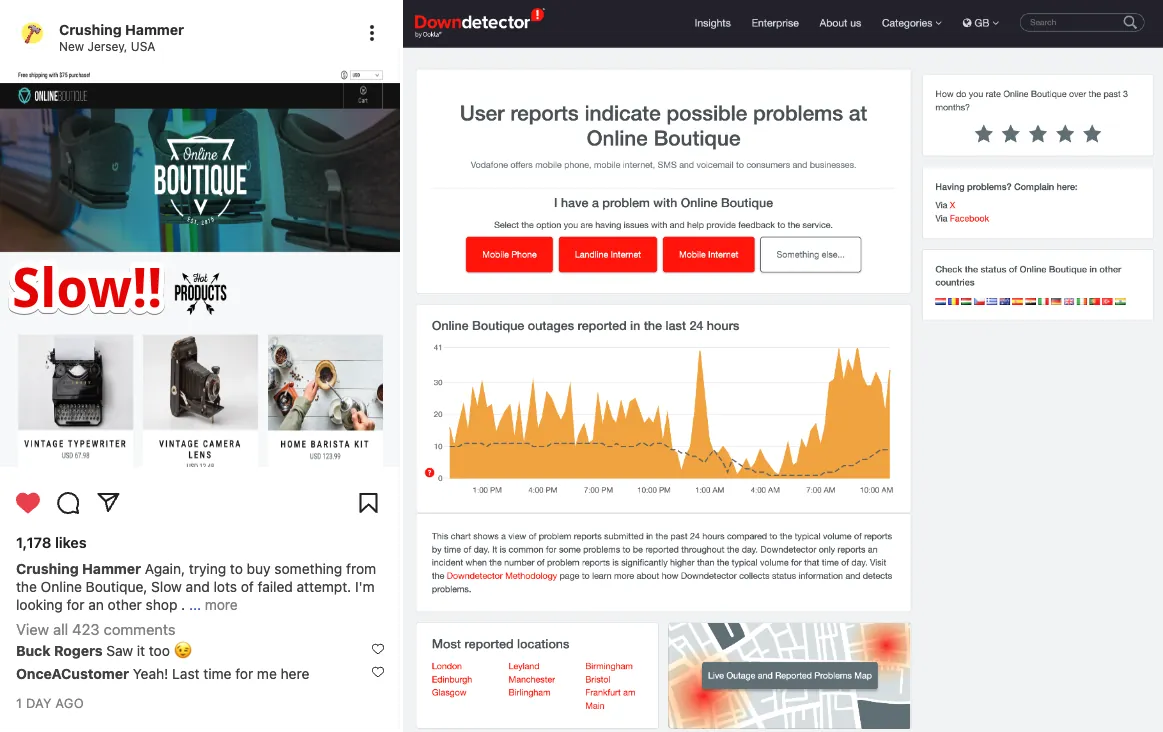
To stop that from happening let’s detect if our test is taking more than 1.1 minutes.
Go back to the Synthetics home page via the menu on the left
Select the workshop test again and click the button at the top of the page.
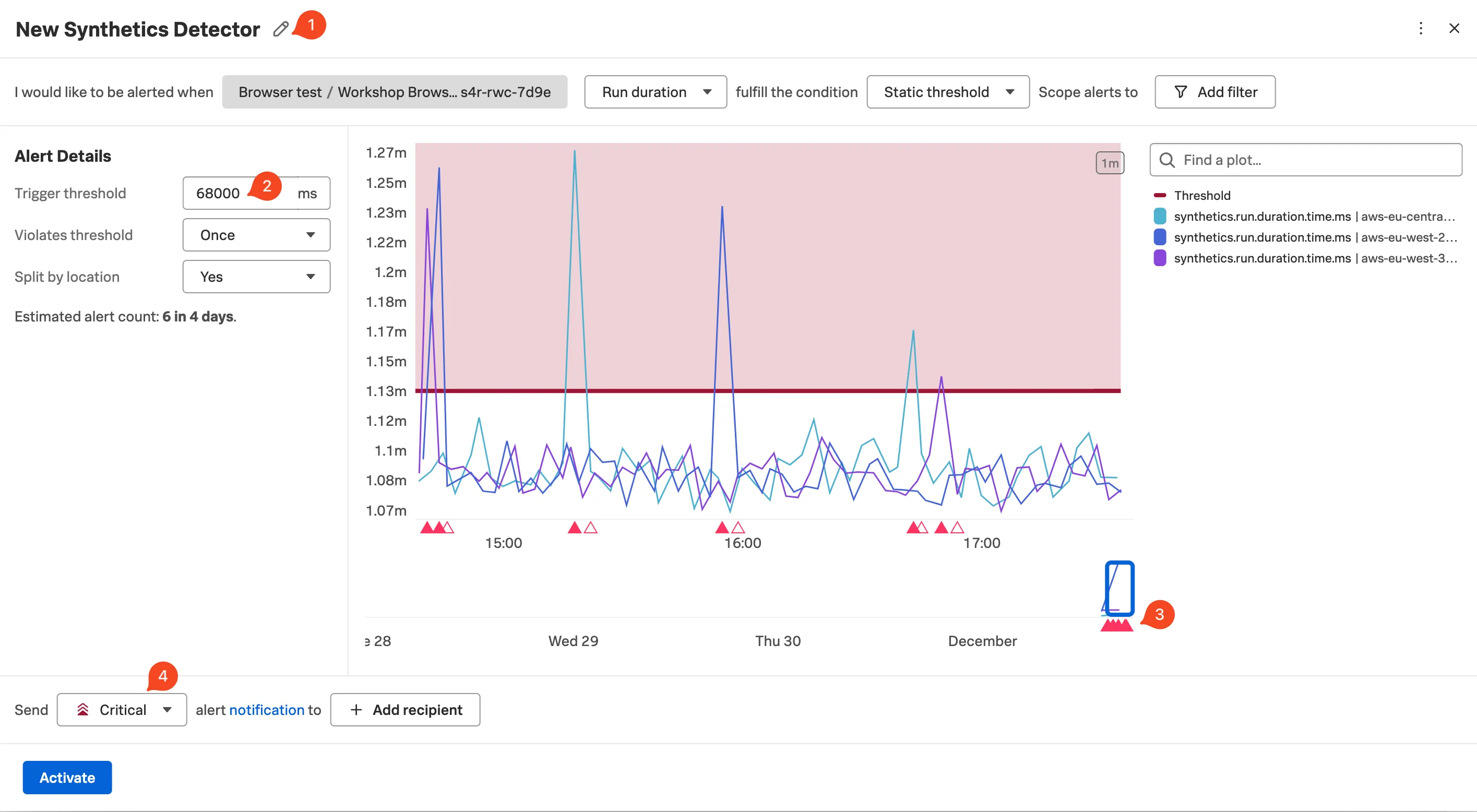
Edit the text New Synthetics Detector (1) and replace it with
INITIALS - [WORKSHOPNAME].Change the alert criteria so that the metric is Run Duration (instead of Uptime) and the condition is Static Threshold.
Set the Trigger threshold (2) to be around
65,000to68,000and hit enter to update the chart. Make sure you have more than one spike cutting through the threshold line as shown above (you may have to adjust the threshold value a bit to match your actual latency).Leave the rest as default.
Note that there is now a row of shapes appearing below the spikes (3). The solid shapes let you know that your detector found that your test was above the given threshold & the outline shapes indicate that the result returned below the threshold. Each shape will trigger an alert.
You can change the Alerts criticality (4) by changing the drop-down to a different level, as well as the method of alerting. Make sure you do NOT add a Recipient as this could lead to you being subjected to an alert storm!
Click to deploy your detector.
To see your new created detector click More actions then Edit test.
At the bottom of the page is a list of active detectors.

If you can’t find yours, but see one called New Synthetic Detector, you may not have saved it correctly with your name. Click on the New Synthetic Detector link, and redo the rename.
Click on the button to exit the edit mode.