

User Profile
Configure Rotations
Aim #
A rotation is a recurring schedule, that consists of one or more shifts, with members who rotate through a shift.
The aim of this module is for you to configure two example Rotations, and assign Team Members to the Rotations.
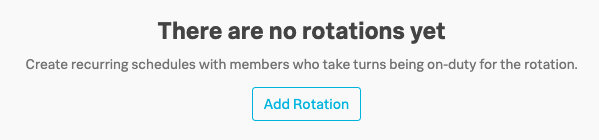
Navigate to the Rotations tab on the Teams sub menu, you should have no existing Rotations so we need to create some.
The 1st Rotation you will create is for a follow the sun support pattern where the members of each shift provide cover during their normal working hours within their time zone.
The 2nd will be a Rotation used to provide escalation support by more experienced senior members of the team, based on a 24/7, 1 week shift pattern.
1. Follow the Sun Support - Business Hours #
Click Add Rotation
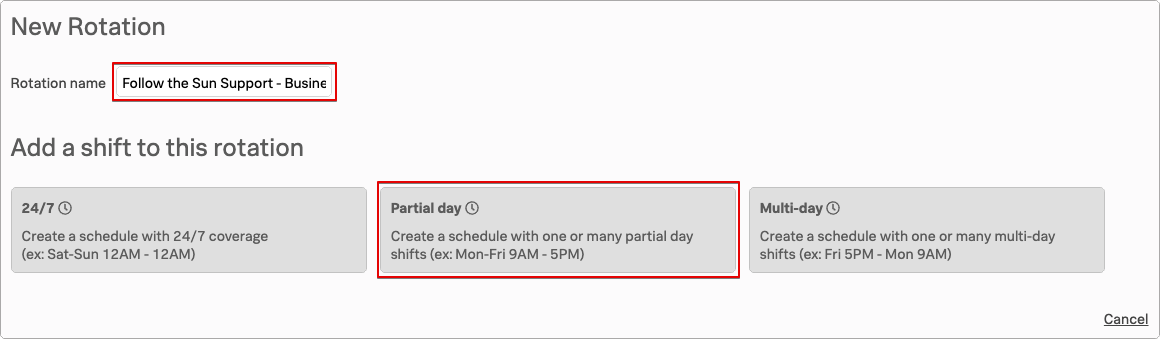
Enter a name of “Follow the Sun Support - Business Hours” and Select Partial day from the three available shift templates.
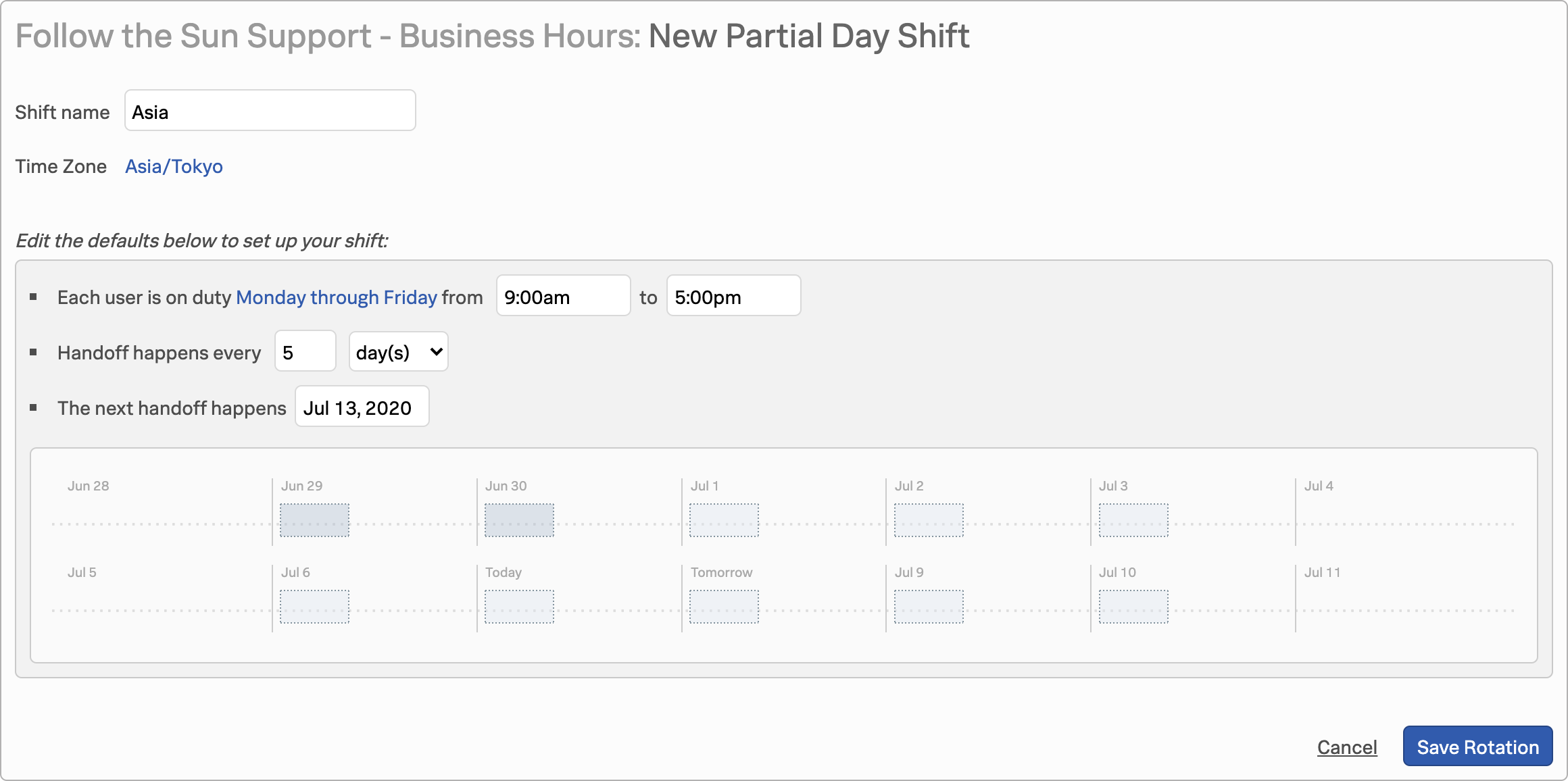
- Enter a Shift name of “Asia”
- Time Zone set to “Asia/Tokyo”
- Each user is on duty from “Monday through Friday from 9.00am to 5.00pm”
- Handoff happens every “5 days”
- The next handoff happens - Select the next Monday using the calendar
- Click Save Rotation
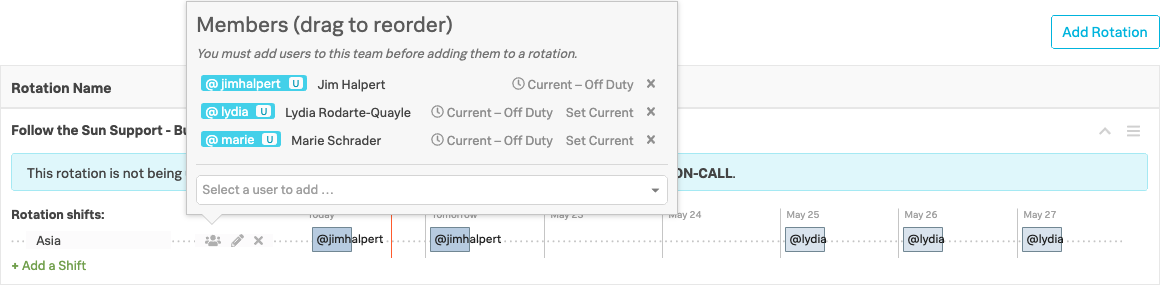
You will now be prompted to add Members to this shift; add the Asia members who are Jim Halpert, Lydie Rodarte-Quayle and Marie Schrader, but only if you’re using the Splunk provided environment for this workshop.
If you’re using your own Organisation refer to the specific list provided separately.
Now add an 2nd shift for Europe by again clicking +Add a shift → Partial Day
- Enter a Shift name of “Europe”
- Time Zone set to “Europe/London”
- Each user is on duty from “Monday through Friday from 9.00am to 5.00pm”
- Handoff happens every “5 days”
- The next handoff happens - Select the next Monday using the calendar
- Click Save Shift
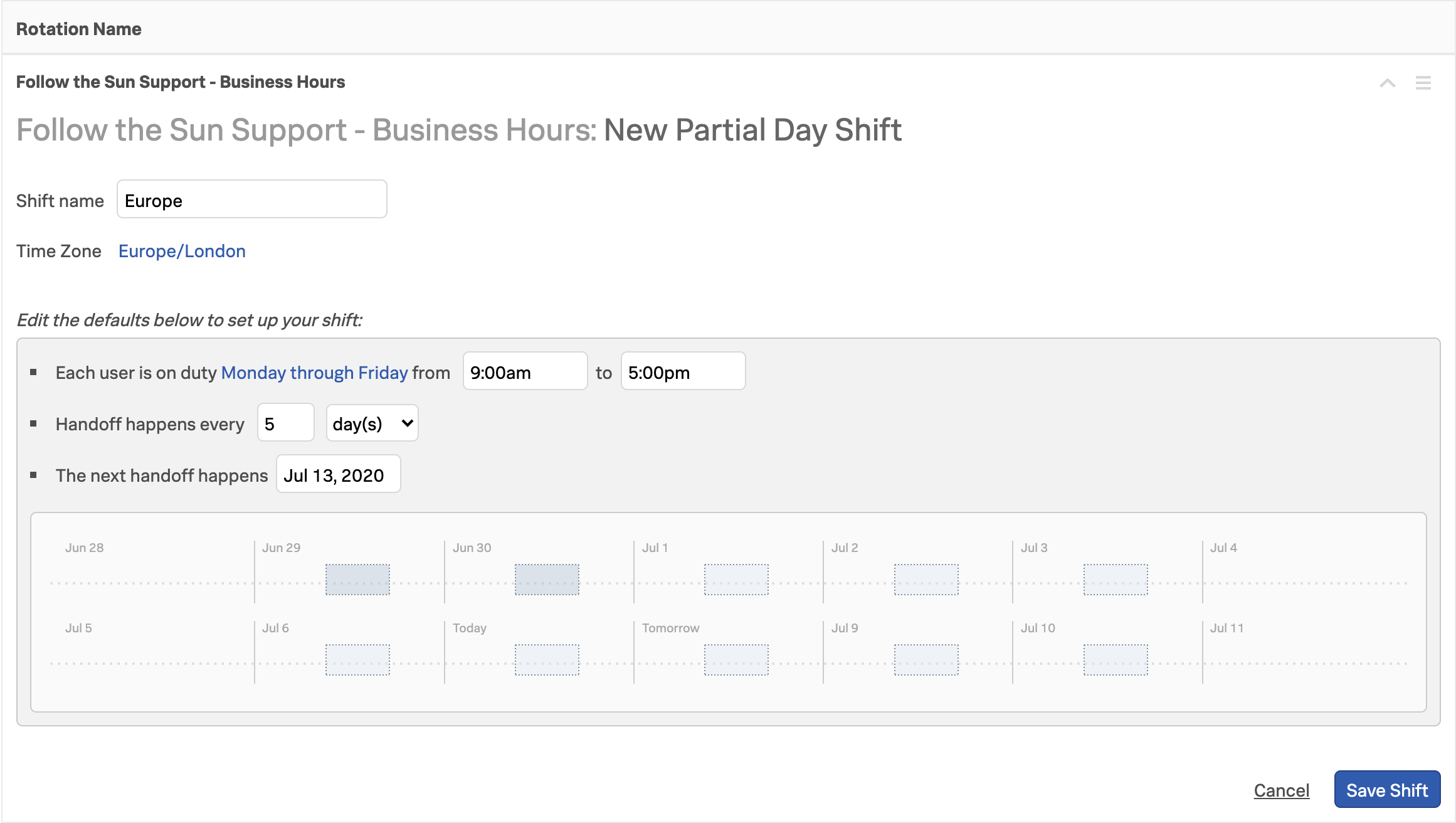
You will again be prompted to add Members to this shift; add the Europe members who are Duane Chow, Steven Gomez and Walter White, but only if you’re using the Observability Workshop Org for this workshop.
If you’re using your own Organisation refer to the specific list provided separately.
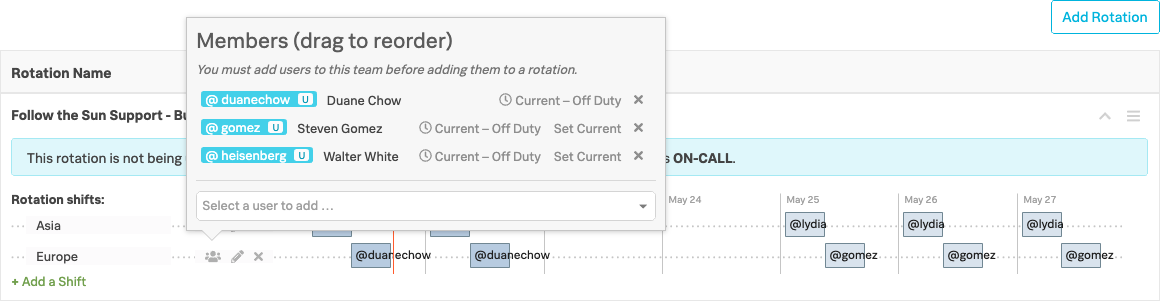
Now add a 3rd shift for West Coast USA by again clicking +Add a shift - Partial Day
- Enter a Shift name of “West Coast”
- Time Zone set to “US/Pacific”
- Each user is on duty from “Monday through Friday from 9.00am to 5.00pm”
- Handoff happens every “5 days”
- The next handoff happens - Select the next Monday using the calendar
- Click Save Shift
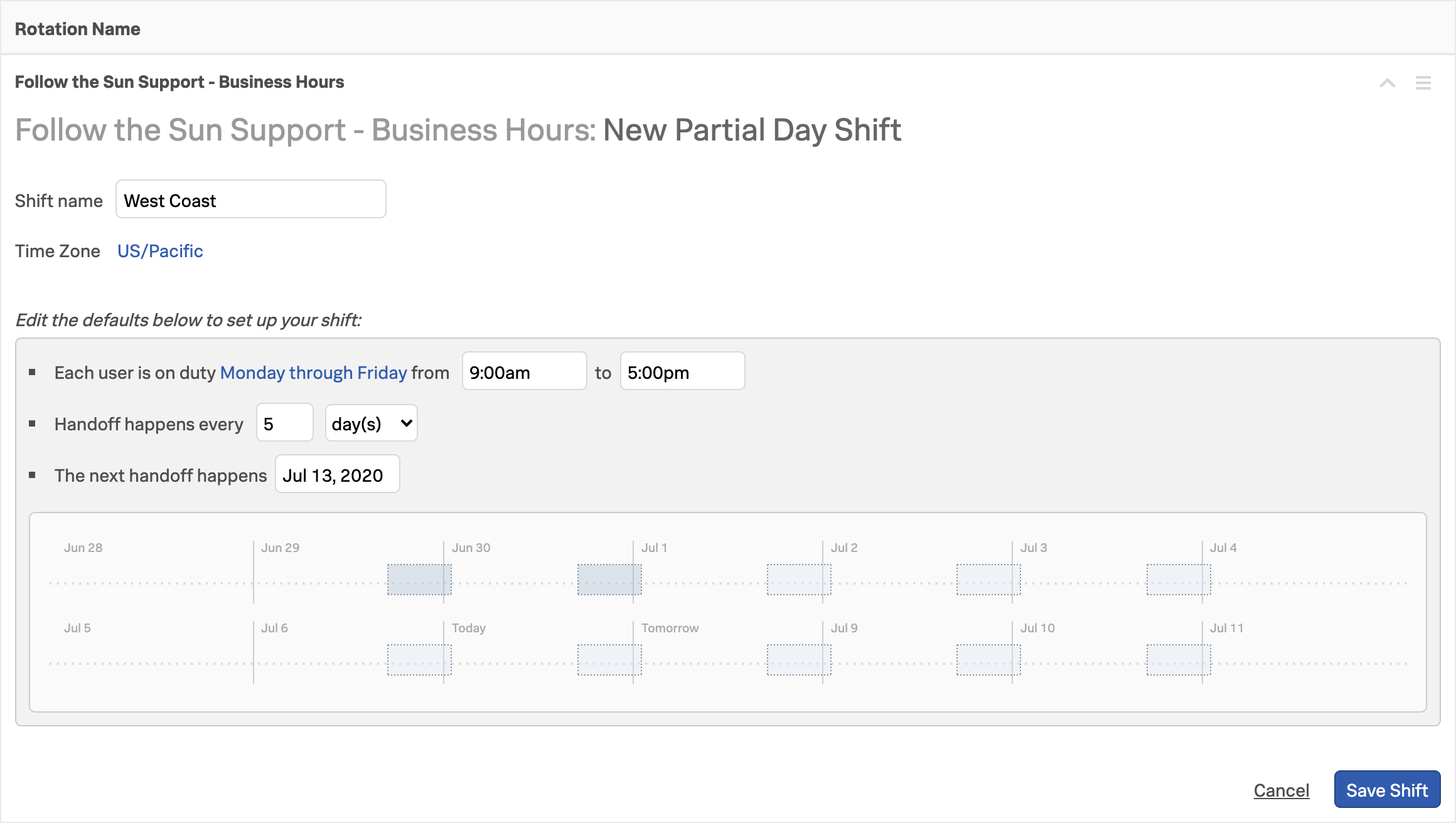
You will again be prompted to add Members to this shift; add the West Coast members who are Maximo Arciniega, Michael Scott and Tuco Salamanca, but only if you’re using the Observability Workshop Org for this workshop.
If you’re using your own Organisation refer to the specific list provided separately.
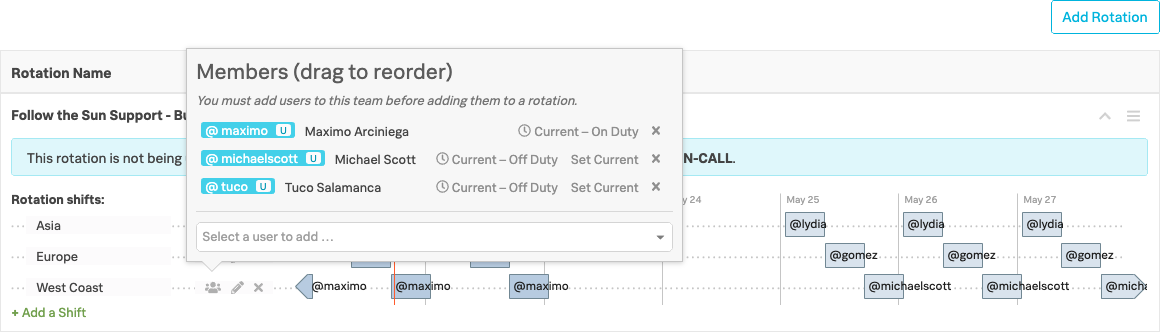
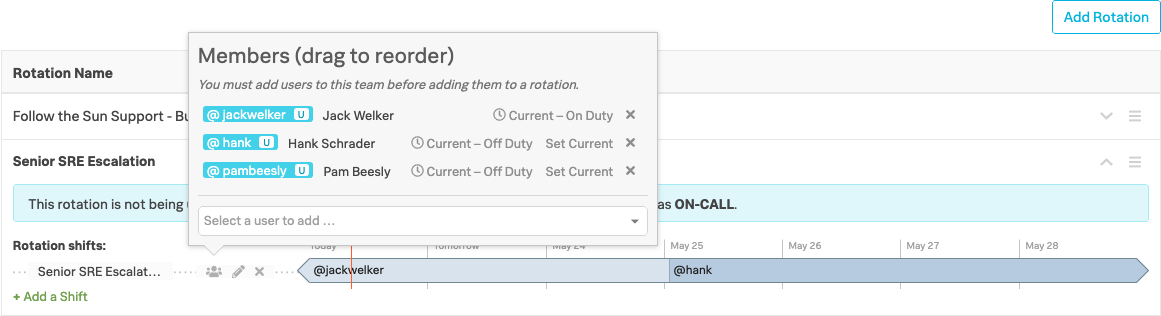
The first user added will be the ‘current’ user for that shift.
You can re-order the shifts by simply dragging the users up and down, and you can change the current user by clicking Set Current on an alternate user
You will now have three different Shift patterns, that provide cover 24hr hours, Mon - Fri, but with no cover at weekends.
We will now add another Rotation for our Senior SRE Escalation cover.
2. Senior SRE Escalation #
- Click Add Rotation
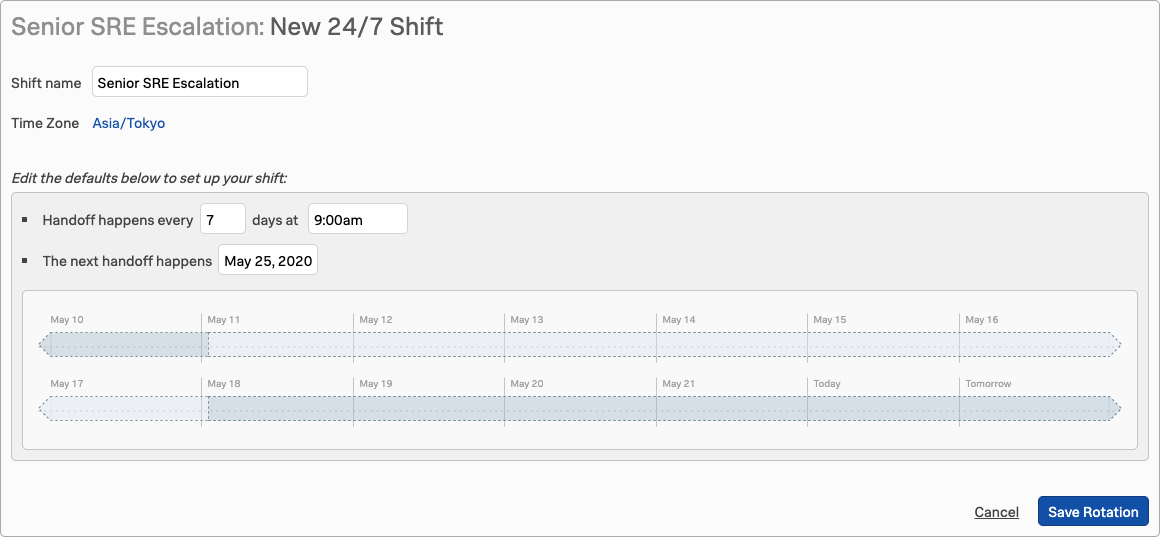
- Enter a name of “Senior SRE Escalation”
- Select
24/7from the three available shift templates - Enter a Shift name of “Senior SRE Escalation”
- Time Zone set to “Asia/Tokyo”
- Handoff happens every “7 days at 9.00am”
- The next handoff happens [select the next Monday from the date picker]
- Click Save Rotation
You will again be prompted to add Members to this shift; add the 24/7 members who are Jack Welker, Hank Schrader and Pam Beesly, but only if you’re using the Observability Workshop Org for this workshop.
If you’re using your own Organisation refer to the specific list provided separately.
Please wait for the instructor before proceeding to the Configuring Escalation Policies module.