Predefined Prompts
Predefined prompts are 61 cataloged saved searches across three packs that the AI Assistant can dispatch via the Splunk MCP Server without invoking any LLM. They are the deterministic, vendor-traffic-free path through the AI Assistant: the user clicks a prompt card, the orchestrator dispatches the saved search, the result tile renders in the right pane, and a static interpretation + suggested-next-steps card appears in the chat.
This is the only path that’s active in the Templates-only build variant — partners can demo + investigate the LogServ solution end-to-end without any LLM provider configured.
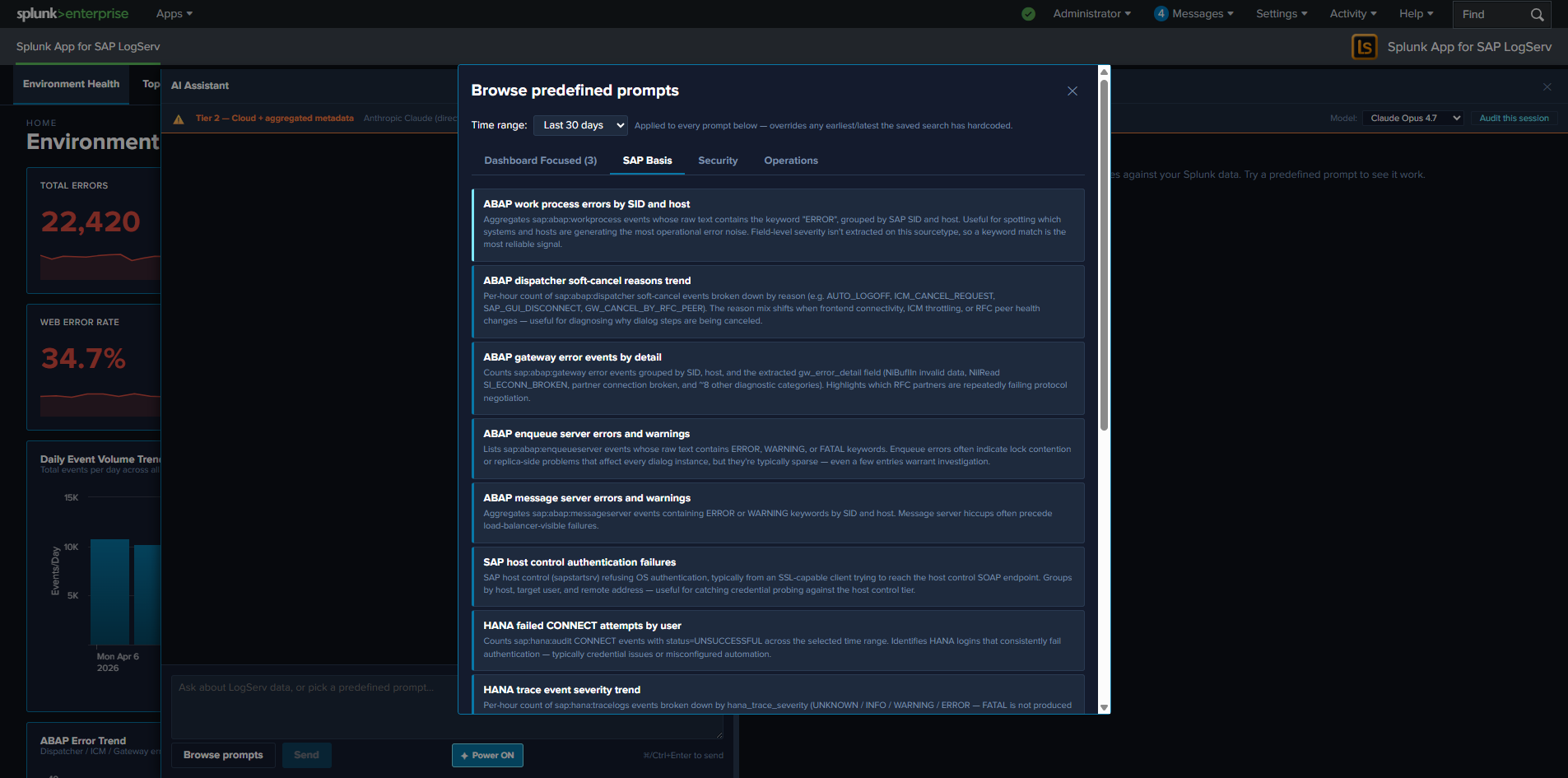
The Three Packs
| Pack | Count | Focus |
|---|---|---|
| SAP Basis | 15 | SAP Basis admin investigations: HANA service severity breakdown, ABAP work-process errors, integration topology call volume, RFC partner failures |
| Security | 28 | Auth failures, beaconing detection, after-hours admin activity, permission grants, GRANT-to-non-managed-role detection, HANA SYSTEM logins, Windows lockouts |
| Operations | 18 | Ingest health, error rate trends, error-category breakdowns, top error categories, host volume drop, freshness checks, Cloud Connector backend latency |
The full catalog ships inside the LogServ App as a data-driven intent map. Each prompt entry includes the saved-search name, label, description, render hint, chart hint, chart palette, dashboard mapping, interpretation, and suggested next steps.
The Dashboard Focused Tab
The first-position tab in the prompt browser is Dashboard Focused — it auto-filters the catalog to prompts that are mapped to the dashboard you currently have open. The mapping is the per-prompt dashboard field in the intent map (single string or array — multi-target prompts map to multiple dashboards). The tab auto-hides when the active dashboard has zero matching prompts (e.g., on Settings or AI Assistant pages).
Each card on the Dashboard Focused tab carries a small pack-origin chip (cyan-light SAP Basis / salmon-red Security / gold-orange Operations) so users can find the prompt back in its home pack later.
What Happens When You Click a Prompt
- Dispatch. The orchestrator calls
splunk_run_saved_searchon the MCP server with the prompt’s saved-search name and the time window selected in the prompt browser’s own Time range dropdown (Last 1 hour … Last 30 days; default Last 30 days, remembered per browser tab insessionStorage). That window is passed as the dispatched search’searliest_time/latest_time, so it bounds the saved search — narrowing the dropdown makes a heavier prompt return faster. - Tile renders. The MCP server returns the rows. The orchestrator renders them in a tool-result tile in the right pane, with the prompt’s pre-configured
renderHint(table/timechart/kpi/pie) and optional companionchartHint(chart on top + table below forrenderHint=tableprompts that benefit from a visual). - Guidance card. A “How to read this result” card appears in the left chat pane below the user’s prompt label. The card has two parts:
- Interpretation — one paragraph explaining what the result means and what shapes are normal vs. concerning. Sourced from the intent map’s
interpretationfield. - Suggested next steps — a bulleted list of follow-up investigations. Some entries are plain text; others are clickable deep-link chips that open Splunk’s universal Search app with a focused SPL pre-filled and the dispatch’s exact earliest/latest pre-applied. Sourced from the intent map’s
nextStepsarray.
- Interpretation — one paragraph explaining what the result means and what shapes are normal vs. concerning. Sourced from the intent map’s
- Drill-down chips on the tile. Every tile carries
↗ Dashboardchip(s) (one per resolvable dashboard from the prompt’sdashboardfield) and a↗ Run SPLchip in its actions slot. See Drill-down Chips.
No LLM call. No vendor traffic. No tokens. The dispatch is recorded as a local_only audit event with the prompt id + SPL + row count + execution time + ok flag. See Audit Log.
A few high-volume prompts read precomputed rollups
Four whole-estate prompts — Top hosts by event volume, Noisiest hosts trend, Distinct hosts seen, and Hosts with the biggest event-volume drop — read the same hourly KV-Store rollups that power the dashboards instead of scanning every event live, so they stay sub-second even over a 30-day window on a large dataset. The trade-off is identical to the dashboards: results reflect data through the most-recently-completed hour, and on a fresh install these prompts populate older windows only after the Dashboard Data backfill has run. Every other prompt dispatches a live search bounded by the Time range you select.
The Tab Persistence Convention
The prompt browser remembers your last-selected tab across modal-open events, persisted per-tab in sessionStorage under logserv.aiAssistant.promptActivePack. The persistence rule is selection-based, not casual-flipping-based — your tab choice is only remembered if you actually picked a prompt from it. Casual tab-flipping (browsing without clicking a card) doesn’t persist. If your last selected tab points at a tab that’s hidden on the current dashboard (e.g., persisted to Dashboard Focused on a dashboard with no matching prompts), the resolver falls back to sap_basis.
Customizing the Catalog
The prompt catalog is data-driven and customizable. New prompts can be added, existing prompts can be edited, and the catalog can be tailored per deployment. The full JSON schema, build-time consistency check, and pre-deploy SPL dry-run recipe are documented in AI Assistant Implementation Reference — Adding a New Predefined Prompt.
The Splunk Risky-Command Safeguard
Splunk Web’s Search app has a safety modal that triggers on “risky” commands: map, runshell, script, delete, crawl, tscollect, loadjob, outputlookup, outputcsv, sendalert, sendemail. Any URL passed to /app/search/search?q=... containing one of these triggers the modal — even though our own MCP-dispatched saved searches don’t.
The drill-down chips that open Splunk Search from the prompt browser’s nextSteps deep-links are subject to this safeguard. The shipped prompt catalog has been scanned and rewritten where needed to avoid these commands; if you customize the catalog, scan any new SPL for risky commands before shipping. See AI Assistant Implementation Reference for the rewrite pattern (map → first-class subsearch).
Clear All / Per-Result Clear
The right pane carries a Clear All button in the toolbar above the result list, plus a Clear button on every individual tile (in the actions slot, alongside the drill-down chips). Both prune the conversation:
- Per-tile Clear removes the tool_call + tool_result + the user message that triggered the dispatch (so a canned-prompt’s chat label disappears alongside its result panel) + the guidance card. Outbound vendor refs for that tile are also stripped from the next-turn vendor-message buffer.
- Clear All wipes the entire conversation, including all tool_results, all guidance cards, all assistant_text messages, and all user messages. The chat session id is preserved so audit events continue with the same correlation id.