AWS Remote S3 Connect to Filter Migration Walkthrough
Introduction
This guide walks you through migrating from an existing splunk-logserv-remote-s3-connect deployment to the splunk-logserv-remote-s3-filter deployment without deleting or recreating your existing IAM User and IAM Role resources.
The migration adds Lambda-based S3 event filtering capabilities to your existing deployment, allowing you to filter S3 event notifications based on time and path patterns before they are processed by Splunk.
Also available: Native TA Index-Time Filtering
Starting with version 0.0.3, the TA also includes built-in index-time filtering that works inside Splunk itself. This can be used alongside or instead of Lambda-based filtering. After completing this migration (or with any deployment scenario), see Configuring Filters or the section at the bottom of this page.
This migration guide assumes you have already completed the AWS Remote S3 Connect Setup and have a working deployment in your Secondary account.
What the Migration Does
The Python migration script performs the following actions on your existing deployment:
Migration Actions
Updates to Existing Resources:
- Updates the existing IAM Role trust policy to allow Lambda service
- Attaches the AWSLambdaBasicExecutionRole managed policy to the existing IAM Role
- Adds CloudWatch Logs permissions to the existing IAM policy
- Adds local SQS queue permissions to the existing IAM policy
New Resources Created:
- An SQS Queue - Default name is splunk-logserv-local-target-queue
- A Dead Letter SQS Queue - Default name is splunk-logserv-local-target-queue-dlq
- A Lambda Function - Default name is splunk-logserv-lambda-filter
- A CloudWatch LogGroup used by the Lambda Function
- An Event Source Mapping connecting the Lambda to the cross-account SQS Queue
Architecture After Migration
After migration, the architecture will match the splunk-logserv-remote-s3-filter deployment:
- S3 event notifications from the SAP ECS account are received by the Lambda function
- The Lambda function filters events based on time (days in past) and path patterns (include/exclude)
- Matching events are forwarded to a local SQS queue in your Secondary account
- Splunk polls the local SQS queue for filtered notifications
Prerequisites
Before starting the migration, ensure you have the following:
Existing Deployment:
- A working splunk-logserv-remote-s3-connect deployment in your Secondary account
- The ARN and name of the existing IAM Role (e.g.,
splunk-logserv-ta-role) - The ARN of the existing IAM User (e.g.,
arn:aws:iam::123456789012:user/splunk_logserv_user) - The name of the existing IAM policy attached to the role (e.g.,
splunk-logserv-ta-policy)
Cross-Account Information:
- The ARN of the SQS Queue in your SAP ECS account
- The name of the S3 Bucket in your SAP ECS account
Local Environment:
- Python 3.9 or higher installed
- boto3 library installed
- AWS CLI configured with appropriate credentials/profile
High Level Steps
Below are the high level steps for the migration process listed in the order they should be followed.
Please ensure the user you log in with in your AWS Secondary account has the appropriate permissions to perform all the steps outlined below.
- Install Python and boto3 dependencies (if not already installed)
- Create a new S3 Bucket in your Secondary account and upload the Lambda function ZIP file
- Download the migration scripts and configuration file
- Configure the migration configuration file with your deployment details
- Run the migration script in dry-run mode, then execute it to perform the migration
- Update the Splunk AWS Add-on SQS-Based S3 Input to use the new local queue
- Verify the migration is successful
1. Install Python and boto3
The migration scripts require Python 3.9 or higher and the boto3 library.
Check Python Version
Open a command prompt or terminal and run the following command to check your Python version:
python --version
If Python is not installed or the version is below 3.9, download and install Python from the official Python website.
On Windows, ensure you check the Add Python to PATH option during installation.
Check boto3 Installation
Run the following command to check if boto3 is installed:
pip show boto3
If boto3 is installed, you will see version and location information. If not installed, you will see a warning message.
Install boto3
If boto3 is not installed, run the following command to install it:
pip install boto3
2. Create S3 Bucket with Lambda Function ZIP File
2.a Take note of the AWS Region in your SAP ECS account where the S3 Bucket and SQS Queue are located.
2.b Log into your AWS Secondary account and change to the region that matches the region in your SAP ECS account
2.c Choose a name for the new S3 bucket (splunk-logserv-lambda-binary is the default bucket name in the migration configuration file)
2.d Navigate to the S3 console and create a general purpose S3 bucket using all the default settings
2.e Upload the splunk-logserv-filter-lambda.zip file to the root of the S3 bucket
3. Download Migration Scripts
Download the following files from the GitHub repository to a local directory on your machine:
| File | Description |
|---|---|
| migrate-config.json | Configuration file with all migration parameters |
| migrate-to-filter.py | Python script that performs the migration |
| migrate-to-filter-rollback.py | Python script that rolls back the migration |
4. Configure Migration Settings
Open the migrate-config.json file in a text editor and update the values to match your deployment.
Existing Resources Configuration
Update the existing_resources section with the details from your current splunk-logserv-remote-s3-connect deployment:
"existing_resources": {
    "iam_user_arn": "arn:aws:iam::YOUR_ACCOUNT_ID:user/YOUR_IAM_USER_NAME",
    "iam_role_name": "YOUR_IAM_ROLE_NAME",
    "iam_role_arn": "arn:aws:iam::YOUR_ACCOUNT_ID:role/YOUR_IAM_ROLE_NAME",
    "iam_role_policy_name": "YOUR_IAM_POLICY_NAME"
}
| Parameter | Description | Example |
|---|---|---|
| iam_user_arn | ARN of the existing IAM User | arn:aws:iam::112543817624:user/splunk_logserv_user |
| iam_role_name | Name of the existing IAM Role | splunk-logserv-ta-role |
| iam_role_arn | ARN of the existing IAM Role | arn:aws:iam::112543817624:role/splunk-logserv-ta-role |
| iam_role_policy_name | Name of the existing inline policy on the IAM Role | splunk-logserv-ta-policy |
Cross-Account Configuration
Update the cross_account section with the details from your SAP ECS account:
"cross_account": {
    "sqs_queue_arn": "arn:aws:sqs:REGION:SAP_ACCOUNT_ID:QUEUE_NAME",
    "s3_bucket_name": "SAP_S3_BUCKET_NAME"
}
| Parameter | Description | Example |
|---|---|---|
| sqs_queue_arn | ARN of the SQS Queue in your SAP ECS account | arn:aws:sqs:ap-south-1:395719258032:sap-logserv-queue |
| s3_bucket_name | Name of the S3 Bucket in your SAP ECS account | sap-logserv-bucket |
Local SQS Configuration
Update the local_sqs section to configure the local SQS queue that will receive filtered notifications:
"local_sqs": {
    "queue_name": "splunk-logserv-local-target-queue",
    "visibility_timeout_seconds": 600,
    "message_retention_seconds": 1209600,
    "dlq_max_receive_count": 3
}
| Parameter | Description | Default |
|---|---|---|
| queue_name | Name for the local SQS queue | splunk-logserv-local-target-queue |
| visibility_timeout_seconds | Visibility timeout in seconds | 600 (10 minutes) |
| message_retention_seconds | Message retention period in seconds | 1209600 (14 days) |
| dlq_max_receive_count | Max receives before sending to DLQ | 3 |
Lambda Function Configuration
Update the lambda_function section to configure the Lambda filter function:
"lambda_function": {
    "function_name": "splunk-logserv-lambda-filter",
    "code_s3_bucket": "splunk-logserv-lambda-binary",
    "code_s3_key": "splunk-logserv-filter-lambda.zip",
    "handler": "log-filterer-lambda.lambda_handler",
    "runtime": "python3.12",
    "timeout_seconds": 300,
    "memory_size_mb": 512
}
| Parameter | Description | Default |
|---|---|---|
| function_name | Name for the Lambda function | splunk-logserv-lambda-filter |
| code_s3_bucket | S3 bucket containing the Lambda ZIP file | splunk-logserv-lambda-binary |
| code_s3_key | S3 key (path) to the Lambda ZIP file | splunk-logserv-filter-lambda.zip |
| handler | Lambda handler function | log-filterer-lambda.lambda_handler |
| runtime | Lambda runtime | python3.12 |
| timeout_seconds | Lambda timeout in seconds | 300 (5 minutes) |
| memory_size_mb | Lambda memory allocation in MB | 512 |
Filter Settings Configuration
Update the filter_settings section to configure the S3 event filtering behavior:
"filter_settings": {
    "days_in_the_past": 7,
    "include_filters": "linux/*,hana/*",
    "exclude_filters": "linux/cron,linux/messages,linux/localmessages,linux/slapd,linux/sudolog,linux/warn"
}
| Parameter | Description | Default |
|---|---|---|
| days_in_the_past | Filter out messages older than this many days | 7 |
| include_filters | Comma-separated fnmatch patterns for paths to include | linux/*,hana/* |
| exclude_filters | Comma-separated fnmatch patterns for paths to exclude | linux/cron,linux/messages,... |
Use */* for include_filters to include all paths. Leave exclude_filters empty to exclude nothing.
Event Source Mapping Configuration
Update the event_source_mapping section to configure the Lambda trigger:
"event_source_mapping": {
    "batch_size": 10,
    "maximum_batching_window_seconds": 5,
    "maximum_concurrency": 10
}
| Parameter | Description | Default |
|---|---|---|
| batch_size | Number of messages per Lambda invocation | 10 |
| maximum_batching_window_seconds | Max time to wait for a full batch | 5 |
| maximum_concurrency | Max concurrent Lambda executions | 10 |
5. Run Migration Script
Command Line Arguments
The migration script supports the following command line arguments:
| Argument | Short | Required | Description |
|---|---|---|---|
--config |
-c |
Yes | Path to the migration configuration JSON file |
--region |
-r |
Yes | AWS region (must match your existing deployment region) |
--profile |
-p |
No | AWS CLI profile name (uses default credentials if not specified) |
--dry-run |
-d |
No | Preview changes without making any modifications |
Dry Run Mode
Always run the migration script in dry-run mode first to preview the changes that will be made.
Windows Command Prompt:
python migrate-to-filter.py --config migrate-config.json --region us-east-1 --dry-run
Windows Command Prompt with AWS Profile:
python migrate-to-filter.py --config migrate-config.json --region us-east-1 --profile my-aws-profile --dry-run
Linux/macOS Terminal:
python3 migrate-to-filter.py --config migrate-config.json --region us-east-1 --dry-run
Linux/macOS Terminal with AWS Profile:
python3 migrate-to-filter.py --config migrate-config.json --region us-east-1 --profile my-aws-profile --dry-run
Review the dry-run output to ensure all steps are correct and the existing resources are found.
Execute Migration
Once you have verified the dry-run output, run the migration script without the --dry-run flag:
Windows Command Prompt:
python migrate-to-filter.py --config migrate-config.json --region us-east-1
Windows Command Prompt with AWS Profile:
python migrate-to-filter.py --config migrate-config.json --region us-east-1 --profile my-aws-profile
Linux/macOS Terminal:
python3 migrate-to-filter.py --config migrate-config.json --region us-east-1
Linux/macOS Terminal with AWS Profile:
python3 migrate-to-filter.py --config migrate-config.json --region us-east-1 --profile my-aws-profile
The script will display progress for each step and provide a summary upon completion, including the new local SQS queue URL that you will need for the next step.
6. Update Splunk AWS Add-on Configuration
After the migration completes successfully, you need to update your existing SQS-Based S3 Input in the Splunk Add-on for AWS to use the new local SQS queue.
6.a Log into your Splunk instance and open the Splunk Add-on for AWS
6.b Navigate to Inputs and find your existing SQS-Based S3 Input
6.c Click Edit on the input
6.d Update the SQS Queue Name field to use the new local queue URL from the migration output
- Example: https://sqs.ap-south-1.amazonaws.com/112543817624/splunk-logserv-local-target-queue
6.e Click Save to apply the changes
The input will restart and begin polling the new local filtered queue.
7. Verify Migration
After completing the migration and updating the Splunk configuration:
7.a Check Lambda Logs - Navigate to CloudWatch Logs in the AWS Console and verify the Lambda function is receiving and processing messages
7.b Check Local SQS Queue - Navigate to SQS in the AWS Console and verify messages are appearing in the local queue
7.c Check Splunk - Run a search for recent LogServ logs to confirm data is being ingested:
index=your_index sourcetype=sap_logserv_logs earliest=-1h
Rollback Migration
If you need to rollback the migration and return to the original splunk-logserv-remote-s3-connect configuration, use the rollback script.
Rollback Command Line Arguments
The rollback script supports the same command line arguments as the migration script:
| Argument | Short | Required | Description |
|---|---|---|---|
--config |
-c |
Yes | Path to the migration configuration JSON file |
--region |
-r |
Yes | AWS region |
--profile |
-p |
No | AWS CLI profile name (uses default credentials if not specified) |
--dry-run |
-d |
No | Preview changes without making any modifications |
Rollback Dry Run
Always run the rollback script in dry-run mode first to preview what will be removed.
Windows Command Prompt:
python migrate-to-filter-rollback.py --config migrate-config.json --region us-east-1 --dry-run
Windows Command Prompt with AWS Profile:
python migrate-to-filter-rollback.py --config migrate-config.json --region us-east-1 --profile my-aws-profile --dry-run
Linux/macOS Terminal:
python3 migrate-to-filter-rollback.py --config migrate-config.json --region us-east-1 --dry-run
Linux/macOS Terminal with AWS Profile:
python3 migrate-to-filter-rollback.py --config migrate-config.json --region us-east-1 --profile my-aws-profile --dry-run
Execute Rollback
Once you have verified the dry-run output, run the rollback script without the --dry-run flag:
Windows Command Prompt:
python migrate-to-filter-rollback.py --config migrate-config.json --region us-east-1
Windows Command Prompt with AWS Profile:
python migrate-to-filter-rollback.py --config migrate-config.json --region us-east-1 --profile my-aws-profile
Linux/macOS Terminal:
python3 migrate-to-filter-rollback.py --config migrate-config.json --region us-east-1
Linux/macOS Terminal with AWS Profile:
python3 migrate-to-filter-rollback.py --config migrate-config.json --region us-east-1 --profile my-aws-profile
What does the rollback script do?
Removes Created Resources:
- Deletes the Event Source Mapping
- Deletes the Lambda function
- Deletes the CloudWatch Log Group
- Deletes the local SQS queue and Dead Letter Queue
Reverts IAM Changes:
- Removes local SQS permissions from the existing IAM policy
- Removes CloudWatch Logs permissions from the existing IAM policy
- Detaches the AWSLambdaBasicExecutionRole managed policy
- Reverts the IAM Role trust policy to remove Lambda service
After rollback, update your Splunk AWS Add-on SQS-Based S3 Input to use the original cross-account SQS queue URL from your SAP ECS account.
Troubleshooting
Lambda Not Receiving Messages
- Verify the Event Source Mapping is enabled in the Lambda console
- Verify cross-account permissions are correctly configured for your IAM Role
- Check the IAM Role trust policy includes
lambda.amazonaws.com
Lambda Errors in CloudWatch
- Check for “Access Denied” errors which indicate IAM permission issues
- Verify the Lambda code ZIP file was uploaded correctly to S3
- Check the handler name in the configuration matches the Lambda code
Messages Not Appearing in Local Queue
- Review the Lambda CloudWatch logs for filtering decisions
- Verify the include_filters patterns match your expected paths
- Check the days_in_the_past setting is not filtering out your messages
Splunk Not Ingesting
- Verify the local SQS queue URL is correctly configured in the Splunk input
- Check the Splunk AWS Add-on internal logs for connection errors
- Verify messages are present in the local SQS queue
Configure Native TA Index-Time Filtering
Introduction
Starting with version 0.0.3, the Splunk TA for SAP LogServ includes built-in index-time filtering that works inside Splunk itself, independently of the Lambda-based S3 event filtering configured above. You can use both approaches together for defense-in-depth filtering, or use the native TA filtering on its own.
Native TA Filtering vs. Lambda-based Filtering
- Lambda-based filtering (configured above) filters S3 event notifications before they reach Splunk, reducing the number of SQS messages processed by the Splunk AWS Add-on.
- Native TA filtering (configured below) filters events inside Splunk at index time via TRANSFORMS-based queue routing. Filtered events never consume Splunk license.
Both use the same clz_dir/clz_subdir pattern syntax. Using both together means events are filtered at the AWS level first and then again at the Splunk level, providing a safety net if either filter configuration is incomplete.
Open the Filters Tab
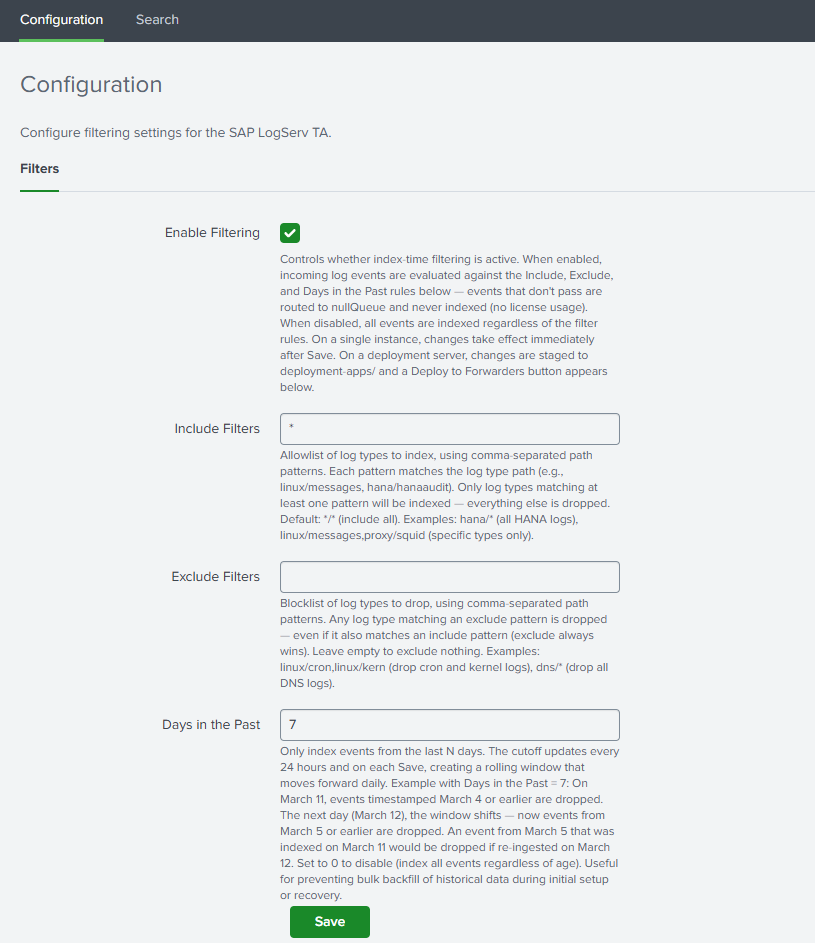
- In Splunk Web, open the Splunk TA for SAP LogServ app
- Go to Configuration → Filters
Set Your Filter Options
Enable Filtering
Check the Enable Filtering checkbox to activate index-time filtering.
Include Filters
Comma-separated patterns specifying which log types to include. Patterns use the format clz_dir/clz_subdir with fnmatch-style wildcards:
| Pattern | Meaning |
|---|---|
*/* |
Include all log types (default) |
hana/hanaaudit |
Include only HANA audit logs |
linux/* |
Include all Linux log types |
linux/messages, hana/* |
Include Linux messages and all HANA logs |
This field cannot be empty when filtering is enabled. Use */* to include everything.
Exclude Filters
Comma-separated patterns for log types to exclude. Events matching any exclude pattern are dropped even if they also match an include pattern. Leave empty to exclude nothing.
Days in the Past
Whole number (0–3650) specifying the maximum age of events to index. Set to 0 to disable time-based filtering. Default: 7.
Save
Click Save. The TA validates your patterns and generates the necessary configuration files.
Deployment Server: Deploy to Forwarders
If you are running on a Deployment Server with Heavy Forwarders, additional steps are required after saving filters.
After saving, the Filters tab will display a “⚠ Deployment Server Detected” banner with a “Deploy to Forwarders” button.
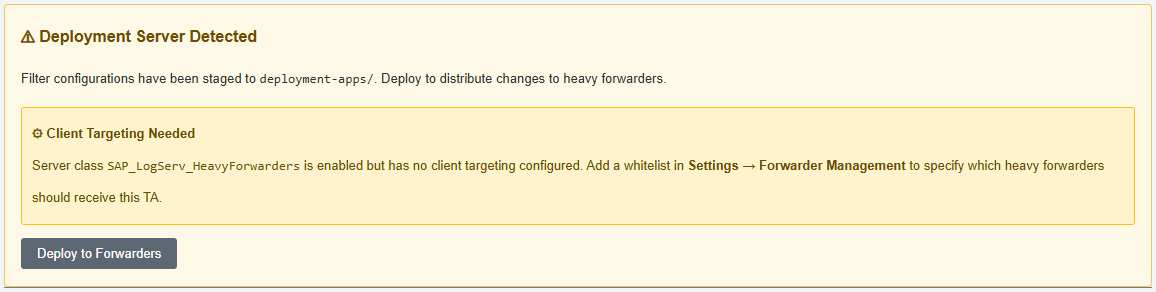
Configure the Server Class (First Time Only)
- Go to Settings → Forwarder Management
- Find the
SAP_LogServ_HeavyForwardersserver class - Click the three-dot menu → Edit agent assignment
- Add your Heavy Forwarder IP addresses or hostnames
- Save the agent assignment
Deploy
- Return to the Filters tab and click “Deploy to Forwarders”
- Confirm the deployment
- Wait for HFs to phone home (typically 30–60 seconds)
- Verify deployment status in Settings → Forwarder Management
Verify Native Filtering
After deployment, verify that native filtering is operating correctly:
`sap_logserv_idx_macro` | stats count by clz_dir, clz_subdir
You should see data only for log types matching your include patterns. See Configuring Filters for the full verification and troubleshooting guide.