AWS Remote S3 Connect Setup Walkthrough
Introduction
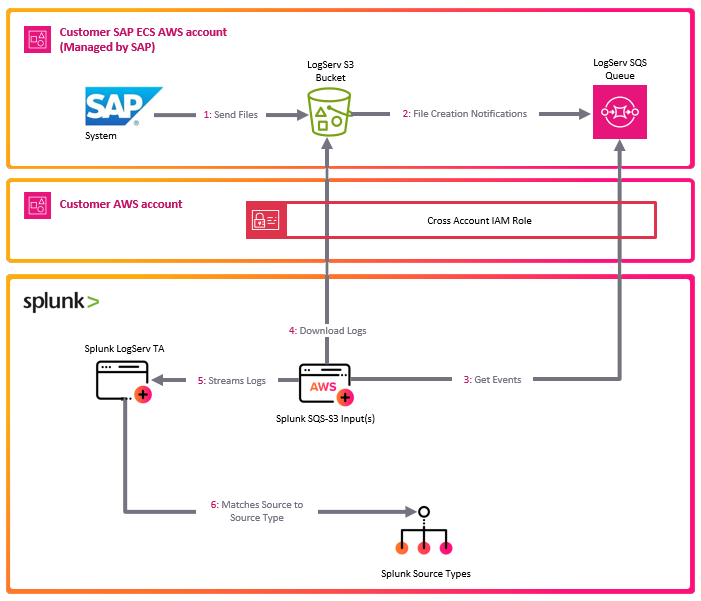
The deployment diagram below shows two different AWS accounts. For brevity and clarity, the AWS account at the top of the diagram will be referred to as the SAP ECS account and the second AWS account in the middle of the diagram will be referred to as the Secondary account from this point onward.
Ensure you have completed all of the steps in the Prerequisites and the Installation of the Splunk TA for SAP LogServ before you continue with the steps in this setup walkthrough.
Your SAP ECS LogServ subscription for AWS (e.g. in your SAP ECS account) should have one S3 Bucket in that account where LogServ will store your LogServ logs. It should also have one SQS Queue in your SAP ECS account that receives notifications when new logs are added to the S3 Bucket in that account.
You will need obtain the AWS ARN for the SQS Queue and the S3 Bucket that resides in your SAP ECS account prior to performing the steps in this setup walkthrough.
Take note of the AWS Region in your SAP ECS account where the S3 Bucket and SQS Queue are located as you will need to deploy the CloudFormation template provided in that same region in your Secondary account.
Tip
If you want to ingest historical logs from the S3 bucket in the SAP ECS account, the AWS Remote S3 Copy Setup is the recommended approach. Utilizing that approach provides you the ability to copy historical logs from the S3 bucket in the SAP ECS account to a secondary S3 bucket, so they will be ingested into Splunk, with the flexibility to switch over to this remote S3 connect deployment approach afterward.
If you have no interest in obtaining the historical logs then use this remote S3 connect deployment approach.
High Level Steps
Below are the high level steps for this setup process listed in the order they should be followed.
Please ensure the user you log in with in your AWS Secondary account has the appropriate permissions to perform all the steps outlined below.
- Obtain the ARNs for the SQS Queue and the S3 Bucket in your SAP ECS account
- Deploy the AWS CloudFormation Template provided for this remote S3 connect deployment approach in your Secondary account
- Contact SAP LogServ support and request an update to the access policies for the SQS Queue and S3 Bucket residing in your SAP ECS account
- Create an Access Key for the new IAM User that was created with the CloudFormation template in your Secondary account
- Configure your AWS Secondary account in the Splunk Add-on for Amazon Web Services (AWS)
- Configure the new cross-account IAM Role from your AWS Secondary account in the Splunk Add-on for Amazon Web Services (AWS).
- Configure a new SQS-Based S3 Input in the Splunk Add-on for Amazon Web Services (AWS).
- Confirm that LogServ logs are being ingested into Splunk
1. Obtain ARNs from SAP ECS Account
Before you can deploy the CloudFormation template in your Secondary account, you need to obtain the AWS ARN for two resources that reside in your SAP ECS account:
- The S3 Bucket that stores your LogServ logs
- The SQS Queue that receives notifications when new logs are added to the S3 Bucket
You will also need to note the AWS Region where these resources are located, because the CloudFormation template in the next section must be deployed into that same region in your Secondary account.
What does an ARN look like?
AWS Amazon Resource Names (ARNs) follow a predictable format. Examples:
- S3 Bucket ARN:
arn:aws:s3:::sap-hec-clz-ap-south-1-hec53-xsd - SQS Queue ARN:
arn:aws:sqs:ap-south-1:121212121212:sap-hec-clz-ap-south-1-hec53-xsd-logserv
How to obtain the ARNs:
1.a If you do not have console access to your SAP ECS account, contact SAP LogServ Support to obtain the ARN for the S3 Bucket, the ARN for the SQS Queue, and the AWS Region where these resources reside.
1.b If you do have console access to your SAP ECS account, obtain the ARNs yourself:
- For the **S3 Bucket**: navigate to the S3 console, find the bucket used for LogServ logs, click on the bucket name, and copy the ARN from the **_Properties_** tab.
- For the **SQS Queue**: navigate to the SQS console, find the queue that receives S3 notifications, click on the queue name, and copy the ARN from the **_Details_** section.
1.c Save both ARNs and the AWS Region in a secure location — you will reference them during the next section (Deploy CloudFormation Template) and again when configuring the SQS-Based S3 Input.
2. Deploy CloudFormation Template
Before you deploy the CloudFormation template, take note of the AWS Region in your SAP ECS account where the S3 Bucket and SQS Queue are located as you will need to deploy the CloudFormation template provided in that same region in your Secondary account.
What does the CloudFormation template do?
Creates the following resources:
- An IAM User - Default name is splunk_logserv_user
- An IAM Policy named splunk-logserv-ta-policy
- An IAM Role named splunk-logserv-ta-role
- An Inline IAM Policy on the IAM User to assume the IAM Role created above
2.a Navigate to the CloudFormation console (ensure the region you are in matches the region in your SAP ECS account)
2.b Click on the Create stack button and select With new resources (standard)
Example

2.c Upload the AWS CloudFormation Template file provided for this remote S3 connect deployment approach, then click the Next button
Example
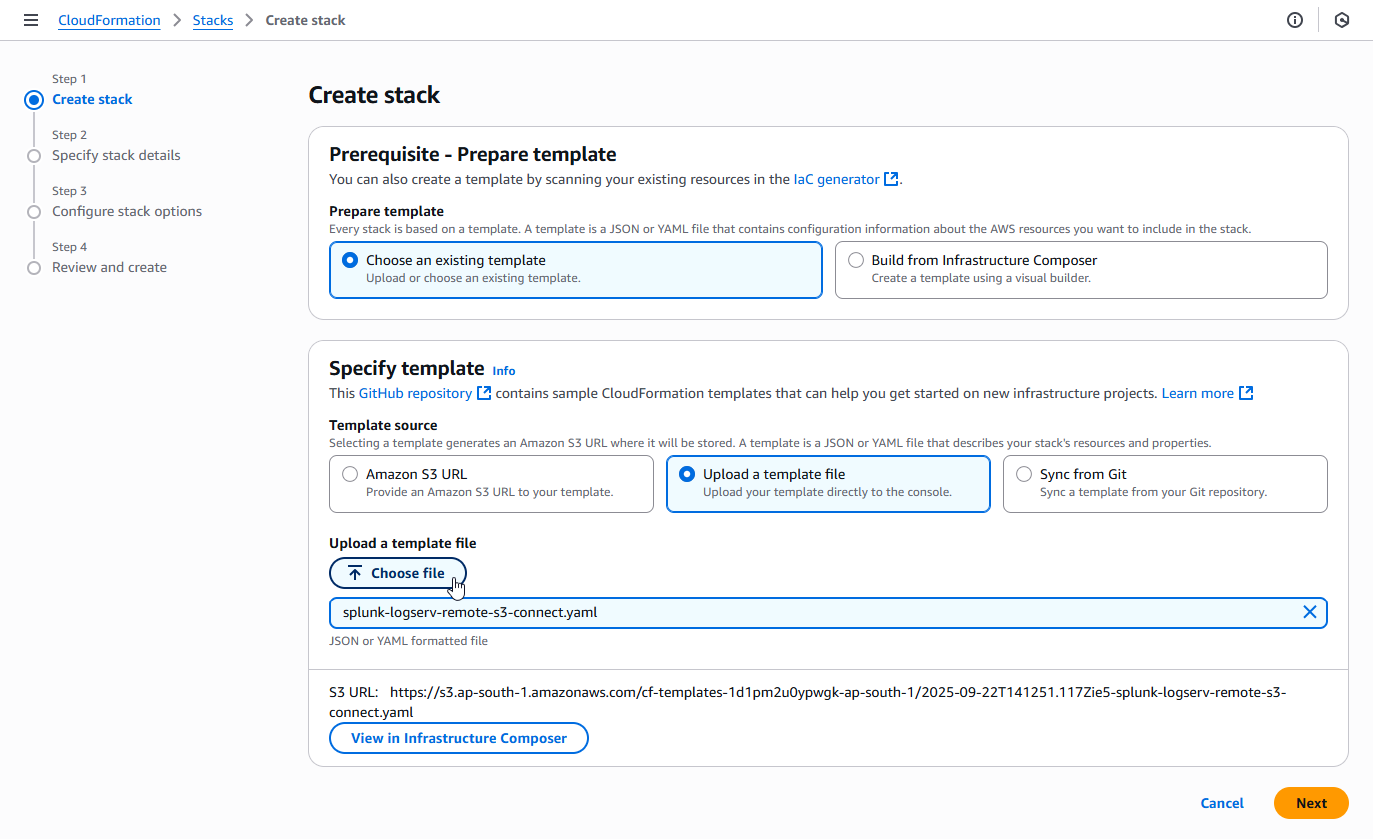
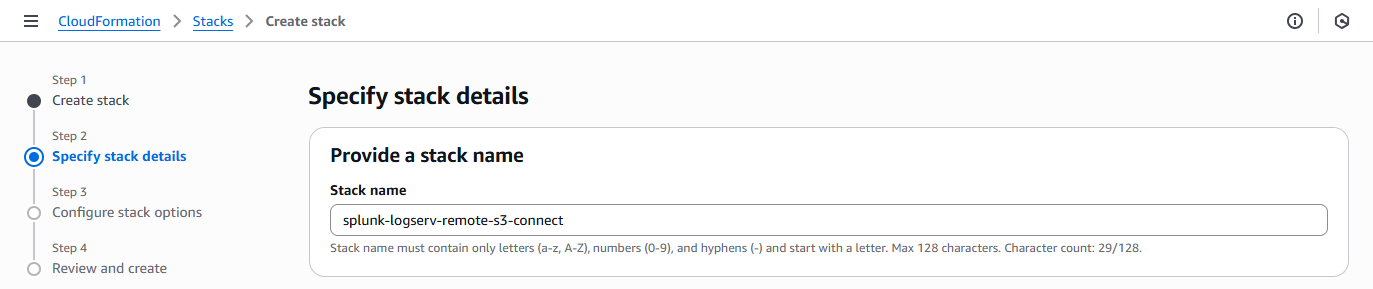
2.d Enter a name for the CloudFormation Stack - splunk-logserv-remote-s3-connect
Example
2.e Enter just the name (not the ARN) of the S3 Bucket in your SAP ECS account in the CrossAccountS3Bucket parameter - If your ARN looks like this arn:aws:s3:::sap-hec-clz-ap-south-1-hec53-xsd then just use the name like this ap-hec-clz-ap-south-1-hec53-xsd
Example

2.f Enter the complete ARN of the SQS Queue in your SAP ECS account in the CrossAccountSQSQueueArn parameter
Example

2.g Choose and enter a name for the IAM User to be created in your Secondary account in the NewIAMUserName parameter, then click on the Next button
Example

2.h Scroll down to the bottom of the page and check the I acknowledge that AWS CloudFormation might create IAM resources with custom names checkbox, then click on the Next button
Example
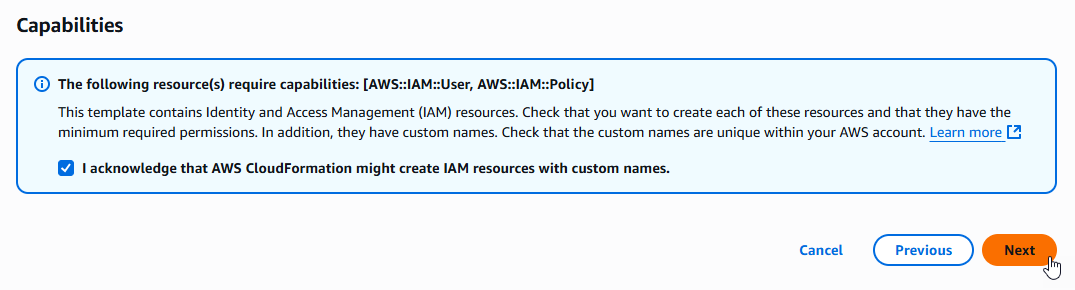
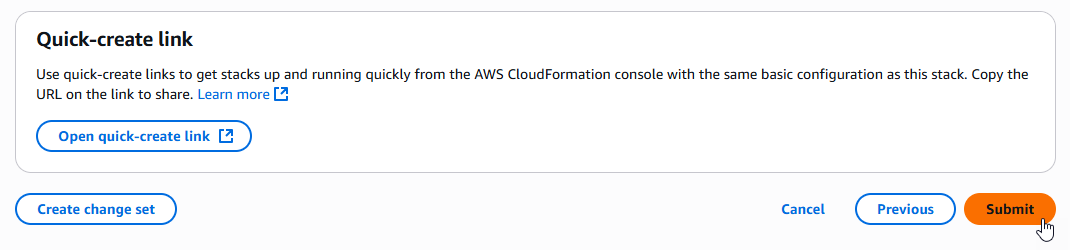
2.i Scroll down to the bottom of the page and click on the Submit button
Example
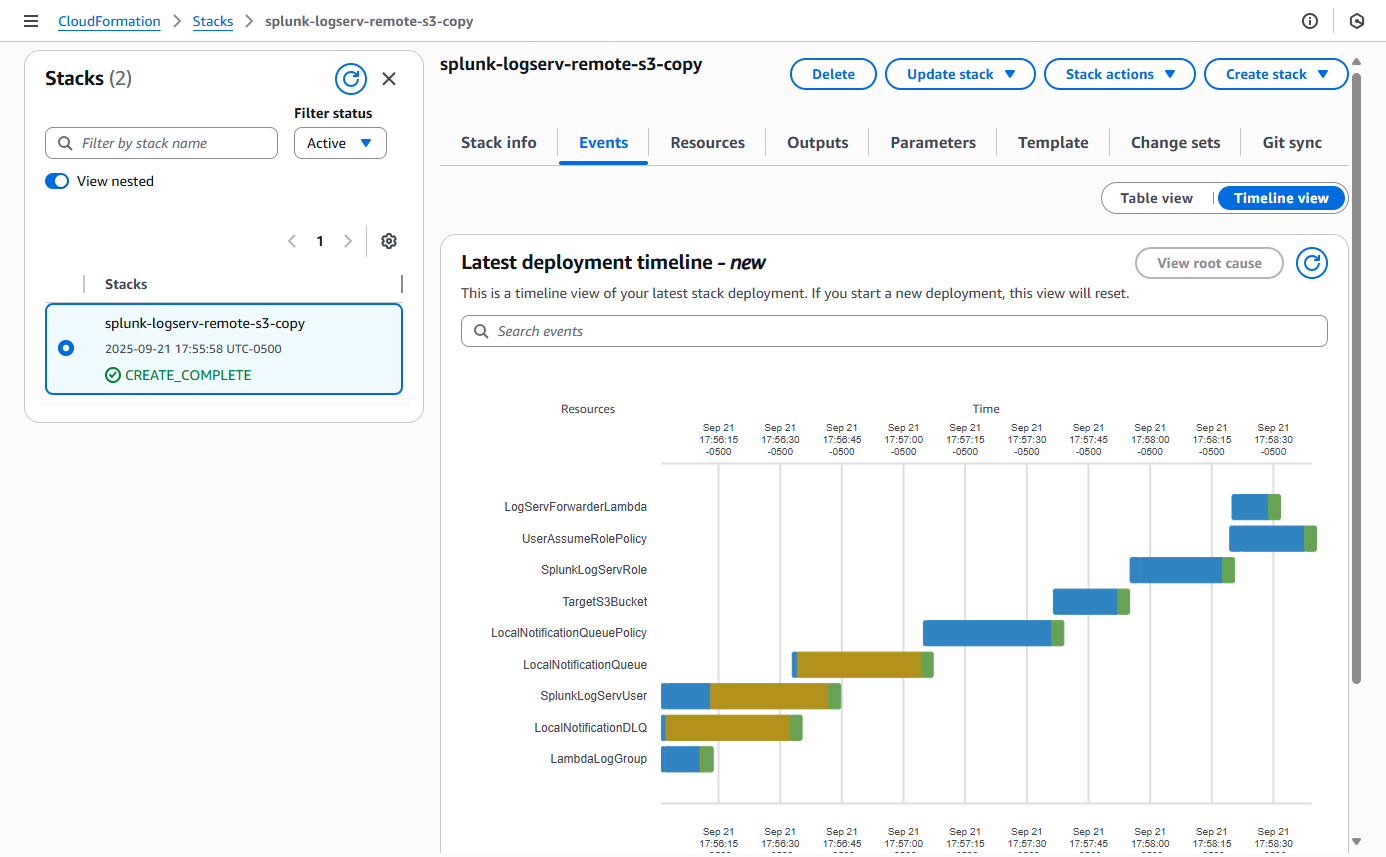
2.j Ensure the deployment of the CloudFormation template completes successfully
Example
3. Contact SAP LogServ Support
Once the deployment of the CloudFormation templates completes successfully, you will need to provide SAP LogServ Support with the ARN of the IAM Role named splunk-logserv-ta-role that was created by the template.
The ARN for the IAM Role should look like the one below but with your 12-digit AWS account Id of your Secondary account.
arn:aws:iam::secondary-account-id:role/splunk-logserv-ta-role
Example access policies for the SQS Queue and S3 Bucket residing in your SAP ECS account are provided as a reference to provide clarity on the specific permissions that need to be applied by the SAP LogServ Support team.
4. Create Access Key for IAM User
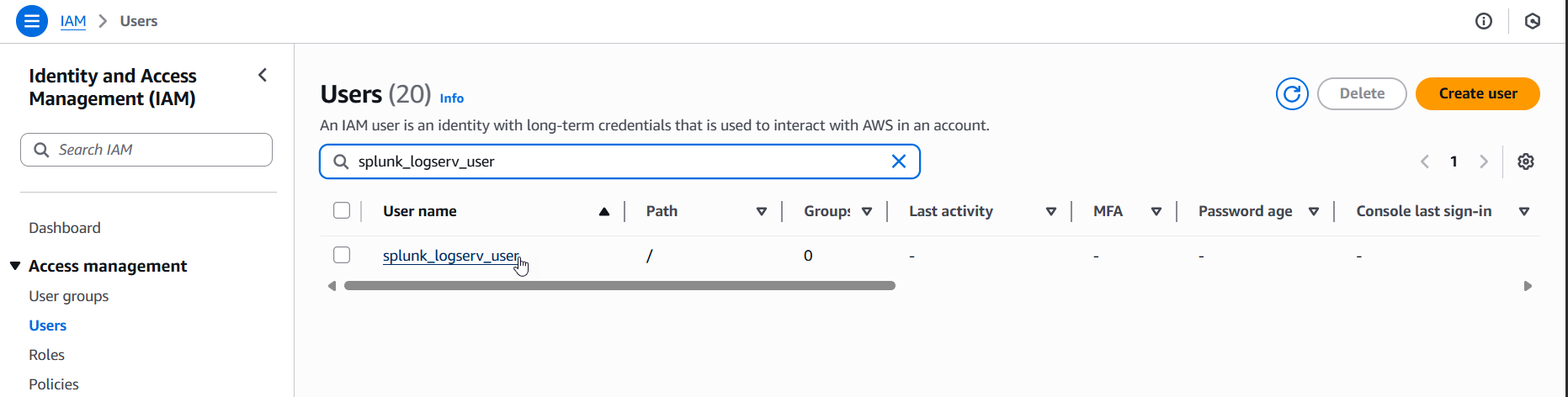
4.a Navigate to the IAM console in your Secondary account and search for the IAM User name you used when deploying the CloudFormation template. Click on the name of the IAM User to see the user details.
Example
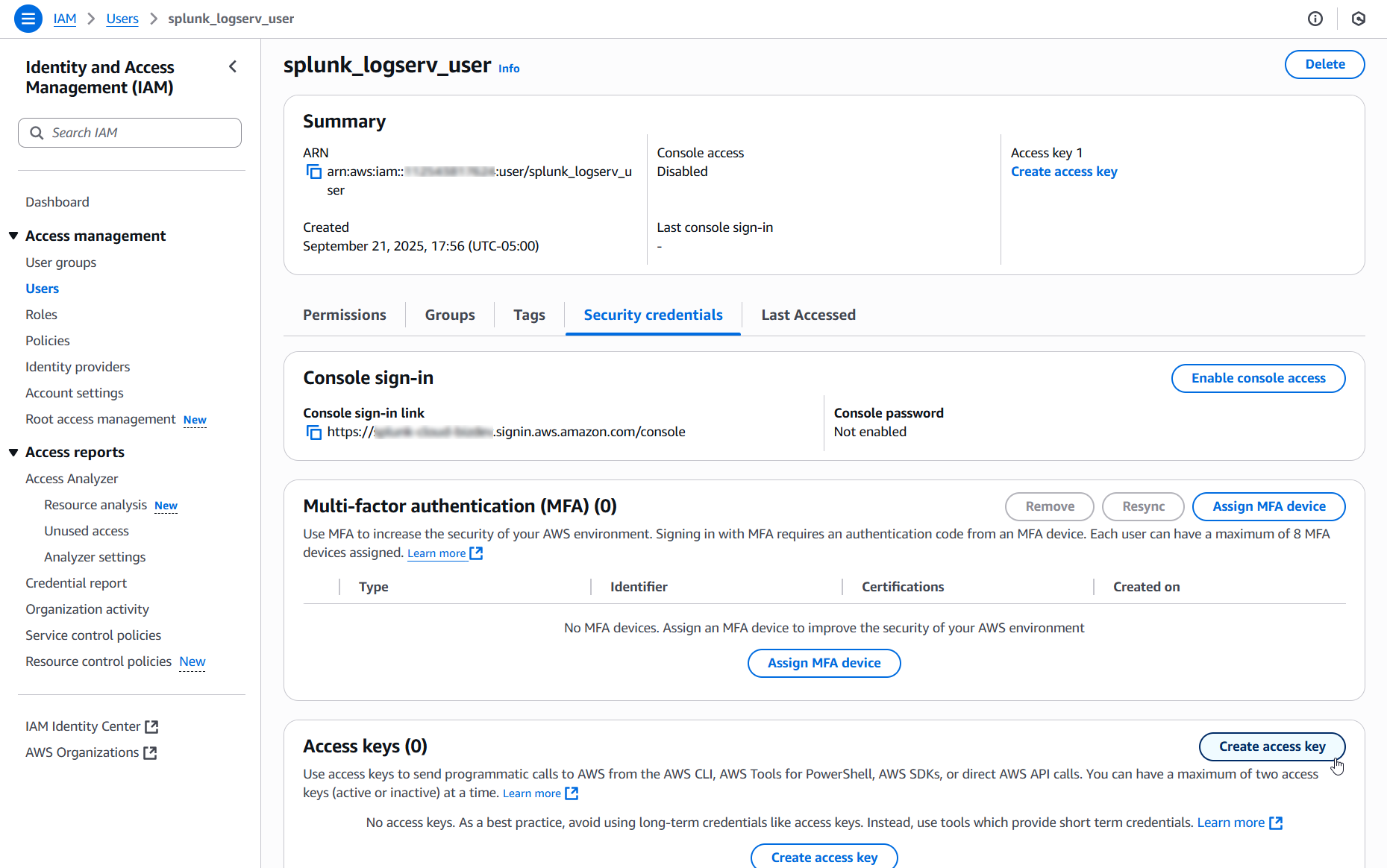
4.b Click on the Security credentials tab in the middle of the screen. Scroll down and click on the Create access key button.
Example
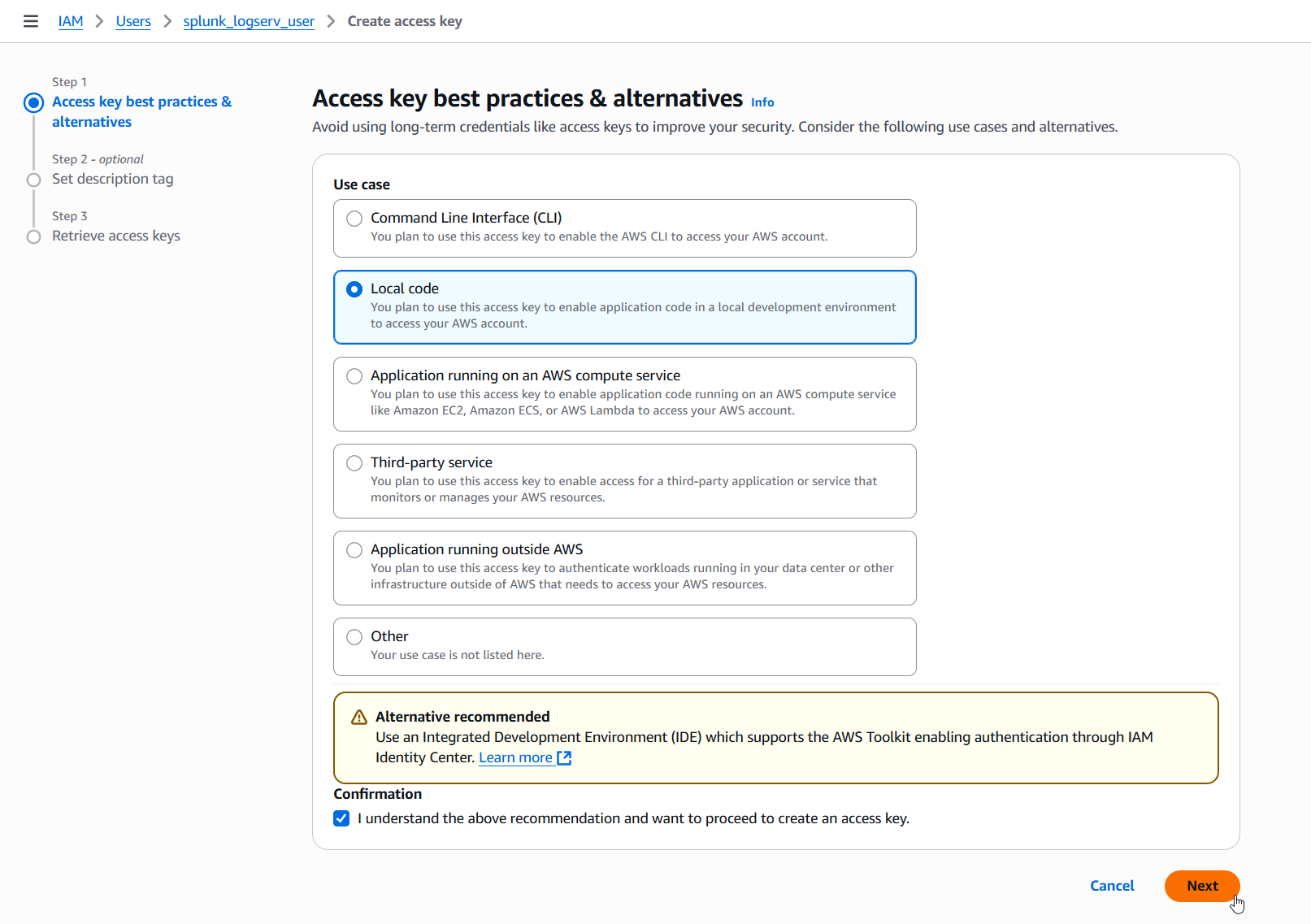
4.c Select the Local code use case, check the Confirmation checkbox and click on the Next button.
Example
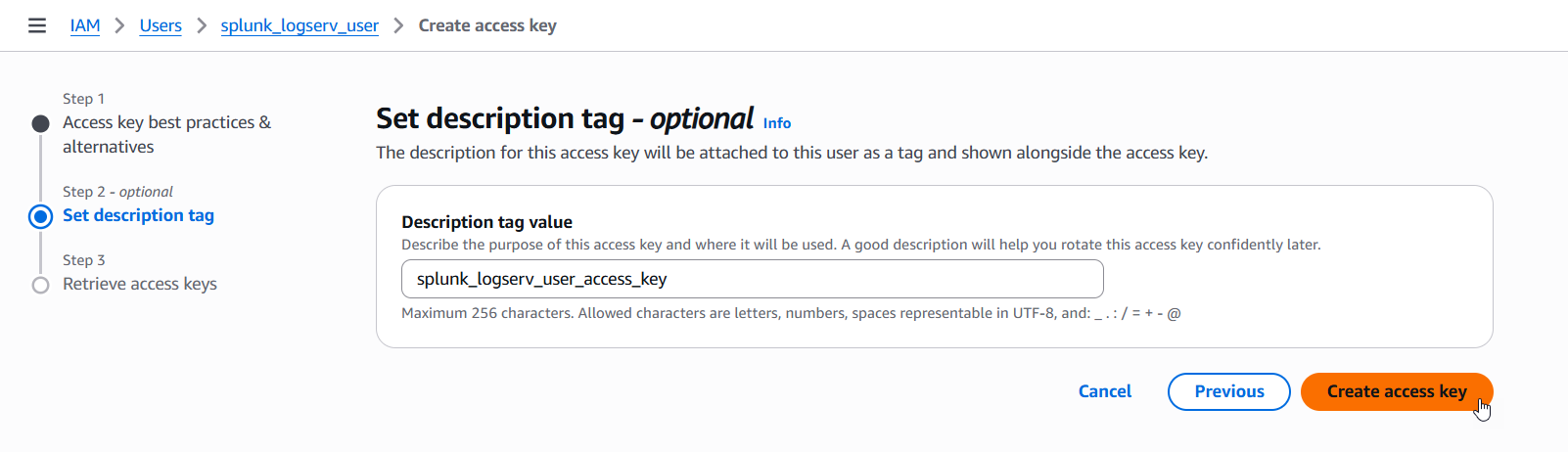
4.d Enter a description tag value if desired and click on the Create access key button.
Example
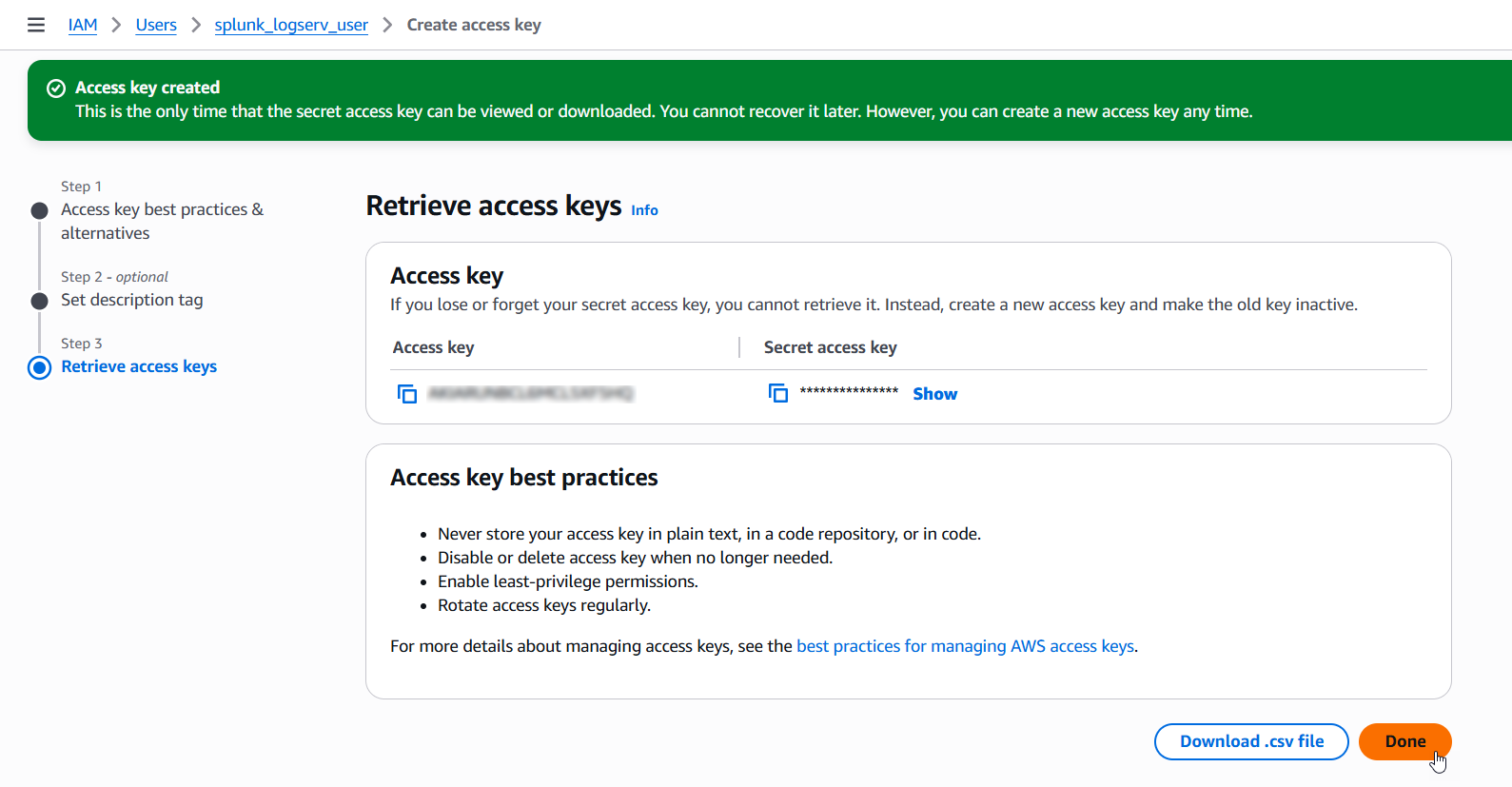
4.e Copy the values for both the Access key and the Secret access key and save them in a secure place as you will need them in the upcoming steps. Now click on the Done button.
Example
5. Configure Secondary Account (AWS Add-on)
Please ensure the user you log in with in your Splunk instance has the appropriate permissions to perform all the steps outlined below.
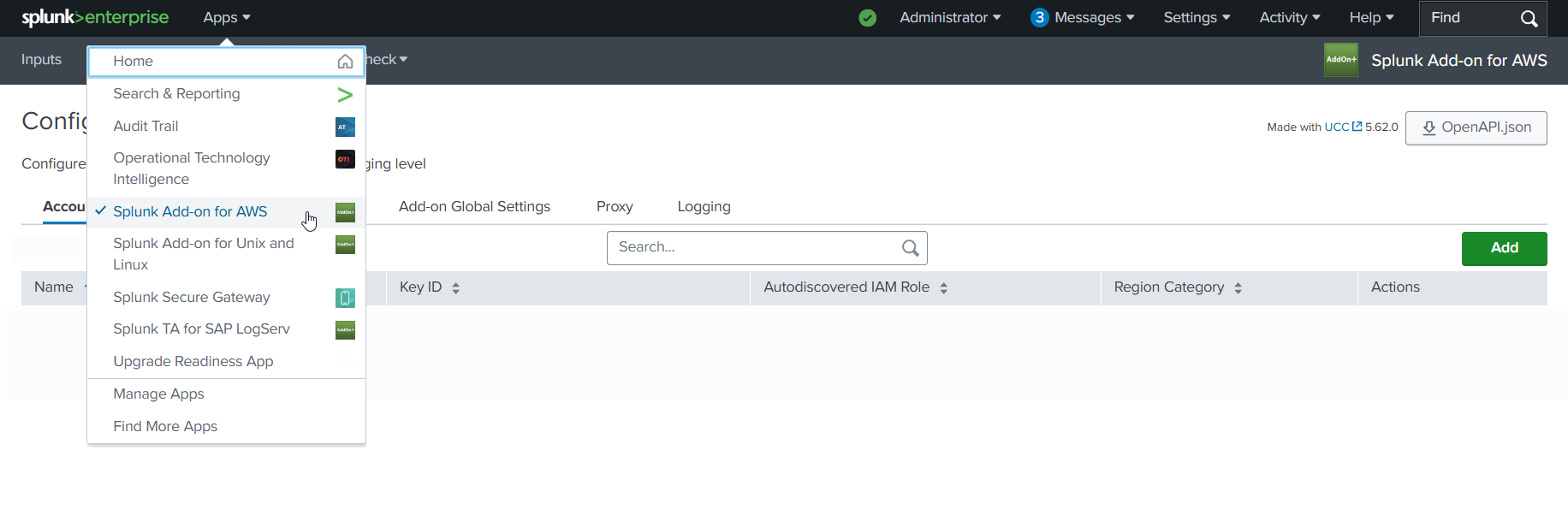
5.a Login to your Splunk console then find and open the Splunk Add-on for AWS App
Example
5.b Click on the Configuration tab, then click on the Account tab, then click on the Add button
Example
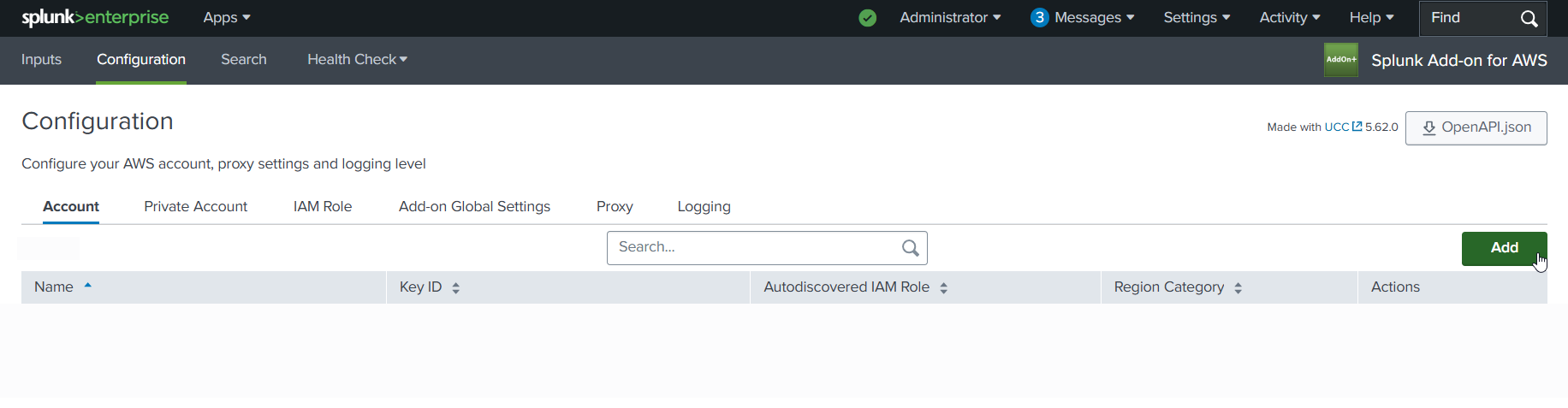
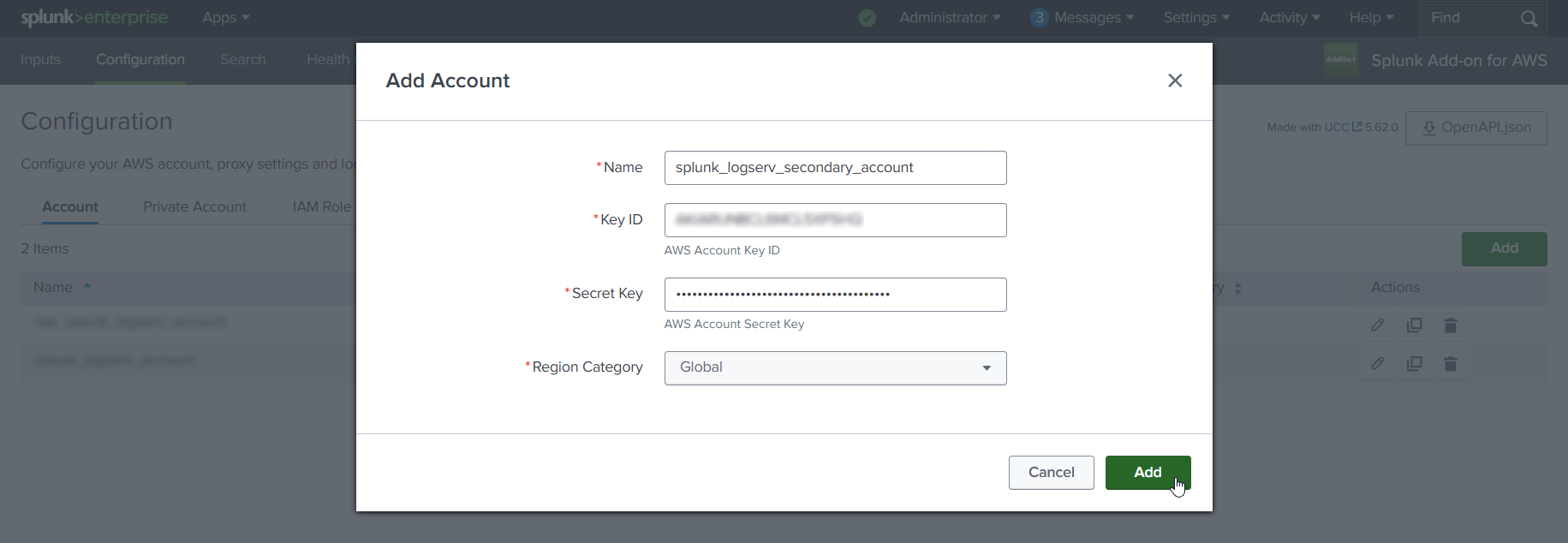
5.c Choose and enter a descriptive name for the account in the Name field. Enter the Access Key and the Secret Key you created for the IAM User in the respective fields. Leave the Region Category set to Global. Click on the Add button.
Example
6. Configure IAM Role (AWS Add-on)
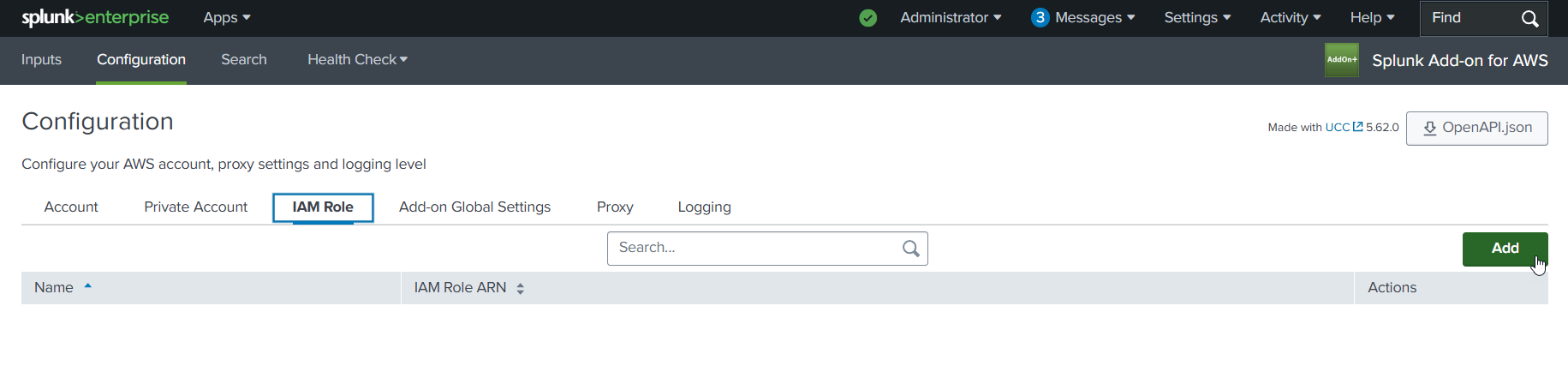
6.a Click on the IAM Role tab to the right of the Account tab, then click on the Add button
Example
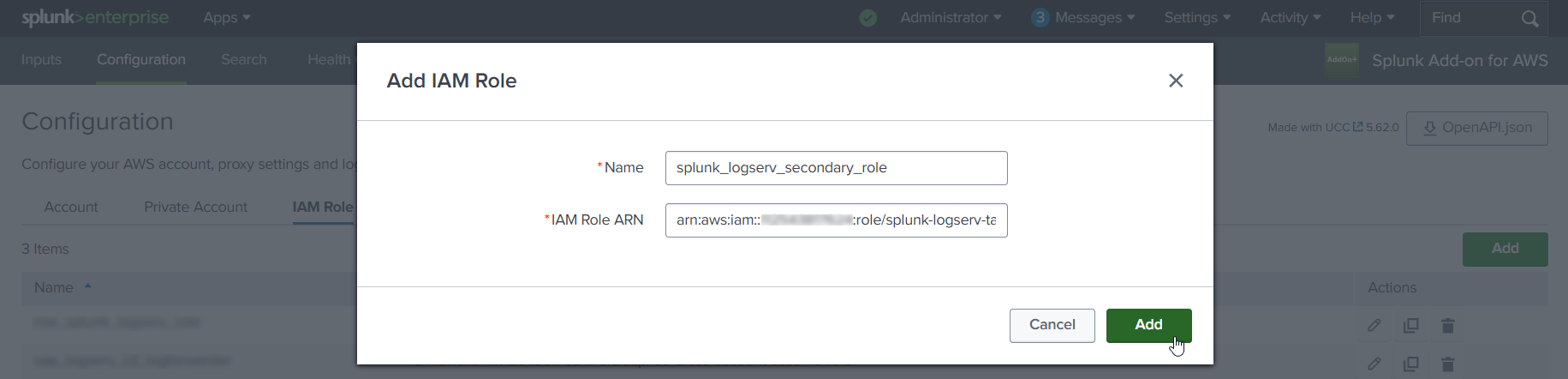
6.b Choose and enter a descriptive name for the role in the Name field. Enter the IAM Role ARN in the IAM Role ARN field, then click the Add button. The ARN for the IAM Role should look like the one below but with your 12-digit AWS account Id of your Secondary account.
- arn:aws:iam::**_secondary-account-id_**:role/splunk-logserv-ta-role
Example
7. Configure SQS-Based S3 Input (AWS Add-on)
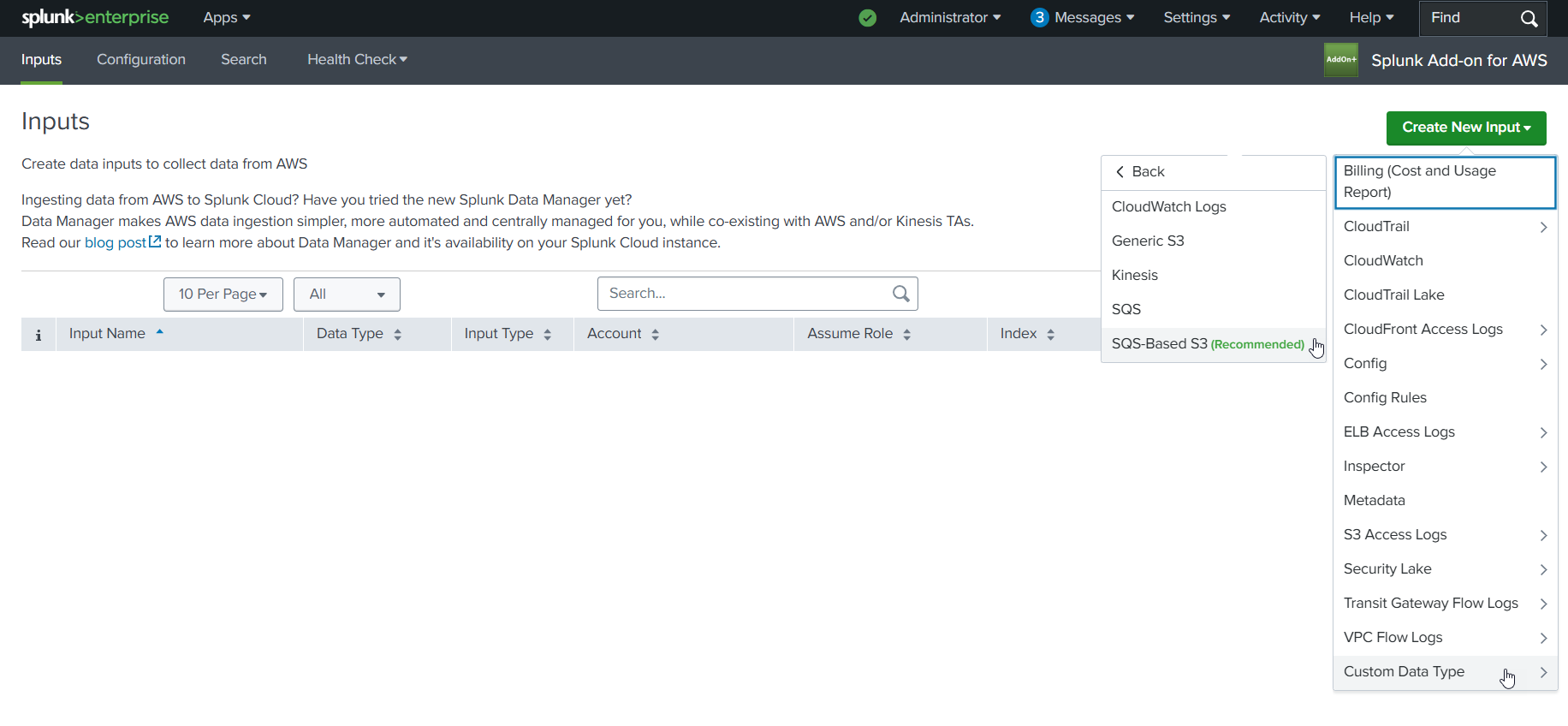
7.a Click on the Inputs tab. Click on the Create New Input button. Select the Custom Data Type option at the bottom of the drop-down, then select the SQS-Based S3 (Recommended) option.
Example
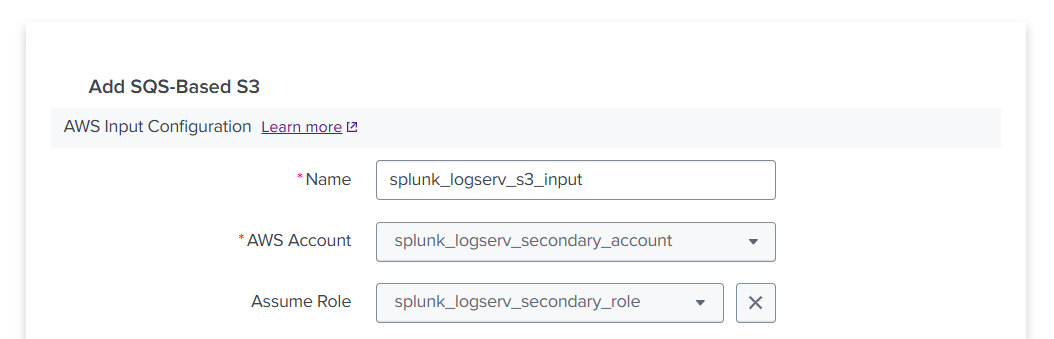
7.b Fill out the first three fields in the SQS-Based S3 Input (Name, AWS Account, Assume Role)
- Choose and enter a descriptive name for the input
- Select the AWS Account you configured previously
- Select the IAM Role you configured previously
Example
7.c Fill out the next three fields in the SQS-Based S3 Input (Force using DLQ, AWS Region, Use Private Endpoints)
- Leave the **_Force using DLQ (Recommended)_** checkbox **__checked__**
- Select the **_AWS Region_** where you deployed the CloudFormation template previously
- Leave the **_Use Private Endpoints_** checkbox **__unchecked__**
Example

7.d Fill out the next three fields in the SQS-Based S3 Input (SQS Queue Name, SQS Batch Size, S3 File Decoder)
- Enter the **__URL__** of the SQS Queue in your **_SAP ECS account_**, **__not__** the ARN or just the name
    - If the ARN for your SQS Queue in your **_SAP ECS account_** looks like this:
        - arn:aws:sqs:ap-south-1:121212121212:sap-hec-clz-ap-south-1-hec53-xsd-logserv
    - Then format it as a URL like this:
        - https://sqs.ap-south-1.amazonaws.com/121212121212/sap-hec-clz-ap-south-1-hec53-xsd-logserv
- Leave the **_SQS Batch Size_** set to 10
- Leave the **_S3 File Decoder_** set to Custom Logs
Example

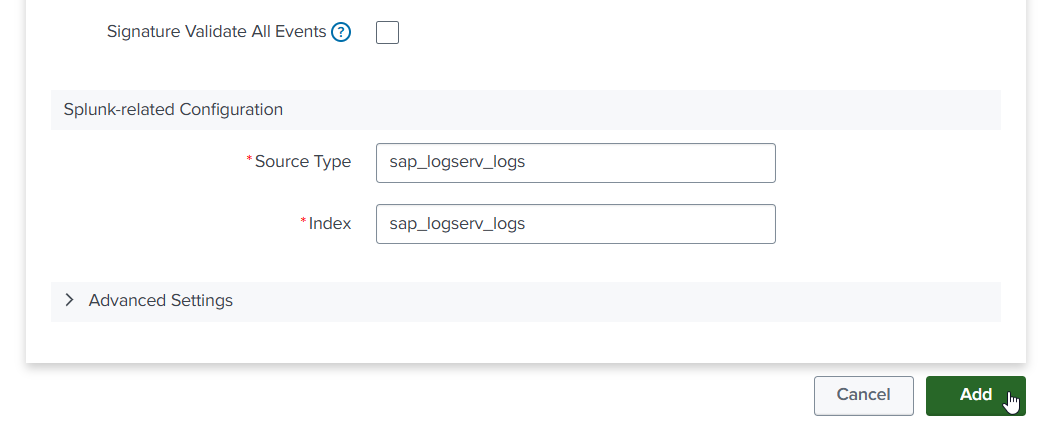
7.e Fill out the next three fields in the SQS-Based S3 Input (Signature Validate All Events, Source Type, Index)
- **__Uncheck__** the **_Signature Validate All Events_** checkbox
- Enter the value of **_sap_logserv_logs_** in the **_Source Type_** field
- Enter the name of the Splunk index you want to use in the **_Index_** field
- Click on the **_Add_** button
Example
8. Confirm LogServ Logs are Being Ingested
After completing all the previous steps, verify that LogServ logs are successfully being ingested into Splunk.
The first events typically appear within 5-10 minutes of completing the SQS-Based S3 Input configuration. The input polls the SQS Queue at the configured interval (default 300 seconds), so allow a short lag before the first events arrive.
8.a Log in to your Splunk console and open the Search & Reporting app (or the SAP LogServ App if you have installed it)
8.b Run a basic search against the index you configured in the SQS-Based S3 Input to confirm events are flowing:
    index=<your_index_name> | stats count by sourcetype

If you are using the SAP LogServ App, you can use the provided index macro:

    `sap_logserv_idx_macro` | stats count by sourcetype
8.c You should see events from the LogServ sourcetypes your SAP LogServ subscription is forwarding. Depending on the log types enabled, expected sourcetypes may include (but are not limited to):
- `linux_messages_syslog`, `linux_secure`, `syslog` -- Linux OS events
- `isc:bind:query` -- DNS query events
- `squid:access` -- Proxy events
- `XmlWinEventLog` -- Windows events
- `sap:hana:audit`, `sap:hana:tracelogs` -- HANA database events
- `sap:abap:*` -- ABAP application events
- `sap:webdispatcher:access` -- Web Dispatcher events
- `sap:scc:audit`, `sap:scc:http_access` -- Cloud Connector events
8.d Confirm events are arriving with recent timestamps:
    index=<your_index_name> earliest=-1h | stats count by sourcetype, host

You should see recent events from multiple hosts.
8.e If no events appear after 15-20 minutes, troubleshoot as follows:
- **SQS Queue has no messages** -- Verify the SAP LogServ Support team has applied the updated access policies (from Section 3) to the SQS Queue and S3 Bucket in your **_SAP ECS account_**. Without those policies, your **_Secondary account_** cannot receive SQS notifications or read from the S3 Bucket.
- **Authentication or permission errors** -- In the Splunk Add-on for AWS, check the logs for errors: run `index=_internal source=*aws* log_level IN (ERROR,WARN) earliest=-1h | head 50`. Common causes are a mis-copied Access Key/Secret Key (Section 4), an incorrect IAM Role ARN (Section 6), or the IAM Role not yet propagated through AWS (wait 5 minutes after initial setup).
- **SQS URL format** -- Double-check the **_SQS Queue Name_** field in the SQS-Based S3 Input (Section 7) is the full URL (`https://sqs.<region>.amazonaws.com/<account-id>/<queue-name>`), not the ARN or bare queue name.
- **Wrong AWS Region** -- The CloudFormation template (Section 2) and the SQS-Based S3 Input (Section 7) must both be in the same AWS Region as the SQS Queue and S3 Bucket in your **_SAP ECS account_**.
Where to go next
Once you’ve confirmed ingestion is working, explore the dashboards in the LogServ UI App to see your LogServ data in action. The default landing page is the Environment Health dashboard, which provides a cross-cutting view of your entire SAP landscape.