Configuring Filters
Overview
The Splunk TA for SAP LogServ provides two complementary approaches to filtering LogServ data. You can use either one independently or combine them for defense-in-depth filtering.
| Native TA Index-Time Filtering | AWS Lambda-Based Filtering | |
|---|---|---|
| Where it runs | Inside Splunk at index time | In AWS Lambda, before data reaches Splunk |
| Configured via | Splunk Web UI (Configuration → Filters) | Lambda environment variables or migration config |
| Works with | All deployment scenarios (Connect, Filter, Copy) | S3 Filter and Connect-to-Filter migration only |
| What it filters | Raw NDJSON events via TRANSFORMS queue routing | S3 event notifications via Lambda function |
| License impact | Filtered events consume zero Splunk license | Filtered notifications never reach Splunk |
| Pattern syntax | clz_dir/clz_subdir fnmatch patterns |
clz_dir/clz_subdir fnmatch patterns (same) |
| Time filtering | Days in the Past (epoch regex, refreshed daily) | Days in the Past (Lambda evaluation) |
| AWS resources needed | None | Lambda function, local SQS queue, DLQ |
| Deployment Server support | ✅ Auto-distributes to Heavy Forwarders | N/A (AWS-side only) |
| Upgrade notifications | ✅ Alerts when new log types aren’t covered | ❌ Not available |
Which Approach Should I Use?
Choosing a filtering approach
Use Native TA filtering (recommended for most users) if you want the simplest setup — it works with every deployment scenario, requires no AWS resources beyond what you already have, and is managed entirely from Splunk Web. It also provides upgrade notifications when new log types are added to the TA.
Use Lambda-based filtering if you want to reduce the volume of SQS messages that Splunk processes. Because the Lambda filters S3 event notifications before they reach Splunk, unwanted objects are never downloaded from S3 at all. This can reduce S3 GET request costs and Splunk ingestion overhead in very high-volume environments.
Use both together for defense-in-depth. The Lambda filters at the AWS pipeline level, and the native TA filters catch anything that slips through at the Splunk level. Since both use the same clz_dir/clz_subdir pattern syntax, you can keep the configurations aligned.
The remainder of this page covers Native TA Index-Time Filtering in detail. For Lambda-based filtering setup, see the AWS Lambda-Based Filtering section at the bottom of this page or the AWS Remote S3 Filter Setup Guide.
Native TA Index-Time Filtering
What It Does
Starting with version 0.0.3, the TA includes built-in index-time filtering configured entirely through the Splunk Web UI — no manual editing of configuration files is required.
How It Works
- Include Filters — Only events matching at least one include pattern are eligible for indexing. Everything else is dropped before indexing (zero license cost).
- Exclude Filters — Events matching any exclude pattern are dropped, even if they also match an include pattern. Excludes override includes.
- Time Filter (Days in the Past) — Events with a
_timeolder than the configured number of days are dropped. This prevents backfill of very old log data during initial setup or recovery scenarios.
All filtering happens at index time via TRANSFORMS-based queue routing, so filtered events never consume Splunk license.
Deployment Architectures
The TA supports two deployment models. The steps differ slightly depending on which one you use.
Single Instance / Search Head
The TA is installed directly on the Splunk instance that indexes data. Filter changes take effect immediately after clicking Save (no restart required).
Deployment Server with Heavy Forwarders
The TA is installed on the Deployment Server (DS). The DS distributes the TA and its filter configurations to Heavy Forwarders (HFs) that perform the actual data ingestion. This is the recommended architecture for production environments.
In this model:
- You install and configure the TA on the DS only
- The DS automatically stages configurations for distribution
- You use the built-in Deploy to Forwarders button to push changes to HFs
- HFs receive the TA and filter configs on their next phone-home interval
Note
Splunk Cloud cannot act as a Deployment Server. If you are using Splunk Cloud, you will need a separate on-premises Deployment Server to manage your Heavy Forwarders.
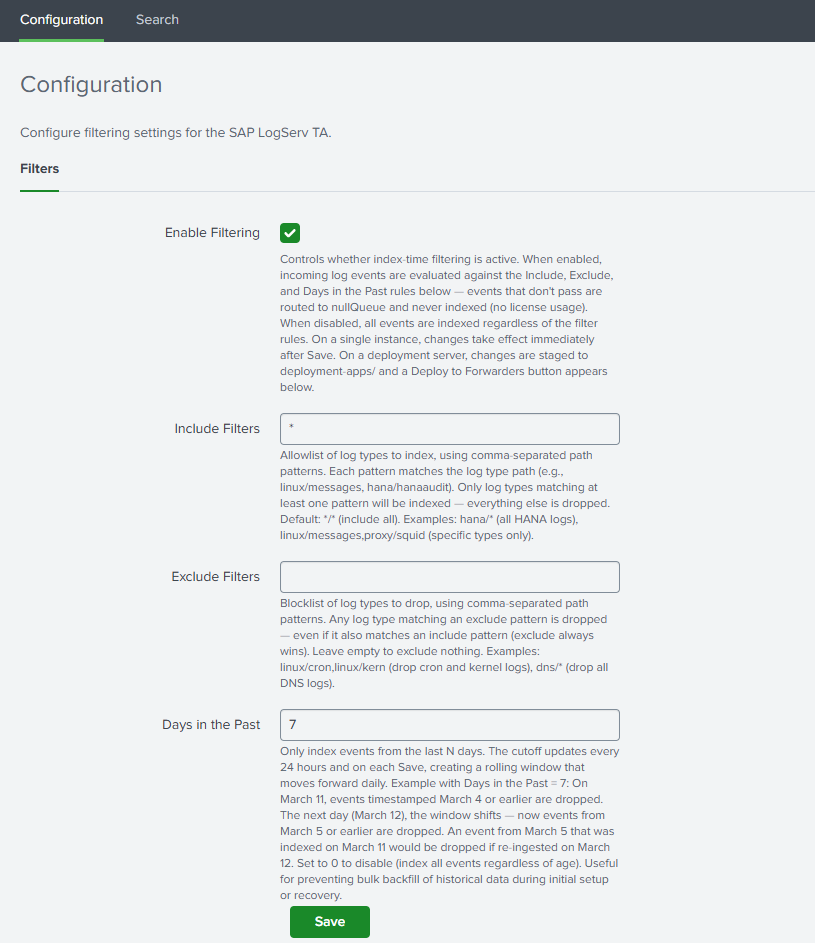
Open the Configuration > Filters Tab
- In Splunk Web, open the Splunk TA for SAP LogServ app
- Go to Configuration > Filters
Example
Set Your Filter Options
Enable Filtering
Check the Enable Filtering checkbox to activate index-time filtering. When disabled, all events are indexed without any filtering.
Include Filters
Comma-separated patterns specifying which log types to include. Patterns use the format clz_dir/clz_subdir with fnmatch-style wildcards:
| Pattern | Meaning |
|---|---|
*/* |
Include all log types (default) |
hana/hanaaudit |
Include only HANA audit logs |
linux/* |
Include all Linux log types |
linux/messages, hana/* |
Include Linux messages and all HANA logs |
dns/* |
Include all DNS log types |
Rules:
- Each pattern must be in
dir/subdirformat or a standalone* - A standalone
*is equivalent to*/*(include everything) - Valid characters: letters, numbers,
*,?,.,-,:,_ - This field cannot be empty when filtering is enabled — use
*/*to include everything
Supported Log Types Reference
See the Supported Log Types section below for a complete list of clz_dir/clz_subdir values you can use in your filter patterns.
Exclude Filters
Comma-separated patterns for log types to exclude. Same pattern format as includes. Events matching any exclude pattern are dropped even if they also match an include pattern.
Example: To include all Linux logs except cron and slapd:
- Include:
linux/* - Exclude:
linux/cron, linux/slapd
Leave this field empty to exclude nothing.
Days in the Past
Whole number (0–3650) specifying the maximum age of events to index. Events with a _time older than this many days from today are dropped before indexing.
- Set to
7to only index events from the last 7 days - Set to
0to disable time-based filtering - Default:
7
How the time filter works
The time filter uses a pre-computed epoch-based regex that is refreshed automatically once per day by a built-in scripted input. If the refresh fails to run for a day, the filter becomes slightly more restrictive (one extra day filtered) — the safer failure mode.
Save
Click Save. The TA validates your patterns and generates the necessary configuration files. If there are any validation errors (invalid characters, empty include field, etc.), the save is blocked and an error message is displayed.
Deployment Server: Additional Steps
If you are running on a single instance, you can skip this section — filter changes take effect immediately after Save.
What Happens Automatically on Save
When you save filter settings on a Deployment Server, the TA automatically:
- Copies the full TA package to
/opt/splunk/etc/deployment-apps/splunk_ta_sap_logserv/ - Mirrors the generated filter configurations (
transforms.conf,props.conf) to the deployment-apps copy - Creates a server class named
SAP_LogServ_HeavyForwardersin a disabled state (if it doesn’t already exist). The server class remains disabled until you configure client targeting in the next step.
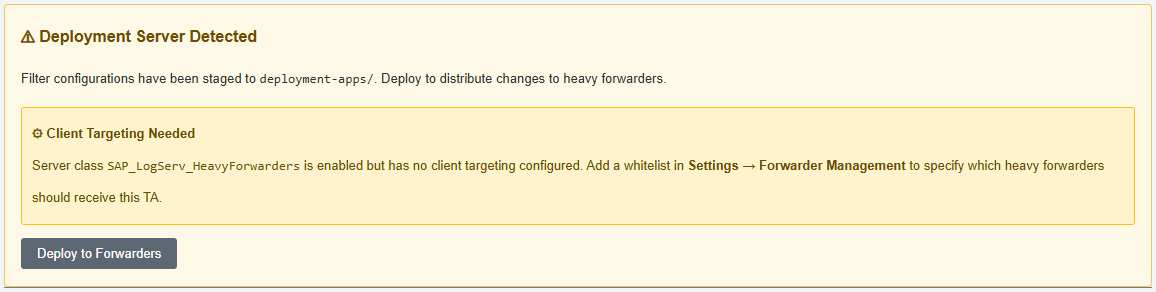
After saving, the Filters tab displays:
- A “⚠ Deployment Server Detected” banner
- A “⚙ Server Class Setup Required” or “Client Targeting Needed” notice (first time only)
- A “Deploy to Forwarders” button
Example
Configure the Server Class (First Time Only)
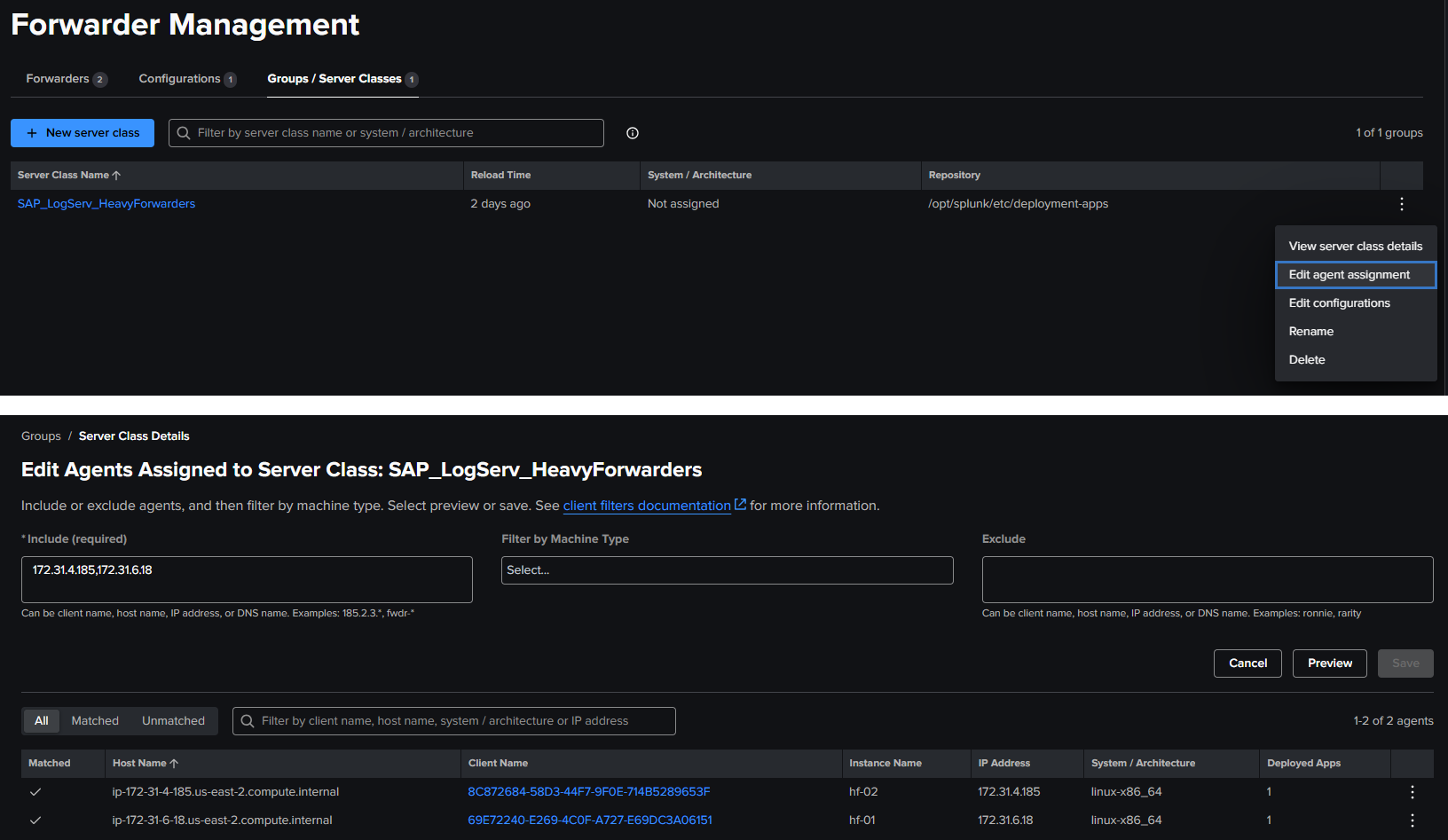
The auto-created server class needs client targeting to know which Heavy Forwarders should receive the TA:
- Go to Settings → Forwarder Management
- Find the
SAP_LogServ_HeavyForwardersserver class - Click the three-dot menu → Edit agent assignment
- Add your Heavy Forwarder IP addresses, hostnames, or use
*for all connected forwarders - Save the agent assignment — this also enables the server class
Example
Client Targeting
Use IP addresses for client targeting, as Splunk matches against the client’s IP, hostname, DNS name, or GUID — not the instance name.
Return to the Filters tab — the setup notice should be gone (refresh the page in the browser if needed to see the change in the setup notice).
Example

Deploy to Forwarders
- On the Filters tab, click “Deploy to Forwarders” and confirm
- You should see the new updated banner on the filters screen confirming the deployment reload has been initiated
Example

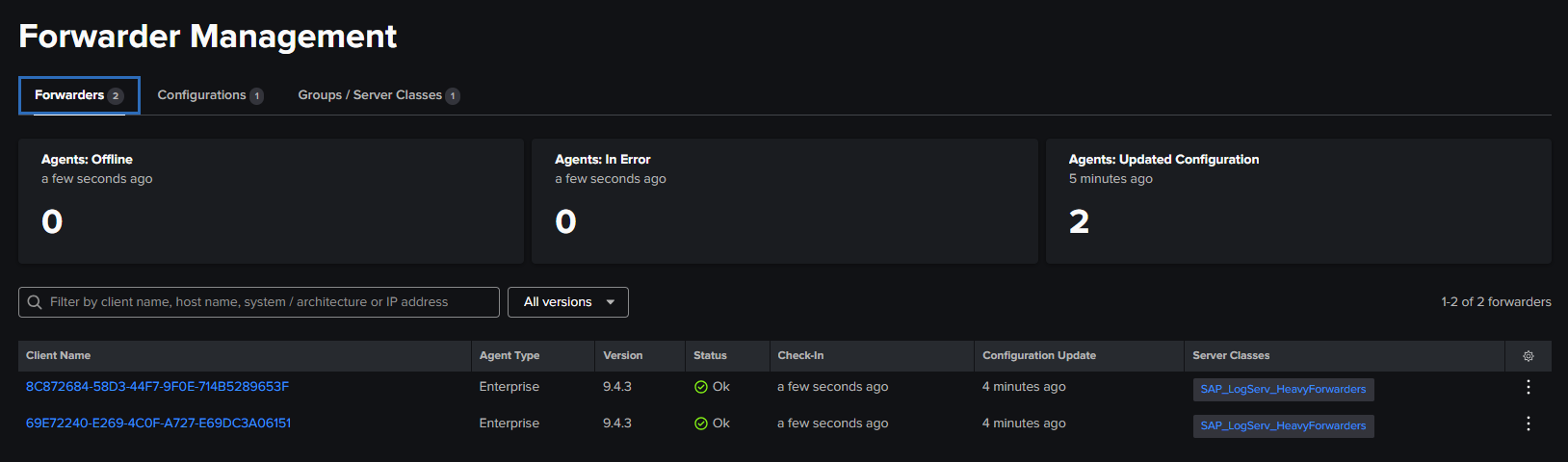
- Wait for your Heavy Forwarders to phone home (typically 30–60 seconds depending on configuration)
- Verify deployment status in Settings → Forwarder Management — HFs should show as “Ok” under the server class, however it may take 5+ minutes to see the status on the forwarders change from
PendingtoOk
Example
Updating Filters on a Deployment Server
Whenever you change filter settings:
- Make your changes on the Filters tab and click Save
- Click “Deploy to Forwarders” to distribute the updated configurations
- HFs will pick up the changes on their next phone-home interval
Note
Do not install the TA directly on Heavy Forwarders when using a Deployment Server. The DS manages the TA distribution. Installing locally on an HF can cause configuration conflicts.
Verifying Filters
Check Included Data Is Arriving
`sap_logserv_idx_macro` | stats count by clz_dir, clz_subdir
You should see data only for log types matching your include patterns.
Index macro
The sap_logserv_idx_macro macro expands to index="sap_logserv_logs" by default. If you changed the index name in your environment, update the macro definition under Settings → Advanced Search → Search Macros or substitute your index name directly in the search.
Check Excluded Data Is Not Present
If you configured exclude patterns, verify those log types are absent from search results.
Check Time Filtering
Search for events older than your configured cutoff:
`sap_logserv_idx_macro` earliest=-30d latest=-10d
If your Days in Past is less than 10, this search should return no results.
Supported Log Types
Log Type Reference
The table below lists all log types currently supported by the TA. The clz_dir and clz_subdir columns show the values used in filter patterns. Use these values when configuring your include and exclude filters.
| clz_dir | clz_subdir | Splunk Sourcetype |
|---|---|---|
| abap | audit | sap:abap:audit |
| abap | dispatcher | sap:abap:dispatcher |
| abap | enqueueserver | sap:abap:enqueueserver |
| abap | event | sap:abap:event |
| abap | gateway | sap:abap:gateway |
| abap | icm | sap:abap:icm |
| abap | messageserver | sap:abap:messageserver |
| abap | sapstartsrv | sap:abap:sapstartsrv |
| abap | workprocess | sap:abap:workprocess |
| dns | binddns | isc:bind:query, isc:bind:lameserver, isc:bind:network, isc:bind:transfer |
| hana | hanaaudit | sap:hana:audit |
| hana | tracelogs | sap:hana:tracelogs |
| linux | cron | linux:cron |
| linux | localmessages | linux_messages_syslog |
| linux | messages | linux_messages_syslog |
| linux | linux_secure | linux_secure, lastlog, who |
| linux | slapd | linux:slapd |
| linux | sudolog | linux:sudolog |
| linux | warn | linux:warn |
| proxy | squid | squid:access |
| sap | saphostexec | sap:saphostexec |
| sap | saprouter | sap:saprouter |
| sap | sapstartsrv | sap:sapstartsrv |
| scc | audit | sap:scc:audit |
| scc | tracelogs | sap:scc:http_access |
| webdispatcher | accesslog | sap:webdispatcher:access |
| windows | WinEventLog:Application | XmlWinEventLog |
| windows | WinEventLog:Powershell | XmlWinEventLog |
| windows | WinEventLog:Security | XmlWinEventLog |
| windows | WinEventLog:System | XmlWinEventLog |
Filter pattern examples using this table
- To include all DNS logs:
dns/*ordns/binddns - To include all Linux logs except cron: Include
linux/*, Excludelinux/cron - To include only HANA audit and web dispatcher logs:
hana/hanaaudit, webdispatcher/accesslog - To include all Windows event logs:
windows/* - To include all ABAP application logs:
abap/* - To include specific ABAP types:
abap/icm, abap/gateway - To include all SAP Cloud Connector logs:
scc/* - To include all SAP service logs:
sap/*
Upgrade Notifications
How Upgrade Notifications Work
When the TA is upgraded to a new version that supports additional log types, a system message banner appears across all Splunk Web pages if your include filter patterns do not cover the newly supported types. This prevents new log types from being silently dropped.
Example
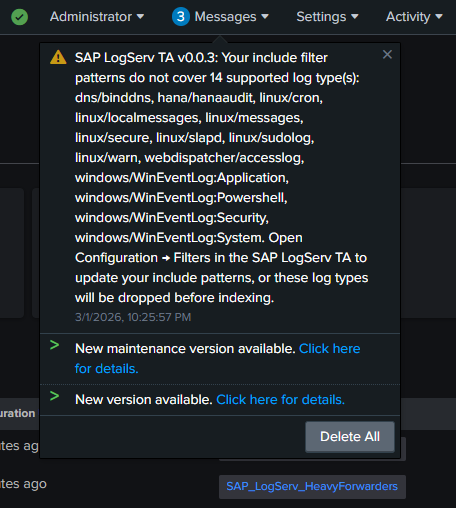
To resolve the notification:
- Open Configuration → Filters in the TA
- Review and update your include patterns to cover the new log types (or use
*/*to include everything) - Save
The banner clears automatically once all supported types are covered.
Troubleshooting
Filters Not Taking Effect (Single Instance)
- Verify filtering is enabled: Check the Enable Filtering checkbox
- Check
local/transforms.confin the app directory for the generated filter stanzas - Check
_internalfor errors:
index=_internal sourcetype=splunkd component=PersistentScript splunk_ta_sap_logserv
Filters Not Reaching Heavy Forwarders
- Verify the server class exists and has client targeting configured in Settings → Forwarder Management
- Verify deployment-apps has the filter configs:
cat /opt/splunk/etc/deployment-apps/splunk_ta_sap_logserv/local/transforms.conf
- Click Deploy to Forwarders and wait for phone-home
- Check HF configs:
cat /opt/splunk/etc/apps/splunk_ta_sap_logserv/local/transforms.conf
Deployment Server Not Detected
- The TA detects deployment servers by checking server roles and for connected deployment clients
- Verify your Heavy Forwarders are configured as deployment clients pointing to the DS
- Check with:
curl -sk -u admin:<password> \
  "https://localhost:8089/services/deployment/server/clients?output_mode=json&count=1"
Validation Error on Save
- Include patterns must not be empty when filtering is enabled — use
*/*to include all - Patterns must use
dir/subdirformat with only valid characters (letters, numbers,*,?,.,-,:,_) - Days in the Past must be a whole number between 0 and 3650
Time Filter Seems Off by a Day
The time filter epoch cutoff is refreshed once per day by a scripted input. After changing the Days in Past value, the cutoff regex is regenerated immediately on Save. If the daily refresh fails, the filter becomes slightly more restrictive (safer failure mode).
Cloud Provider Attribution
What It Does
The Configuration page has two tabs: Filters (covered above) and Cloud Provider. The Cloud Provider tab controls how the Data TA attributes each event to the cloud it was ingested from.
The Data TA stamps two indexed fields at index time on the bootstrap sap_logserv_logs sourcetype — the same WRITE_META mechanism it uses to preserve clz_dir and clz_subdir:
| Indexed field | Value | How it’s set | Configurable |
|---|---|---|---|
splunk_solution |
splunk_for_sap_logserv |
Always stamped on every event | No — ships active, no UI control |
cloud_provider |
aws / azure / (none) |
Stamped per the Cloud Provider dropdown | Yes — Configuration → Cloud Provider |
Both fields are written at index time on the Heavy Forwarder (or the indexer in single-instance mode), so they are available as indexed fields for tstats, accelerated searches, and raw-event filtering.
The splunk_solution Field (always-on)
Every event indexed through the Data TA carries splunk_solution = splunk_for_sap_logserv. This is a static attribution stamp — there is no UI control and nothing to configure. It identifies events that flowed through the Splunk for SAP LogServ pipeline, which is useful when the same index or Splunk instance also receives data from other solutions.
splunk_solution is distinct from vendor_product
The LogServ App also defines a per-sourcetype vendor_product search-time field (e.g., SAP HANA, SAP NetWeaver ABAP, SAP Web Dispatcher, ISC:Bind) that dashboards and CIM mapping rely on. That field describes which product produced a given event. splunk_solution is a separate, coarser stamp identifying the solution — this TA — that ingested it. The two coexist and do not collide.
The cloud_provider Field (dropdown-driven)
On the Cloud Provider tab, the Cloud Provider dropdown has three choices:
| Selection | Effect |
|---|---|
| Not set (default) | No cloud_provider value is stamped at index time. |
| AWS | Every event this TA processes is stamped cloud_provider = aws. |
| Microsoft Azure | Every event this TA processes is stamped cloud_provider = azure. |
Click Save to apply. On a single instance the change takes effect immediately. On a Deployment Server, click Deploy to Forwarders (see below) to push it to the Heavy Forwarders.
Relationship to the search-time default macro
The LogServ App ships a search-time macro, sap_logserv_cloud_provider_default_macro, defined as:
eval cloud_provider=coalesce(cloud_provider, "aws")
This macro defaults any event WITHOUT an indexed cloud_provider value to aws at search time, so legacy events that pre-date this feature (or events from a TA left at Not set) still report a provider in dashboards such as Multi-Cloud Overview. Setting the dropdown to AWS makes that attribution explicit at index time — preferable for any new Heavy Forwarder rollout, because the indexed field can then be used directly in raw-event searches, not only in macro-wrapped dashboard panels.
Relationship to the per-input _meta
The LogServ Azure add-on’s sap_logserv_azure_queue input carries _meta = cloud_provider::azure on its stanza automatically (the add-on injects it), so Azure events self-attribute regardless of the dropdown — see the Azure Setup Guide. The Cloud Provider dropdown is the simpler, Data-TA-managed way to stamp the same value on every event a Heavy Forwarder’s Data TA processes (useful for the AWS side, or as a single-cloud override). For a Heavy Forwarder that ingests from a single cloud, the dropdown is the recommended mechanism.
Mixed-cloud single Heavy Forwarder
The Cloud Provider dropdown is a TA-wide (per-HF) setting — it stamps the same value on every event that HF’s Data TA processes. If a single Heavy Forwarder ingests from BOTH AWS S3 AND Azure Blob Storage, the dropdown cannot tell the two channels apart — and because the sap_logserv_azure_queue input stanza already carries _meta = cloud_provider::azure, setting the dropdown to aws would tag Azure events with BOTH values. In that case, leave the dropdown at Not set and attribute per input instead: set _meta = cloud_provider::aws on the Splunk_TA_aws SQS-based S3 input(s); the sap_logserv_azure_queue input already carries _meta = cloud_provider::azure. With the dropdown at Not set the TA adds no cloud_provider stamp of its own, so each input’s _meta value is the only one written.
Deploy to Forwarders (Deployment Server)
The Cloud Provider tab uses the same deployment flow as the Filters tab. When you Save on a Deployment Server, the TA writes the selection into its local/transforms.conf and mirrors it to the deployment-apps/ copy. Click Deploy to Forwarders to trigger a scoped reload of the SAP_LogServ_HeavyForwarders server class; the Heavy Forwarders pick up the change on their next phone-home (typically 30–60 seconds). This is identical to the Filters-tab deploy procedure described earlier on this page — same server class, same button.
AWS Lambda-Based Filtering
Overview
The Lambda-based filtering approach filters S3 event notifications in AWS before they reach Splunk. A Lambda function sits between the cross-account SQS queue (in the SAP ECS account) and a local SQS queue (in your Secondary account). It evaluates each S3 event notification against include/exclude path patterns and a time-based cutoff, forwarding only matching notifications to the local queue that Splunk polls.
When to use Lambda-based filtering
- You want to reduce the number of S3 GET requests Splunk makes (cost savings in high-volume environments)
- You want to reduce SQS message volume before it reaches Splunk
- You want filtering to happen at the AWS pipeline level as an additional layer
How It Works
SAP ECS Account                    Your Secondary Account
+--------------+    +-----------+    +------------+    +-----------+
| S3 Bucket    |--->| SQS Queue |--->|   Lambda   |--->| Local SQS |--->  Splunk HF
| (LogServ)    |    | (cross)   |    |  (filter)  |    |  Queue    |
+--------------+    +-----------+    +------------+    +-----------+
                                       | Drops non-
                                       | matching
                                       v notifications
The Lambda function evaluates the S3 object key in each notification to extract clz_dir and clz_subdir values, then applies the same fnmatch pattern syntax used by the native TA filtering.
Setup Options
There are two ways to deploy Lambda-based filtering:
New Deployment (S3 Filter Setup)
If you are setting up from scratch, follow the AWS Remote S3 Filter Setup Guide. The CloudFormation template creates all required AWS resources (Lambda, local SQS queue, DLQ, IAM permissions) in a single deployment.
Migration from Existing S3 Connect Deployment
If you already have a working S3 Connect deployment and want to add Lambda-based filtering, follow the AWS Remote S3 Connect to Filter Migration. The Python migration script adds the Lambda resources to your existing IAM infrastructure without recreating it.
Lambda Filter Settings
The Lambda function uses three environment variables for its filter configuration:
| Variable | Description | Example |
|---|---|---|
DAYS_IN_THE_PAST |
Drop notifications for objects older than this many days | 7 |
INCLUDE_FILTERS |
Comma-separated fnmatch patterns for paths to include | linux/*,hana/* |
EXCLUDE_FILTERS |
Comma-separated fnmatch patterns for paths to exclude | linux/cron,linux/slapd |
These use the same clz_dir/clz_subdir pattern format as the native TA filters. If you are using both approaches, keep the patterns aligned for consistent behavior.
Comparing the Two Approaches Side by Side
Consider a scenario where you want to ingest only hana/* and linux/messages logs from the last 7 days:
Native TA filtering only (simplest)
- Setup: Configure the Filters tab with include
hana/*, linux/messagesand days in past7 - What happens: All S3 objects are downloaded by Splunk, but unwanted events are dropped at index time via TRANSFORMS before consuming license
- Pros: No extra AWS resources, managed from Splunk Web, upgrade notifications, works with any deployment scenario
- Cons: Splunk still downloads and parses all S3 objects before filtering
Lambda filtering only
- Setup: Configure Lambda with the same include/exclude/days patterns
- What happens: The Lambda drops S3 event notifications for unwanted objects before Splunk ever sees them. Splunk only downloads matching objects from S3
- Pros: Reduces S3 GET request costs, lower Splunk ingestion overhead
- Cons: Requires Lambda + local SQS + DLQ in AWS, no upgrade notifications, filter changes require updating Lambda environment variables
Both together (defense-in-depth)
- Setup: Same patterns configured in both Lambda and the Filters tab
- What happens: Lambda filters at the AWS level first, then native TA filtering catches anything that slips through at the Splunk level
- Pros: Maximum coverage, safety net if either filter is misconfigured
- Cons: Two places to maintain filter configurations
Next Steps
Return to the Setup Guides Overview for AWS data pipeline configuration, or see the Developer Reference for technical internals.