SAP LogServ on Azure — Setup Guide
This page covers ingesting LogServ data from Microsoft Azure Blob Storage using the standalone Splunk TA for SAP LogServ on Azure add-on (splunk_ta_sap_logserv_azure) and its sap_logserv_azure_queue modular input — the Azure twin of Splunk_TA_aws’s SQS-Based S3 input. An Azure Event Grid subscription drops a BlobCreated notification onto a Storage Queue; this input consumes the queue, fetches each named blob over a SAS, and emits its NDJSON. This is the model SAP’s LogServ-on-Azure collector uses (Storage Queue notifications). You install this small, first-party add-on on each Heavy Forwarder — the same deployment model as the Splunk Add-on for AWS — and the LogServ Data TA on the same HF provides the downstream sourcetype routing, filtering, and stamping. The downstream pipeline (sourcetype routing, filtering, dashboards, ES integration) is identical to the AWS S3 path.
The Azure infrastructure is provided by SAP — you only install the add-on and configure the input
In a RISE / SAP ECS deployment the storage account, blob container, Storage Queue, Event Grid subscription, and SAS are all provisioned and managed by SAP in the SAP ECS Azure account. You do not create or configure anything in Azure. Your only tasks are to install the splunk_ta_sap_logserv_azure add-on on each Heavy Forwarder and create a Splunk input on it — one per Azure landscape (most deployments have a single landscape, hence one input; you can define several on the same HF if you ingest from more than one — see Multiple landscapes / fleets), using a small set of parameter values that you obtain from your SAP support contact — see Parameters to obtain from SAP.
Current release: LLM functionality intentionally disabled pending review
The current release ships with the AI Assistant’s LLM-driven path disabled at compile time pending internal review. The setup procedure on this page applies in full regardless. See Templates-only Build Flag.
Architecture overview
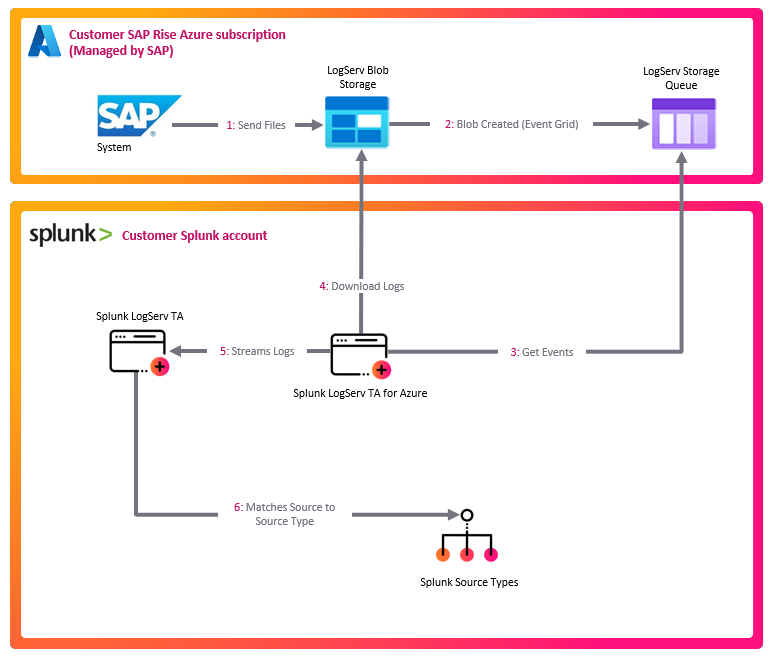
SAP LogServ RISE-ECS
  └─> writes NDJSON.gz blobs to Azure Blob Storage under the logserv/ prefix
        └─> Azure Event Grid subscription (Microsoft.Storage.BlobCreated)
              └─> Azure Storage Queue (one message per new blob)
                    └─> [Azure TA: sap_logserv_azure_queue]  (runs on the Heavy Forwarder)
                          ├─ reads the queue, fetches each blob over a SAS, gunzips, splits NDJSON
                          └─> emits via EventWriter, sourcetype=sap_logserv_logs
                                └─> [LogServ Data TA pipeline]  (same Heavy Forwarder):
                                      transforms.conf routes by clz_dir/clz_subdir,
                                      Configuration -> Filters nullQueue, _time drop,
                                      splunk_solution / cloud_provider stamping
                                        └─> forwarded to the Indexer
                                              └─> dashboards + ES integration
Everything from the LogServ blob writer down through the Storage Queue lives in the SAP ECS Azure account and is managed by SAP. The Azure TA’s sap_logserv_azure_queue input — the only component you install and configure — runs on your Heavy Forwarder, consumes the queue SAP exposes to you, and hands its events to the LogServ Data TA (also on that HF) for routing/filtering/stamping. This is exactly how Splunk_TA_aws and the Data TA cooperate for the AWS S3 path.
Why EventWriter, not HEC: the input runs on the Heavy Forwarder and emits through the HF’s native index-time pipeline, so every existing LogServ Data TA feature — clz_dir/clz_subdir sourcetype routing, the Configuration → Filters nullQueue filtering, the days_in_past / _time drop, and the splunk_solution / cloud_provider stamping — applies to Azure events unchanged, exactly as it does to AWS S3 events. The input is stdlib-only (Azure Storage REST over urllib — no Azure SDK), so it adds no AArch64 / native-binary burden and is Splunk Cloud-clean.
Prerequisites
Provided by SAP (in the SAP ECS Azure account — you obtain the values, you do not build the resources):
- An Azure Storage Account holding the LogServ container (blobs under the
logserv/prefix — same path convention as AWS S3:<container>/logserv/<clz_dir>/<clz_subdir>/<YYYY>/<MM>/<DD>/<file>.json.gz). - A Storage Queue in that account, fed by an Event Grid subscription that routes
Microsoft.Storage.BlobCreatedevents to it. - A SAS that is both blob-readable and queue-processable (see What the SAP-provided SAS must cover).
Obtain the storage account name, the queue name, and the SAS from your SAP support contact — see Parameters to obtain from SAP.
On your side (each Heavy Forwarder that will ingest Azure data):
- LogServ Data TA
0.0.6+ installed on the Heavy Forwarder (it provides the index-time routing/filtering/stamping; see Installing the Data TA). The Data TA is normally distributed by the Deployment Server. - Splunk TA for SAP LogServ on Azure (
splunk_ta_sap_logserv_azure)0.0.6+ installed on the same Heavy Forwarder (see Install the Azure add-on). It registers thesap_logserv_azure_queueinput kind. The input is inert until you create an input instance. - Network egress from the Heavy Forwarder to
<account>.blob.core.windows.netand<account>.queue.core.windows.net(port 443 / HTTPS).
Compact JSON format required
Each blob is gzipped NDJSON (one event per line). The index-time routing transforms assume compact JSON (no whitespace after :). The SAP LogServ collector emits compact JSON natively, so no action is required on your side. (For reference: pretty-printed JSON would bypass the transforms and land as sourcetype=sap_logserv_logs, breaking dashboards.)
Parameters to obtain from SAP
You do not create any Azure resources. SAP has already provisioned the storage account, container, queue, and Event Grid subscription in the SAP ECS Azure account. Contact your SAP support contact to obtain the following values for your environment, then plug them into the Splunk input (Configure the input):
| Parameter | Input field | Description |
|---|---|---|
| Storage account name | account_name |
The Azure Storage account holding the LogServ container (^[a-z0-9]{3,24}$). |
| Storage Queue name | queue_name |
The queue receiving the Event Grid BlobCreated notifications. |
| SAS token | sas_token |
An account SAS scoped for both blob read/list and queue process/delete (see below). Treat it as a secret. |
The blob container name and logserv/ prefix are already covered by the SAS and the queue — they are not separate input fields. The account name also determines the two endpoints your Heavy Forwarder must reach (<account>.blob.core.windows.net and <account>.queue.core.windows.net).
What the SAP-provided SAS must cover
The input fetches blobs and reads/deletes queue messages with the single SAS SAP gives you, so that SAS must cover both services. Confirm with your SAP support contact that the SAS includes:
| SAS field | Must include | For |
|---|---|---|
ss (services) |
b (blob) and q (queue) |
blob fetch + queue ops |
srt (resource types) |
s c o (service/container/object) |
account-SAS resource scope |
sp (permissions) |
r l (blob read/list) and p d/u (queue process/delete/update) |
fetch blobs + consume queue |
You can decode a SAS string to check its scope before configuring the input:
echo "$SAS" | tr '&' '\n' | grep -E '^(ss|srt|sp|se)='
If the SAS is queue-only
If ss lacks b, blob fetches fail with HTTP 401/403 and the input logs it explicitly: “blob read forbidden … the SAS likely lacks Blob-read permission or has expired.” The decisive question for your SAP support contact is “is the LogServ SAS Blob-readable, or queue-only?” If it is queue-only, you will need a second, blob-read credential from SAP.
Install the Azure add-on
Install splunk_ta_sap_logserv_azure-0.0.6.tar.gz directly on each Heavy Forwarder that will ingest Azure data — exactly the tier where Splunk_TA_aws is installed for the AWS path.
- Splunk Web → Manage Apps → Install app from file → upload the tarball, or
/opt/splunk/bin/splunk install app /path/splunk_ta_sap_logserv_azure-0.0.6.tar.gz, or- configuration management (Ansible / Puppet / Chef) drops the app into
etc/apps/, thenchown -R splunk:splunkand restart.
Do NOT distribute the Azure add-on via the Deployment Server
Install it directly on each Heavy Forwarder — never as a deployment-app. The input’s SAS is stored, encrypted, in the add-on’s own local/passwords.conf; a Deployment Server push replaces the app’s local/ directory, which would wipe the per-HF SAS. (This is the same reason Splunk_TA_aws is configured per-HF rather than DS-distributed. It is a deliberate change from earlier LogServ builds that bundled this input inside the DS-managed Data TA.) The Data TA stays DS-managed as before — only the Azure add-on is per-HF.
After installing + restarting, the sap_logserv_azure_queue input kind is registered and the add-on’s Inputs page is available under Apps → Splunk TA for SAP LogServ on Azure.
Configure the input
On each Heavy Forwarder, create one input instance for your Azure landscape. The SAS is encrypted into the add-on’s own local/passwords.conf and is not Deployment-Server-managed — it survives restarts and Data-TA pushes with no system/local relocation.
Via Splunk Web (per Heavy Forwarder)
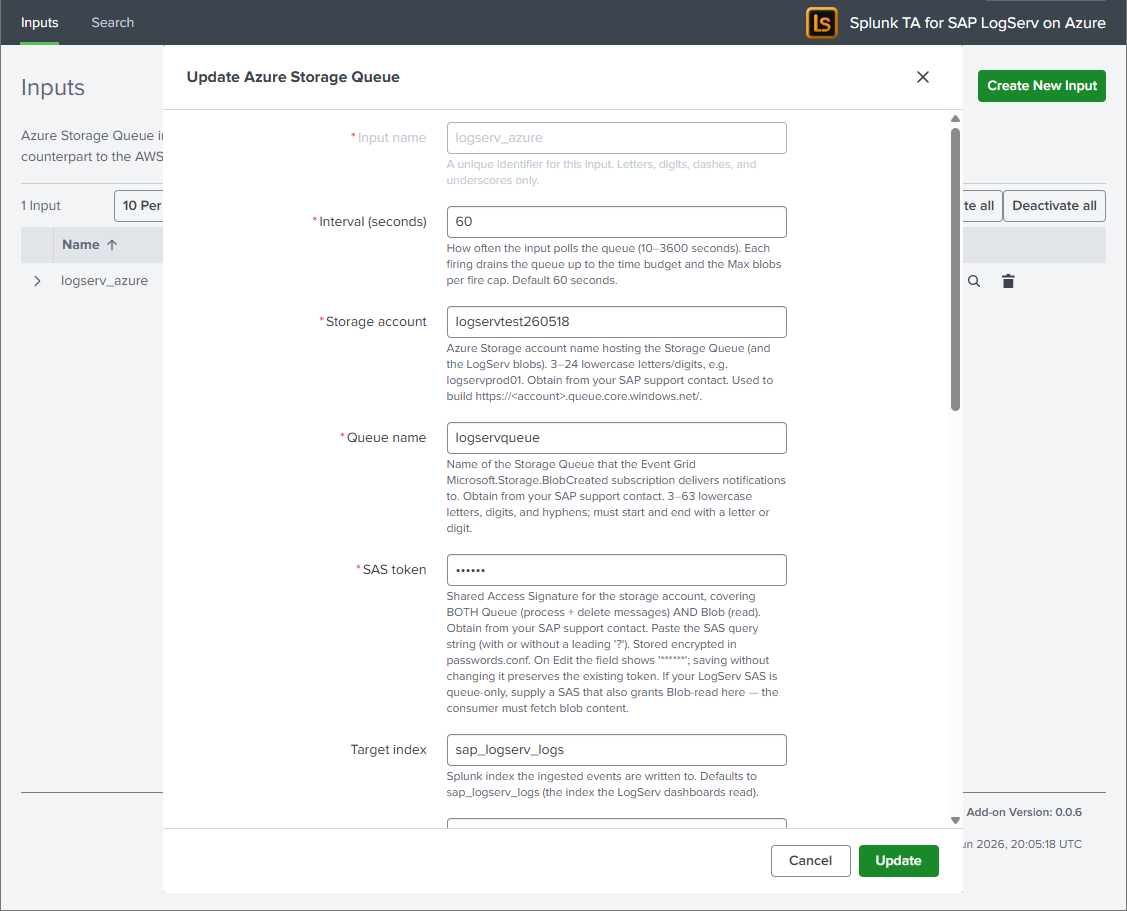
Splunk Web → Apps → Splunk TA for SAP LogServ on Azure → Inputs → Create New Input → Azure Storage Queue, and fill in the fields below with the values you obtained from SAP. (For a second landscape on the same HF, use the Inputs table’s Clone action and give it a new name — the SAS is not carried on clone, so re-enter it.)
Via REST (scriptable, per Heavy Forwarder)
# Write the SAS to a single-line temp file (no trailing newline), then create the input:
curl -sk -u admin:<pwd> -X POST \
  https://localhost:8089/servicesNS/nobody/splunk_ta_sap_logserv_azure/splunk_ta_sap_logserv_azure_sap_logserv_azure_queue \
  --data-urlencode name=logserv_azure \
  --data-urlencode account_name=<storage-account> \
  --data-urlencode queue_name=logservqueue \
  --data-urlencode index=sap_logserv_logs \
  --data-urlencode event_sourcetype=sap_logserv_logs \
  --data-urlencode interval=60 \
  --data-urlencode sas_token@/tmp/azure_sas.txt
rm -f /tmp/azure_sas.txt
The resulting stanza in the add-on’s local/inputs.conf looks like:
[sap_logserv_azure_queue://logserv_azure]
account_name = <storage-account>
queue_name = logservqueue
index = sap_logserv_logs
event_sourcetype = sap_logserv_logs
interval = 60
disabled = 0
(The sas_token is not written to inputs.conf — it is stored encrypted in the add-on’s own local/passwords.conf.)
| Field | Default | Notes |
|---|---|---|
account_name |
— | Storage account name from SAP (^[a-z0-9]{3,24}$). |
queue_name |
— | The Storage Queue name from SAP (receives Event Grid notifications). |
sas_token |
— | The SAS from SAP (blob + queue scoped). Encrypted credential, stored in the add-on’s local/passwords.conf, never in inputs.conf. |
index |
sap_logserv_logs |
Target index. Does not affect parsing — the Data TA’s index-time pipeline keys on the sourcetype, not the index. You may point it at a custom index, but the dashboards query through the sap_logserv_idx_macro macro, so update that macro to match (see caveat below). |
event_sourcetype (UI label Sourcetype) |
sap_logserv_logs |
Fixed at sap_logserv_logs. The add-on hard-codes this sourcetype (it is not read from the stanza), and the field is shown read-only when editing the input. Leave it at the default. |
interval |
60 |
Seconds between firings. Each firing drains the queue within a time budget (min(240, interval×0.9)). |
batch_size |
32 |
Queue messages dequeued per request (1–32, the Azure max). |
visibility_timeout |
300 |
Seconds a dequeued message is hidden while processing (30–604800). |
max_blobs_per_fire |
500 |
Cap on blobs ingested per firing (backlog safety valve). |
poison_threshold |
5 |
A message redelivered more than this many times is dead-lettered / dropped. |
dead_letter_queue |
(empty) | Optional queue name for poison messages (Storage Queue has no native DLQ). |
include_filters / exclude_filters |
(empty) | Optional substring filters on the blob subject (beyond the built-in logserv match). |
verify_ssl |
1 |
TLS verification for Azure REST calls. |
Sourcetype is fixed; the Index is yours to change
The Sourcetype is effectively fixed at sap_logserv_logs — the add-on always emits it (the value is hard-coded in the input, not read from the stanza), and the field is shown read-only (disabled) when editing an existing input. This is deliberate: the Data TA’s index-time routing, Filters nullQueue, _time drop, and splunk_solution / cloud_provider stamping all key on sourcetype = sap_logserv_logs (props.conf stanzas match on sourcetype, not index), so it must never vary.
The index, by contrast, may be changed safely — parsing is unaffected (events are routed, filtered, and stamped identically no matter which index they land in). You may point it at a custom index (for example a per-customer index such as sap_logserv_logs_con01). The only follow-up is dashboard visibility: the dashboards and rollups search through the sap_logserv_idx_macro macro (default index="sap_logserv_logs"), so override that macro in the App’s local/macros.conf to match your index, or the dashboards won’t find the data.
cloud_provider attribution
The input stamps every event it emits with the indexed field cloud_provider=azure (via _meta = cloud_provider::azure on the generated stanza), so search-time queries and the Multi-Cloud Overview dashboard can distinguish Azure-sourced from AWS-sourced data.
On a Heavy Forwarder that ingests BOTH AWS and Azure
The Data TA’s Configuration → Cloud Provider dropdown stamps cloud_provider TA-wide at index time. If it is set to aws on a forwarder that also runs this Azure input, that index-time stamp co-fires with the input’s per-event _meta=azure, leaving cloud_provider multivalued (azure + aws) on the Azure events. For correct per-channel attribution on a mixed forwarder, set the Cloud Provider dropdown to “Not set” and add _meta = cloud_provider::aws to the Splunk_TA_aws SQS-S3 input — then each input self-attributes. On a single-cloud forwarder, the dropdown alone is simplest. See Configuring Filters → Cloud Provider Attribution.
Multiple landscapes / fleets
- Multiple Azure landscapes on one HF: create one input instance per landscape (different
account_name/queue_name), using the Inputs table’s Clone action. The per-instance credential is keyed by the input name; re-enter the SAS on each (clone never carries secrets). - A fleet of Heavy Forwarders: repeat the install + input creation on each HF. For zero-touch fleets, config management can drop the add-on into
etc/apps/and seed the SAS via the REST call above (it encrypts under each HF’s ownsplunk.secret). Do not add the add-on to the Deployment Server’sdeployment-apps/.
Scaling one queue by cloning — supported (like the AWS add-on), but at-least-once
Separate input instances are normally for different queues (different queue_name). You can also point several identical inputs at the same queue to raise throughput — this is the same competing-consumer pattern Splunk’s AWS add-on uses to scale its SQS-Based S3 input: the queue’s visibility lease hands each message to one consumer at a time, so N inputs fetch and ingest N batches of blobs in parallel (across one HF, since the input is not single-instance, or across several HFs). Understand the trade-off first:
- A single input is exactly-once even under redelivery — its per-input dedup checkpoint (
<input_name>.dedup.json) skips an already-ingested blob if a message reappears. - Cloned same-queue inputs don’t share that checkpoint, so they fall back to at-least-once (the same guarantee as the AWS SQS-S3 input). If a blob’s fetch + ingest exceeds the message’s
visibility_timeout(default 300 s), the message reappears and another input re-ingests it → duplicate events. The guard is identical to the AWS pattern: setvisibility_timeoutcomfortably above your worst-case per-message processing time. (dequeue_countis the queue’s server-side, shared counter, so thepoison_thresholddecision stays coordinated across the clones — but unlike SQS, Azure Storage Queue has no native dead-letter/redrive, so poison handling is the TA’s client-sidepoison_threshold+ optionaldead_letter_queue.)
For typical LogServ volumes a single input already keeps up (it drains up to max_blobs_per_fire blobs per firing). Prefer raising batch_size / max_blobs_per_fire or lowering interval on one input before cloning; clone same-queue inputs only when one input genuinely can’t keep up, and raise visibility_timeout when you do.
Reliability behavior
- At-least-once + dedup. A queue message is deleted only after its blob ingests successfully; each blob is deduplicated by
url|etagin a checkpoint sidecar, so a redelivered message re-ingests nothing. - Transient failures leave the message. A 5xx / network error on a blob fetch leaves the message on the queue (it redelivers after the visibility timeout); already-ingested blobs in that message are no-ops on retry.
- Blob-read denied (401/403) leaves the message and logs loudly — this is the queue-only-SAS signal (get a blob-readable credential from SAP, the message reprocesses).
- Poison messages (redelivered more than
poison_thresholdtimes) are moved todead_letter_queueif configured, else dropped, so one permanently-bad blob can’t loop forever.
Historical backfill
Queue-driven ingest is forward-only by nature — Event Grid fires only on new BlobCreated events, so once SAP’s subscription is live the input ingests everything written from that point on, but does not replay blobs that already existed. There is no queue-native historical backfill yet; a one-time bulk load of pre-existing blobs is a roadmap item. If you need to seed history, contact your Splunk team. The index-time days_in_past / _time filter applies to any backfilled events the same way it does to live ingest.
Validation
Confirm the input is registered and firing (run on the Heavy Forwarder):
curl -sk -u admin:<pwd> \
  "https://localhost:8089/servicesNS/nobody/splunk_ta_sap_logserv_azure/splunk_ta_sap_logserv_azure_sap_logserv_azure_queue?output_mode=json"
Watch the input log on the HF:
sudo tail -f /opt/splunk/var/log/splunk/splunk_ta_sap_logserv_azure_queue.log
# look for:  Input 'logserv_azure' done: messages=N blobs=N events=N dups=N deleted=N ...
Search the indexer (events route to per-source sourcetypes just like AWS):
index=sap_logserv_logs cloud_provider=azure _index_earliest=-1h | stats count by sourcetype
Troubleshooting
| Symptom (in the input log) | Cause | Fix |
|---|---|---|
SAS token not found in passwords.conf; skipping |
No credential for this input name on this host | Re-enter the SAS on this HF (Inputs tab → Edit, or the REST call above). The SAS lives in the add-on’s own local/passwords.conf; it is not affected by Deployment-Server pushes. |
queue read failed (... 403 ...) |
SAS lacks queue process/delete, or expired | Ask SAP for a SAS with sp ⊇ p/d and a future se=. |
blob read forbidden (HTTP 401/403) |
SAS is queue-only (no blob read) or expired | Ask SAP for a blob-readable SAS (ss ⊇ b, sp ⊇ r); the message is left for retry. |
done: messages=0 every firing, but blobs exist |
The Event Grid subscription (SAP-managed) isn’t enqueuing, or the queue name is wrong | Confirm with your SAP support contact that the Event Grid subscription is active and the queue name is correct; verify network egress to <account>.queue.core.windows.net. |
Input kind sap_logserv_azure_queue not listed / Inputs page missing |
The Azure add-on isn’t installed (or Splunkd wasn’t restarted) on this HF | Install splunk_ta_sap_logserv_azure on the HF and restart (see Install the Azure add-on). |
Next steps
- Confirm the LogServ App is installed on your Search Head
- Review the supported log types reference
- For Splunk Cloud Victoria considerations, see Splunk Cloud Victoria Notes