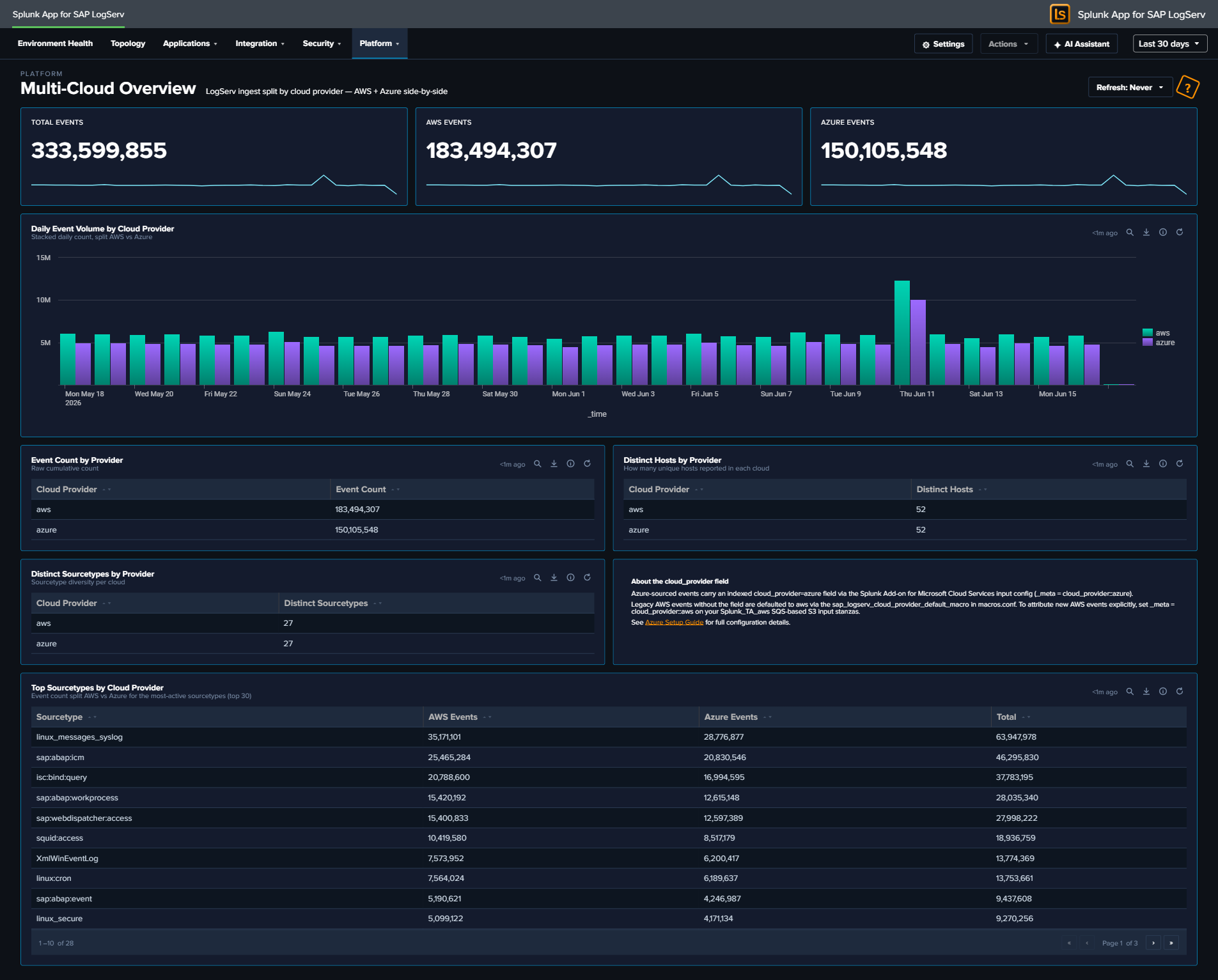
Multi-Cloud Overview
Why This Dashboard Matters
The Multi-Cloud Overview dashboard answers the question: “Where is our LogServ data coming from, and is it balanced between cloud providers?” It splits ingest by the indexed cloud_provider field so admins running both AWS S3 and Azure Blob Storage ingest can confirm both pipelines are healthy and see relative volume at a glance.
Customers running a single cloud see the dashboard collapse cleanly to one provider (the unused-provider KPI shows 0, the other provider’s series carries the trend chart). Customers running both clouds — common during a migration or in a multi-region SAP landscape — see comparative KPIs + side-by-side trend so they can spot a stalled ingest channel before it becomes a visible gap in their other operational dashboards.
How cloud_provider is attributed
Azure-sourced events carry an indexed cloud_provider = azure field, set by the Splunk TA for SAP LogServ on Azure add-on’s sap_logserv_azure_queue input stanza via _meta = cloud_provider::azure (the add-on injects it automatically). Legacy AWS events without the field are defaulted to aws at search time via the sap_logserv_cloud_provider_default_macro (eval cloud_provider=coalesce(cloud_provider, "aws")). Every panel on this dashboard applies the macro so the AWS/Azure split is always meaningful regardless of when the events landed. To attribute new AWS events explicitly at ingest time (recommended for any new HF rollout), set _meta = cloud_provider::aws on your Splunk_TA_aws SQS-based S3 input stanzas — see the Azure Setup Guide for the full configuration pattern (the same pattern applies symmetrically to both clouds). Alternatively, the LogServ Data TA’s Configuration → Cloud Provider dropdown (AWS / Microsoft Azure / Not set) stamps cloud_provider on every event the TA processes — the simpler, TA-managed option for a Heavy Forwarder that ingests from a single cloud. See Configuring Filters → Cloud Provider Attribution.
Panels
- Total Events – Aggregate event count across BOTH ingest channels with a daily-volume sparkline. Useful as the baseline for comparing the two per-provider KPIs that follow.
- AWS Events – Event count where
cloud_provider = "aws"(includes events explicitly attributed at ingest time AND legacy events defaulted via the macro). Sparkline shows daily AWS-only volume. - Azure Events – Event count where
cloud_provider = "azure". Sparkline shows daily Azure-only volume. On a single-cloud-AWS install, this KPI shows0with a flat-zero sparkline. - Daily Event Volume by Cloud Provider – Stacked column chart showing daily event counts split AWS vs Azure. Each bar is the day’s total; the AWS and Azure segments stack to make the per-provider contribution visible. Useful for spotting day-over-day shifts (a sudden drop in one provider’s stack height while the other stays flat = that provider’s ingest stalled).
- Event Count by Provider – Two-row table with the raw cumulative event counts. The same data as the AWS Events / Azure Events KPIs but in tabular form so the per-provider ratio is easy to read.
- Distinct Hosts by Provider – Two-row table showing how many unique
hostvalues reported under eachcloud_provider. Confirms forwarder coverage across the cloud boundary. - Distinct Sourcetypes by Provider – Two-row table showing how many distinct sourcetypes have at least one event per provider. Useful for confirming both clouds are producing the full sourcetype mix (e.g., not just
linux_messages_syslogfrom Azure while AWS has the SAP stack). - About the cloud_provider field – Inline reference panel (not a search result) explaining how the field is set + linking to the Azure Setup Guide. Always visible as a customer-friendly reminder of the attribution mechanic.
- Top Sourcetypes by Cloud Provider – Wide table of the 30 most-active sourcetypes with per-provider columns (AWS Events / Azure Events / Total). The Total column is sorted descending so the high-volume sourcetypes lead. Useful for spotting per-sourcetype anomalies (e.g.,
sap:hana:auditis only appearing under one cloud when both should be producing it).
What to Look For
- Stalled ingest channel – If the Azure KPI sparkline goes flat-zero for the most recent 1–3 days while the AWS sparkline continues to climb (or vice versa), the affected channel’s input has likely stalled. Check the LogServ Azure add-on’s
sap_logserv_azure_queueinput on the Heavy Forwarder (or theSplunk_TA_awsS3 input for AWS) — the Azure input logs its per-firing summary tosplunk_ta_sap_logserv_azure_queue.log(Input '<name>' done: messages=N blobs=N events=N ...); for AWS check theS3Inputcomponent inindex=_internal sourcetype=splunkd. - Asymmetric sourcetype coverage – If both clouds report comparable total event counts but the Top Sourcetypes table shows one cloud with a narrow sourcetype mix (e.g., AWS only producing
sap:hana:auditwhile Azure produces 25+ sourcetypes), the AWS-side filter rules may be set to include-only rather than include-all. Check the Configure Filters page. - Unexpected appearance of
awsfrom Azure-only customer – If your environment is Azure-only but the AWS Events KPI shows non-zero values, it likely means some legacy events that pre-date the cloud_provider field landed without explicit attribution and the macro defaulted them toaws. This is benign for trend-reporting (the events are still real), but to keep the labeling accurate you can addcloud_provider::azureto those legacy events via a one-time backfill or simply let them age out per index retention. - Distinct Hosts count substantially lower than expected – If a single cloud’s “Distinct Hosts” count is much lower than the actual count of SAP hosts in that cloud, your add-on input config may be too narrow (wrong container prefix on the Azure side, wrong bucket prefix on the AWS side). Compare against your topology source-of-truth.
- Total Events ≠ AWS Events + Azure Events – This should never happen given the macro defaults legacy events to
aws. If you see a mismatch, check that thesap_logserv_cloud_provider_default_macromacro is loaded in your search head’smacros.conf(the LogServ App ships it indefault/macros.conf). Run| rest /services/configs/conf-macros | search title=sap_logserv_cloud_provider_default_macrofrom a Search Head to confirm.
Drill-Down Behavior
Every KPI sparkline and the Daily Event Volume chart respect the dashboard’s global time-range picker + the per-dashboard Refresh picker like any other LogServ App dashboard.
Tables on this dashboard are inventory views — they don’t yet wire click-to-drill-down behavior (because the natural drill destination would be a Splunk search filtered by cloud_provider which most customers will see directly via the macro on any dashboard).
Required Configuration
This dashboard works out of the box on any LogServ App install (it gracefully shows 0 for unused providers), but the data quality is governed by the upstream ingest config:
- For Azure ingest: the
_meta = cloud_provider::azureline is present on the[sap_logserv_azure_queue://...]stanza automatically (the LogServ Azure add-on injects it). See Azure Setup Guide. - For explicit AWS attribution (optional): either set the LogServ Data TA’s Configuration → Cloud Provider dropdown to AWS (stamps
cloud_provider = awson every event the TA processes — simplest for a single-cloud Heavy Forwarder), OR add_meta = cloud_provider::awsto eachfiltr2_logserv_s3_*SQS-based S3 input stanza inSplunk_TA_aws’slocal/inputs.conf(use this per-input form when one HF ingests from both clouds). Without either, AWS events get the value via the search-timesap_logserv_cloud_provider_default_macromacro — still correct for this dashboard, but the field is not indexed which means it can’t be used as a filter on raw-event searches outside this dashboard’s macro-wrapped panels. See Configuring Filters → Cloud Provider Attribution. - Macro must be present: the LogServ App’s
default/macros.confdefines[sap_logserv_cloud_provider_default_macro]withdefinition = eval cloud_provider=coalesce(cloud_provider, "aws"). If you’ve overriddenmacros.confin your local app directory, ensure this macro is still defined.
See Azure Setup Guide for the canonical setup procedure (including the cloud_provider attribution pattern that applies symmetrically to both clouds).